
Export your catalog to Optimizely Product Recommendations
Describes how to export your catalog to Optimizely Product Recommendations from Optimizely Commerce Connect.
To provide accurate and valuable recommendations for Optimizely Product Recommendations, export your catalog in Optimizely Commerce Connect to the Product Recommendations engine. Schedule the export job to run every 24 hours.
Products must meet the following requirements to be exported. If a product is missing any of these, the export ignores it.
- The product is in stock.
- The product has valid, non-expired prices.
- The product is published.
- The product has variants.
NoteYou can change the export behavior with a custom implementation of the
ICatalogItemFilterandICatalogFeedJobinterfaces.
You can also attach a log for the appropriate namespace for debugging:
<logger name="EPiServer.Personalization.Commerce" additivity="false">
  <level value="Info" />
</logger>
To export a catalog, start your site, enter admin mode, and launch the Export Product Feed scheduled job. If the job finishes with a successful status, your catalog is exported.
The scheduled job has two parts:
- Serialize the catalog to XML, compress it, and store it as a blob.
- Notify Optimizely Product Recommendations that a new catalog is available.
After Commerce Connect generates an export or feed, it calls Product Recommendations and passes a callback address and an authorization token. When the Product Recommendations engine has the resources to handle downloading the catalog, it calls the specified callback method and passes the token. If the callback method validates the token, the engine proceeds with the download.
The callback address is built using SiteDefinition.SiteUrl as the host and a static path. Find SiteDefinitions in CMS under Settings > Manage Websites. The correct SiteDefinition is found by matching the current scope's ID to a SiteDefinition ID.
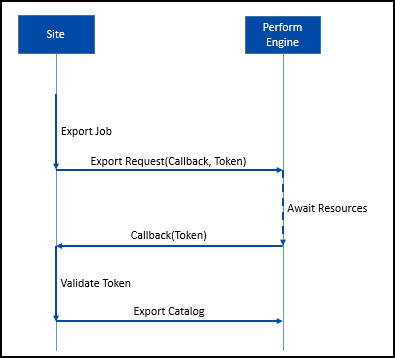
If you are not using scopes, Commerce Connect picks the SiteDefinition that has the * wildcard host entry. Only one is allowed. After Commerce Connect identifies the correct SiteDefinition, it chooses the primary host if available, or falls back to the SiteDefinition URL.
See Install and configure the native integration package for information on scopes.
Incremental export of the catalog feed
The Export Catalog Feed Incrementally job keeps Optimizely Personalization up to date with product changes without requiring the entire catalog to be exported. Because the job exports fewer products, it runs more quickly and performs better than the full Export Catalog Feed job. However, the incremental job does not replace the full Export Catalog Feed job because it does not include product deletions or edits to asset or inventory information.
By default, a maximum of 10,000 products are processed when the job runs. You can increase the maximum number of products with the MaxEntryProcessForIncrementalCatalogFeed setting.
Export Catalog Feed Incrementally job settings
You can modify the Export Catalog Feed Incrementally scheduled job in the appsettings.json file:
{
  "EPiServer": {
    "Commerce": {
      "CatalogFeedOptions": {
        "EnableEventDrivenCatalogFeed": true,
        "CatalogFeedBatchSize": 50,
        "CalculateDiscountPrices": true,
        "MaxEntryProcessForIncrementalCatalogFeed": 10000
      }
    }
  }
}EnableEventDrivenCatalogFeed– Indicates whether Commerce Connect tracks catalog changes for export with the scheduled job. The default isfalse. Iffalse, the job does not run.CatalogFeedBatchSize– Sets the batch size when processing the catalog feed. The default is50.CalculateDiscountPrices– Calculates discounted prices for the feed. The default istrue.MaxEntryProcessForIncrementalCatalogFeed– The maximum number of products to process when the scheduled job runs. The default is10000.
Updated 2 months ago