
Returns and exchanges
View, process, and cancel order returns and create exchange orders with refunds.
NoteIn roadmap communications, Order Management is referred to as the CSR Portal.
This topic describes how to view, process, and cancel order returns on the Order Management page, and how to process exchange orders.
Returns
Process an order return and refund
Prerequisite: The item's shipment status is Shipped.
-
Select Orders from the Order Management page.
-
Select the order whose items you want to return.
-
Open the Form Details tab.
-
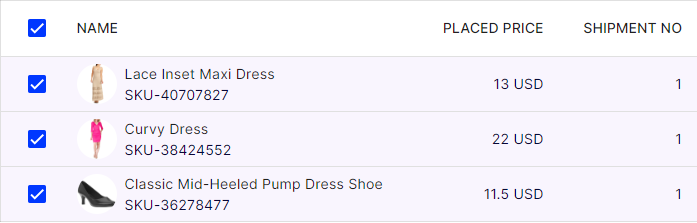
Select the items you want to return. Or, click the item's context menu, then Create Return.
-
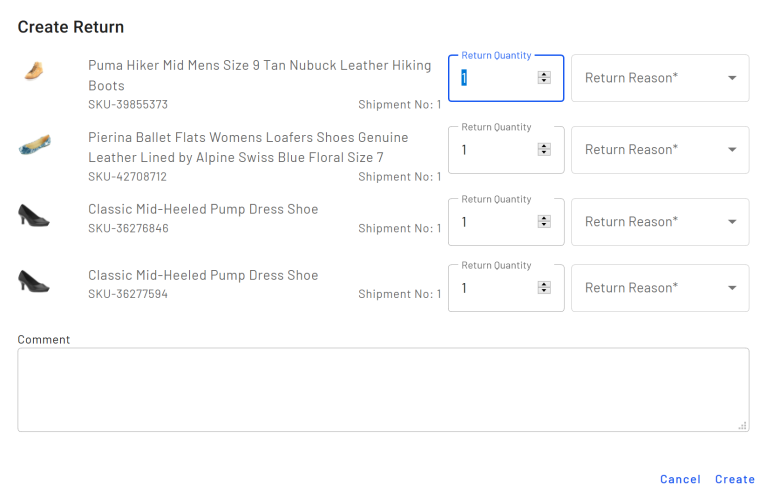
Click Create Return. A window displays, prompting you to choose a Return Quantity, Return Reason, and optional text comment for each item.
-
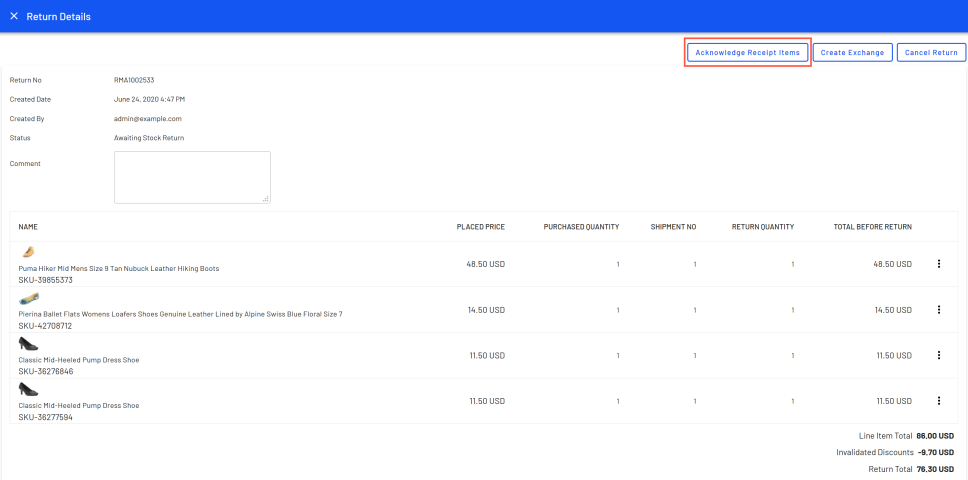
Click Create. A page displays with the return information.
-
If everything is correct, click Acknowledge Receipt Items.
-
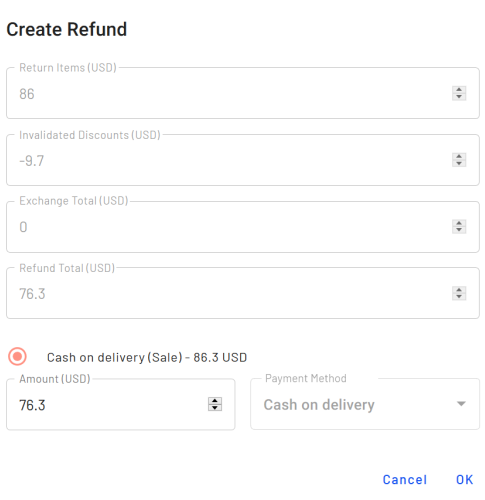
Click Complete Return. The Create Refund page displays.
-
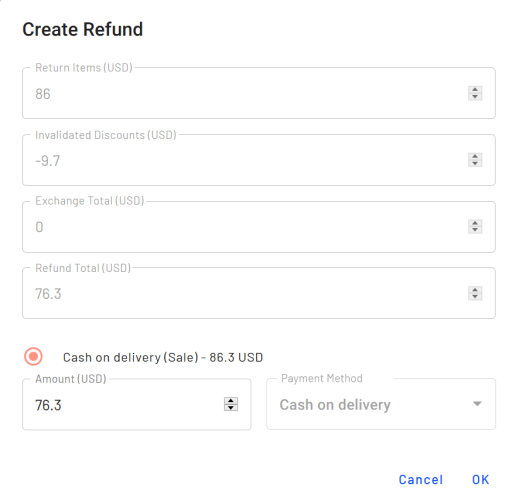
Verify that the refund amount is correct, select a payment method, and click OK. If necessary, adjust the refund amount, but it cannot exceed the original charge.
View order returns
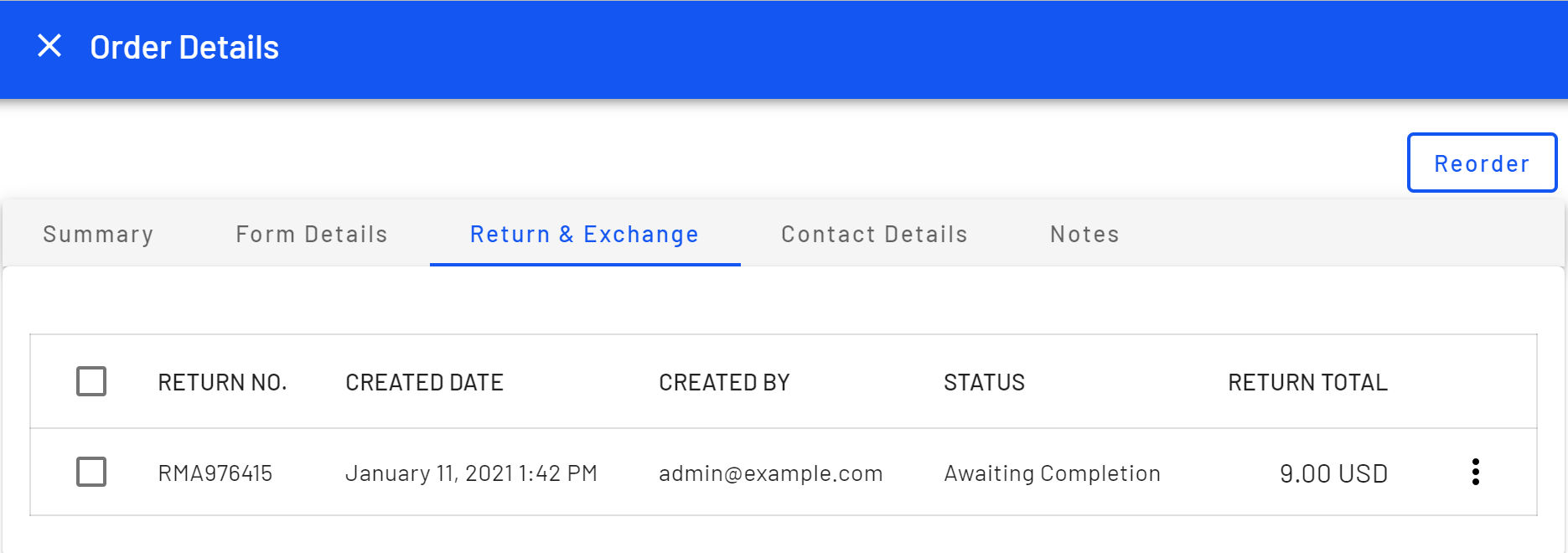
To view returns on the Order Management page, click Orders > select a Completed purchase order > Return and Exchange. Returns made against the order display. Click a return, then View on the context menu to see its details.
Cancel an order return
- Select Orders from the Order Management page.
- Select the order whose returned items you want to cancel.
- Open the Return and Exchange tab.
- Select the order whose return you want to cancel. To view the items being returned, open the option menu (...) and choose View.
- Click Cancel Return.
Exchanges
Process an exchange order
Create an exchange order if a customer wants to receive the same item or a different item as full or partial compensation for a return. For example, a customer returns a jacket worth $50 because it has a broken zipper and wants to exchange it for another version of the same jacket. Or, a customer returns a jacket worth $50, wants a shirt worth $25, and a refund of $25.
- If the amount of the exchanged items is less than the original order, the customer receives a refund using the original order's payment method.
- If the amount of the exchanged items is greater than the original order, the customer is charged the additional amount using the original order's payment method.
The Order Management page calculates the refund amount (if any). If the CSR changes the refund amount, a warning displays, but the CSR can complete the transaction.
The status of an exchange order is Awaiting Exchange. When you complete the return, the status changes to In Progress.
Create an exchange order if you received the returned items
-
Select a Completed order and click the Form Details tab.
-
Under Line Items, select items that you want to exchange.
-
Click Create Return.
-
Select the Return Quantity if necessary.
-
Submit a Return Reason and an optional comment.
-
Click Create.
-
Click Acknowledge Receipt Items.
-
Click Create Exchange. The Prepare Order page displays.
-
Under Shipments, select the shipment and choose Edit from the context menu.
-
Enter the customer's shipping address and shipping method, then click Save.
-
Click Add Line Items.
-
Add the items, quantity, and price that the customer receives as an exchange for the returned items.
-
Click Add Line Item.
-
Click Create Order. An exchange order is created. Its number begins with EO.
-
Click Go to original order.
-
Click the Return & Exchange tab.
-
Select the return order and click View on the context menu.
-
Click Complete Return.
-
If necessary, modify the refund amount.
-
Click OK.
Create an exchange order if you have not yet received the returned items
-
Select a Completed order and click the Form Details tab.
-
Under Line Items, select items that you want to exchange.
-
Click Create Return.
-
Select the Return Quantity if necessary.
-
Submit a Return Reason and an optional comment.
-
Click Create. The Return Details page displays.
-
Click Create Exchange.
-
On the Prepare Order page, under Shipments, select the shipment and choose Edit from the context menu.
-
Enter the customer's shipping address and shipping method, then click Save.
-
Click Add Line Items.
-
Add the items, quantity, and price that the customer receives as an exchange for the returned items.
-
Click Add Line Item.
-
Click Create Order. An exchange order is created. Its number begins with EO.
-
When you receive the returned items, open the original order.
-
Click the Return & Exchange tab.
-
Select the return order.
-
Click Acknowledge Receipt Items.
-
On the Order Details page, select the return order and click View from the context menu.
-
Click Complete Return.
-
If necessary, modify the refund amount.
-
Click OK.
View an exchange order
-
From the Order Management page, click Orders and select the original order.
-
Click the Return & Exchange tab.
-
Select the returned item.
-
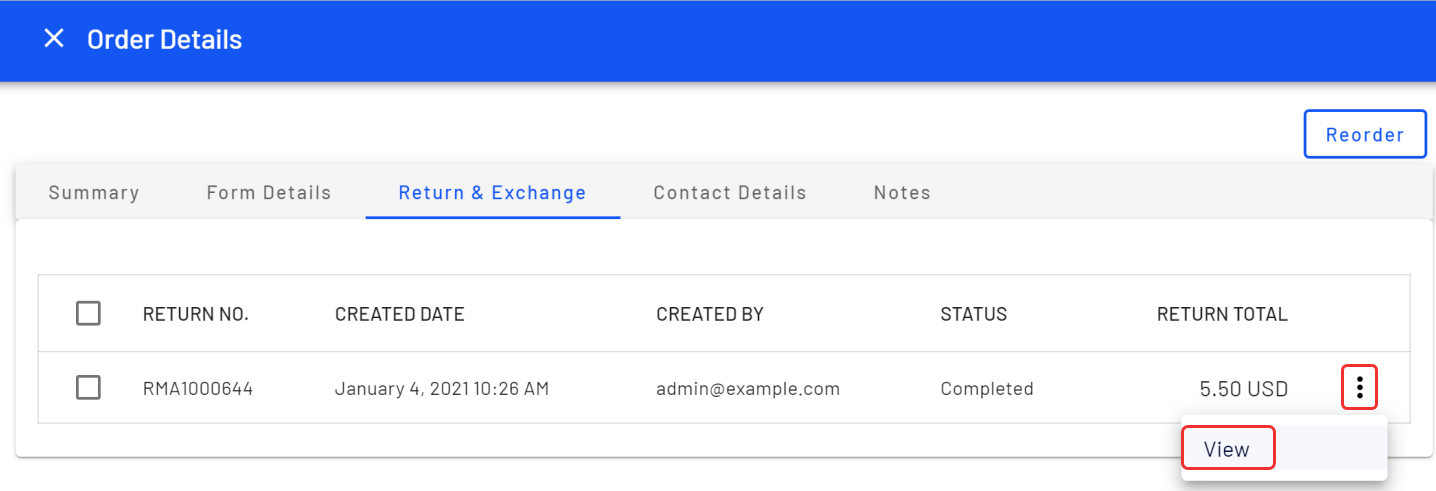
Select View from the option menu (...).
-
Click View Exchange. On the Summary tab, in the top left, the exchange order number displays in the Order Number field.
View an exchange order's parent order
-
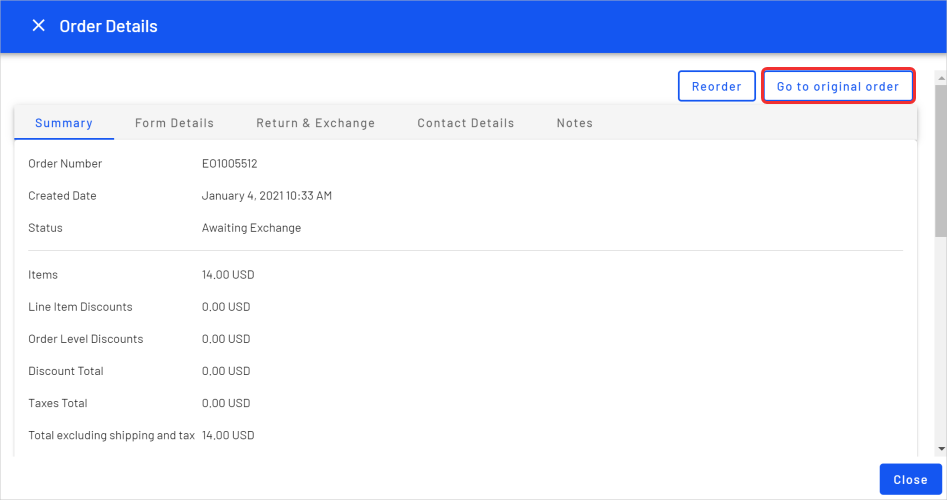
From the Order Management page, click Orders and select the exchange order. The Order Details page displays.
-
Click Go to original order.
Updated 2 months ago