
Shipping providers
Create and manage shipping providers, parameters, and packages for carrier rate calculation.
Shipping providers are the carrier integrations or calculation engines your system uses to determine shipping rates and options at checkout. Each provider connects your storefront to a specific rate logic, whether a third-party carrier API or a custom internal gateway. Common scenarios include:
- Carrier API integration – Register a provider for each carrier (for example, UPS, FedEx, USPS) to enable real-time rate lookups at checkout based on package dimensions, weight, and destination.
- Custom rate gateways – Use a generic or weight or jurisdiction-based gateway when you manage your own rate tables rather than pulling live rates from an external carrier.
- Multi-carrier setups – Define multiple providers so customers can choose between carriers or so your system can select the lowest-cost option automatically.
- Provider-level package assignment – When created, a provider can be associated with specific shipping packages, scoping which container types are offered through that carrier.
Go to Settings > Shipping Providers.
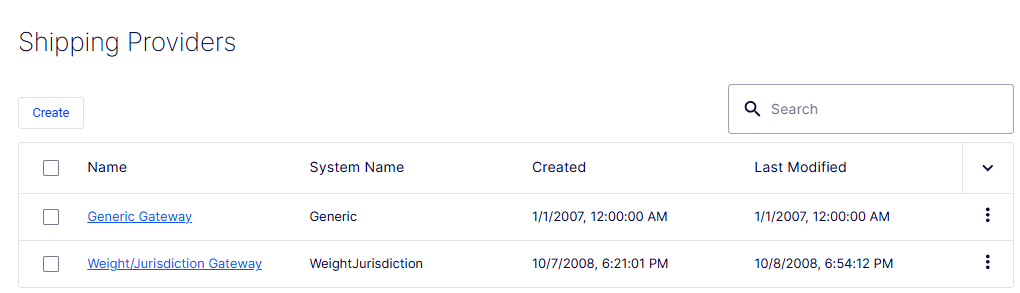
The Shipping Providers list page displays all configured carrier integrations and rate gateways, and provides controls to create, search, and manage them.
- Create – Opens the Create Shipping Provider form to define a provider.
- Search field – Filters the list in real time by provider name as you type.
- Checkbox – Selects one or more rows, typically for bulk actions.
- Name – Displays the name of each provider as a clickable link (for example, Generic Gateway, Weight or Jurisdiction Gateway). Clicking the name opens the record for viewing or editing.
- System Name – Shows the internal system identifier assigned to each provider (for example,
Generic,WeightJurisdiction). The platform uses this value to reference the provider programmatically. - Created – Displays the date and time the provider record was created.
- Last Modified – Displays the date and time the provider record was most recently updated. The highlighted column header indicates the list is currently sorted by this column.
- Sort toggle (
∨) – Located in the column header row, changes the sort column or direction when clicked. - Row action menu (⋮) – A context menu on each row exposing record-level actions such as Edit and Delete.
Create a shipping provider
Go to Settings > Shipping Provider and click Create.
The Create Shipping Provider form defines a carrier integration or rate gateway. It is organized into three tabs, Overview, Parameters, and Packages, which become fully accessible after the initial record is saved.
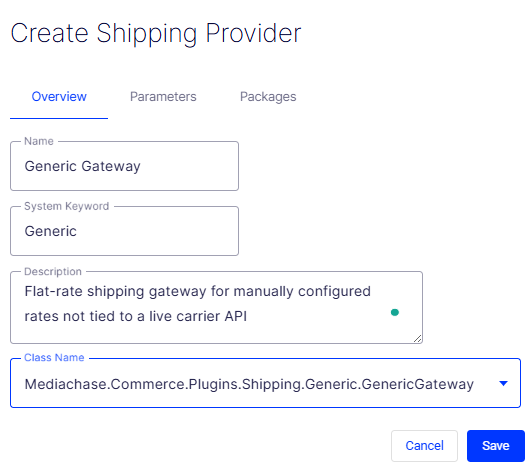
- Overview tab – The active tab on creation. Contains the core identity fields for the provider.
- Parameters tab – Configures provider-specific settings such as API credentials, endpoint URLs, or rate table options. Available after the record is saved.
- Packages tab – Associates shipping package types with this provider. Available after the record is saved.
- Name – A required free-text field for the human-readable label of the provider (for example, UPS Ground or Flat Rate Gateway). This name displays in checkout and fulfillment configuration pages.
- System Keyword – A required free-text field for the unique programmatic identifier used internally and in API calls. It should be concise and free of spaces (for example,
UPS-GROUND,FLAT-RATE). - Description – An optional multi-line text field for notes about the provider, such as its rate logic, supported regions, or integration requirements.
- Class Name – A required drop-down list that maps this provider to its underlying implementation class, the code that handles rate calculation or carrier communication. Defaults to [ No value ]. Select the class that corresponds to the carrier or gateway type you are configuring.
- Cancel – Discards all entered data and exits the form without creating a provider.
- Save – Submits the form and creates the shipping provider. The button is disabled (grayed out) until all required fields, Name, System Keyword, and Class Name, are filled in.
Add parameters
Parameters let you pass configuration values to a shipping provider without modifying its underlying code. They are key-value pairs that the provider's class reads at runtime to control its behavior. Common scenarios include:
- Rate configuration – Pass flat rates, per-pound charges, or handling fees directly to the gateway so it can calculate shipping costs without a carrier API.
- Threshold-based logic – Define values such as a free shipping threshold that the provider checks against the order total during rate calculation.
- Display and UX control – Supply parameters like a customer-facing label or estimated delivery days that the provider surfaces at checkout.
- Environment-specific overrides – Store endpoint URLs, API keys, or mode flags (for example, test or live) as parameters so they can be updated without a code deployment.
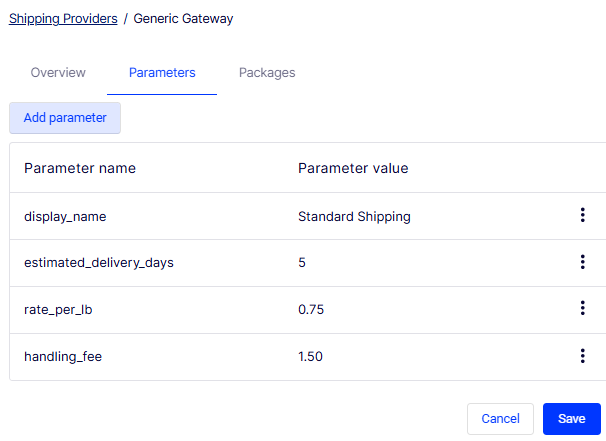
The Parameters tab on a shipping provider record lists all key-value pairs currently assigned to that provider and provides a button to add ones. Clicking Add parameter opens the Add new parameter dialog box.
-
Add parameter – Opens the Add new parameter modal dialog to define a key-value pair for the provider.
-
Add new parameter – A modal overlay containing the fields and controls needed to define a single parameter:
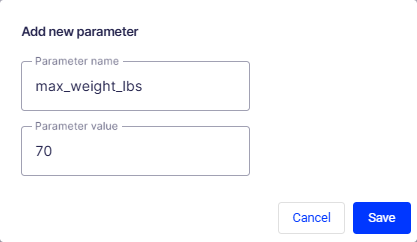
- Parameter name – A free-text field for the key that the provider's class reads at runtime (for example,
default_rate,handling_fee). The accepted names depend on the provider's implementation. Consult your platform documentation or the provider's class definition for valid keys. - Parameter value – A free-text field for the value assigned to the parameter name (for example,
5.99,Standard Shipping).
- Parameter name – A free-text field for the key that the provider's class reads at runtime (for example,
NoteThe Generic Gateway's accepted parameter names depend on how it was implemented in your system. Check your platform's documentation or the gateway's class definition to confirm which parameter names it actually reads. Unrecognized parameters are stored but silently ignored at runtime.
Add packages
NotePackages must be created in Settings > Shipping Packages before they can be associated here. If the Add selector displays empty, create your package types first and then return to this tab.
The Packages tab on a shipping provider record controls which shipping package types are available when this provider calculates rates. Associating packages with a provider scopes its rate logic to specific container types, ensuring the correct dimensions and weights are used at checkout. Common scenarios include:
- Dimensional rate accuracy – Linking defined packages to a provider ensures it uses the correct width, length, and height values when calculating dimensional weight charges.
- Provider-specific containers – Some carriers only accept certain box sizes. Associating only compatible packages prevents invalid size combinations from being submitted to that carrier.
- Multi-provider differentiation – If you have multiple providers, assigning different package sets to each ensures customers are only offered container options that the selected carrier can actually fulfill.
Go to Shipping Providers > [Provider Name] > Packages.
The Packages tab lists all shipping packages currently associated with this provider and provides an Add button to link additional ones. The table is empty until at least one package has been added.
- Add – Opens a selector to choose from the shipping packages defined in Settings > Shipping Packages. Selected packages are added as rows in the table.
- Package – Displays the system identifier or code of each associated package.
- Package Name – Displays the human-readable name of each associated package (for example, Small Parcel Box, Padded Envelope).
- Cancel – Discards any unsaved changes to the package associations and exits the edit state.
- Save – Commits the current package associations to the provider record.
Delete shipping providers
Select More Options > Delete to delete a particular method. Click OK to confirm.
Updated 2 months ago