
Track and recommend
Describes how to track and recommend work in Optimizely Product Recommendations.
Tracking provides personalized recommendations by following the user journey and storing session and user behaviors. This enriches the machine learning (ML) algorithms used to track key performance indicators (KPIs). With Optimizely Commerce Connect-native integration, a JSON payload is sent to an API endpoint on the Optimizely Product Recommendations servers. The payload contains information about the page, such as page type, URL, and product codes.
Optimizely recommends tracking all points of the user journey to ensure wide coverage of behavior used by ML algorithms. If you cannot do this, track product, basket, and order pages — and any other pages that should show recommendations — at a minimum.
Product Recommendations relies on user tracking to maintain a cross-platform experience. Track the user email or pseudonymized ID at key points in the user journey, such as logging in, the checkout process, or any other point where the user ID is captured according to business requirements.
WarningYou should ensure that each product
refCodeis consistent across the site. This is especially important when checking whether therefCodefrom product page matches the basket, checkout, and order pages because this lets the Product Recommendations system link viewing and buying behavior to a specific product. A mismatch inrefCodecan lead to inaccurate reporting and even have a negative impact on behavior.
Control tracking of user IP address
Tracking data includes the user's IP address by default. The recommendations service does not store the IP address — it uses the address only for in-session geolocation, which improves recommendation accuracy.
To exclude the IP address from tracking data, set episerver:personalization.SkipUserHostTracking. See Install and configure the native integration package.
Alternatively, register a custom implementation of the IRequestTrackingDataService interface (namespace EPiServer.Tracking.Commerce) to include or exclude the IP address. The default implementation uses SkipUserHostTracking, but a custom implementation can vary behavior based on user preference, cookies, or other context.
Control tracking of user email address
Tracking data includes the user's email address by default. To exclude the email address, set episerver:personalization.UsePseudonymousUserId. See Install and configure the native integration package.
Alternatively, register a custom implementation of the IUserIdentityService interface (namespace EPiServer.Personalization.Common) to include or exclude the email address. If you plan to switch from email to a pseudonymous user identifier (by configuration or customization), coordinate with the Recommendations service team for any site that has existing tracking data. Otherwise, existing tracking data and the profiles built from it are lost when the user identifier changes. See Migrate Server-to-Server API version 1.3 to 1.4.
Product recommendation tracking
Tracking is used for different purposes, for example, to provide personalized product recommendations on an ecommerce site. Tracking visitor activities and retrieving recommendations occur simultaneously in a single round trip to the Optimizely Product Recommendations environment. The round trip is synchronous and adds a small processing overhead to all tracked requests.
The following diagram describes the flow for page requests that reach a controller action decorated with a CommerceTrackingAttribute. The flow is identical for tracking requests not triggered by the CommerceTrackingAttribute, except that custom tracking code replaces the OnActionExecuting step.
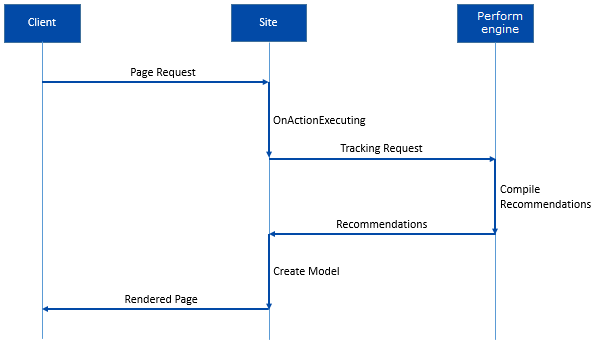
To provide good recommendations, Product Recommendations tracks a visitor's activities over time by assigning visitors a consolidated user ID (CUID), which is stored in a cookie. User activities that can be tracked are contained in the TrackingType enum. Track as many activities as possible — more tracked activities result in better recommendations.
In this article, tracking is sent to the Optimizely Product Recommendations service, but any source can consume tracking of Optimizely Commerce Connect data.
Customize tracking data
You can include custom tracking data in a tracking request by using the SetCustomAttribute extension method for CommerceTrackingData. Supported data types are limited to common numeric types, string, and DateTime.
A use case for custom tracking attributes is configuring the service's recommendation widgets to filter recommendations based on a known customer preference or other data. For example, a website for browsing or preordering duty-free goods for an airport or airline, where available products depend on flight type.
Troubleshoot tracking
Prerequisites
- At least one successful feed import in the environment being tested (UAT or Production).
- Tracking is enabled for the specified environment. If so, the
epi_RecommendationsTrackingUserIdandepi_RecommendationsTrackingSessionIdcookies should be available in your browser. - You have access to the Recommendations Portal for the environment being tested.
The following issues may occur when you implement tracking. See also Recommendations in Commerce Connect for information about solving issues with tracking integration. If there are additional requirements for tracking or a problem persists, contact your customer success manager or Support.
Some page views are missing in the history of tracking requests
If a page loads on your site and does not trigger a tracking request, tracking may not be implemented for that page type. If you have implemented tracking, check other pages of the same type to see if they are also tracking. If not, check other page types, and if that fails, refresh the Session Viewer page.
Multiple requests are showing for a single page view
A single page view on your site should be associated with a single tracking request in Session Viewer. Multiple tracking requests can lead to unnecessary processing in the Recommendations service and may also cause conflicts when rendering recommendations. Ensure that any calls to internal or external APIs (such as calls to construct widget HTML) do not trigger methods that create tracking.
Product page requests have placeholder or no title in the request name or Track Info tab
The refCode passed in the tracking request is not associated with any product in any previous feeds exported for this environment. The refCode must match the root product in the Commerce Connect catalog and the GUID tag in the feed export. The following images show an order placed with placeholder products.
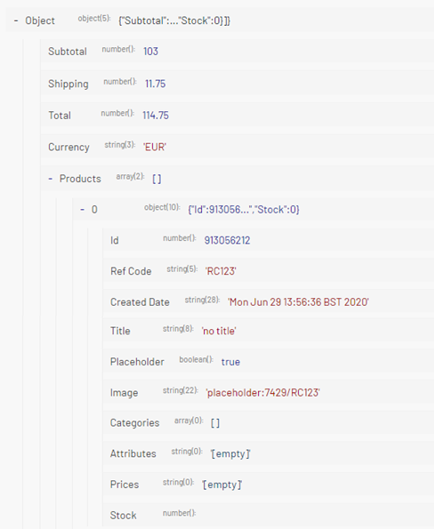
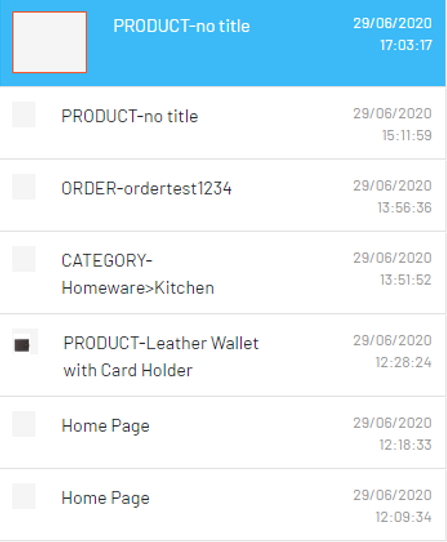
Category page request shows the page type as other
The category passed in the JSON payload does not match any categories passed in past feed exports. Cross-check the category passed in the JSON payload with the tracking information of a product that should be included within this category. Either the category passed in tracking is incorrect, or the categories provided in the feed export are incorrect. Placeholder categories do not exist within Recommendations, so tracking defaults to the other page type to prevent the request from failing.
Consume recommendations
Optimizely defines the following page types as predefined tracking types: Home, Search, Category, Product, Basket, Checkout, Order, Wishlist, Brand, and Attribute. If you need recommendations on a page type outside this set, contact Optimizely to receive further setup instructions.
Optimizely supports additional, real-time filtering based on custom information provided on a per-page level so that you can accommodate business rules, such as showing a product only if the user has permission to view or buy that product. Coordinate custom requirements with your Optimizely contact.
Depending on how the Product Recommendations environment is configured, different types of tracking events may or may not return recommendations. This section explains the general case in which recommendations are returned and should be displayed to the visitor.
Use the CommerceTrackingAttribute
Because the CommerceTrackingAttribute executes code in the OnActionExecuting method, the recommendations are available when the controller action method is entered. To get recommendations, call the controller extension method GetRecommendationGroups.
[CommerceTracking(TrackingType.Home)]
public ViewResult Index(StartPage currentPage)
  {
    var recommendations = this.GetRecommendationGroups();
    ...
  }
The method returns a collection of Product Recommendation objects, where each object has an Area and a collection of ContentReferences referencing the recommended products. The Product Recommendation object can be used to create model data to display recommended products to a site visitor.
The number of Product Recommendation objects and the names of the areas depend on how the Product Recommendations environment is configured. The name for these recommendation groupings on the Product Recommendations side is widgets. A widget contains information about where recommendations appear on a page (left, right, bottom, and so on) and which algorithms generate the recommendations, such as similar products and cross sells.
var productRefs = widgetService.UpdateWidget().Where(x => x.Area == "someWidget").SelectMany(x => x.RecommendedItems);Without using the CommerceTrackingAttribute
Working with the recommendations returned from the ITrackingService.Track extension method is similar to working with the attribute. A GetRecommendationGroups extension method exists for the returned tracking response data and works the same way as it does with the controller.
Link visitor actions with recommendations
Valuable business intelligence is based on knowing which recommended content a visitor acts upon.
NoteAs of version 2.1.0,
TrackingModeis obsolete. JavaScript tracking APIs and server tracking APIs are independent and work in parallel.
JavaScript tracking APIs support setting RecommendationId for ProductTrackingData, which is read from the TrackingProxy and sent to the Product Recommendations engine. If you use JavaScript API tracking, you do not need to use cookies or RecommendationContext. Commerce Connect reference sites have changed the way they store RecommendationId values. Now you use a query string by adding a RecommendationId parameter in the data-url attribute of the Shared/_RecommendationsTemplates.cshtml template.
Commerce Connect reference sites no longer use RecommendationContext. See also Client-side API integration.
<button type="button"
        data-toggle="modal"
        data-target="#ModalDialog"
        data-url="{{#attributes}}{{url}}{{/attributes}}&recommendationId={{id}}"
        class="btn btn-block btn-sm quickview-button">
  @Html.Translate("/Product/Quickview")
</button>
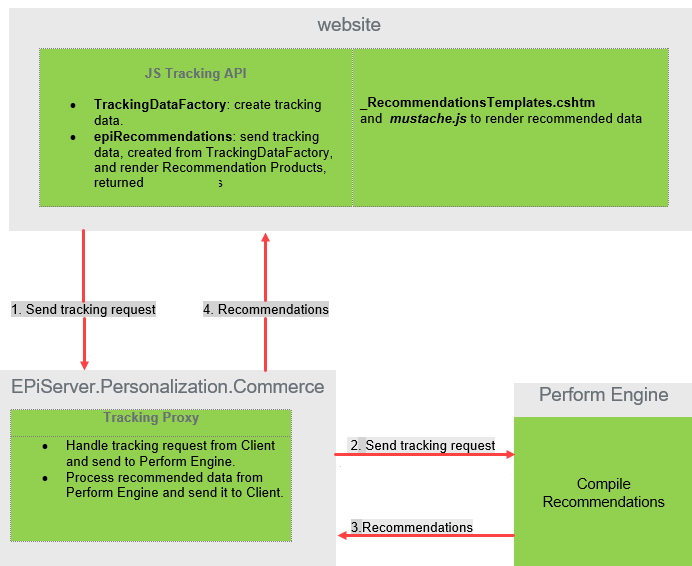
When a user selects a recommended product, the Commerce Connect reference site redirects to the Product Detail page with the RecommendationId value passed in as a query string. The JavaScript TrackingDataFactory.createProductTrackingData API then gets the RecommendationId value from the query string and creates tracking data to send to the Tracking Proxy.
<script>
    $(document).ready(function () {
        var refCode = '@Model.Product.Code';
        var productName = '@Model.Product.Name';
        var productTrackingData = TrackingDataFactory.createProductTrackingData(refCode, productName);
        productTrackingData["SkipRecommendations"] = true;
        var recommendationId = parseInt(isNaN('@Request.QueryString["recommendationId"]') ? '0' : '@Request.QueryString["recommendationId"]');
        if (recommendationId > 0) {
            productTrackingData["recommendationId"] = recommendationId;
        }
        productTrackingData["customAttributes"] = { 'marketId': Market.getSelectedMarketId() };
        epiRecommendations.track(productTrackingData);
    });
</script>
The following image describes this process.
Verify click-tracking
Render recommendations on the site and track them correctly so the system can attribute user interactions and generate accurate reports. Click-tracking is the basis for key metrics that measure recommendation performance, such as click-through rate and click-to-purchase. If click-tracking is incorrectly implemented, reports in the Recommendations Portal show no Optimizely-generated revenue.
To verify that click-tracking is implemented correctly:
-
View a page with recommendations enabled and select a recommendation.
-
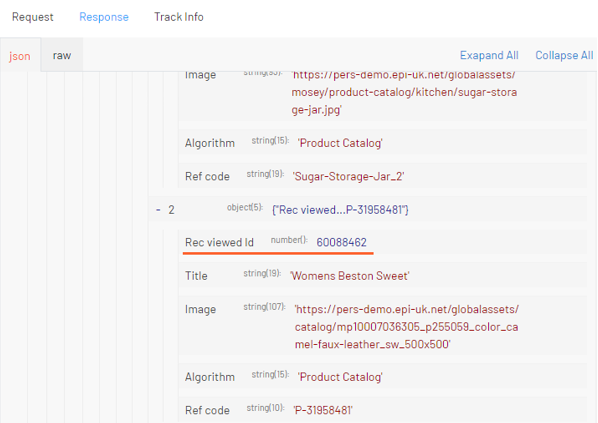
In the tracking response that originally generated the recommendation, find the recommendation ID. The ID value is in the JSON response. Alternatively, open the Response tab and expand the fields to find the ID of the selected recommendation. The following image shows that Rec viewed Id is the ID that should be marked as clicked.
-
For native and server-to-server integrations, check that the click ID logged in the subsequent request and response matches the recommendation ID from the previous step. The following image shows the request with
"info":{"smartRecs":{"click":60088462}}.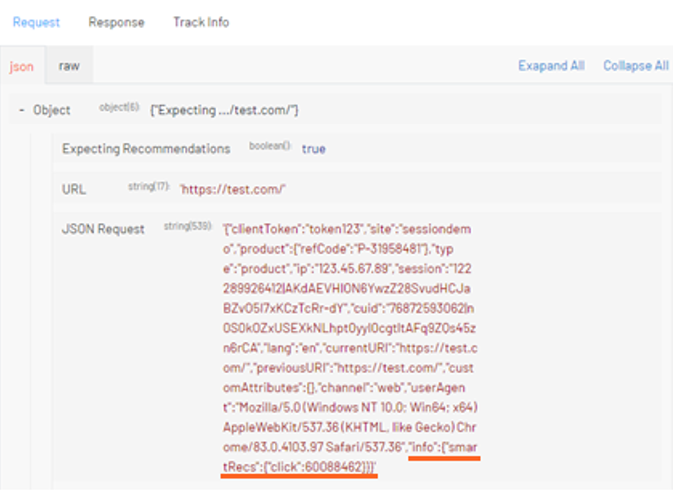
The following image shows the response. The click is logged as
"info":{"smartRecs":[{"click":"ok","id":60088462}]}.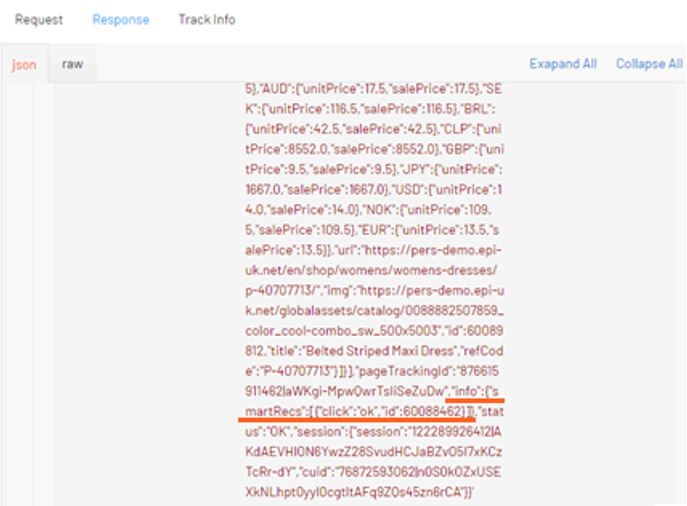
-
For JavaScript API integrations, place breakpoints in the
smartRecsClickandsmartRecsSendClickfunctions in thepeerius.pagescript and ensure the ID passed to the function matches the ID from thesmartRecsresponse.
Troubleshoot recommendations
Prerequisites
- At least one successful feed import in the environment being tested (UAT or Production).
- Tracking is enabled for the specified environment. If so, the
epi_RecommendationsTrackingUserIdandepi_RecommendationsTrackingSessionIdcookies should be available in your browser. - You have access to the Recommendations Portal for the environment being tested.
The following issues may occur when you implement Recommendations.
Click-through rate, click-to-purchase, or Optimizely-generated revenue shows as 0 in the portal
This can be caused by an inconsistent product refCode between the product page and order page, or by incorrectly implemented click-tracking. If the issue persists, contact Optimizely for assistance.
Recommendations are not being returned
There are several reasons this may happen, but you can analyze the JSON response to help find a root cause. The response payload is at Console > Response > JSON.
When the response JSON contains the smartRecs object with an empty array [] as the value, recommendations are disabled in the request using the "smartProducts" : [] flag. If recommendations should be returned in this instance — for native integrations, check that CommerceTrackingData.SkipRecommendations() is not being called before passing it to the TrackingService; for JavaScript integrations, consult with Optimizely for more details.
{
  "session": {
    "session": "122289928212|jVsQ4-z8Shoq9p-Ufs905rzXtsfq6984fkbdEnfokEY",
    "cuid": "76872594962|oLDX68UmK-zsvRYWWsXkND1W3Nofo9fFILiCv4KvwpQ"
  },
  "pageTrackingId": "876615918262|uAjKdc4kr1KBRwwSiK1_Rw",
  "smartRecs": [],
  "status": "OK"
}
When the response JSON does not contain the smartRecs object, there are no widgets enabled for that page type within Recommendations. If a widget should be returned for the page type being checked, consult with your Optimizely contact for more details.
{
  "session": {
    "session": "122289928212|jVsQ4-z8Shoq9p-Ufs905rzXtsfq6984fkbdEnfokEY",
    "cuid": "76872594962|oLDX68UmK-zsvRYWWsXkND1W3Nofo9fFILiCv4KvwpQ"
  },
  "pageTrackingId": "876615918262|uAjKdc4kr1KBRwwSiK1_Rw",
  "status": "OK"
}
The following response shows the smartRecs array has a single widget for this page type. However, the recs object is returning an empty array. To debug this:
- Check that the lang in the tracking request matches a location in the latest feed export where multiple locales are being used. If you are unsure of which locales your site uses, contact Optimizely.
- Ensure that all products in the latest feed export have a stock level greater than 0 and are set as recommendable.
- If there are any merchandising campaigns set up in the portal for the page, make sure that the feed export contains the required attributes and categories. Merchandising campaigns are at Configuration > Product Recommendations > Campaigns in the Recommendations Portal.
{
  "session": {
    "session": "122289928212|jVsQ4-z8Shoq9p-Ufs905rzXtsfq6984fkbdEnfokEY",
    "cuid": "76872594962|oLDX68UmK-zsvRYWWsXkND1W3Nofo9fFILiCv4KvwpQ"
  },
  "pageTrackingId": "876615918262|uAjKdc4kr1KBRwwSiK1_Rw",
  "smartRecs": [{
    "widget": "homeWidget",
    "alias": "",
    "position": "homeWidget",
    "recs": []
  }],
  "status": "OK"
}
If these steps do not solve the issue, contact Optimizely for further support.
Widgets were returned before a deployment but now some are missing
For native integrations, in cases where you have custom widgets set up outside the default set of six widgets enabled on home, category, search, product, and basket pages, re-activating widgets within your instance resets the Recommendations configuration to the default set of widgets enabled per page. See Activate widgets.
Activate widgets once per environment. If custom widgets are not returned, contact Optimizely for support.
For JavaScript API integrations, check that tracking is in place where you expect recommendations and verify that recommendations are being returned through the PeeriusCallbacks.smartRecs callback function. If recommendations are returned, the issue may lie in the client-side rendering — contact Optimizely for support.
Output caching
To use output caching for pages that show recommendations, you must use the client-side API integration in version 2.1.0 (or later) of the EPiServer.Personalization.Commerce package.
Caching of content is controlled by the httpCache-prefixed settings of the applicationSettings element and the use of the ContentOutputCache attribute. Caching enabled by these settings does not apply to authenticated users. Output caching breaks the server-side tracking because the request most often does not reach the page's controller — users see the cached recommendations, and user behavior is not tracked.
Updated 2 months ago