
Customers (UI)
Overview of contacts, organizations, and customer groups in Commerce Connect.
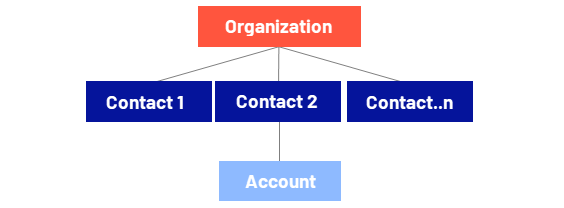
The Customers page in Optimizely Commerce Connect has contacts and organizational accounts.
- Use organizations to manage contacts in structures appropriate for your ecommerce business.
- A contact is a website visitor who registers an account on the front-end site.
Organizations
Create an organization hierarchy by creating parent-child relationships among organizations. For example, create a hierarchy of organizations, such as Administration > EU Headquarters > EU Management, and associate contacts with the appropriate level of the hierarchy. Set permissions to determine which users can view organizations in the hierarchy.
The same principle applies to creating customer group hierarchies. For example, if you have a customer organization with Gold, Silver, and Bronze levels, use the customer groups to display different prices for each group. See Organizations.
To enable CommerceAdmins to manage organizations, configure the relevant permissions in CMS.
-
Go to CMS > Settings > Permissions for functions.
-
Enter
organizationsin the search field. This narrows the permissions you need to modify by showing only the one related to organizations.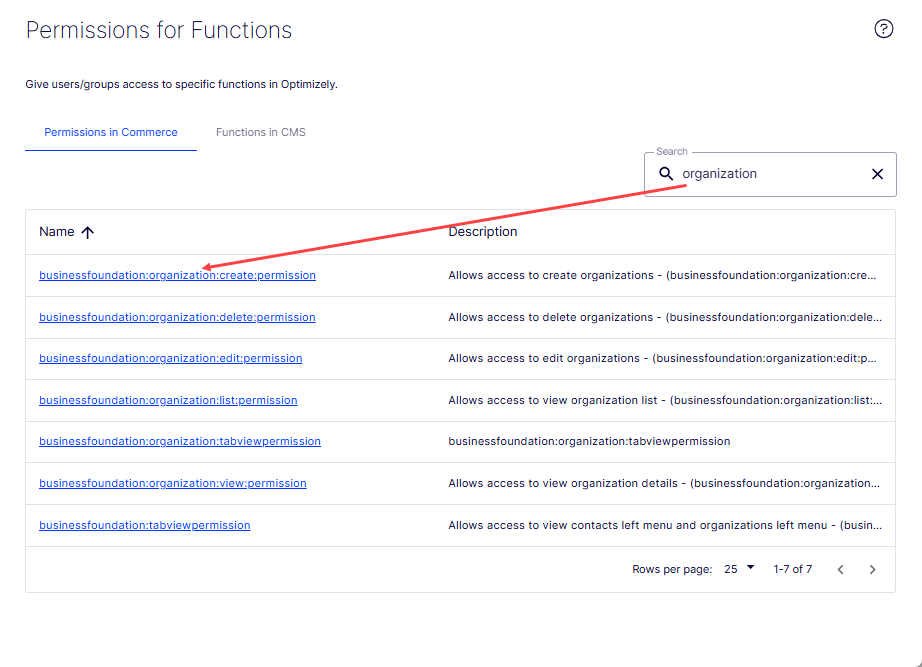
-
Open each in turn.
-
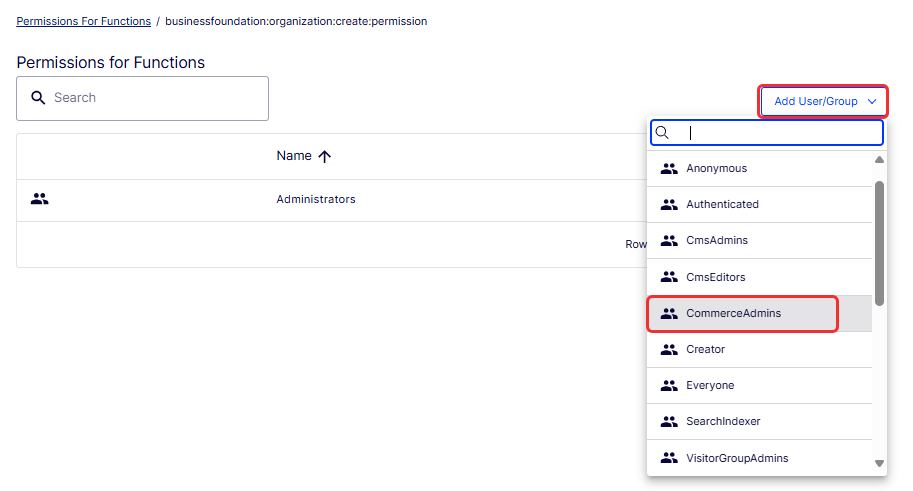
Select Add User/Group > CommerceAdmins.
-
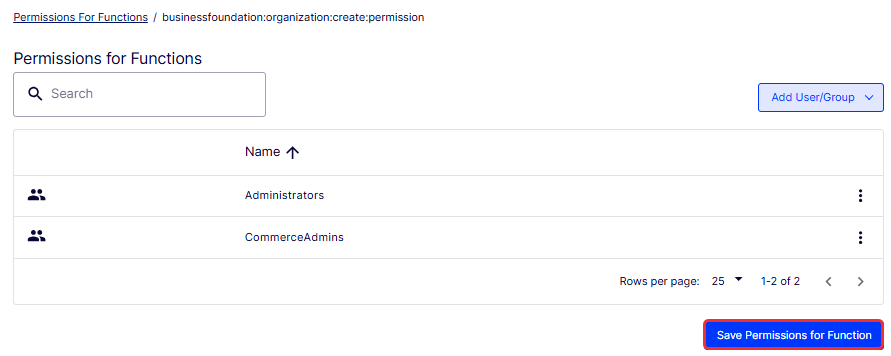
Click Save Permissions for Function.
-
Repeat for each organization function.
Contacts
When a visitor registers on the storefront (such as to make a purchase), Commerce Connect automatically creates a contact and account. Manage contacts within customer groups and organizations and apply specific pricing and personalization. See Contacts.
To enable CommerceAdmins to manage contacts, configure the relevant permissions in CMS.
-
Go to CMS > Settings > Permissions for functions.
-
Enter
contactsin the search field. This narrows the permissions you need to modify by showing only the one related to organizations.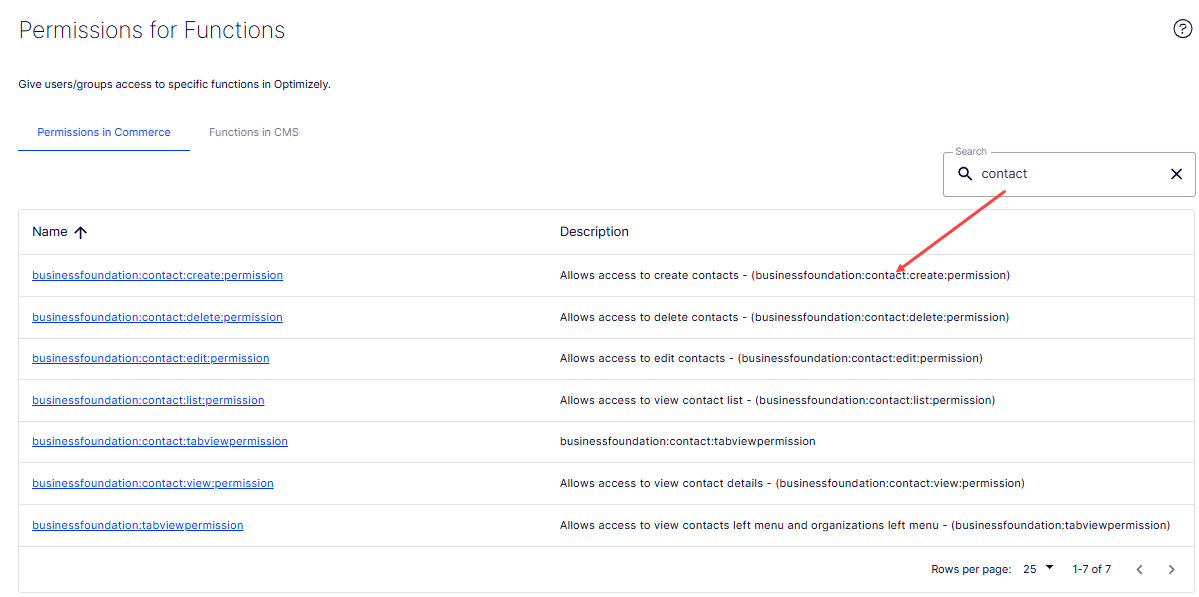
-
Open each in turn.
-
Select Add User/Group > CommerceAdmins.
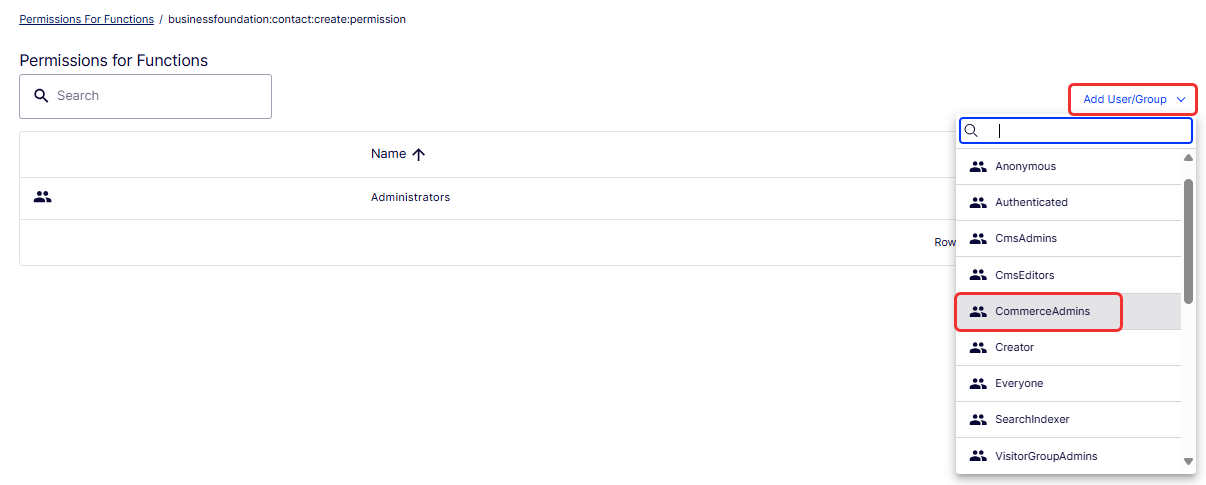
-
Click Save Permissions for Function.
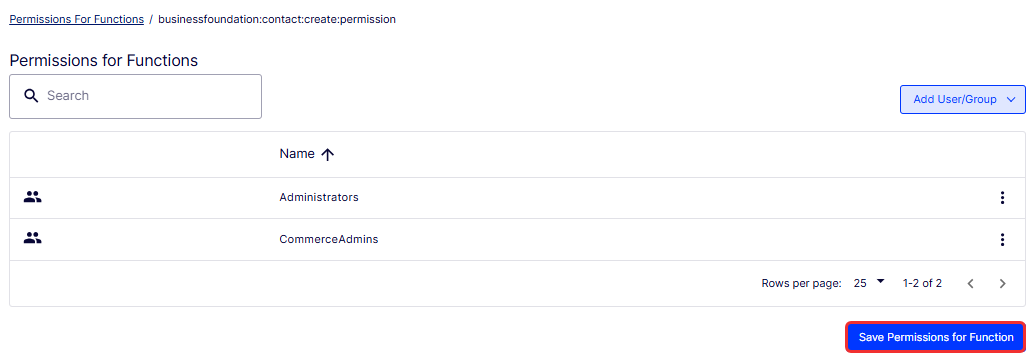
-
Repeat for each contact function.
NoteThe default implementation of Commerce Connect supports anonymous shopping and does not require customers to create an account to purchase. Anonymous customers are not available as contacts.
Updated 2 months ago