
Install and configure the native integration package
Describes how to install and configure the native integration for Optimizely Commerce Connect.
The native integration provides the product-specific setup when implementing recommendations for Optimizely solutions.
Scope
A scope is a context in which tracking and catalog export occur. A scope contains an instance of the Optimizely Product Recommendations engine and one or more websites that communicate with that instance. Scopes are mutually exclusive and never nested; a tracking action occurs only in a single scope. Recommendations for products belonging to a specific scope are not returned for tracking actions in another scope. In the following diagram, Site2 sits inside the Commerce Multisite but belongs to no scope, so no recommendations engine tracks it.
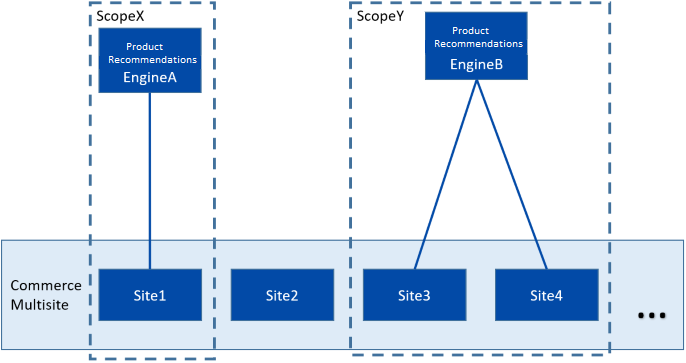
Scope alias
A scope alias (referred to as alias) is a shorthand version of the scope's name. Aliases are used as suffixes to appSettings key attribute values to improve the readability of configuration settings. Aliases are used in configuration settings only; they are not used in the API.
Scopeless settings
Settings that do not use an alias suffix are called scopeless. In earlier versions of the configuration schema, all settings are scopeless. Scopeless settings are used as a fallback if a requested setting is not defined for a specific scope, which makes the configuration schema backward-compatible.
If asked for a valid setting for scope X, and scope X is not defined in the configuration file, the internal configuration class falls back to the corresponding scopeless setting.
Install the native integration package
The native integration package is available through the Optimizely NuGet feed. See also Install and configure Product Recommendations.
Use the TrackingOptions class to enable tracking using the appsettings.json file or a Startup class. The following example uses appsettings.json:
{
  "EPiServer": {
    "Tracking": {
      "TrackingOptions": {
        "TrackingEnabled": true
      }
    }
  }
}
After installation, modify the configuration to include settings for your Product Recommendations environment. The integration reads its configuration from the PersonalizationOptions class. You can use the appsettings.json file to configure these options:
{
  "EPiServer": {
    "Personalization": {
      "PersonalizationOptions": {
        "BaseApiUrl": "https://defaultbaseurl.com",
        "Site": "defaultsite",
        "ClientToken": "defaultclienttoken",
        "AdminToken": "defaultadmin",
        "Channel": "test",
        "RequestTimeout": 30,
        "TrackingMode": "ClientSide",
        "SkipUserHostTracking": true,
        "UsePseudonymousUserId": true,
        "FeedCatalogName": "Test",
        "FeedSkipProductLevel": true,
        "Scopes": [
          {
            "AdminToken": "scopeadmin",
            "BaseApiUrl": "https://scopebaseurl.com",
            "ClientToken": "scopeclienttoken",
            "Site": "scopesite",
            "Channel": "scopetest",
            "FeedCatalogName": "ScopeTest",
            "FeedSkipProductLevel": false,
            "ScopeId": "scopeid",
            "Name": "Scope Test"
          }
        ]
      }
    }
  }
}
Recommendation keys
Configure the following options in the PersonalizationOptions class:
-
BaseApiUrl– The URL of the Optimizely Product Recommendations environment to use. The value must contain only the protocol and hostname.ImportantNever use UAT endpoints in production for this key.
-
Site– The site name used to identify requests to the tracking server. -
ClientToken– The token used to authenticate tracking requests to the REST API. -
AdminToken– The token used to authenticate admin requests to the REST API. -
RequestTimeout– Timeout, in seconds, for the REST calls. The default value is30. -
TrackingMode– The tracking mode to use. Valid values areServerSideandClientSide. The default value isServerSide. To use the client-side (JavaScript) tracking APIs, set the value toClientSide. -
SkipUserHostTracking– Excludes the user IP address from tracking data. Set totrueto omit the IP address from tracking, which may result in reduced recommendation accuracy. The default value isfalse. -
UsePseudonymousUserId– Controls whether the pseudonymous user identifier is used instead of a user email address in tracking data. Set totrueto omit the email address from tracking and use Contact ID instead. The default value isfalse. -
CatalogFeedBatchSize– The number of products processed in one batch when the product feed is generated. A higher value can be faster but uses more memory. The default value is50. -
FeedCatalogName– Selects the catalog used to generate the product feed when you have multiple catalogs. If this value is not set, the first catalog is used.NoteThis property is removed when Product feed support for multiple catalogs is added.
The export function has settings in addition to those listed previously. Apply them through code on the default CatalogFeedSettings instance:
var catalogFeedSettings = ServiceLocator.Current.GetInstance<CatalogFeedSettings>();
catalogFeedSettings.DescriptionPropertyName = "...";ExcludedAttributes– Names of product properties to exclude from the catalog feed.DescriptionPropertyName– The product feed requires each product to have a description. Set this to the property name you want to use as a description. The default value isDescription.AssetGroupName– Identifies the asset group whose first asset (ordered bySortOrder) is used for the item's image link. The default value isdefault.
Updated 2 months ago