
Multiple scopes
Describes how to configure several scopes within the same configuration file in Optimizely Commerce Connect.
Configure several scopes within the same appsettings.json configuration file when you operate multiple sites against one or more Product Recommendations engines. For an introduction to scopes, scope aliases, and scopeless settings, see Install and configure the native integration package.
NoteSee also Multi-site support in the Personalization Native Integration for Commerce Connect and Personalization 2.0 breaking changes.
Configure scopes
Optimizely Recommendations supports configuring several scopes in a single configuration file. The new schema is backward-compatible with the old one — if you do not need scopes, your existing configuration continues to work without changes.
Define scopes
Define scopes inside the Scopes array of PersonalizationOptions. Each scope object provides a Name (the alias used in code and logs) and a ScopeId (the underlying scope identifier), along with the per-scope settings (BaseApiUrl, Site, ClientToken, and so on). For the full list of per-scope settings, see Install and configure the native integration package.
{
  "EPiServer": {
    "Personalization": {
      "PersonalizationOptions": {
        "Scopes": [
          {
            "Name": "Alias1",
            "ScopeId": "Scope1",
            "BaseApiUrl": "https://scope1.example.com",
            "Site": "site-1",
            "ClientToken": "client-token-1"
          }
        ]
      }
    }
  }
}
The Scopes array acts as the primary list of scopes. Any settings with an alias that does not match a configured scope are ignored. Each scope must define all required settings, or an exception is thrown during site initialization.
Multiple channels
Configure more than one channel per scope so a scope can route tracking requests to different channels (for example, web and mobile).
Add a Channels array inside a scope and provide one entry per channel. Each channel entry can override scope-level settings such as ClientToken:
{
  "EPiServer": {
    "Personalization": {
      "PersonalizationOptions": {
        "Scopes": [
          {
            "Name": "Alias1",
            "ScopeId": "Scope1",
            "Channels": [
              { "Name": "web", "ClientToken": "V1" },
              { "Name": "mobile", "ClientToken": "V2" }
            ]
          }
        ]
      }
    }
  }
}
Channel names and token values can be any string. If a tracking request specifies a channel that does not match a configured Name, the integration falls back to the default web channel.
Required, optional, and global settings
Each Personalization setting falls into one of three categories. The following rules apply to each group.
- Required – Treated as a group; all required settings must be defined for each scope. If there are no scopes, all required settings must be defined at the scopeless (top) level. Scopeless settings can run in parallel with scoped settings and, in that case, are used for all undefined scopes. See Fallback.
- Optional – Can be defined at the scope level, scopeless level, or not at all.
- Global – Cannot be defined per scope.
Fallback
The fallback scheme works at the following levels:
- Scope fallback – At runtime, if a request arrives for an unknown scope (that is, a scope with no matching entry in the
Scopesarray), the fallback returns the scopeless settings when available. - Channel fallback – Available in Commerce Connect 13.8.0 and
Personalization.Commonv3.1.0 and later. If a request arrives for an unknown channel (a channel name that does not match any configuredName), the integration returns the default channel ofweb. - Optional settings fallback – If an optional setting is not defined for a scope, the fallback uses the scopeless setting and, finally, the hard-coded default value.
Required settings do not support fallback because of the rules that apply to them. Global settings cannot be defined per scope — defining one at the scope level does not error out, but the scoped value is ignored and the integration falls back to the scopeless or default value.
Consider the following partial configuration:
{
  "EPiServer": {
    "Personalization": {
      "PersonalizationOptions": {
        "BaseApiUrl": "D",
        "Site": "E",
        "ClientToken": "F",
        "FeedCatalogName": "G",
        "Scopes": [
          {
            "Name": "Alias1",
            "ScopeId": "Scope1",
            "BaseApiUrl": "A",
            "Site": "B",
            "ClientToken": "C",
            "Channels": [
              { "Name": "web", "ClientToken": "V1" },
              { "Name": "mobile", "ClientToken": "V2" }
            ]
          }
        ]
      }
    }
  }
}
At runtime, the Site value (required) is B for Scope1 and E for all other scopes. The FeedCatalogName value (optional) is G for all scopes. The channel token value is V1 for the web channel and V2 for the mobile channel.
Default implementation
The EPiServer.Personalization package provides a default implementation of the scope feature. This implementation assumes that each Optimizely Content Management System (CMS) site uses one Commerce catalog and one Product Recommendations engine instance. If this configuration fits your needs, you can set it up using the configuration only. If you need a more specialized setup, write custom code.
Configure
If you have only one site that uses Recommendations, use scopeless settings only; do not bother to define scopes.
If you need to configure several scopes, the scope names are expected to be each site's SiteDefinitionID. You can find this value at CMS > Settings > Applications. Select each application and copy the value from the API ID field.
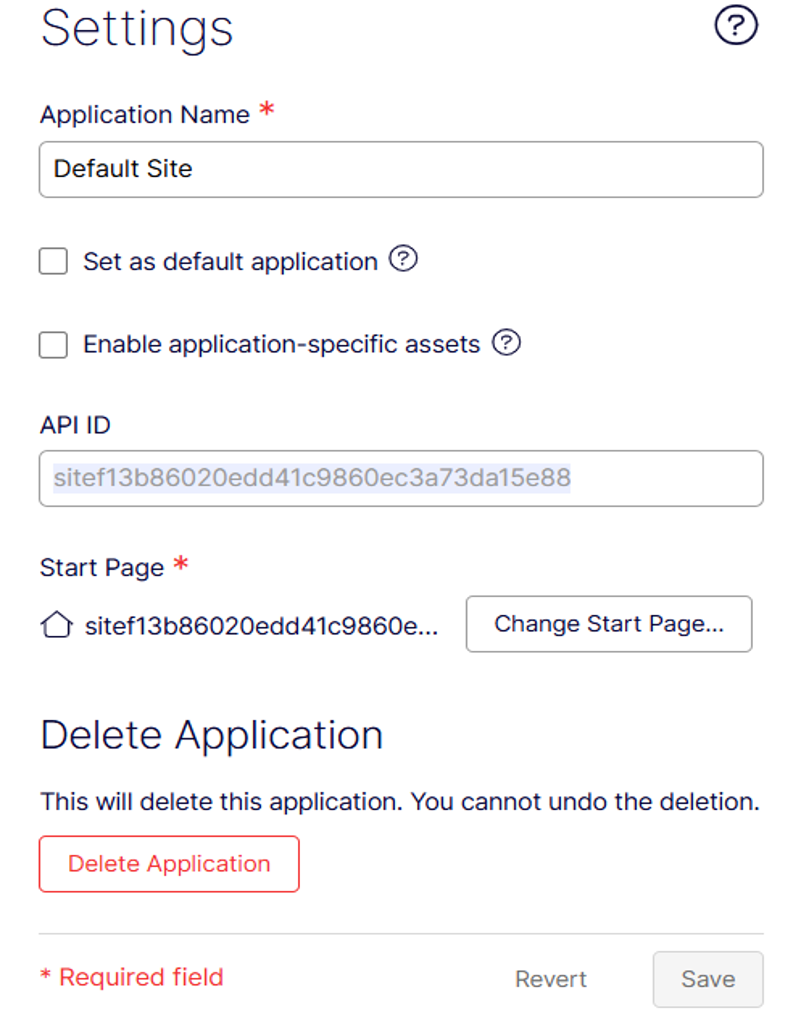
Alternatively, open each application link in its own browser tab and copy the siteId value from the address bar.

Catalog export
The default implementation iterates over all scopes registered in configuration and exports one full catalog feed per scope. You can also write custom code to filter each exported product.
CUID and SessionID storage
The default implementation stores CUID and SessionID in cookies, as it did in earlier versions. You do not need to modify this behavior if you have a single site using Recommendations. To add scopes, you probably need to implement your own ICookieService.
Identify the correct scope for tracking actions
The scope is automatically set to the SiteDefinitionID of the site that triggers the tracking action. This value is used to load the correct settings from the configuration. You can override this behavior by passing the scope to the tracking method yourself.
Modify the default behavior
If your installation differs from what is supported by the default implementation, you need to write custom code to fit your purposes.
Catalog export
You can create custom implementations of several interfaces to modify the behavior of the catalog export. The main change in the scope feature release is that the scope name for the current export is passed to all extension points. The following interfaces are of extra interest if you want to use fractions of the same catalog for different scopes:
ICatalogItemFilter– Decides whether to include each item in the export for a given scope.IEntryUrlServiceandIFeedUrlConverter– Define the absolute URL for a product based on a given scope.
See the SDK for the full list of extension points.
CUID and SessionID storage
CUIDs and SessionIDs are created by the Product Recommendations engine. They are valid only for the Product Recommendations engine instance that created them, which means these values must be siloed per scope. The default implementation stores CUID and SessionID in cookies bound to the current domain. This implementation covers the common scenario where no domain is shared between scopes.
To support a scenario where two scopes share a domain, write custom code.
To split an existing scope in two, make sure the values in existing cookies are not used for the new scope. To control how cookies are created and read for a scope, replace the default ICookieService implementation (namespace EPiServer.Personalization.Common) with your custom implementation.
Specify scope for tracking actions
If the correct scope cannot be derived from the current SiteDefinitionID, your code must determine the correct scope for each tracking action. The EPiServer.Tracking.Commerce NuGet package contains extension methods for TrackingService that pass scope to the Track method.
The following minimal scope-calculation example is based on one of the RecommendationService class methods in Quicksilver.
public async Task<TrackingResponseData> TrackCategoryAsync(HttpContextBase httpContext, NodeContent category) {
  if (_contextModeResolver.CurrentMode != ContextMode.Default) {
    return null;
  }

  var trackingData = _trackingDataFactory.CreateCategoryTrackingData(category, httpContext);
  AddMarketAttribute(trackingData);

  var scope = category.Name.StartsWith("Mens") ? "MensFashion" : "WomensFashion";
  return await _trackingService.TrackAsync(trackingData, httpContext, _contentRouteHelperAccessor().Content, scope);
}
Updated 2 months ago