
Contacts
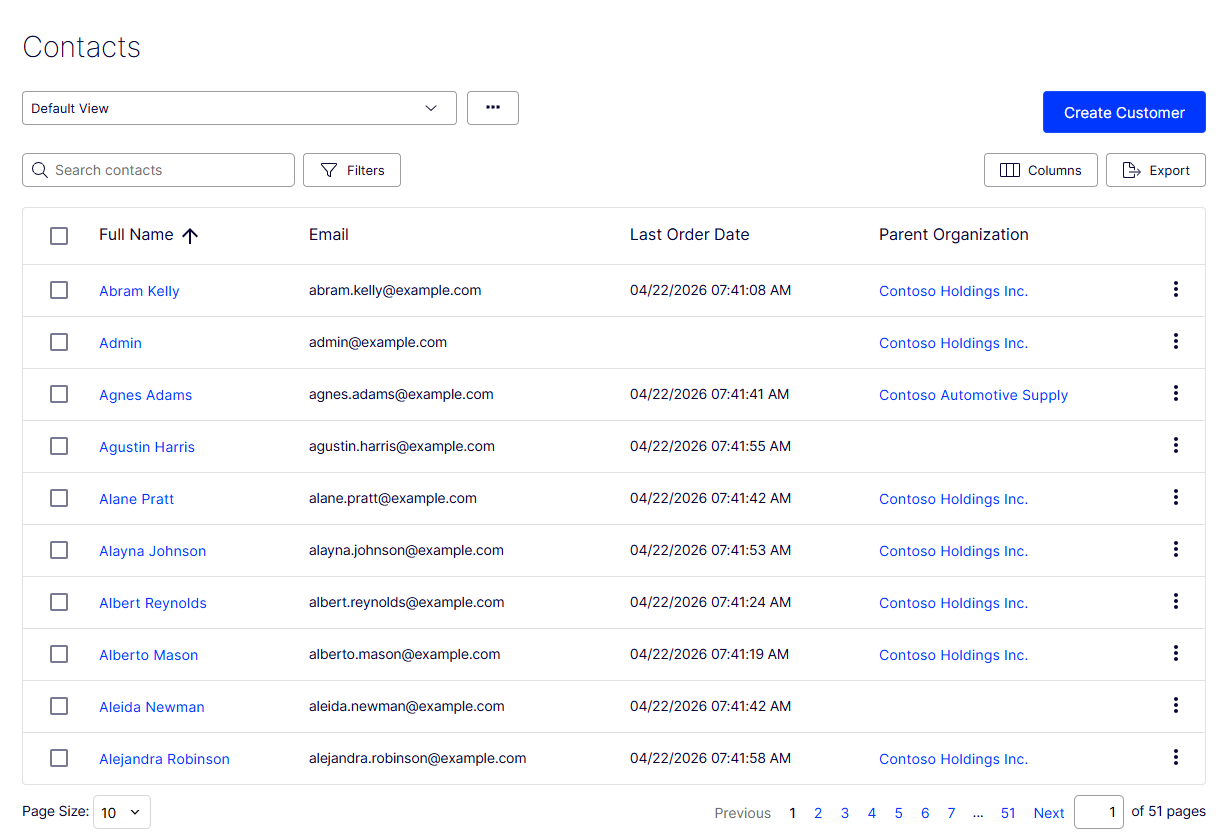
Create, edit, and delete contacts and assign them to organizations and customer groups.
Commerce Connect automatically creates a contact when a visitor registers on the storefront. Customers can log in and view personalized information with the account. You can also manually create contacts.
NoteYou cannot manually create an account and associate it with a contact in Customers. A future version adds this functionality.
Use customer groups and organizations to structure contacts for various purposes. For example, assign a customer group to an organization to determine pricing eligibility. An organization contact is a member of that organization's customer group, even if you assign the contact individually to a different customer group.
Create and edit contacts
-
Go to Customers > Contacts.
-
Click Create Customer to add a contact, or select More Options > Edit to modify one.
-
Enter the following information:
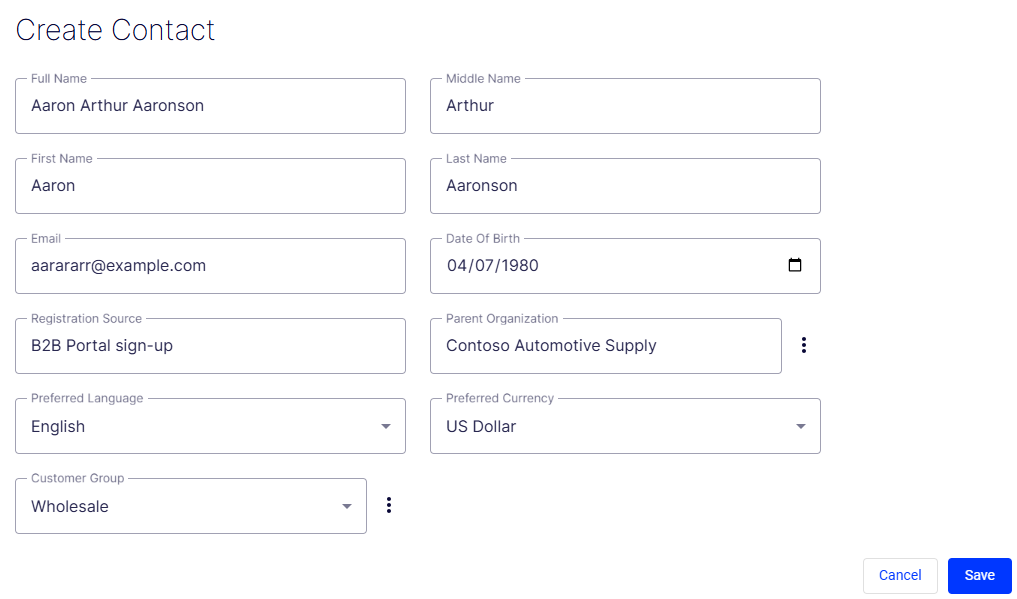
- Full Name (Required)
- Middle Name
- First Name (Required)
- Last Name (Required)
- Email (Required)
- Registration Source – Enter the registration source, such as B2B Portal sign-up. When a visitor registers on the website, Commerce Connect automatically fills this field.
- Parent Organization – Assign the contact to a parent organization. Click the More icon > Browse to open a modal to search through your parent organizations.
- Preferred Language – Select the contact's language.
- Preferred Currency – Select the contact's currency. For example, if the contact is in France, select Euro.
- Customer Group – Assign the contact to a customer group. Next to the customer group drop-down is a menu to edit the list of available customer groups. The same list of customer groups is used for all entities—it does not matter from which type of entity the customer group was created
-
Click Create.
The Preferred Shipping Address or Preferred Billing Address populate when the customer places an order. To edit this information or add more addresses, go to Customers > Contacts and select the contact name you want to edit.
Delete a contact
- Select one or more contacts to delete.
- Select More Options > Delete, or Delete Selected to delete multiple contacts.
Updated 2 months ago