
Discount exclusions
Prevent specific discounts from being combined, or exclude catalogs, categories, and entries from a discount.
Exclude other discounts from combination
Exclusions are campaigns or discounts that you cannot combine with the current discount. Apply an exclusion to individual discounts, all discounts in one or more campaigns, or all other discounts.
For example, you run a sale with 20% off automotive supplies. Customers should not be able to combine this discount with the Get cheapest item free discount.
To exclude a discount:
-
Go to Marketing > Discount Priorities and Exclusions.
-
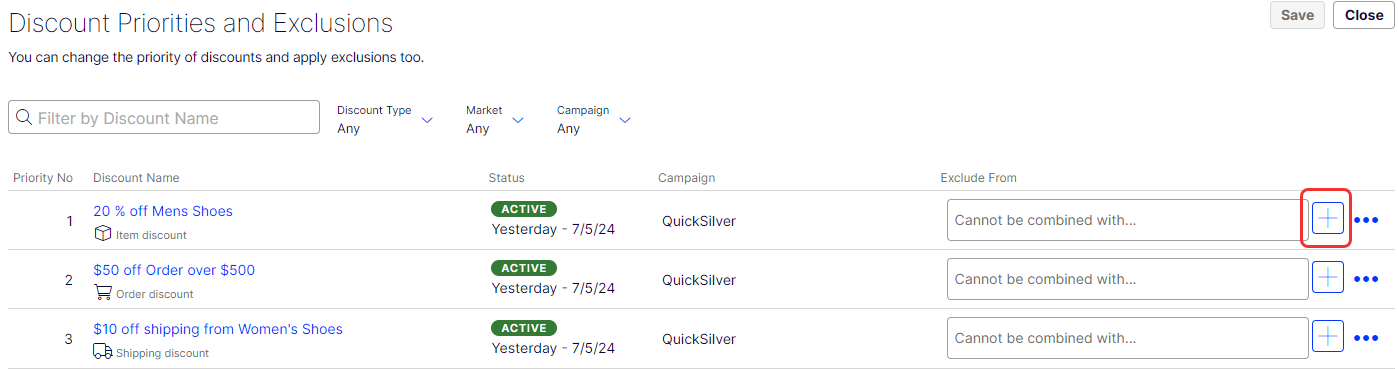
On the desired discount, click the Add icon next to Cannot be combined with.
-
Select campaigns or discounts that you do not want to combine with this discount. In the previous example, you would select the Get cheapest item free discount.
-
Click OK, then click Save.
Additional notes about exclusions:
- Apply an unlimited number of exclusions to a discount.
- If you select a campaign, you exclude all of its discounts, both current and future.
- After you select an exclusion, it displays in the Cannot be combined with field for reference and possible removal.
- The Cannot be combined with field displays campaigns first, followed by discounts.
- If you select All (the campaign root folder), only that tag displays in the Cannot be combined with field. Similarly, if you exclude a discount then later exclude its parent campaign, the discount's tag is removed from the Cannot be combined with field because the parent campaign includes the child discount.
- If you exclude more than two items, click Add or hover your cursor over the ellipsis to view all exclusions.
Exclude catalog items
Exclude catalogs, categories, or catalog entries from a specific discount. For example, you might want to exclude men's Puma sneakers from a store-wide 25% off sale.
- Select the campaign and the discount for the exclusion.
- Open the Edit Discount page for the discount.
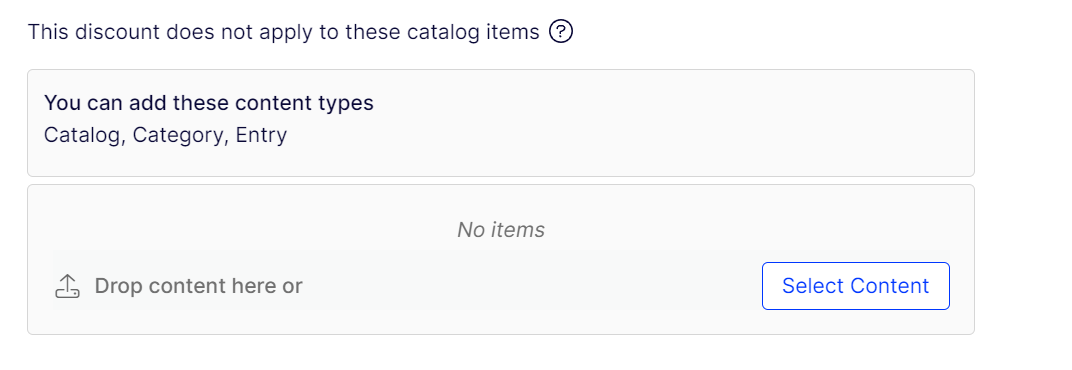
- Scroll down to This discount does not apply to these catalog items.
- Choose one or more catalogs, categories, or catalog entries to exclude from the discount.
Updated 2 months ago