
Packages and bundles (UI)
Create and manage packages, dynamic packages, and bundles in a catalog.
In Optimizely Commerce Connect, a package is a fixed bundle. It contains one or more variants, other packages, or both, sold as a single unit. The contents are pre-configured and the customer has no choice over the components.
- Has a unique SKU and a single price.
- Displays as a single line item in the shopping cart.
- The Package Entries page shows the specific variants and packages that make it up. Example: a shirt and hat combination wrapped and sold as one unit.
A dynamic package (beta) is a content type extended from a package, but with one key difference: it contains products (each with one or more variants), letting you select which variant you want for each product included in the package.
- Also has a unique SKU and a single price.
- Also displays as a single line item in the shopping cart.
- The Package Entries page shows the products and their available variants. When adding a dynamic package to an order, change the selected variant through a drop-down list. Example: a package containing a shirt and a hat where the customer can choose their preferred size or color for each item.
A bundle is a collection of packages, products, and variants priced individually, letting customers purchase several items at once. Each item in a bundle is a separate line item in a shopping cart. When added to a cart, a bundle item is treated like any other cart item.
View packages and bundles on the catalog list page.
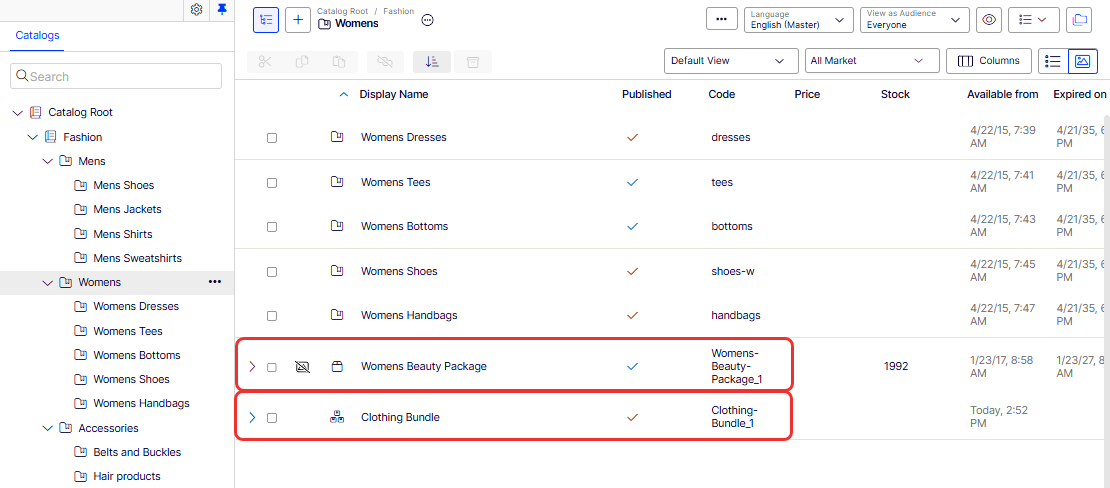
Create a package
A package is a catalog entry that groups multiple products or variants together for sale as a single unit. Use packages to sell curated sets, bundled accessories, or multi-item promotions without creating a separate product record for the combination.
-
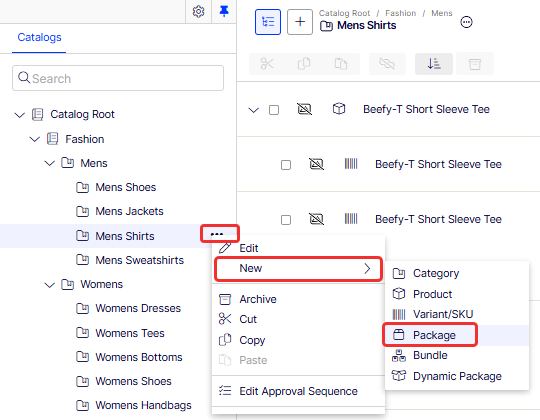
In the Catalogs tree, go to the category where you want to create the package. Click the ⋯ context menu next to the category name, then click New > Package.
-
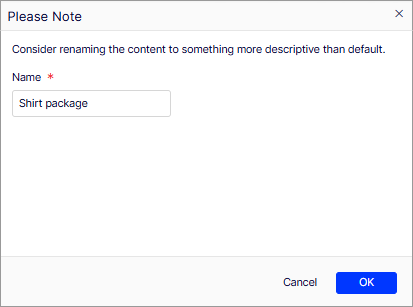
In the Please Note window, enter a descriptive name for the package in the Name field (for example, Shirt package) and click OK.
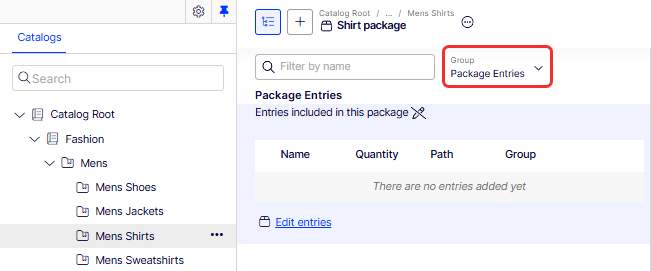
The package opens in the editor, showing an empty Package Entries table.
-
Select Group > Package Entries to focus on those properties.
NoteLike other catalog entries, packages have properties. Because packages have an SKU and price, they also have Pricing and Inventory sections.
-
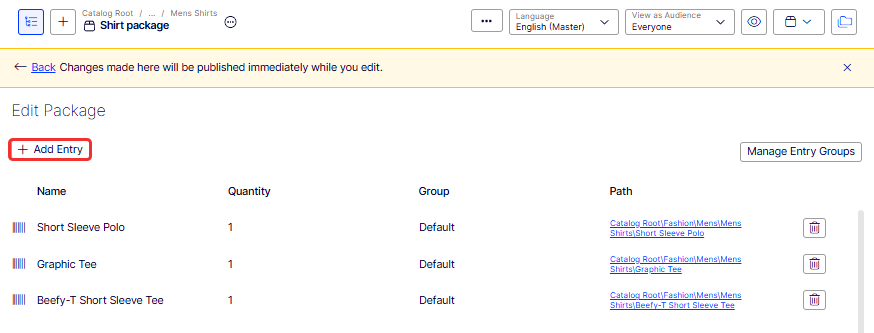
Click Edit entries. The Edit Package page opens.
-
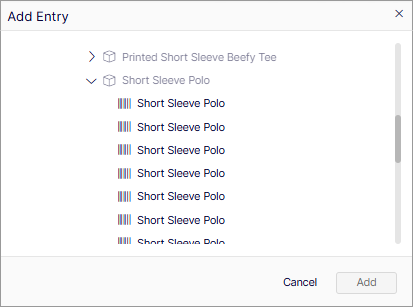
Click + Add Entry. The Add Entry window opens, displaying products and variants from the catalog.
-
Select the variants or products to include in the package. In this example, select one or more Short Sleeve Polo variants, then click Add.
-
Repeat steps to add additional entries. In this example, Graphic Tee and Beefy-T Short Sleeve Tee were added.
-
To remove an entry, click the Delete icon (🗑) in that row.
-
When all entries are added and quantities are set, click Back to return to the package. Changes are published immediately as you edit.
The banner at the top of the Edit Package page reads Changes made here will be published immediately while you edit. Review all entries and quantities before making changes on a live storefront.
Create a dynamic package (beta)
When creating a dynamic package, add the following:
- Add a product, including all product variant relations.
- Add a variant and any product relations to that variant.
NoteAn administrator can remove an entire product or a variant from the Package Entries list. A product cannot exist without a variant inside.
When adding a dynamic package to an order, change the selected variant using the drop-down list.
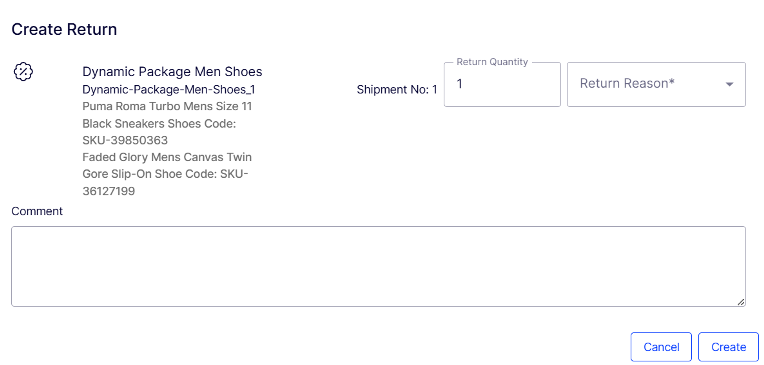
When you place an order, Commerce Connect recalculates the quantity of dynamic packages and variants. Commerce Connect also lists a dynamic package as a single line item for returns.
Create a bundle
A bundle is a catalog entry that groups products together for sale as a set, where the customer receives all included items as part of a single purchase. Unlike a package, a bundle typically presents its contents as a curated collection where each item retains its individual identity. Use bundles to offer complementary products together, such as a clothing outfit or a coordinated accessories set.
Because bundles do not have an SKU or price, they do not have sections for pricing and inventory. Associate bundle entries with entry groups as you can with packages.
-
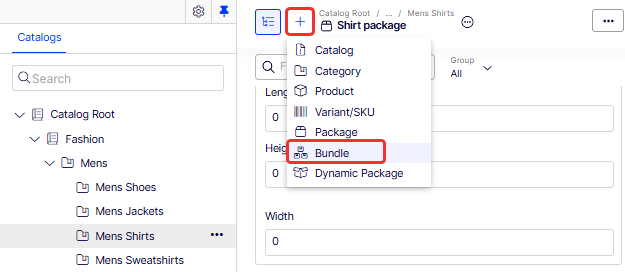
In the Catalogs tree, go to the category where you want to create the bundle. Click + in the toolbar, then click Bundle.
-
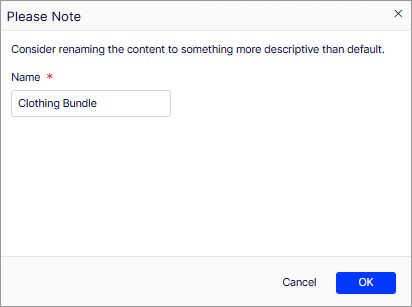
In the Please Note window, enter a descriptive name for the bundle in the Name field (for example, Clothing Bundle) and click OK.
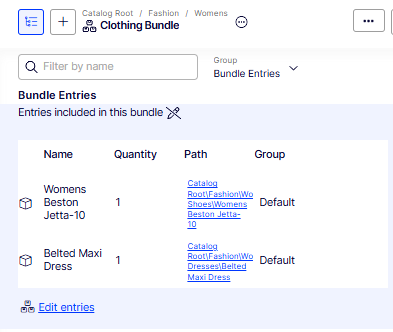
The bundle opens in the editor. If entries have already been added, they display in the Bundle Entries table.
-
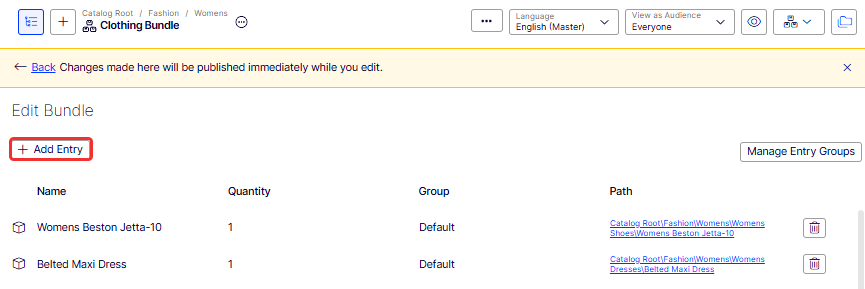
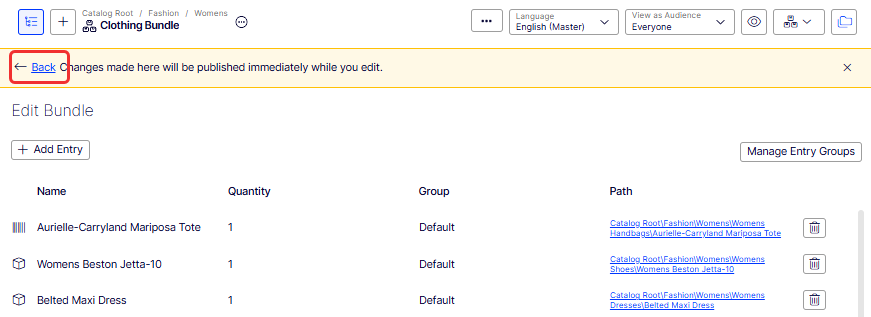
Click Edit entries. The Edit Bundle window displays.
-
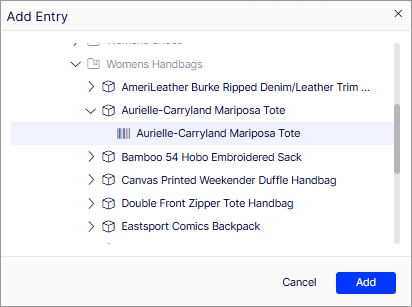
Click + Add Entry. The Add Entry window opens, displaying products and variants from the catalog organized by category.
-
Expand a category to browse its products and variants. Select the item to include in the bundle (for example, Aurielle-Carryland Mariposa Tote), then click Add.
-
Repeat steps 4 and 5 to add additional entries until the bundle contains all required items.
-
To remove an entry, click the Delete icon (🗑) in that row.
-
When all entries are added and quantities are set, click Back to return to the bundle. Changes are published immediately as you edit.
Delete a package or bundle
WarningIf you delete a package or bundle, all links to it from related products and variants are removed. You cannot recover a package or bundle after it is deleted.
- Open the item's context menu.
- Click Delete.
- Click Delete to confirm.
To delete multiple catalog entries at once, select them from the item list, and click Delete from the toolbar.
How the Campaigns feature considers packages and bundles
The Campaigns feature treats a package like any other SKU. Because a package has its own price and quantity, any reductions are made to the package. The Campaigns feature ignores the individual items in a package.
The Campaigns feature does not recognize bundles. It only recognizes the individual SKUs that make up a bundle.
Updated 2 months ago