
Collect data for reports
Describes how to collect and access data for order reports in Optimizely Commerce Connect.
Optimizely Commerce Connect collects raw data for purchase orders and subscriptions and exports it under Reports in the UI for use in other applications.
The data-collection feature includes the following capabilities:
- Specify time periods for the data — for example, all orders created in the past 90 days — in
appsettings.json. - Collect data when an order is placed or when an existing order is modified by adding, updating, or removing line items.
- Run scheduled jobs that collect the raw data and export it as a compressed
.zipfile containing a CSV file. - Show download links for exported
.zipfiles in the Reports menu. - Control access to the Reports menu through role-based permissions.
Set the time range for reports
Set the report time range in appsettings.json or inside the ConfigureServices method of Startup.cs. The default value is 90 days. The following examples set a single value or multiple values:
// appsettings.json
{
  "Commerce": {
    "ReportingTimeRangeOptions": {
      "TimeRangesInDays": [30, 60, 90, 180]
    }
  }
}// Startup.cs
public void ConfigureServices(IServiceCollection services)
{
services.Configure<ReportingTimeRangeOptions>(o =>
{
o.TimeRangesInDays = new HashSet<int>() { 30, 60, 90, 180 };
});
}Each value is the number of days prior to the date the scheduled job Collect Report Data runs. Both start and end dates are inclusive. The job creates one CSV file per value.
In the preceding example, the Collect Report Data scheduled job generates four CSV files: one for orders created in the last 30 days, one for the last 60 days, one for the last 90 days, and one for the last 180 days. Each CSV file is then compressed into a .zip file.
Collect report data
Use a scheduled job
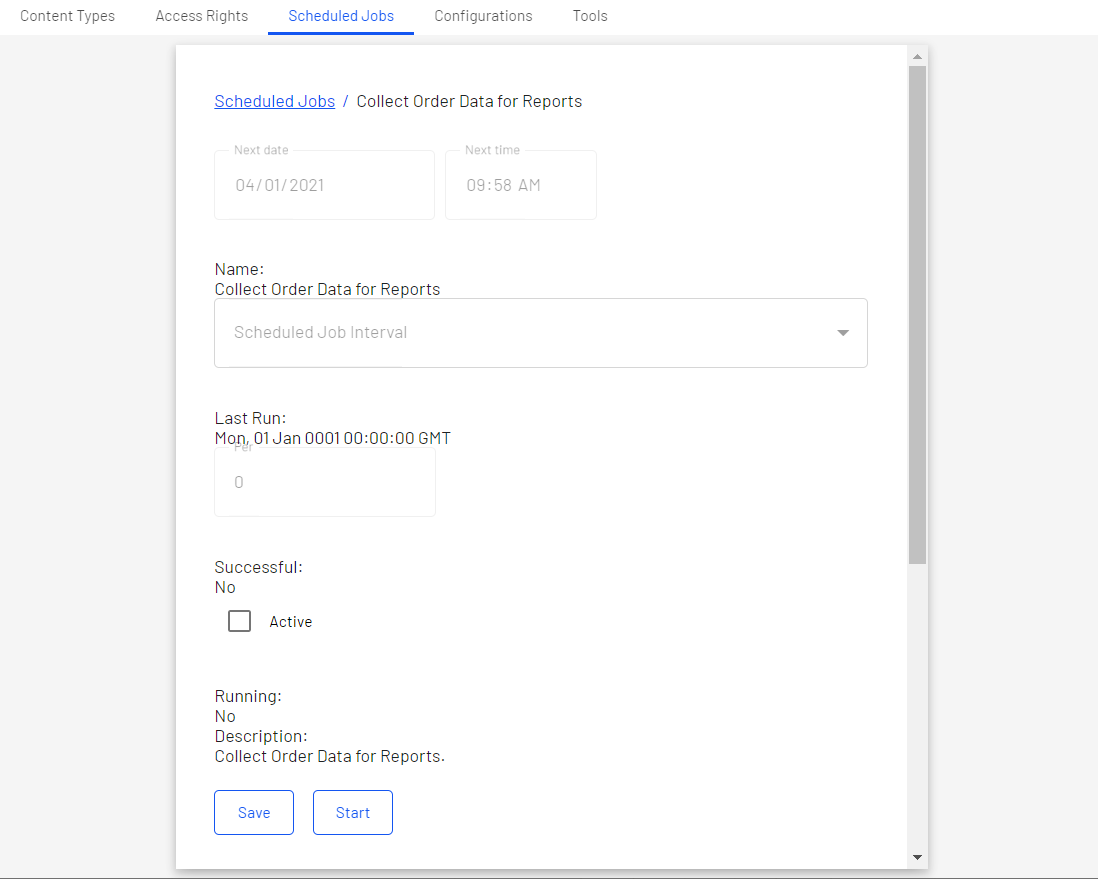
To collect order data, run the Collect Order Data for Reports scheduled job from the CMS Admin view. The job collects order data in the background, and you can run it manually or at predetermined intervals like any other scheduled job.
The Collect Subscription Data for Reports scheduled job collects data for subscriptions. See Collect subscription data for details.
Use order events
Commerce Connect can also collect order data when an order is placed or when an existing order is modified by adding, updating, or removing line items. This option is disabled by default. To enable it, set ReportingOptions.EnableEventDrivenOrderReporting to true in appsettings.json or inside the ConfigureServices method of Startup.cs:
// appsettings.json
{
  "Commerce": {
    "ReportingOptions": {
      "EnableEventDrivenOrderReporting": true
    }
  }
}// Startup.cs
public void ConfigureServices(IServiceCollection services)
{
services.Configure<ReportingOptions>(o =>
{
o.EnableEventDrivenOrderReporting = true;
});
}Permissions for reports
Only users with the following roles can access the Reports menu in the Commerce Connect UI:
CommerceAdminsReportManagers
Access collected data
After the report data is collected, a link to the exported .zip files appears under Reports. Click the link to download the data.

Data format
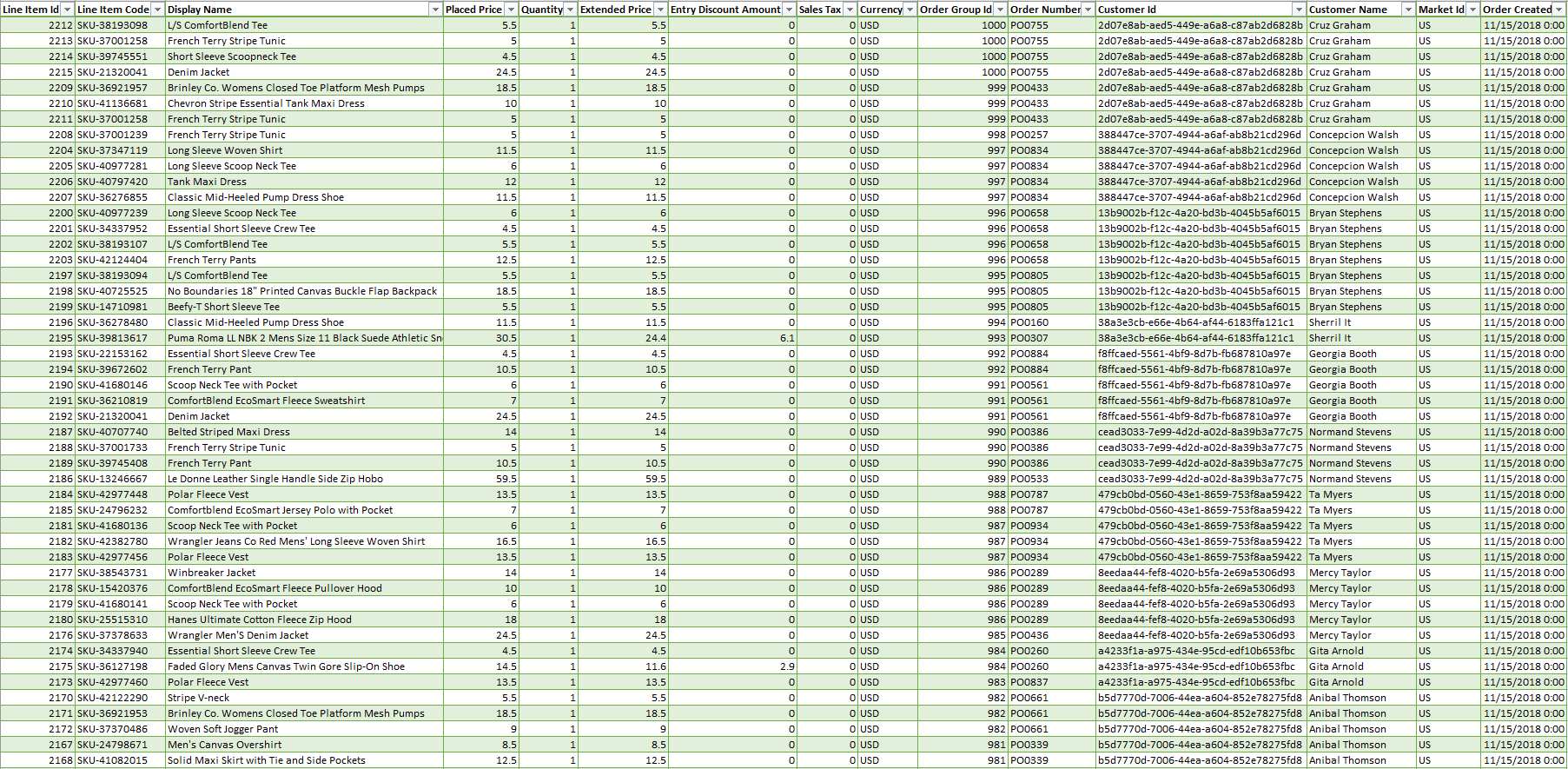
Report data is presented in comma-separated value (CSV) format. The following screenshot shows an example export:
Order data report contents
Each row in the order data report represents a line item from an order created during the specified time range, with the following columns:
LineItemIDLineItemCodeDisplayNamePlacedPriceQuantityExtendedPriceEntryDiscountAmount– The line item's discount amountSalesTaxCurrencyOrderGroupIdOrderNumberCustomerIDCustomerNameMarketIdOrderCreated– The order creation dateAdditionalValues– See Add properties to order data.
Add properties to order data
If the default columns do not meet your requirements, add properties by overriding the GetAdditionalData() method on ReportingAdditionalDataHandler.
public override IEnumerable<string> GetAdditionalData(ILineItem lineItem, IPurchaseOrder order)
{
    return new string[]
    {
        order.MarketId.Value,
        order.OrderStatus.ToString(),
        lineItem.InventoryTrackingStatus.ToString()
    };
}
DefaultReportingService.ExportOrderDataAsCsv() calls GetAdditionalData() to populate AdditionalValues, then writes that column to the CSV file alongside the default columns.
Related resources
- Implementing a custom reporting service for commerce — community blog post by Brian Weet.
Updated 2 months ago