
Customers in Order Management
Find customers and manage their details, addresses, and order history in Order Management.
NoteIn roadmap communications, Order Management is referred to as the CSR Portal.
This topic describes how to find customers, and view and update customer information on the Orders page.
Find customers
-
From the Order Management page, click View Customer.
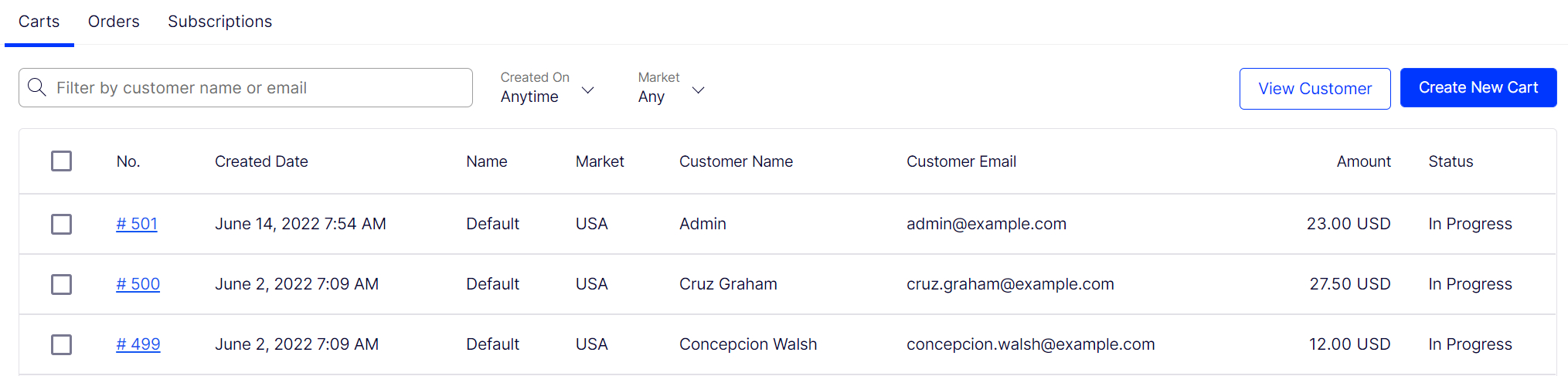
-
In the View customer field, enter any portion of the customer's name or email address. As you enter more characters, you get fewer search results. A list of customers whose name or email address includes those characters displays.
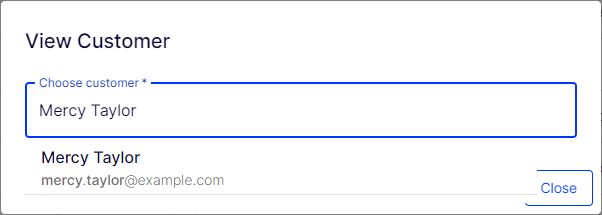
-
Choose a customer. The Contact Details page for that customer displays.
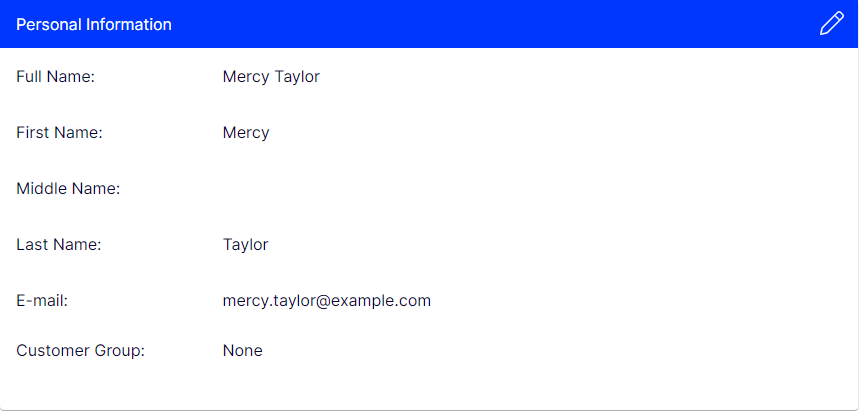
-
Click Edit (icon) to modify the customer details.
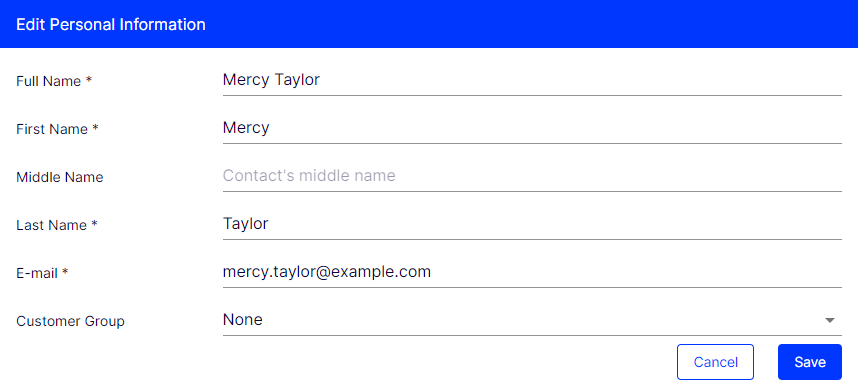
Modify customer information from a cart or order
View and update basic customer information from Cart Details > Contact Details tab. Click Edit beside Customer Information. See Carts.
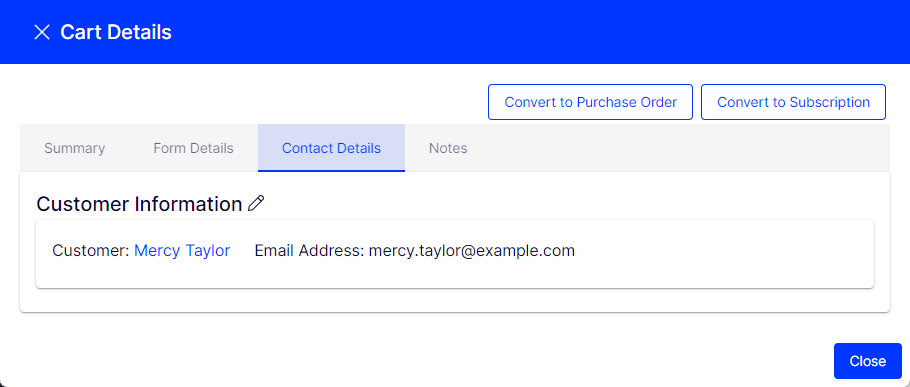
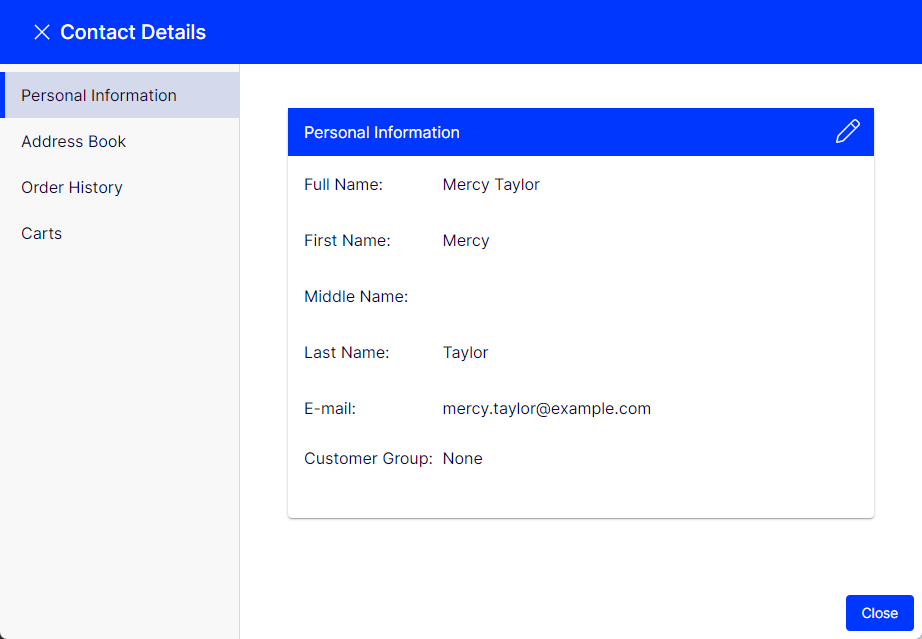
The Contact Details page displays with three tabs: Personal Information, Address Book, and Orders.
Personal Information tab
Edit the customer's name, email address, and customer group.
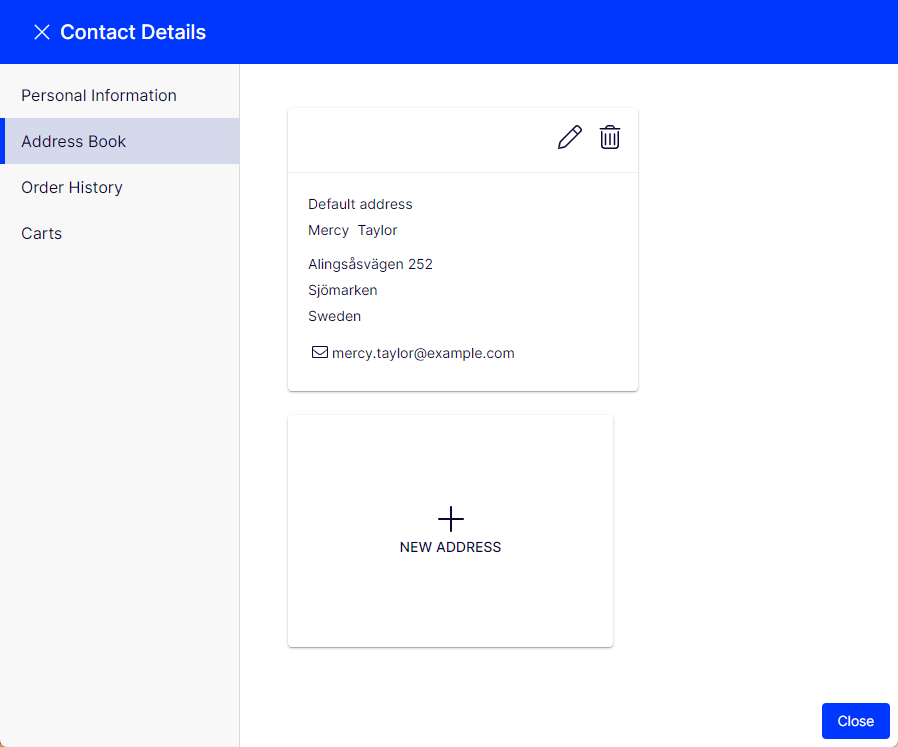
Address Book tab
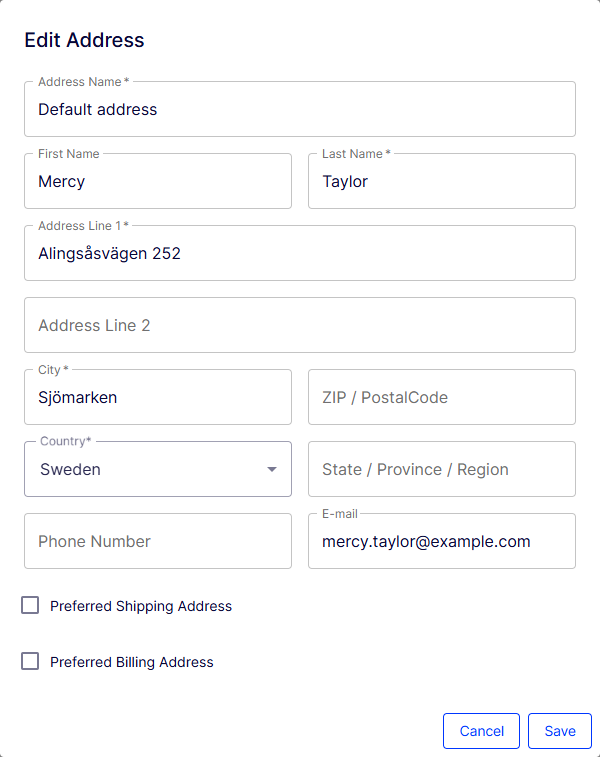
Initially, you see all of a customer's addresses. Edit or delete an existing address, or enter another one. Designate one address as the preferred billing address, and the same or a different one as the preferred shipping address.
Click Edit (pencil icon) to modify the contact information.
Order History tab
The Order History tab shows a customer's order history in reverse chronological order. Click any order to see and edit its details. See Orders.

Carts tab
The Carts tab shows a customer's cart and wish lists ordered by the Last Modified date in reverse chronological order. See Carts.

Updated 2 months ago