
Browse and search catalogs
Browse and search catalogs, categories, products, and variants using the catalog tree and keyword search.
Go to Commerce > Catalog to browse catalogs and their related categories, products, and variants. Search for catalog entries from the same location.
Browse catalogs
Click Catalogs to browse the list of catalogs. Select a catalog from the tree node (such as Fashion > Mens > Mens Shoes) to view its categories and catalog entries, which display in the Catalog item list. The list displays the name, code, price, and availability of products and their variants.
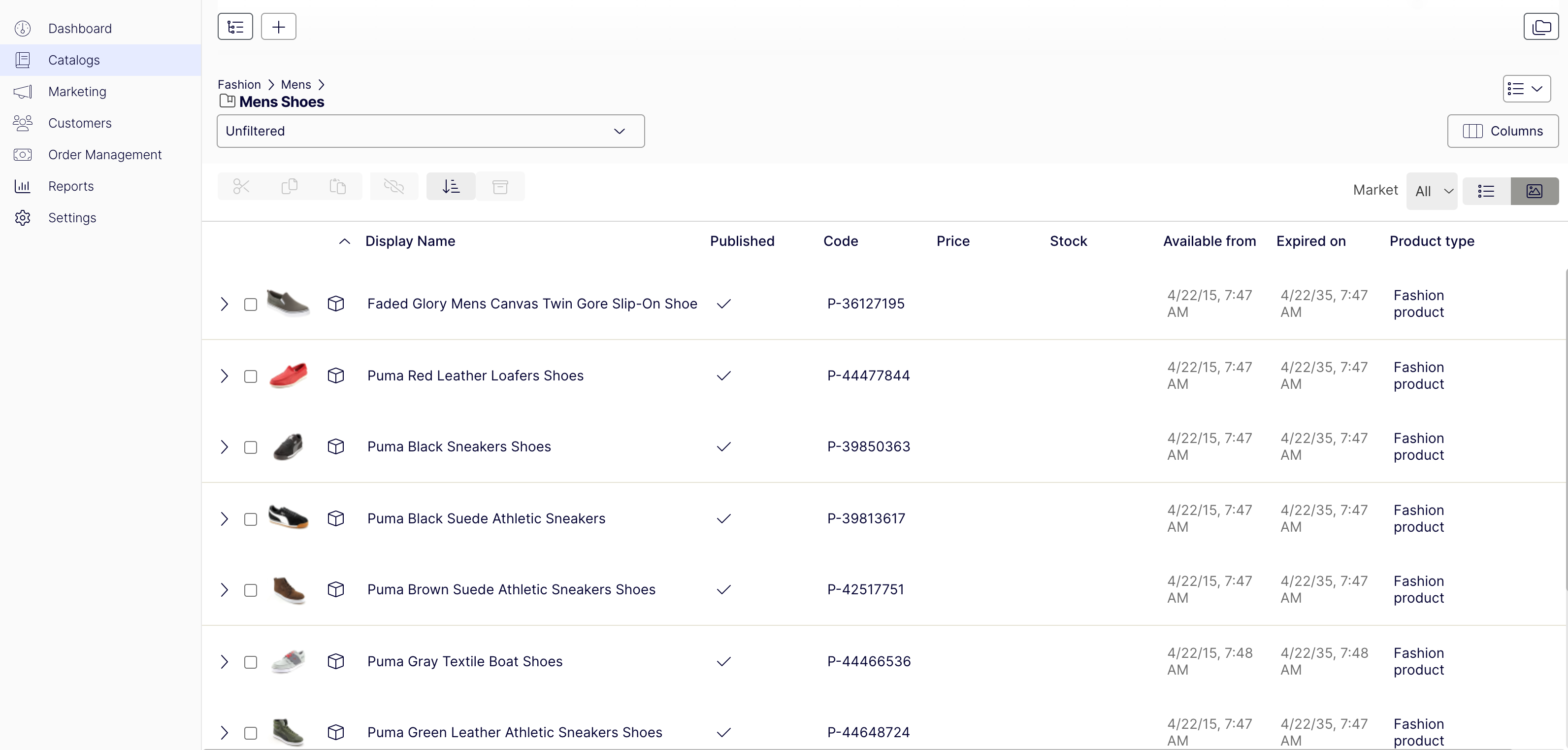
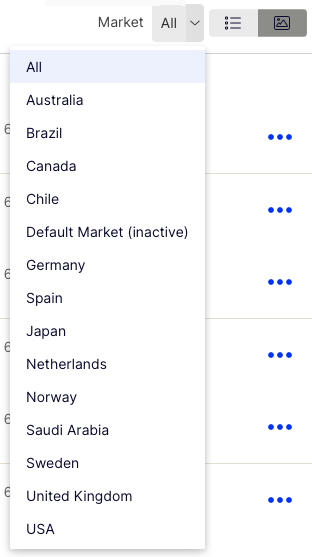
To filter an item list by market, use the Market selector.
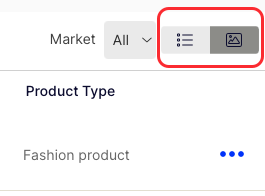
Display or hide thumbnail images by toggling Show as list or Show as thumbnails.
Select a category and drill down until you see products, packages, and bundles. Select the arrow next to a product, package, or bundle to display related products and variants. Inventory and pricing information display for variants.
Catalog items have icons that help you identify their content type:
Select a product or variant to view and edit its content. See Catalog entries for more.
Search for catalog entries
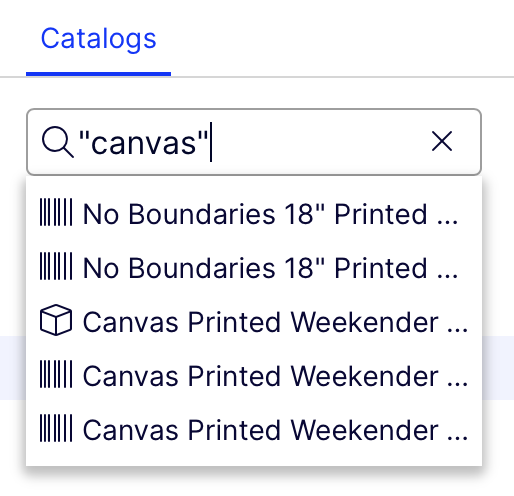
To search for catalog entries from the Catalogs tree, enter keywords into the search field. If you enter keywords inside quotation marks (such as "canvas"), the search only returns entries with those exact terms.
Access products in CMS
Access catalog entries from the edit view through the Catalogs gadget in the Assets panel in Optimizely Content Management System (CMS).
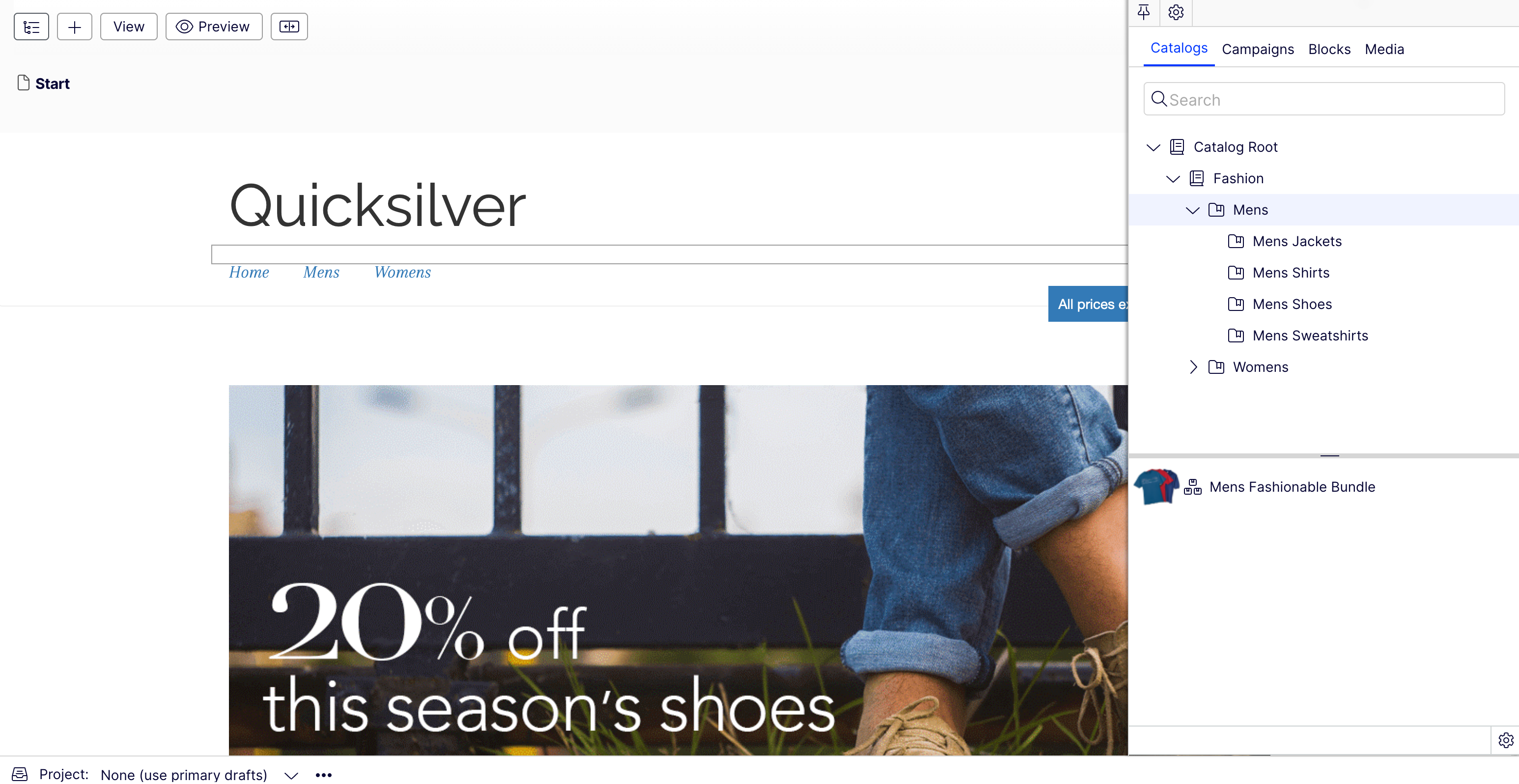
The gadget is useful when dragging and dropping catalog entries into content areas.
Updated 2 months ago