
Tax jurisdiction groups
Create and manage tax jurisdiction groups to simplify tax configuration in Commerce Connect.
Tax jurisdiction groups are useful whenever your business operates across multiple taxing authorities that share common applicability rules. Common scenarios include:
- Multi-state sales tax compliance – If your ecommerce platform sells to customers in both California and Massachusetts, group those jurisdictions and apply the group to all US-based digital goods in one step rather than mapping each state separately.
- Consistent rule management – When tax rules change for a set of jurisdictions you treat as a unit (for example, all Northeast states), updating one group propagates the change everywhere it is referenced.
- Product-line segmentation – Different product lines may be taxable in different combinations of states. Groups let you define those combinations once and reuse them.
- Reporting and auditing – Grouping related jurisdictions makes tax reports easier to filter and interpret by region or business unit.
Go to Settings > Tax Jurisdiction Groups.
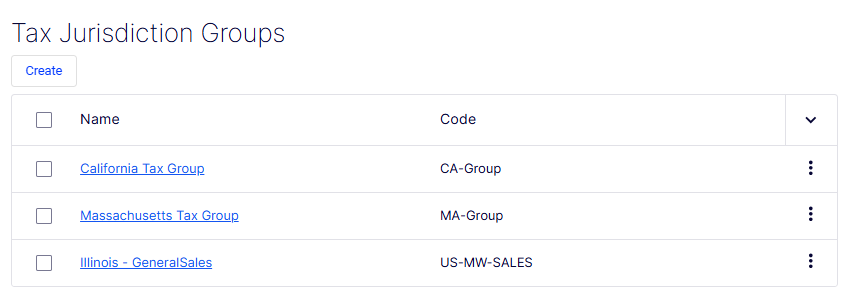
The Create Tax Jurisdiction Group form lets you bundle multiple tax jurisdictions into a single named entity. This simplifies tax configuration by letting you apply a set of jurisdictions to products, transactions, or customer segments with a single reference rather than assigning each jurisdiction individually.
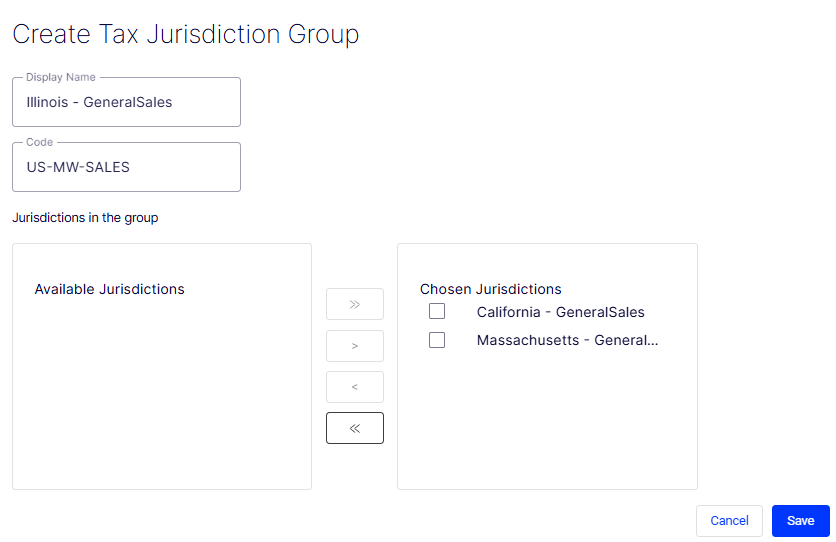
- Display Name – A required free-text field for the human-readable label of the group. This name displays in drop-down lists, reports, and other configuration pages that reference jurisdiction groups. Choose a name that clearly identifies the geographic or logical scope of the group (for example, Northeast States or US General Sales).
- Code – A required free-text field for a short programmatic identifier. Unlike the display name, this value is typically used in API calls, data imports, and system integrations. It should be unique, concise, and free of spaces (for example,
US-NE-SALES). - Jurisdictions in the group – A dual-list (shuttle) control that manages membership in the group. It is divided into two panels:
- Available Jurisdictions – The left panel lists all jurisdictions that exist in the system but have not yet been added to this group. Each row has a checkbox for selection. In this screenshot, two jurisdictions are available: California – GeneralSales and Massachusetts – General... (truncated).
- Chosen Jurisdictions – The right panel displays the jurisdictions included in this group. It is empty until items are moved from the left panel.
»(Add All) – Moves every jurisdiction from the Available list into the Chosen list in a single action, regardless of checkbox selection.>(Add Selected) – Moves only the checked jurisdictions from the Available list into the Chosen list.<(Remove Selected) – Moves selected jurisdictions from the Chosen list back to the Available list, removing them from the group.«(Remove All) – Clears the Chosen list entirely, returning all jurisdictions to the Available list.- Cancel – Discards all entered data and exits the form without creating a group.
- Save – Submits the form and creates the jurisdiction group. The button is disabled (grayed out) until all required fields – Display Name and Code – are filled in.
Updated 3 months ago
Did this page help you?