
Shipping jurisdiction groups
Create and configure shipping jurisdiction groups in Optimizely Commerce Connect to manage multi-country shipping zones, rates, and rules from a single reusable entity.
Shipping jurisdiction groups bundle multiple shipping jurisdictions into a single reusable entity, simplifying the assignment of shipping rules, rates, and restrictions across regions. Common scenarios include:
- Multi-country shipping zones – Group countries that share the same carrier, rate, or delivery rules (for example, all EU member states) so you can manage them as a single zone rather than configuring each country individually.
- Consistent rule management – When shipping rules change for a set of jurisdictions you treat as a unit, updating one group propagates the change everywhere it is referenced.
- Carrier and service-level segmentation – Different carriers may serve different regions. Groups let you define those regions once and attach them to the appropriate carrier configuration.
- Reporting and fulfillment – Grouping related shipping jurisdictions makes order fulfillment reports easier to filter and interpret by region or warehouse zone.
Go to Settings > Shipping Jurisdiction Groups.
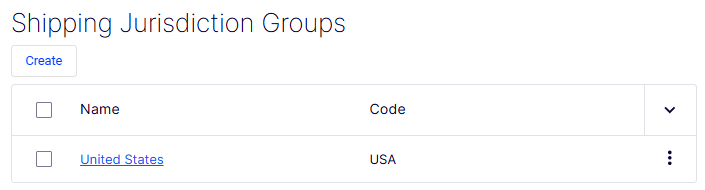
The Create Shipping Jurisdiction Group form lets you bundle multiple shipping jurisdictions into a single named entity. This simplifies shipping configuration by letting you apply a set of jurisdictions to rates, rules, or fulfillment settings with a single reference rather than assigning each jurisdiction individually.
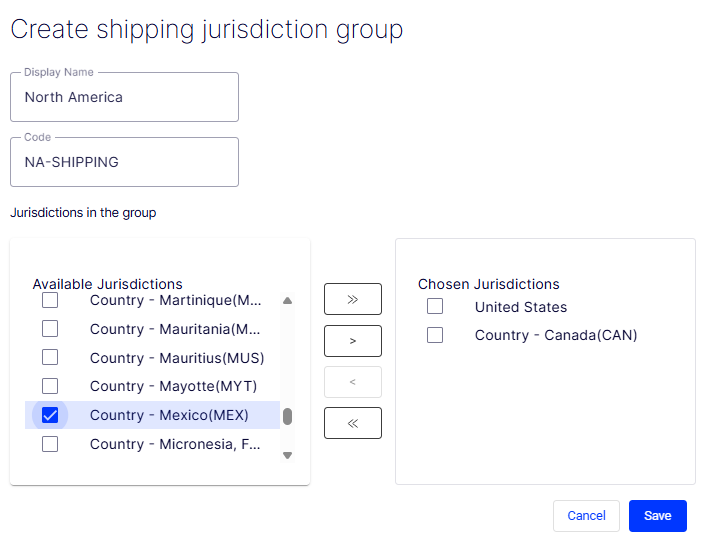
- Display Name – A required free-text field for the human-readable label of the group. This name displays in drop-down lists and configuration pages that reference shipping jurisdiction groups. Choose a name that clearly identifies the geographic scope of the group (for example, North America or Europe Zone 1).
- Code – A required free-text field for a short programmatic identifier used in API calls and integrations. It should be unique, concise, and free of spaces (for example,
NA-SHIPPING). - Jurisdictions in the group – A dual-list (shuttle) control that manages which jurisdictions belong to this group. It is divided into two panels:
- Available Jurisdictions – The left panel lists all jurisdictions that exist in the system but have not yet been added to this group. The list is scrollable and each row has a checkbox for selection. Jurisdictions display with their country name and ISO code (for example, Country – Mexico(MEX)). A checked item (for example, Country – Mexico(MEX)) is selected and ready to be moved to the Chosen panel.
- Chosen Jurisdictions – The right panel displays the jurisdictions currently included in this group. In this screenshot, United States and Country – Canada(CAN) are present, with Country – Canada(CAN) selected.
»(Add All) – Moves every jurisdiction from the Available list into the Chosen list in a single action, regardless of checkbox selection.>(Add Selected) – Moves only the checked jurisdictions from the Available list into the Chosen list.<(Remove Selected) – Moves selected jurisdictions from the Chosen list back to the Available list, removing them from the group.«(Remove All) – Clears the Chosen list entirely, returning all jurisdictions to the Available list.- Cancel – Discards all entered data and exits the form without creating a group.
- Save – Submits the form and creates the shipping jurisdiction group. The button is disabled (grayed out) until all required fields, Display Name and Code, are filled in.
Updated 2 months ago