
Countries
Add, edit, and delete countries and regions and configure their visibility and sort order.
Optimizely Commerce Connect lets you add, delete, multi-select, create a country code, set a sort order, and indicate if the country is active under Settings > Countries. You can also create regions tied to a specific country. For each region, set a sort order and choose whether the region is visible.
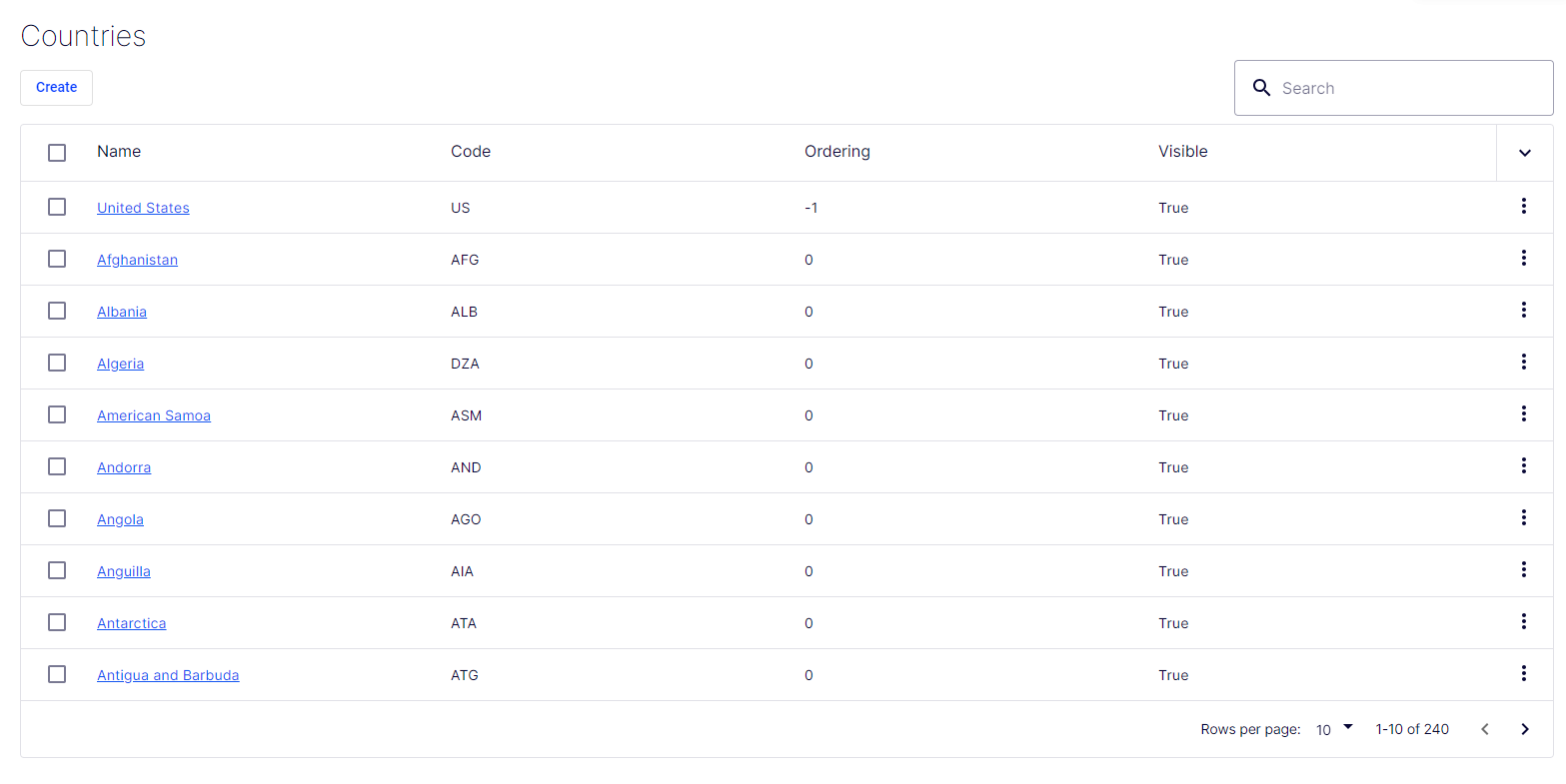
Use the search bar above the table to search for a specific country. Use the checkboxes to multi-select countries and delete them. Click More beside a country to edit or delete it.
Add a country
-
Go to Settings > Countries.
-
Click Create.
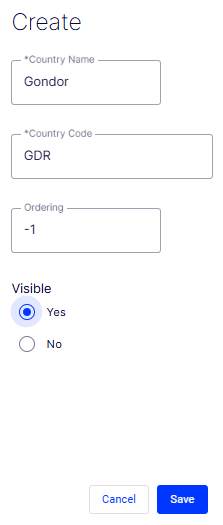
- Enter the Country Name.
- Enter the Country Code. See Microsoft's Table of Country or Region and State or Province Names and Codes for information. Use the ISO short code or the ISO long code as long as you remain consistent.
- Enter an Ordering number starting from 0 (the lower number is listed at the top).
- Select Yes to make the country name visible on the public site or No to hide it.
-
Click Save.
Add a region
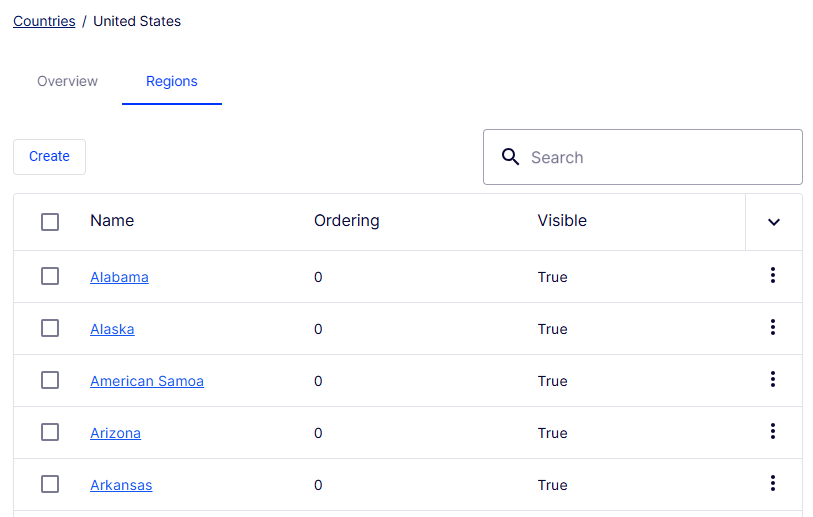
Similar to countries, Commerce Connect has a regions table where you can search for or multi-select regions. Click More beside a region to edit or delete it.
-
Click the name of the country for which you want to add a region.
-
Click Regions.
-
Click Create.
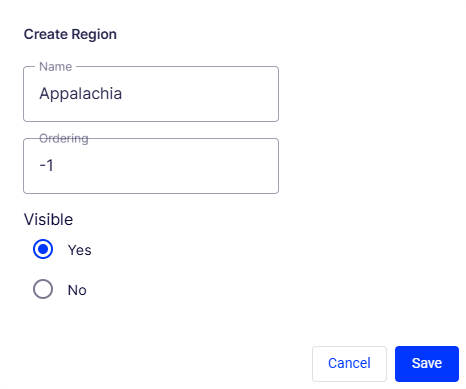
- Give the region a Name.
- Enter the number for Ordering.
- Select Yes to make the region name visible on the public site or No to hide it.
-
Click Save.
Updated 2 months ago