
Export orders and subscriptions
Export order and subscription data to CSV using filters in Order Management.
Export orders and subscriptions with Order Management in Optimizely Commerce Connect. The steps to export order or subscription data are the same.
-
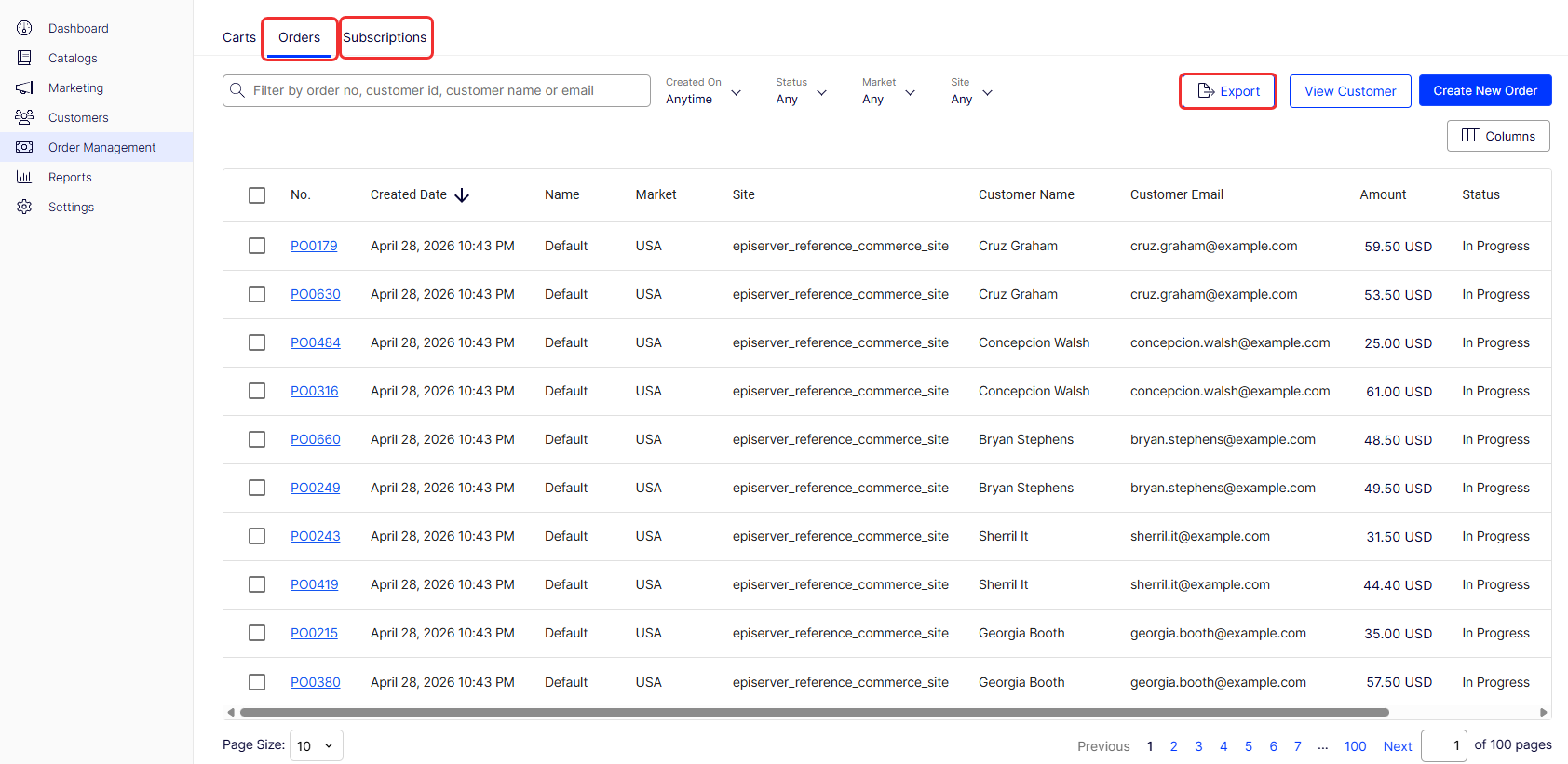
Go to Order Management and select the Orders or Subscriptions tab.
-
Click Export. The Export list page displays with any previously exported files.
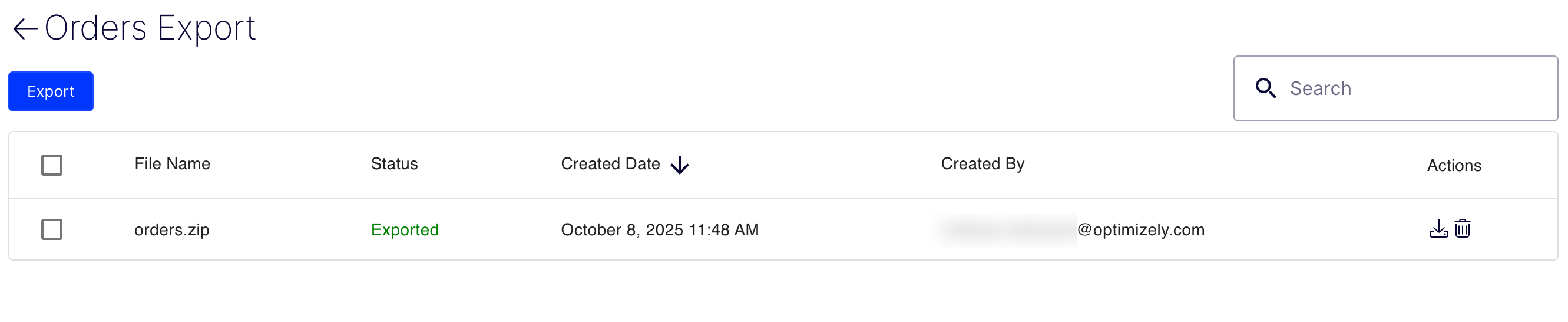
The Export page lets you do the following:
- Click Export to create an export file.
- Click Download to download the exported file.
- Click Delete to delete the file. To delete multiple files at once, select them and click Delete.
- Use the search box to search for exported files by name.
-
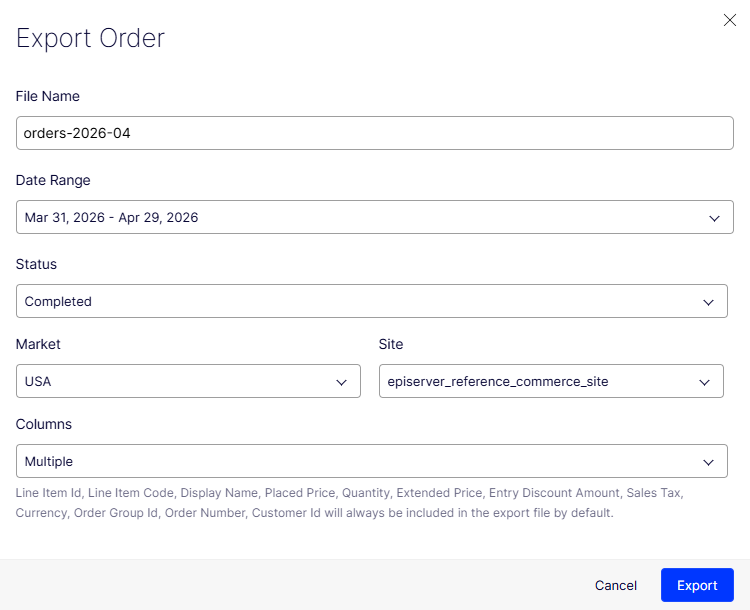
Click Export. The Export window displays.
-
Enter values in the window. For example:
- File Name – orders-2026-04. This field is required and cannot contain special characters.
- Date Range – Filter by a date range, such as Last 30 days.
- Status – Filter by status, such as Completed. Select multiple options. If you choose Any, the system filters for every status.
- Market – Filter by market, such as USA. Select multiple options. If you choose Any, the system filters for every market.
- Site – Filter by site, such as episerver_reference_commerce_site. Select multiple options. If you choose Any, the system filters for every site.
- Columns – Select which data to export, such as Multiple (e.g., add Shipping Address, Payment Method, Order Status).
-
Click Export to export the data to a
.csvfile. Download the file from the Export page.
Updated 3 months ago
Did this page help you?