
Prioritize discounts
Set discount priority order to control how overlapping campaign discounts are applied.
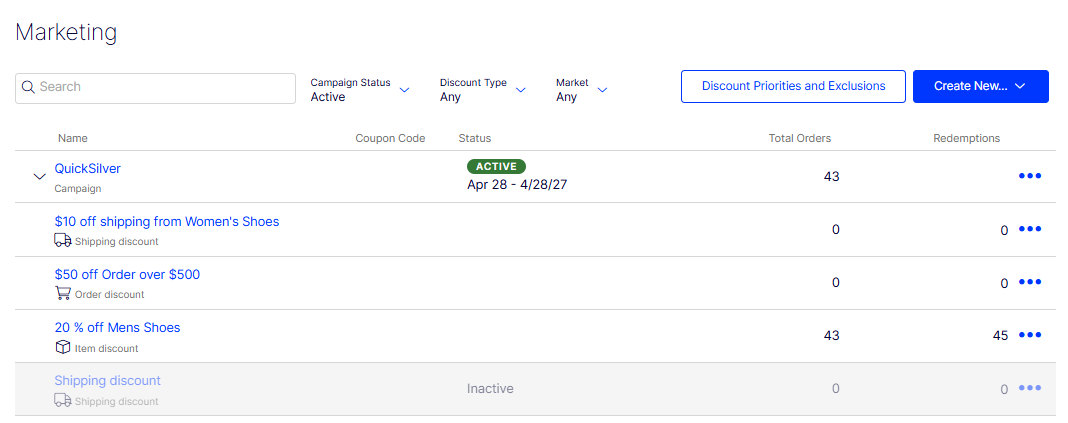
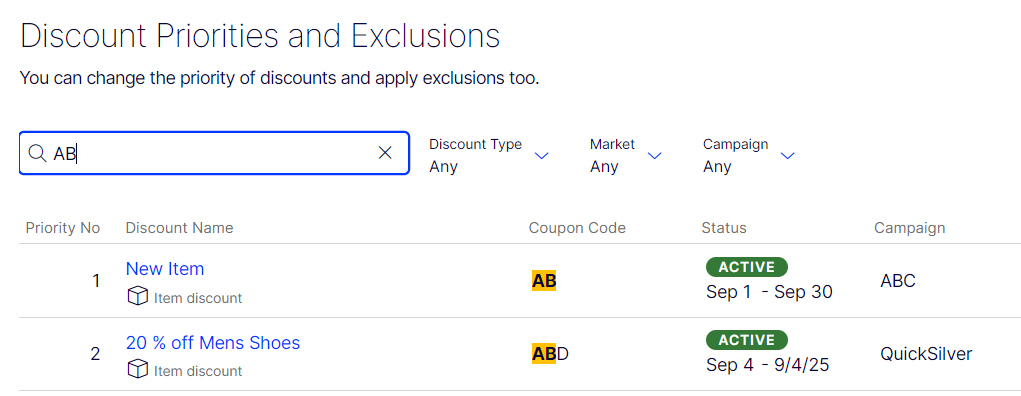
Marketers often run multiple campaigns and discounts simultaneously with possible overlaps. Use Discount Priorities and Exclusions to prioritize discounts and determine the sequence in which they apply. The page displays discounts in priority order and includes all statuses (active, inactive, scheduled, and expired). You can also filter by Discount Name or Coupon Code.
When you search by coupon code, the matching code is highlighted.
How prioritization works
- Only active discounts apply.
- If multiple discounts apply to a product, the top active discount applies first, followed by lower ones.
- If two discounts are excluded from applying simultaneously, the higher priority discount applies and the lower one is ignored. For information on discount exclusions, see Discount exclusions.
Examples
Assumption: Product's original cost is $100.
-
Example 1: Two discount percentages
- First discount – 20%
- First discount amount – $20
- Adjusted price – $80
- Second discount – 30% (of $80)
- Second discount amount – $24
- Final adjusted price – $56
-
Example 2: Two discount amounts
- First discount – $20
- Adjusted price – $80
- Second discount – $30
- Final adjusted price – $50
-
Example 3: One percentage, one amount
- First discount – percentage 20%
- Adjusted price – $80
- Second discount – $30
- Final adjusted price – $50
-
Example 4: One amount, one percentage
- First discount – $30
- Adjusted price – $70
- Second discount – 20% (of $70)
- Second discount amount – $14
- Final adjusted price – $56
Adjust discount priorities
-
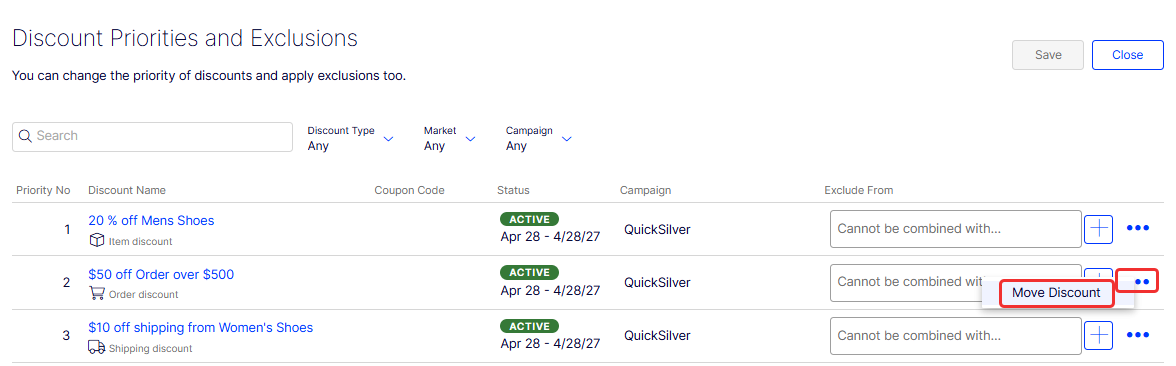
Go to Marketing > Discount Priorities and Exclusions.
-
Select the discount you want to move and click More Options > Move Discount.
-
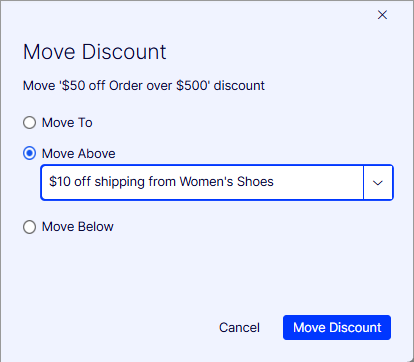
Enter a priority number for Move To or select Move Above or Move Below.
-
Click Move Discount.
Updated 2 months ago