
Import and export a catalog
Import or export catalogs to set up a site, sync external data, or move catalogs between websites.
In Optimizely Commerce Connect, you can import and export your catalogs. This helps in the following scenarios:
- Import products when configuring a Commerce Connect site.
- Import the product catalog when an external system adds items.
- Import or export to move or copy catalogs between websites.
While you can manually create a catalog and add catalog entries, that option is difficult to maintain using a large catalog. Instead, use the Import or Export option to move products more efficiently.
Import a catalog
-
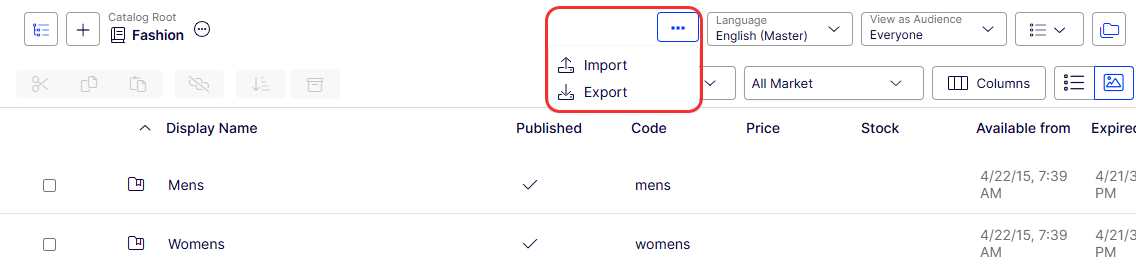
Go to Catalogs > Import.
-
Click Select File to add your file. You can only upload files with the extension
.catalog.
-
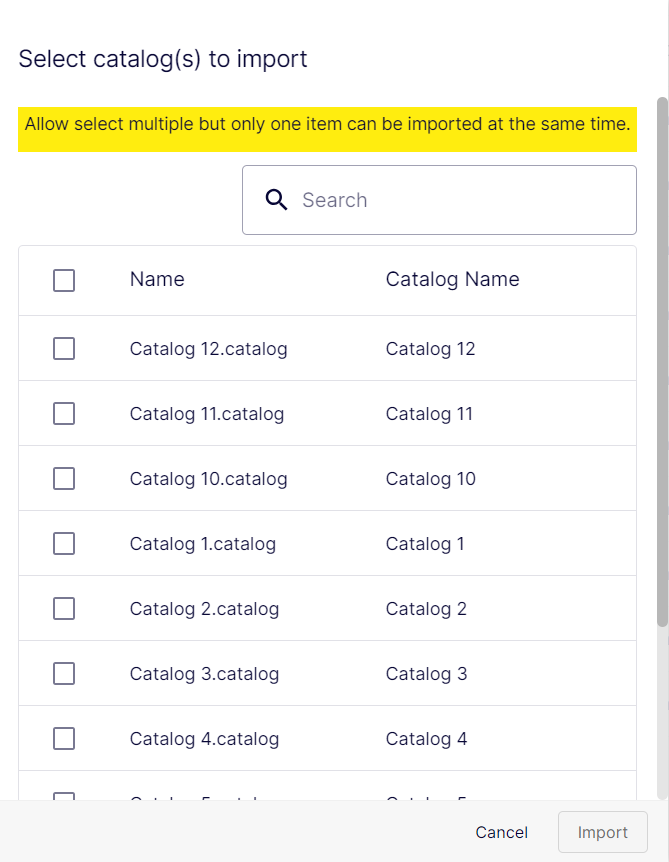
Select your files to import on the Import Dashboard.
-
Click Import. You import only one file at a time. If you import more than one file, the others have a Pending status until the import completes.
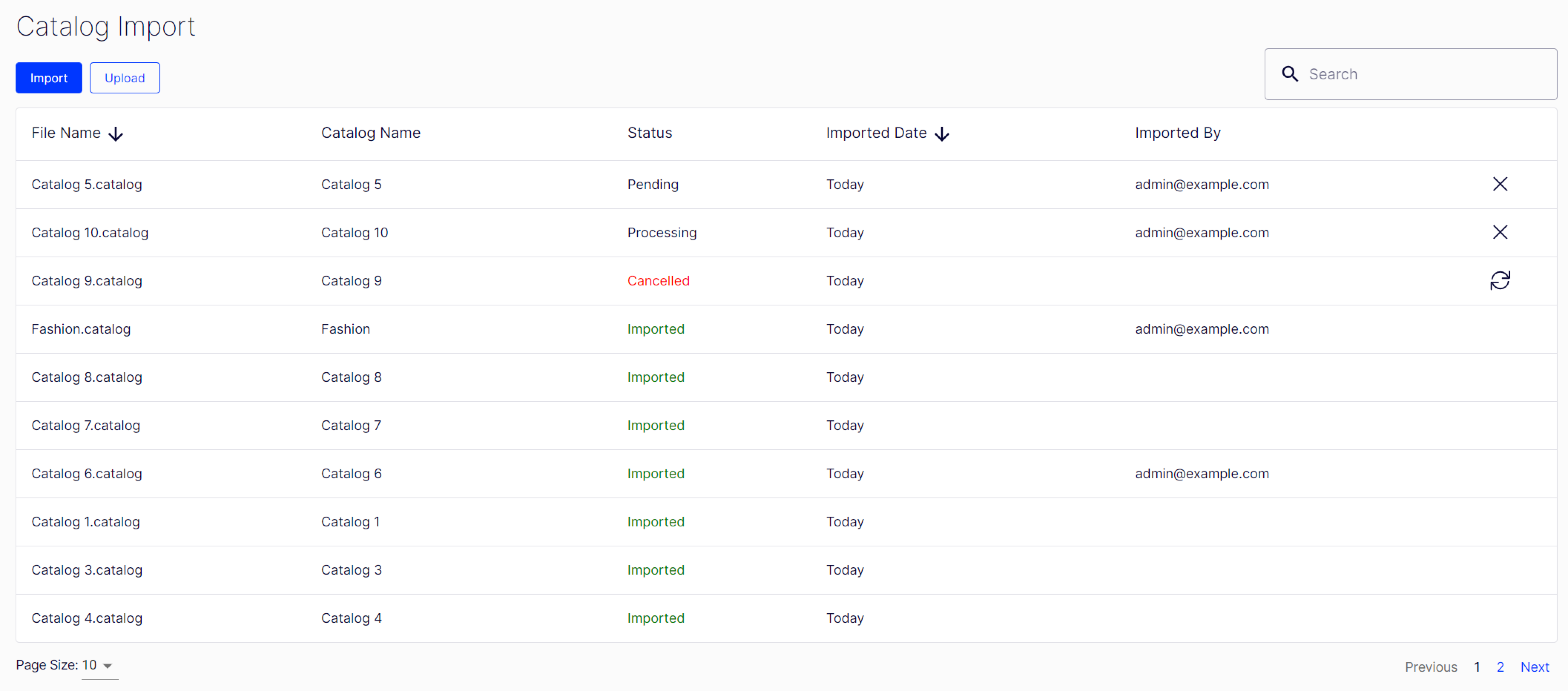
When an import is Processing, click the X icon to cancel. If an import fails or you cancel it, click the Retry icon to re-import.
Export a catalog
-
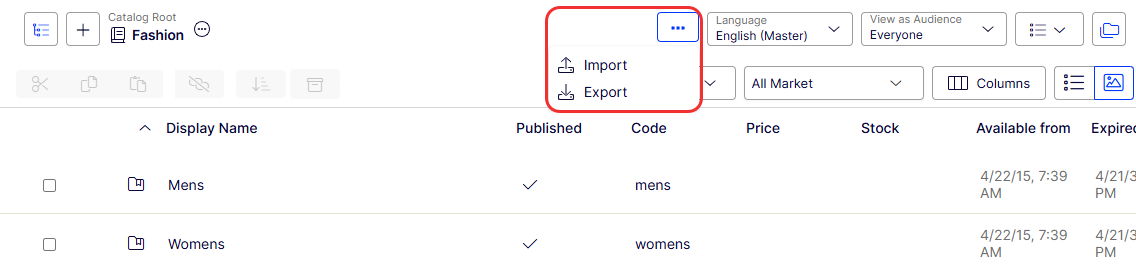
Go to Catalogs > Export.
-
Click Export.
-
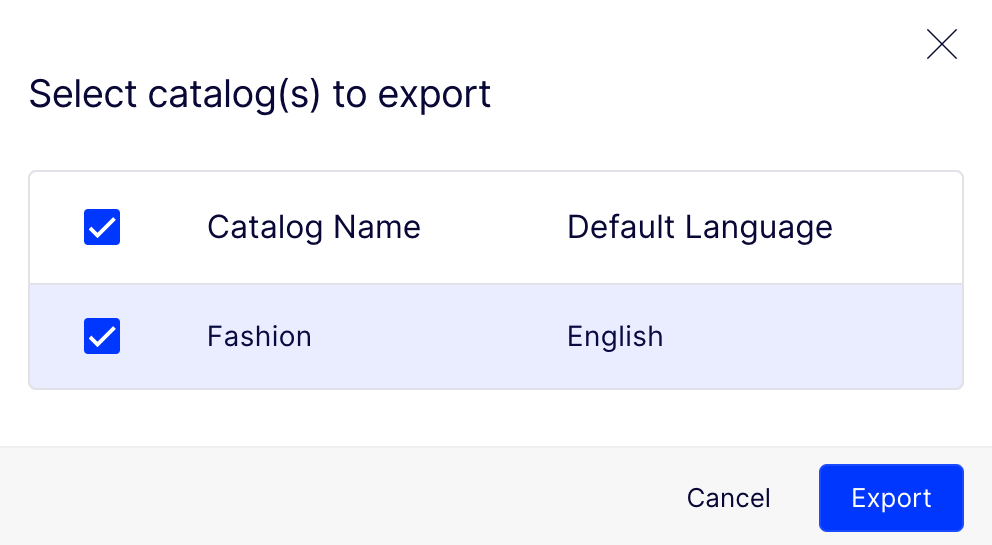
Select the catalogs to export.
-
Click Export. The Catalog Export window displays the export.
-
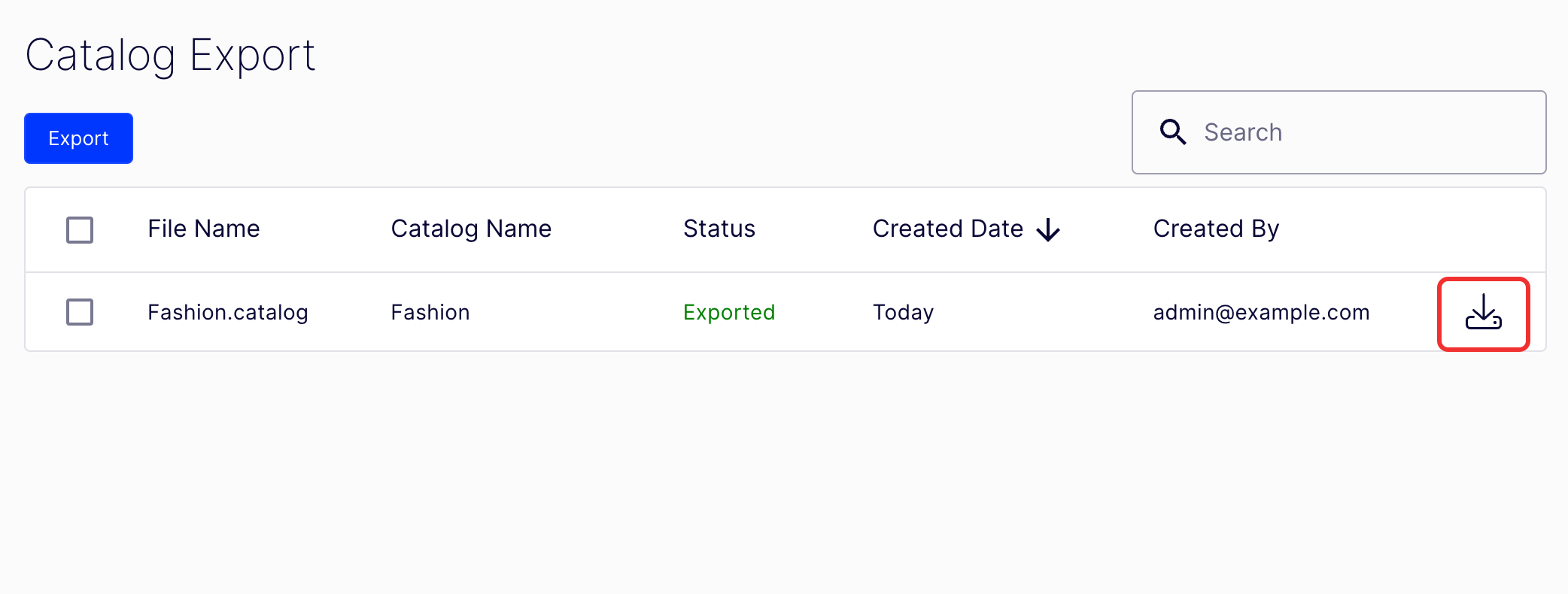
Click the Download icon beside the export. Your file downloads to your device. The Catalog Export window shows any previous export files and lets you search, sort, and delete.
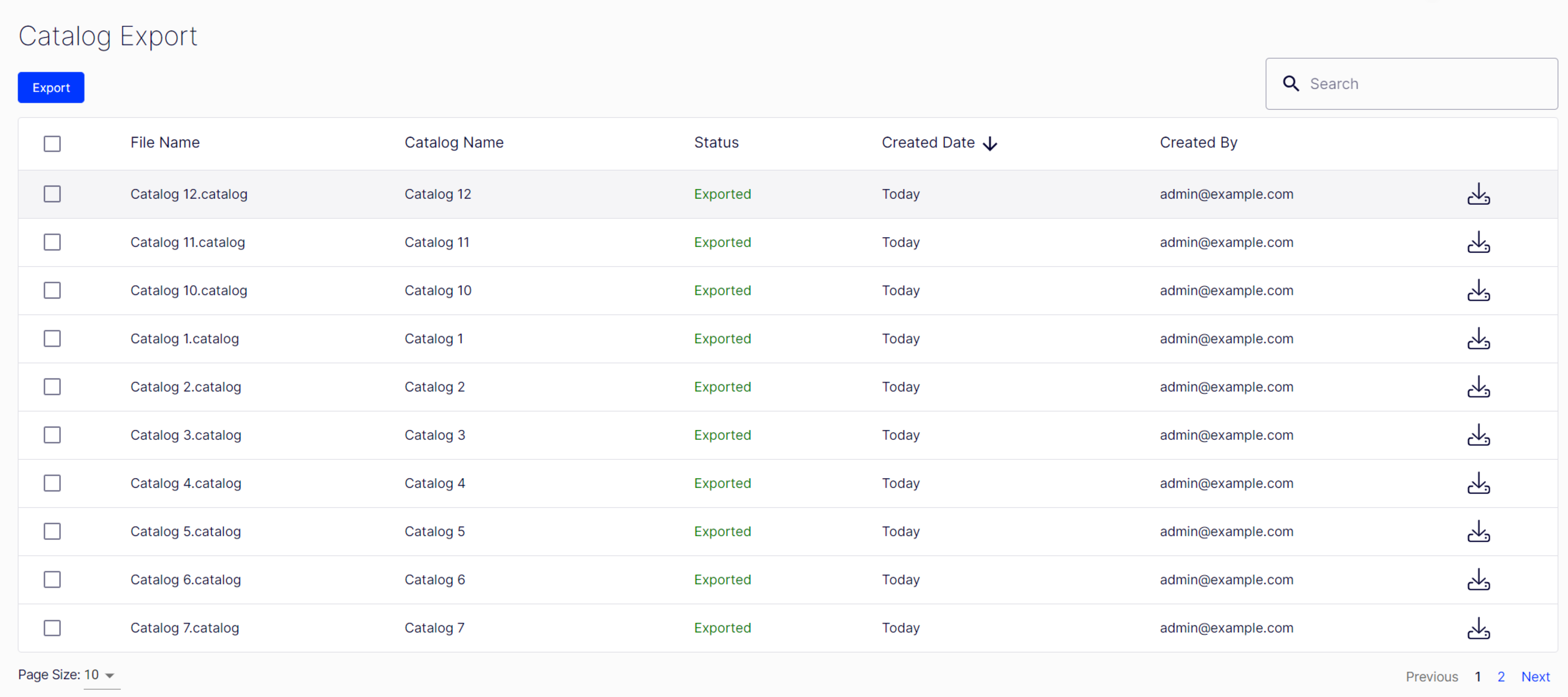
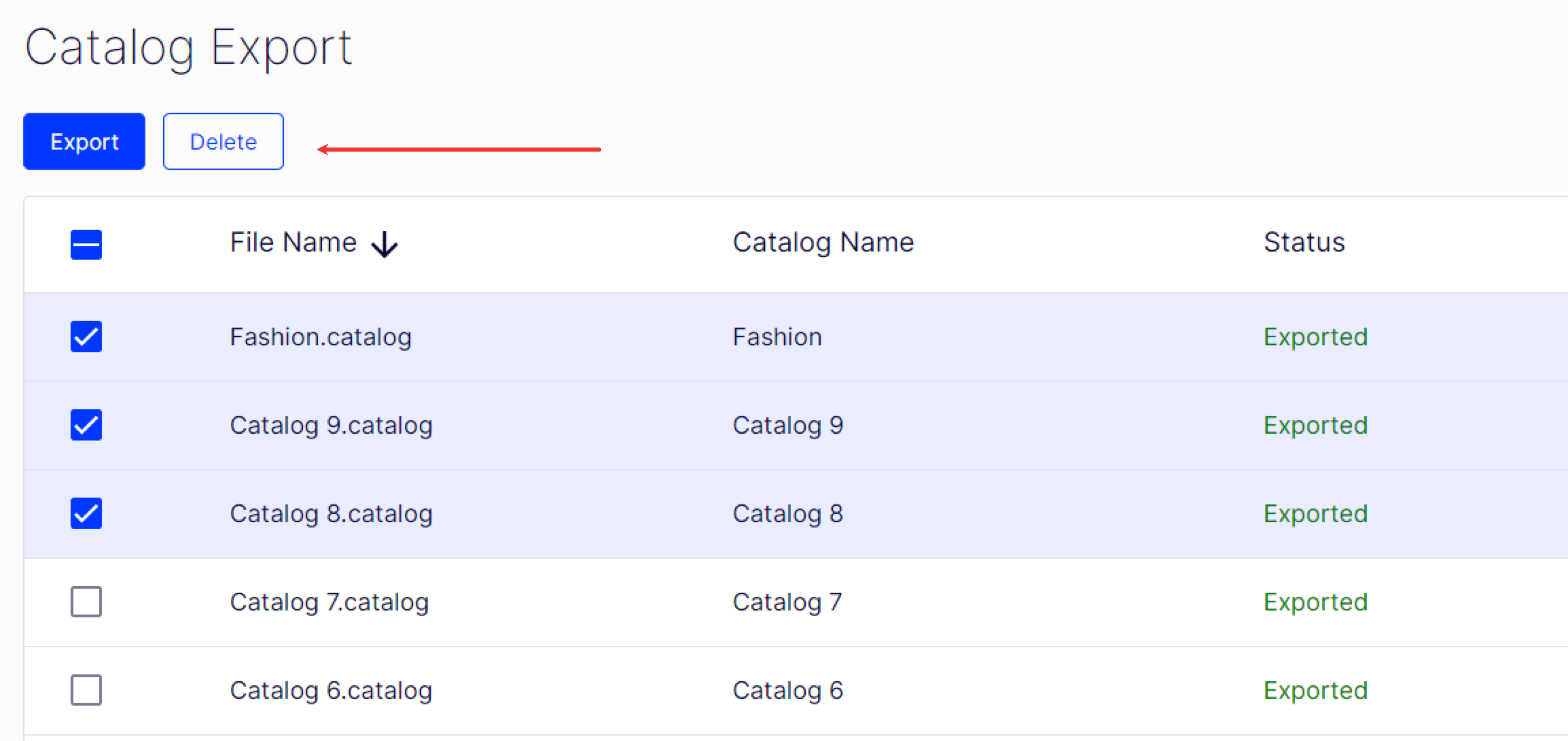
To delete items from the export, select at least one item and click Delete.
Use the API
Import and export catalogs programmatically using the import catalog data or the Service API.
Updated 2 months ago