
Access rights
Configure user group access rights for catalogs, orders, marketing, and Commerce Manager.
NoteYou need administrative access rights in Optimizely Content Management System (CMS) to manage users and access rights. This topic refers to a default implementation of Optimizely Commerce Connect. Your website may be configured differently and have customized user and user group management.
Manage access rights for user roles such as administrators, marketers, and merchandisers working in Commerce Connect. When you create a user, you assign appropriate access to work with CMS, catalog content, Commerce Manager, or all parts.
For easier and safer maintenance, base access rights on groups rather than individual users. Then, provide access rights to users by adding them to appropriate groups. See Administer users.
Both contacts (visitors registering on your public site or manually created in Commerce Manager) and system users created from the CMS admin page display in the same listing on the CMS admin page and Commerce Manager. By default, contacts belong to the Everyone and Registered groups.
Group access rights
In addition to the default groups described in Access rights for CMS users without Opti-ID, Commerce Connect has its own groups that you use to assign access rights for Commerce Connect functions.
Manually create the CommerceAdmins, CommerceSettingsAdmins, and CatalogManagers groups before adding users to them. To do this, go to CMS > Settings > Administer Groups.
User group access
The following groups are created when Optimizely CMS is installed and control access to Commerce Connect:
- Administrators – Access to all parts of the system, including Administration in Commerce Connect Manager. Usually restricted to developers for implementation and maintenance.
- CmsAdmins – Access to all editing and administration views in Optimizely CMS and Optimizely Commerce Connect. All parts of Commerce Manager except Administration. Usually restricted to few users.
- CmsEditors – Can edit Commerce Connect content. Required for all users (if not members of CmsAdmins or Administrators). Catalog editors need additional editing access rights in the catalog page tree.
- Everyone – Derived from Windows, provides "anonymous" visitors with read access to content. Unregistered visitors to a public website are anonymous, meaning that the system cannot identify them.
User interface access
The following groups control access to user interface areas in Commerce Connect:
- CommerceAdmins – Access to all parts of Commerce Manager except Administration and CMS admin page.
- CatalogManagers – Access to the Catalog user interface.
- MarketingManagers – Access to the Marketing user interface.
- CommerceSettingsAdmins – Access to Commerce Connect Settings tab, which lets you edit dictionary property values for Commerce Connect content.
Order management access
The following groups control access to order management functions in Commerce Connect:
- Order Supervisor – Access to all order management procedures.
- Order Managers – Access to the following:
- Create returns and exchanges.
- View and edit orders.
- Send notifications.
- Process payments and split shipments.
- Receiving Manager – Access to view shipments and receive returns.
- Shipping Manager – Access to view, pack, and complete shipments.
Virtual roles access
In ASP.NET Core-based implementations, Optimizely Commerce Connect uses virtual roles to control access. These roles are defined in the appsettings.json file and used in addition to traditional CMS groups, such as WebAdmins and WebEditors.
Common Commerce Connect virtual roles include:
- BusinessFoundations – Access to the Business Foundations interface.
- CatalogIndexing – Access to the Catalog Indexing page.
- CatalogManagers – Access to the Catalogs user interface.
- CommerceAdmins – Access to all parts of Commerce Connect except the Administration and CMS admin page.
- Countries – Access to the Countries page.
- CustomerManagers – Access to the Customer interface.
- CustomerServiceRepresentatives – Access to the Order management page.
- Dashboard – Access to the Dashboard page.
- Dictionaries – Access to the Dictionaries page.
- MarketingManagers – Access to the Marketing user interface.
- Markets – Access to the Market page.
- PaymentMethods – Access to the Payments page.
- ReportManagers – Access to the Report page.
- ShippingMethods – Access to the Shipping interface.
- Taxes – Access to the Taxes interface.
- Warehouses – Access to the Warehouse page.
To restrict CMS editing for a virtual role (such as MarketingManagers), go to Settings > Set Access Rights, find a place where the virtual role is part of the access rights, and assign only Read permissions where appropriate.
Permissions for Functions
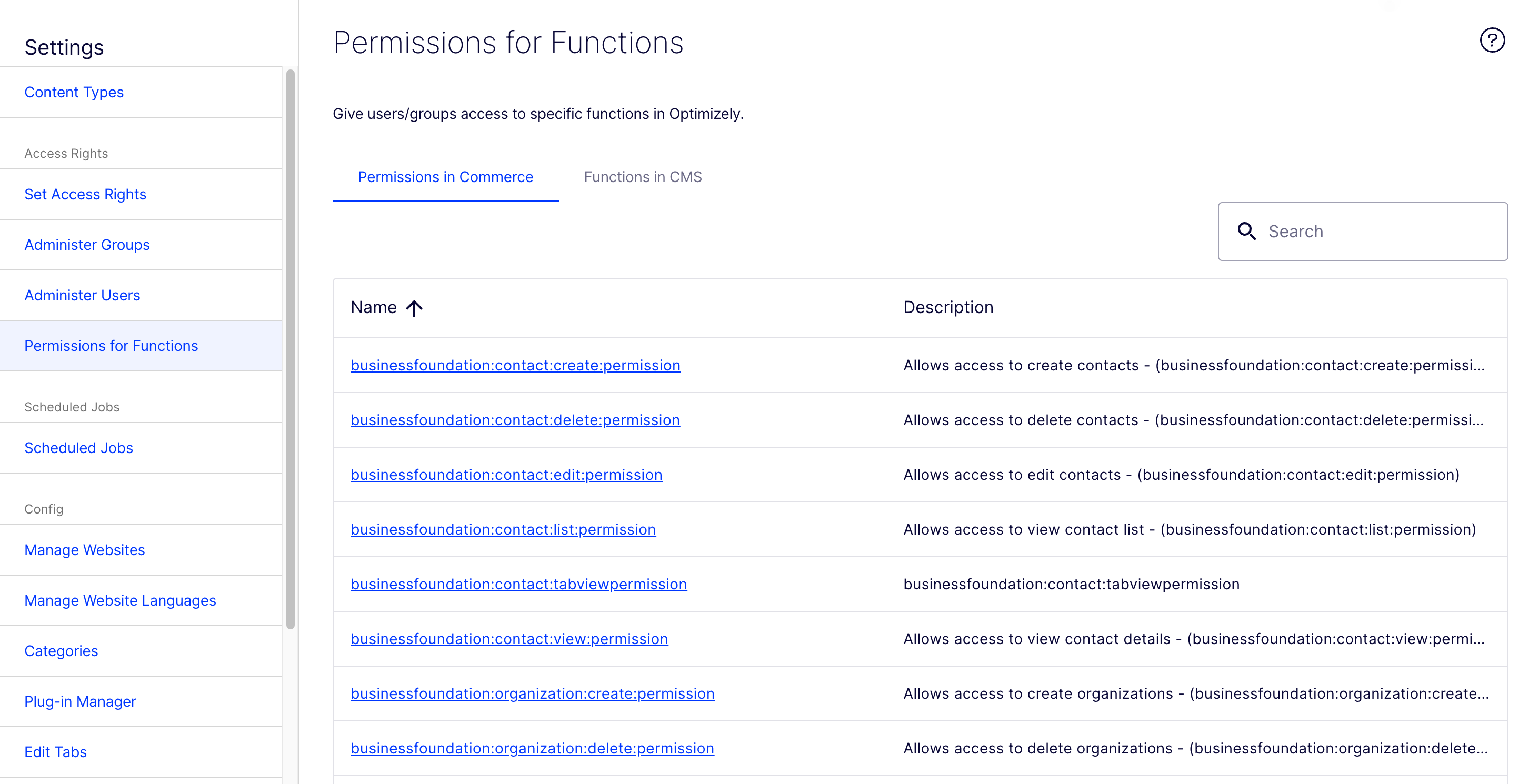
Customize which groups and users can perform Commerce Connect functions. For example, grant the Receiving Manager group the ability to refund credits, or remove from the Order Managers group the ability to add, edit, or delete payments for orders.
Permissions for Functions are only applied in Commerce Manager, not in the Catalog user interface.
-
Go to CMS page > Settings > Permissions for Functions.
-
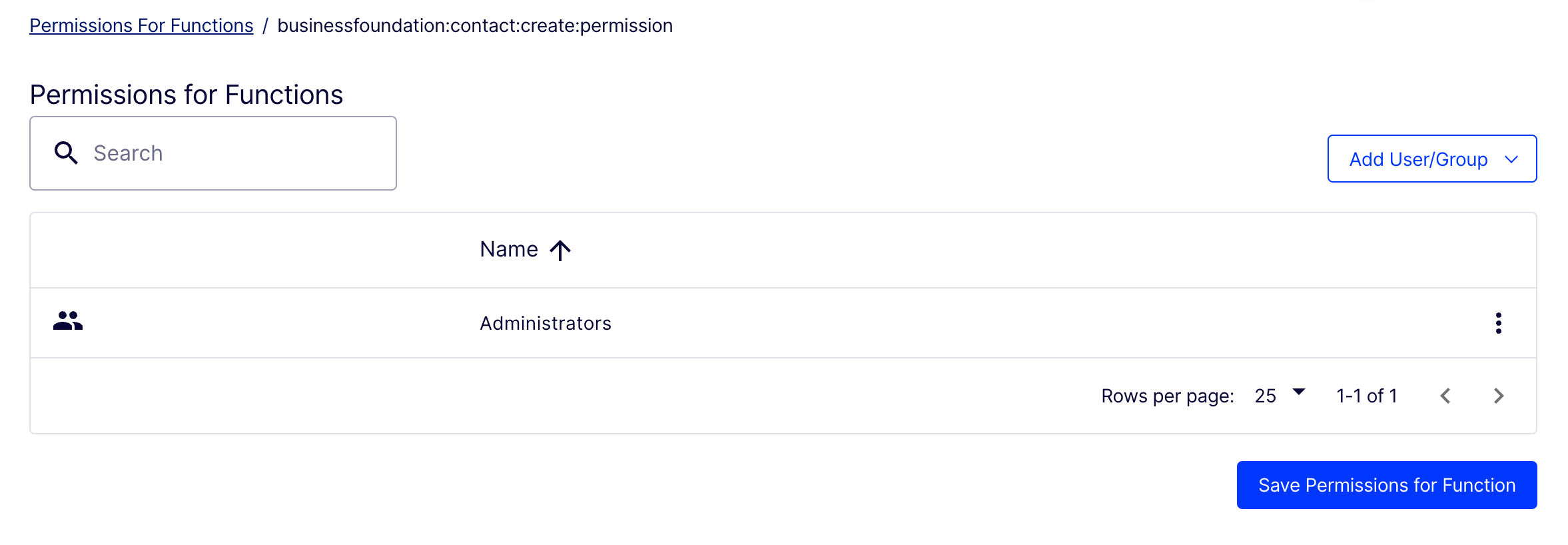
Select a function.
-
Add or remove users or groups as needed.
Example: Create a user with access rights
In this example, you create a user who enriches product information and landing pages in Optimizely CMS, catalog content in Commerce Connect, and all parts of Commerce Manager.
-
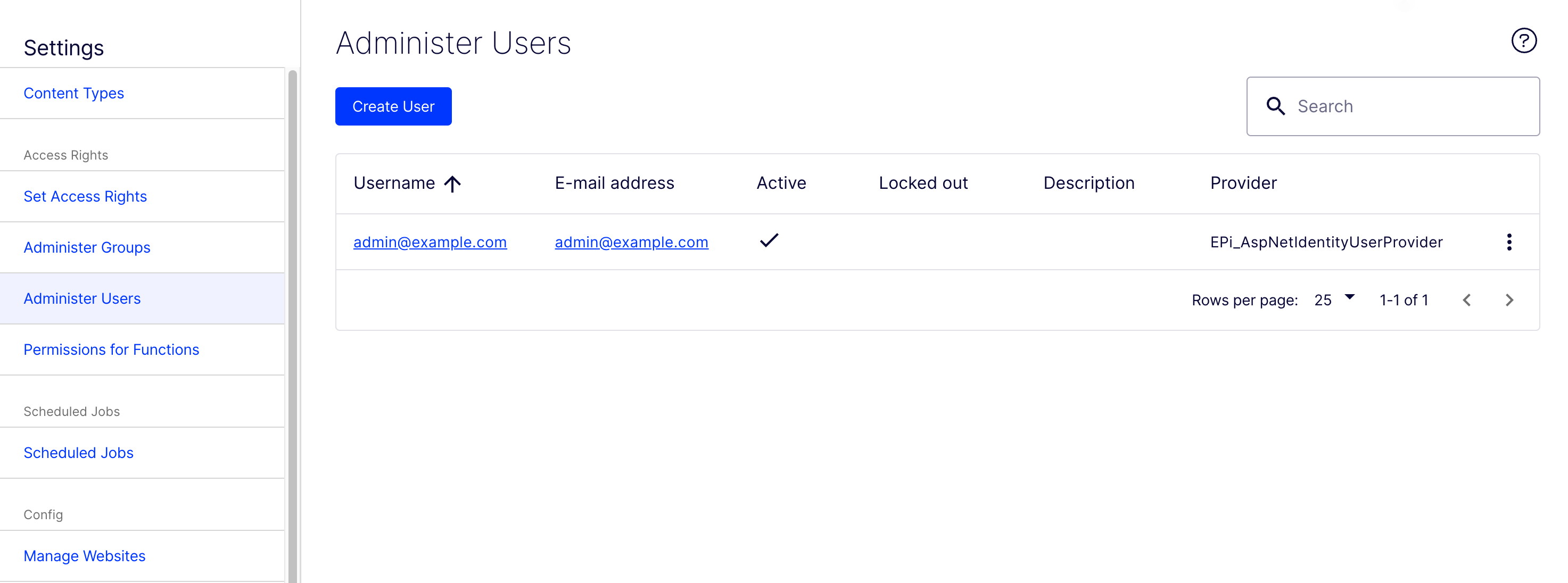
Go to CMS > Settings > Administer Users.
-
Click Create User.
-
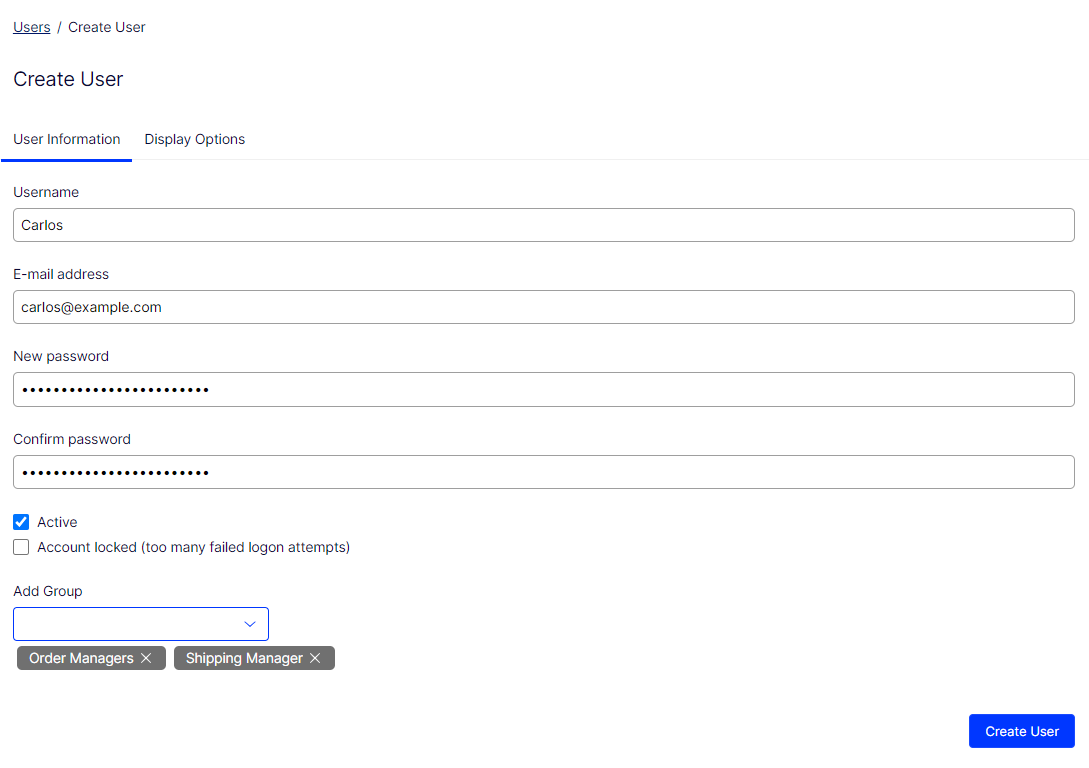
Enter the username, email, and password information.
-
Select Active.
-
Select Add group to add the user to the appropriate groups, such as Order Managers and Shipping Managers.
-
-
Click Create User.
-
Log in as the user to verify that proper access rights are applied.
Updated 2 months ago