
Languages
Configure multiple languages for Optimizely Commerce Connect catalogs, translate entries with Opal or manually, and set fallback and replacement languages.
Optimizely Commerce Connect supports multiple languages for catalogs through Optimizely Content Management System (CMS). Typically, a website has a default content language configured during installation. Configure languages for catalog entry content, such as product (SKU) descriptions. This means that when you configure a language for a catalog, you define catalog entry descriptions in that language.
To work with multiple languages for Commerce Connect content, first enable the languages in the Optimizely Content Management System (CMS) admin page. Next, language-specific fields display, ready for translation in the edit view. Product descriptions that are not yet translated display empty on the front-end site.
Translating catalog content is similar to translating CMS content, such as pages and blocks. Optimizely uses specific language settings for catalogs, markets, and payments and shipping methods in Optimizely Commerce Connect.
Enable a language for catalog content
-
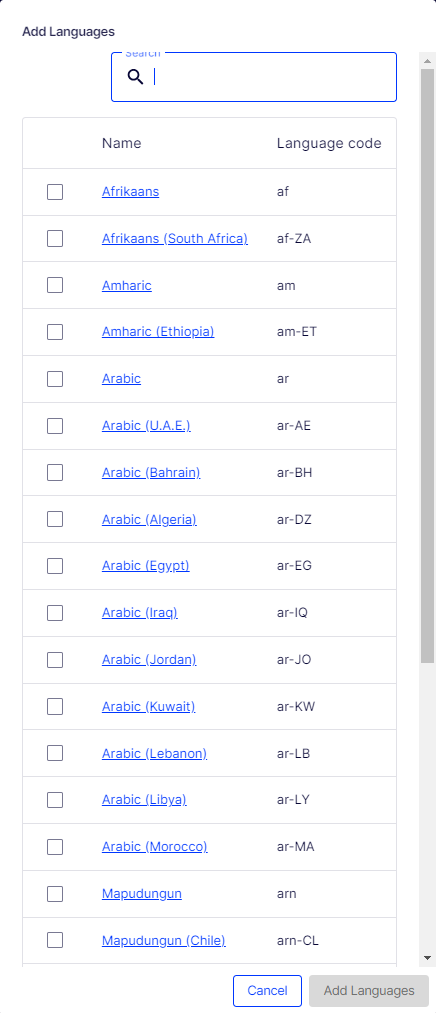
Activate the language in the CMS admin and edit view, as described in Manage languages. Enabling edit view lets editors translate content and makes the website's start page available in that content.
-
Enable the language for the catalog to which you want to apply the language:
-
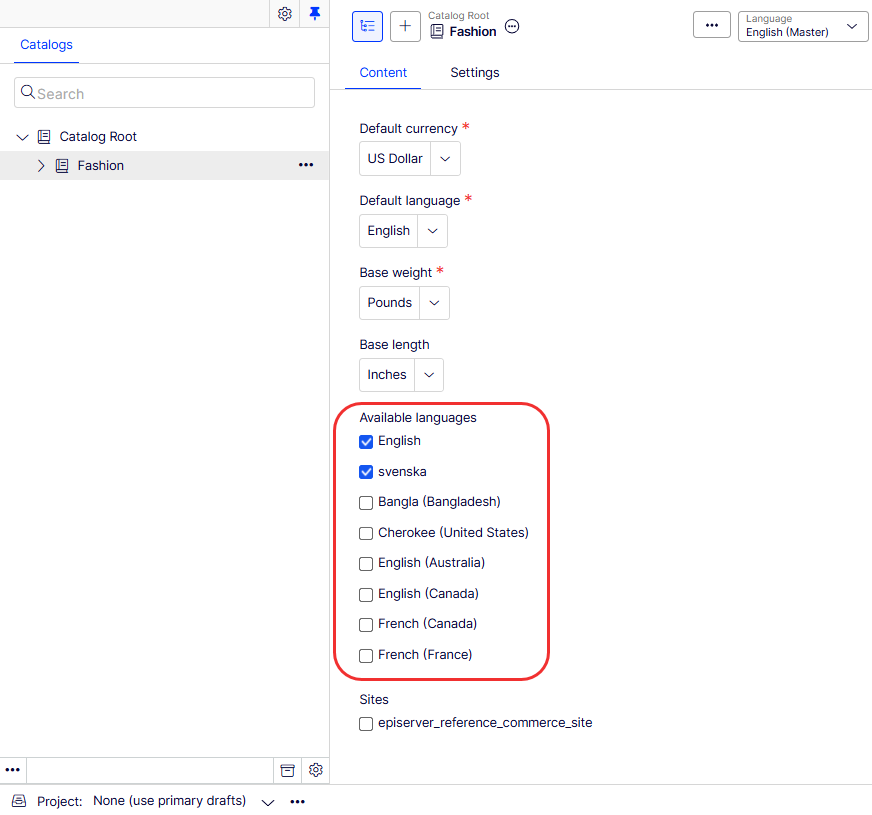
Open the catalog for which you want to add a language in the All properties editing view.
-
Select the language under Available languages, for example, English and svenska.
-
Publish the catalog changes.
-
Bulk translate catalog content with Optimizely Opal
Commerce Connect lets you translate catalog content in bulk.
ImportantAn administrator must enable this feature after configuring Optimizely Opal. To enable languages for translation, see the previous Enable a language for catalog content section.
If you use Opti ID, administrators can turn off generative AI in the Opti ID Admin Center. See Turn generative AI off across Optimizely applications.
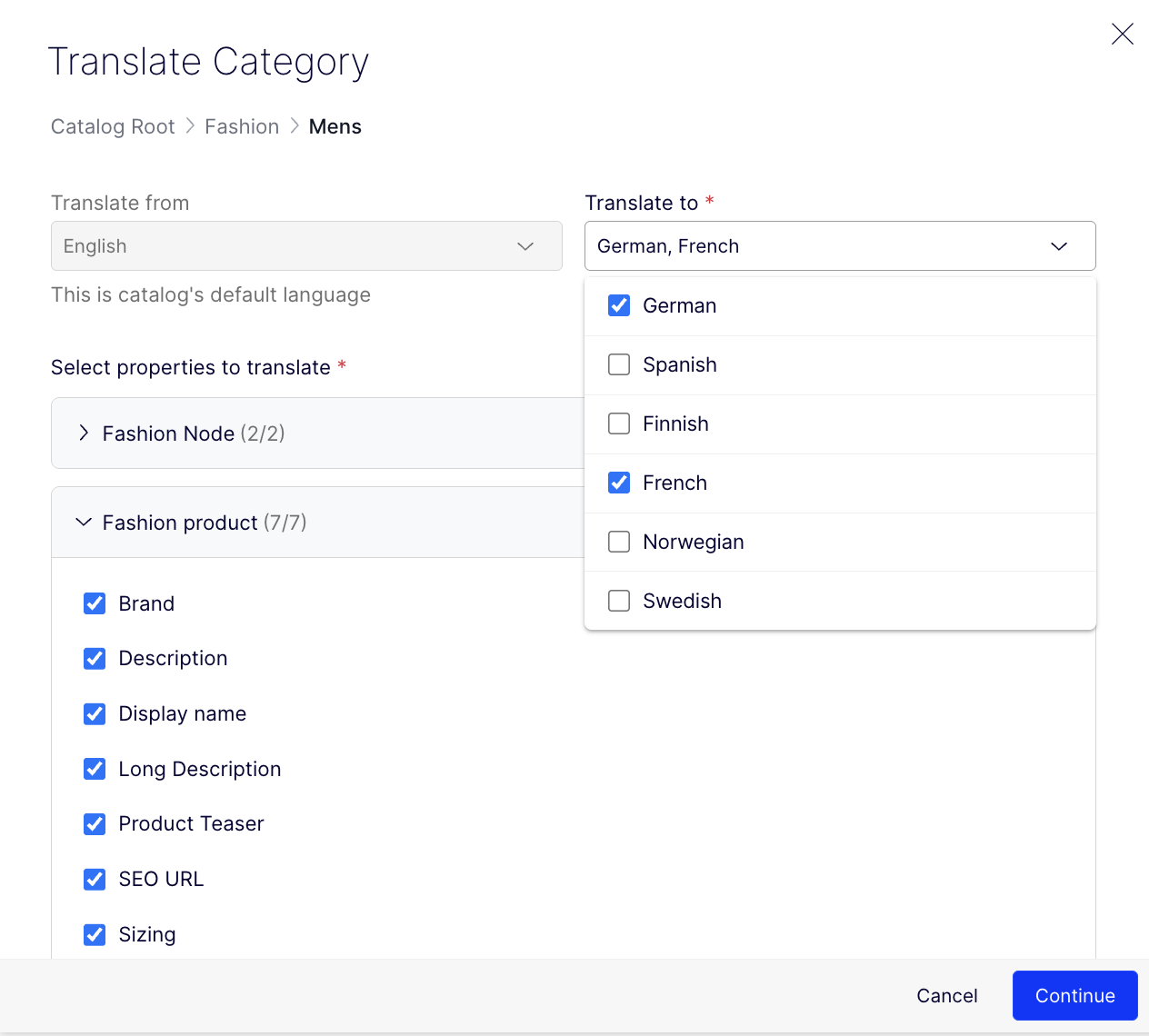
Translate multiple catalog contents into multiple languages simultaneously in the background. The bulk translation lets you select which properties to translate.
-
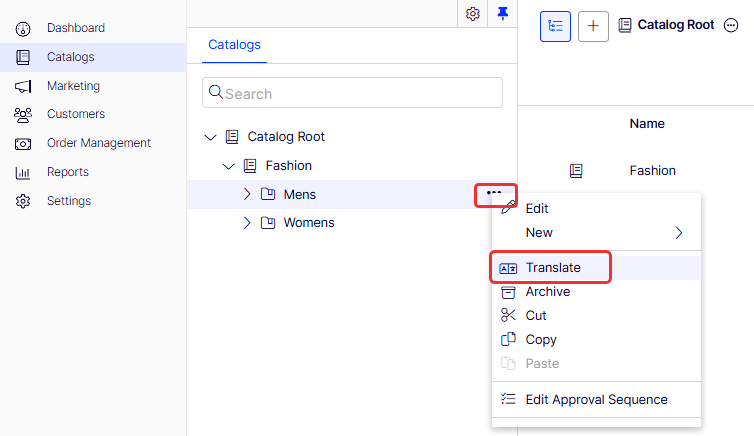
Go to Catalogs and click More (...) > Translate for the catalog or category. You can also click More (...) > Translate from the content list. The bulk translation dialog displays.
-
Select the target languages, content types, and properties.
-
Click Continue. The Bulk Translation job runs in the background, and a message displays to notify you that the translation is in progress. Click More (...) > Translate Jobs.
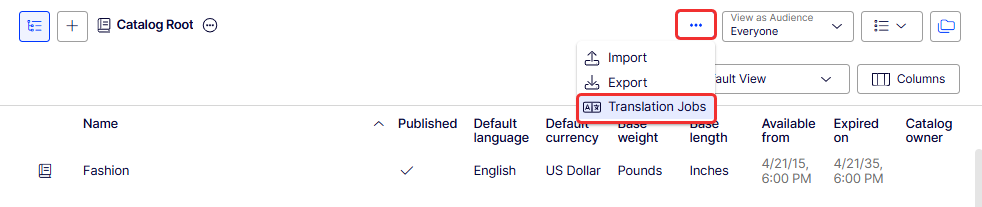
The Translation Jobs page displays the status and history of all current and previous translation jobs. Click Cancel on an ongoing job to cancel it.
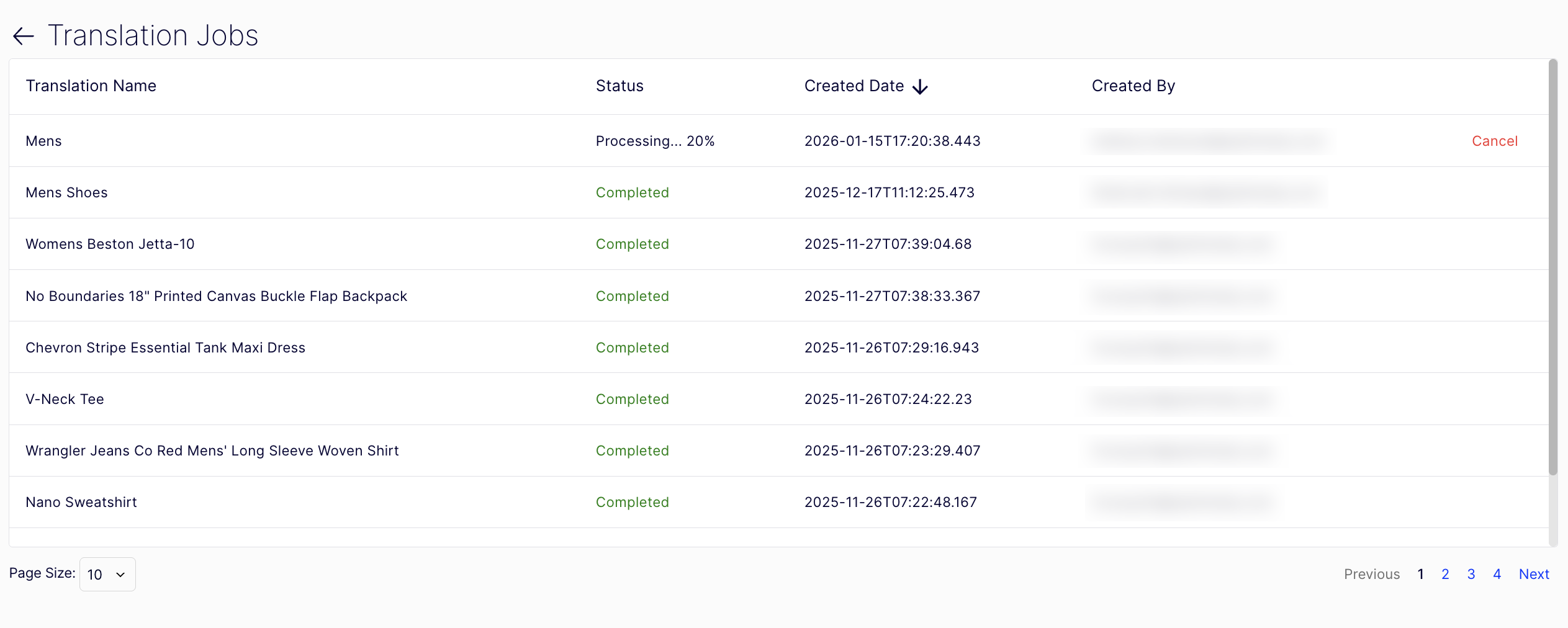
Each job includes the following information:
- Translation Name – The display name of the parent content.
- Translation Type – The type of parent content, such as Catalog, Category, or Product.
- Content Types – All the content types selected in the Translation dialog.
- Source Language – The language of the original content.
- Target Languages – The languages the translation job is translating to.
- Created Date – When the user created the job.
- Created By – Who created the job.
- Status – Whether the job is Pending, Processing, Failed, Completed, Canceled, or Retrying.
Translate catalog entries with Optimizely Opal
Commerce Connect lets you translate catalog content in specific catalog entries.
ImportantAn administrator must enable this feature after configuring Optimizely Opal. To enable languages for translation, see the following Enable a language for catalog content section.
If you use Opti ID, administrators can turn off generative AI in the Opti ID Admin Center. See Turn generative AI off across Optimizely applications.
Go to the Catalogs page. The Language selector displays the languages available for content creation.
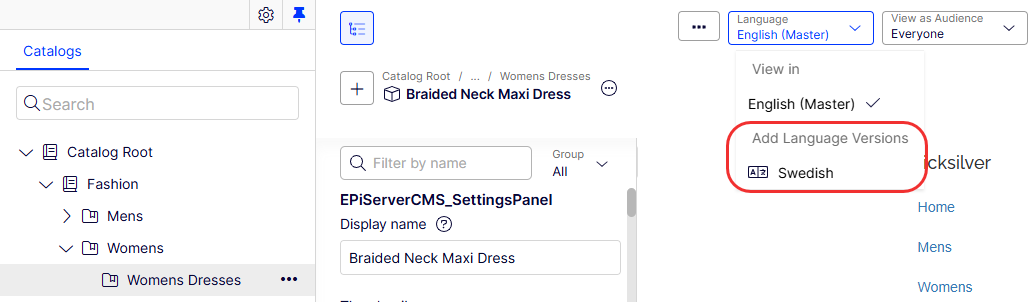
When you select an available language such as Swedish (svenska), the Add Language dialog box displays.
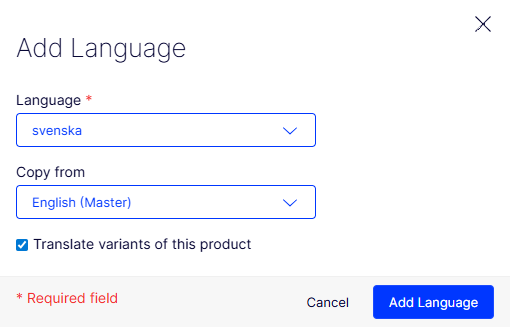
Use Google Translate AI through Optimizely Opal to automatically translate your content by clicking Translate.
The translated content is saved as a draft in the language, which you can see in the Version gadget.
Check the output of Opal to see if it translated correctly. It can assist you as you begin, but Opal can make mistakes. If you need to re-translate content, run the translation again.
Translate catalog entries manually
-
Go to Catalogs and select the catalog entry to translate in the catalog tree.
-
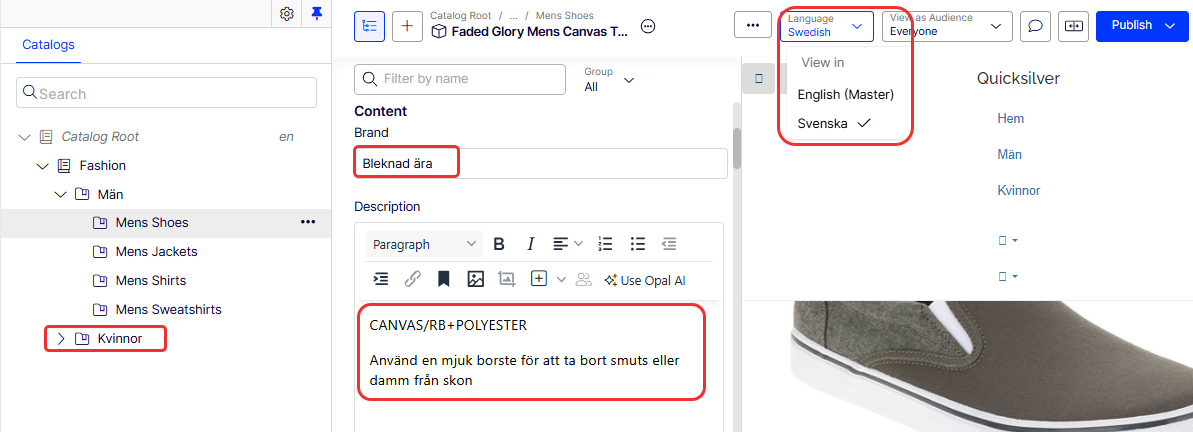
Select the language for translation. (Enabled languages are listed.)
-
Edit the available properties, and follow the content publishing flow to save and publish the translated catalog entry information.
When you translate content, have the original content open in another browser window for comparison. You can also copy and paste the original content into the text area where you are working as a reference.
Edit global properties
Depending on your implementation, some properties may be globally shared, and you can edit them only in the default language. See Translate content.
Set your personal user interface language
To set the user interface language for Catalogs and CMS:
-
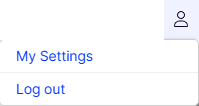
Select your user profile name > My Settings.
-
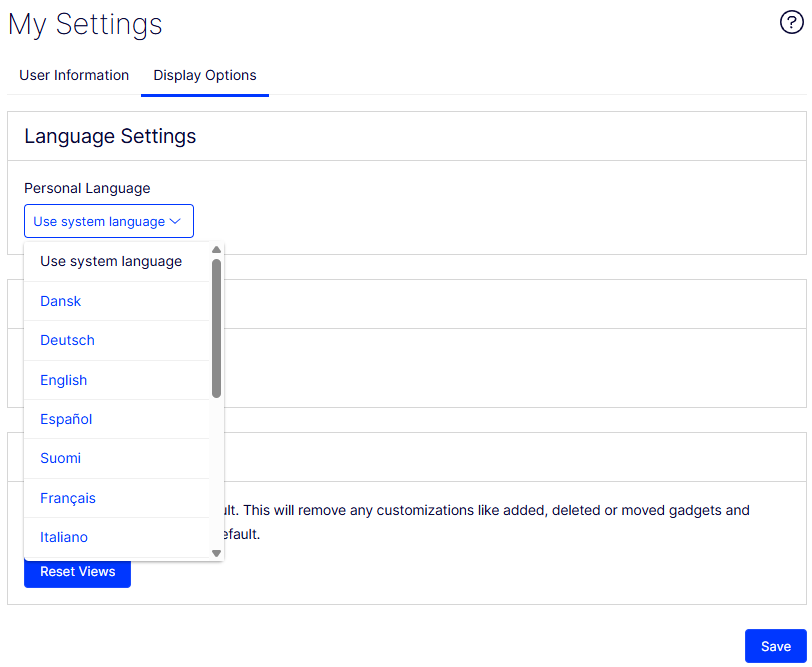
Select the Display Options tab.
-
Select the language of your choice from the Personal Language drop-down list.
-
Click Save.
Updated 2 months ago