
Purchase orders
Create, manage, and track purchase orders and shipment status in Order Management.
NoteIn roadmap communications, Order Management is referred to as the CSR Portal.
This topic describes how to work with purchase orders on the Orders page.
After a customer checks out and submits payment, the cart is converted to a purchase order. If needed, manually convert a cart to a purchase order from Cart Details, or create a purchase order.
While the purchase order's status is In Progress, you can edit its information (shipping address or method, line items, discounts, and so on) on the Form Details tab.
Add notes associated with an order on the Notes tab, where you can access details like description and note creator.
Convert a cart to a purchase order
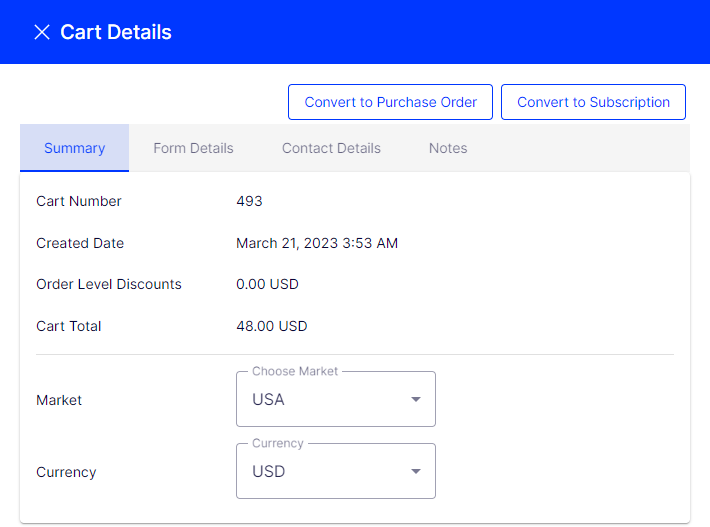
Typically, a shopping cart is converted to a purchase order when a customer proceeds to checkout and finalizes the purchase. However, you may need to manually complete a purchase by converting a shopping cart into an order for further processing. For example, to record manual payments towards outstanding balances, such as telephone payments.
Click Convert to Purchase Order on the Cart Details page to convert a cart to a purchase order.
Create a purchase order
Create an order when, for example, a customer calls on the phone and orders some items.
-
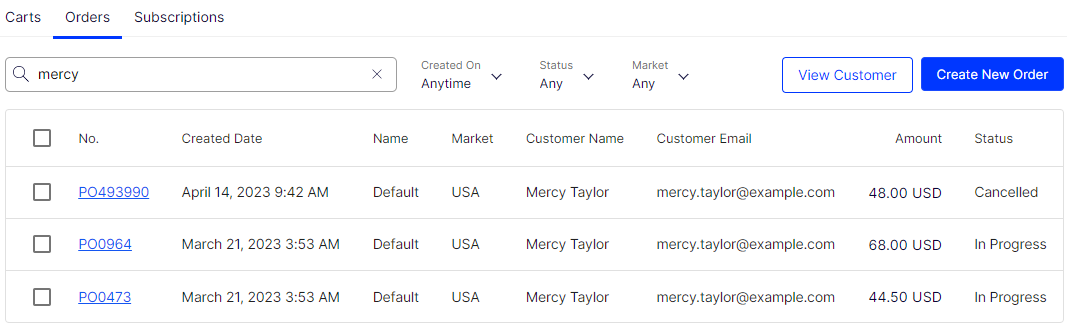
From the Order Management page, click Orders > Create New Order.
-
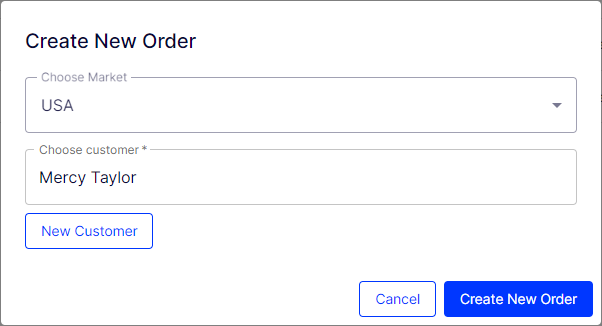
Select the Market.
-
Enter the customer's name or click New Customer.
-
To find an existing customer, enter any part of the customer name or email address. A list of matching customer names displays. Select the customer.
-
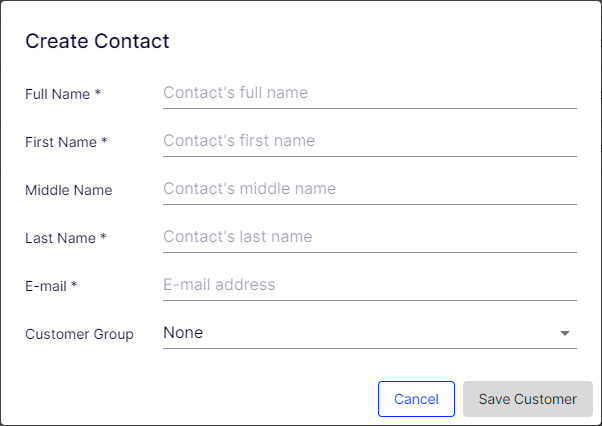
To enter a customer, click New Customer. The Create Contact dialog displays.
-
-
Click Create New Order.
-
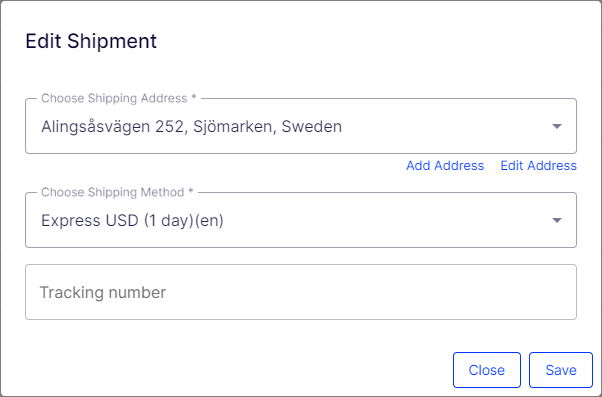
Click the options menu (...) to the right of shipment 1 and select Edit.
-
Enter the order's shipping address and shipping method and click Save. To add a separate shipping address to this order, see Add a shipping address to an order in this article.
-
Click Add line items.
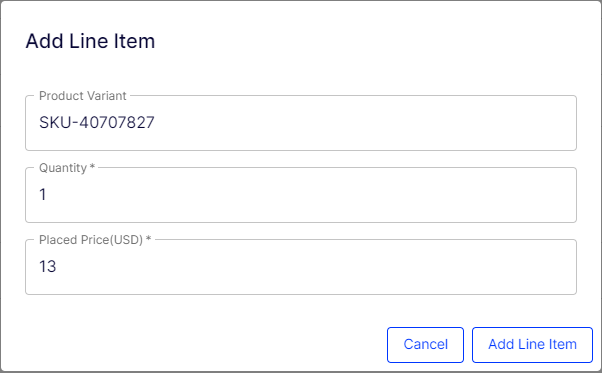
- In the Product Variant field, enter a search phrase of three or more characters. For example, the entire SKU (SKU-40707827) or all or part of the item name (dress). Select the line item you want to add. Click More Details next to a line item to view the respective product page on your ecommerce website.
- Enter a Quantity and Placed Price. The default placed price displays, and you can change it.
-
Click Add Line Item.
-
After adding at least one item, click Create Order.
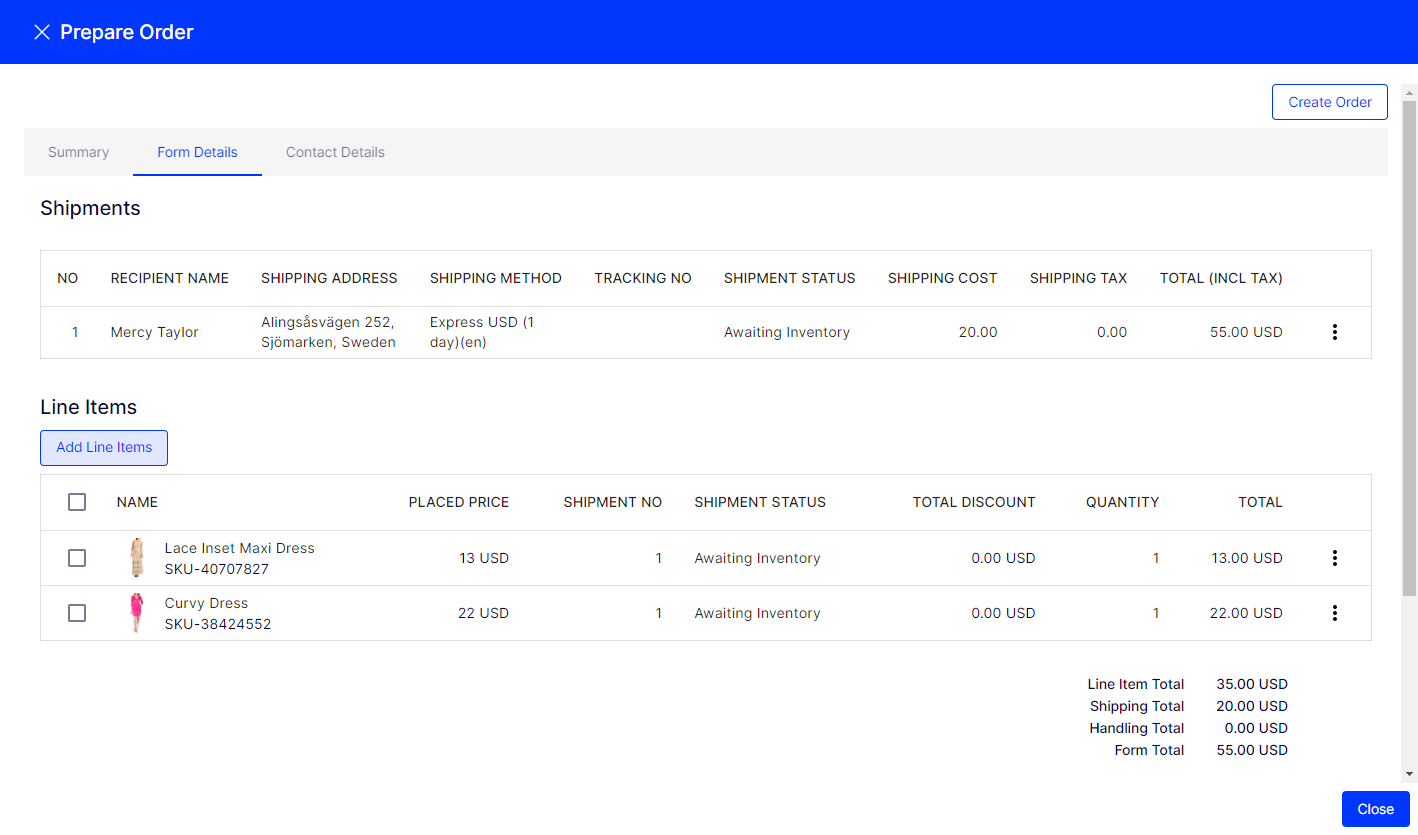
Although the order is created, it must be paid before it can be released.
Add a payment method
-
From the Order Management page, click Orders.
-
Select the order you want to edit.
-
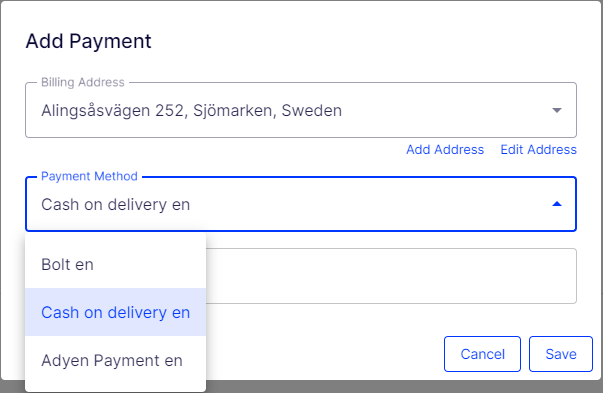
Open the Form Details tab, scroll to the bottom of the form, and click Add Payment.
-
Select the appropriate payment method from the list of payment methods available for your site. Available payment methods are site-specific.
-
Click Save.
Place an order on hold
When a shopping cart is converted to a purchase order, its status is set to In Progress. You may need to place the order on hold for several reasons, such as the retailer needs to verify the order, a suspicious order needs attention, or inventory is not available. Go to Order Management > Order Details and click Hold. While an order is on hold, it cannot be released for shipment, nor can it be canceled. Click Release OnHold to release the order.
Cancel an order
To cancel an In Progress purchase order, go to Order Management > Order Details and click Cancel Order. The order and shipment statuses change to Canceled.
Delete an order
If needed, delete one or more orders on the Order Management page.
WarningDeleting an order removes its record from the system.
-
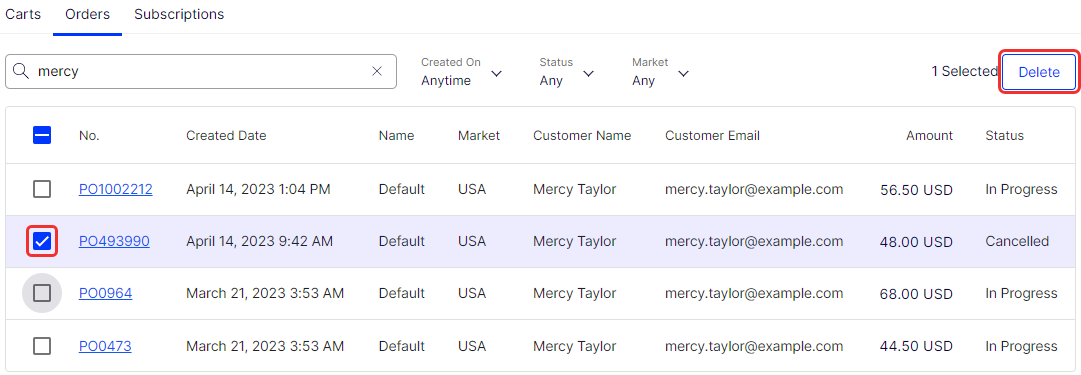
Select the checkbox for the order to delete. If you have multiple pages, continue selecting orders on each page.
-
Click Delete.
-
Click Delete Order to confirm that you want to delete the selected orders.
Repeat an order
Repeat past orders by basing the new order on the information available in a previous order. Go to Order Management > Order Details and click Reorder. A draft order is created with the same address, shipping method, and line item information. Update the information if needed and click Create Order.
- If items are not available anymore, you are notified in the order summary.
- If the base order has a coupon code, the draft order also applies the coupon discount. Ensure that the coupon has not expired.
Adjust an order's shipment status
Order is paid in full or pre-ordered (if supported):
- If the quantity of any item in an order exceeds the available Instock Quantity, its shipment status is set to Awaiting Inventory.
- If the quantity of items in an order is less than the available Instock Quantity, its shipment status is set to Inventory Assigned.
Order is paid and ready for shipping:
-
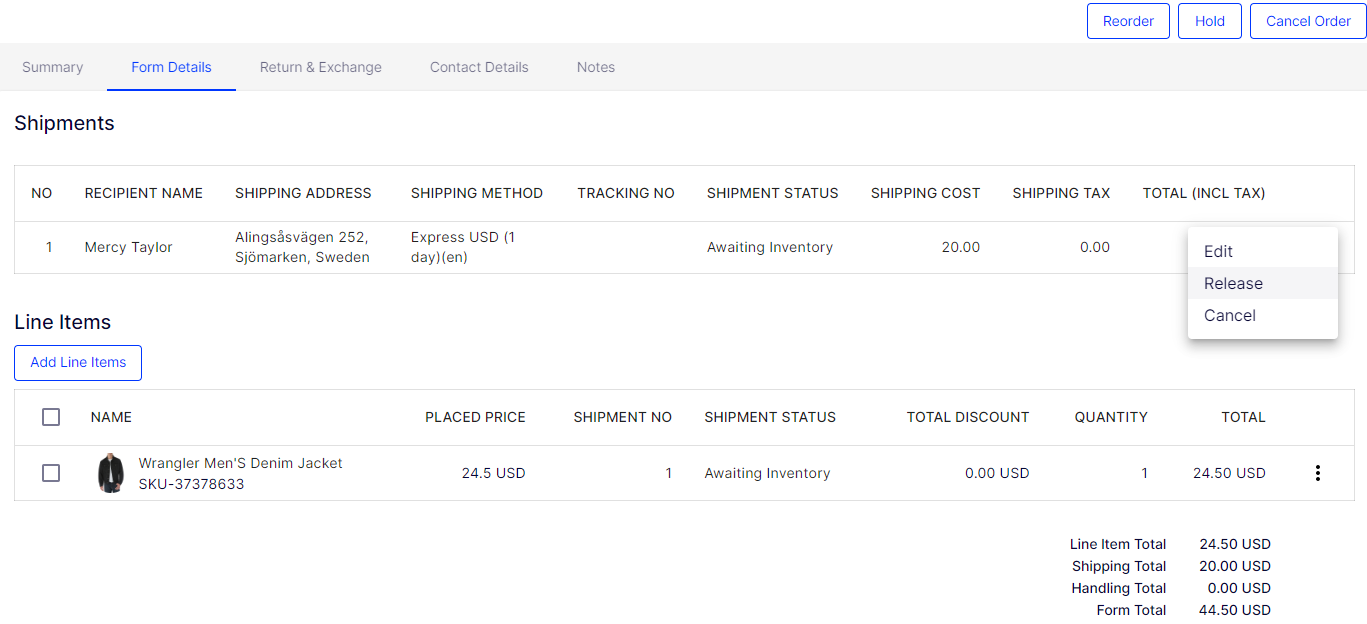
Click the Form Details tab and select Release from the option menu (...), then confirm it.
-
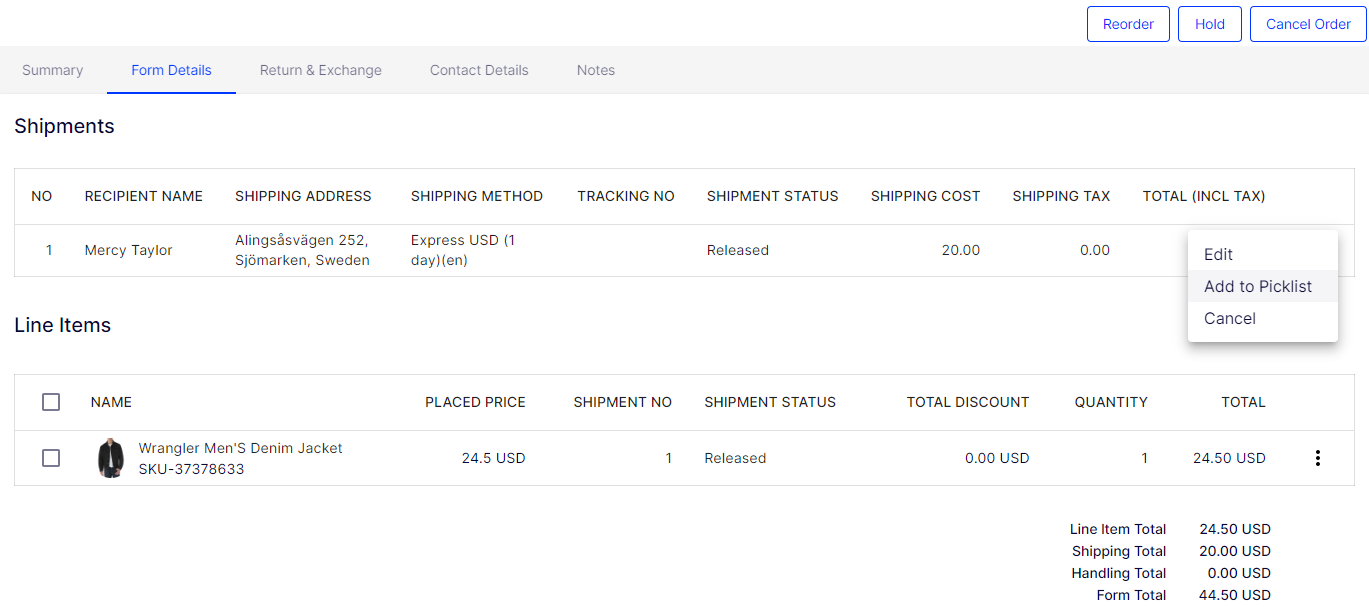
Change the shipment status to Packing by clicking Add to Picklist.
-
When the shipment is shipped, change the shipment status to Shipped by clicking Complete.
Add a shipping address to an order
To add a shipping address to an order without editing an existing address or adding an address to the customer's address book:
-
From the Order Management page, click Orders and select an order. The Order Details page displays.
-
Open the Form Details tab.
-
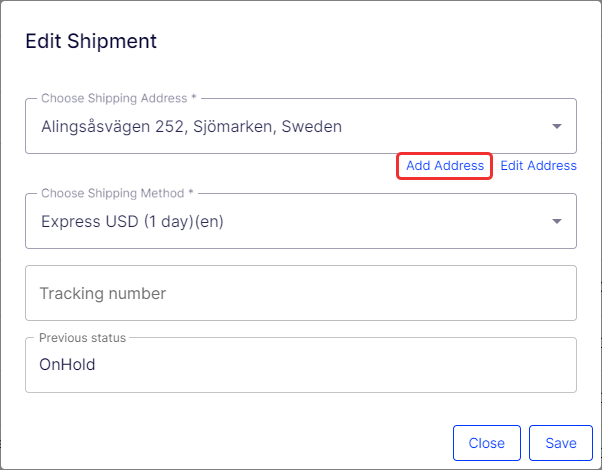
Click the context menu to the right of shipment 1 and click Edit.
-
Click Add Address.
-
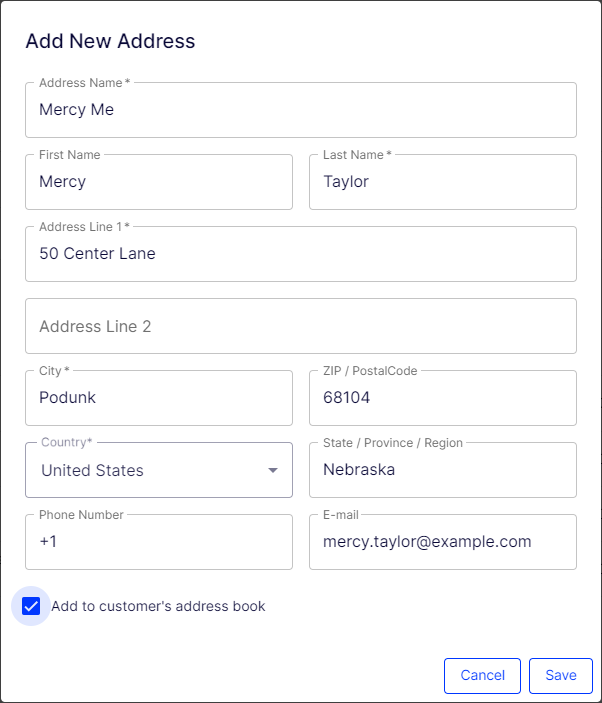
Enter the address information.
-
To add the shipping address to the customer's address book for future orders, select the Add to customer's address book checkbox.
-
Click Save > Close.
Changing the customer address does not affect the order's shipping address.
Updated 2 months ago