
Create and edit a catalog
Create a catalog manually by defining its properties, then add entries or delete it as needed.
To manually create a catalog, start by defining its properties, then add catalog entries, such as products and variants. You can also import catalog content from an external source.
NoteYou can only create a catalog under the Catalog Root level.
When developing a catalog structure, consider its maintenance and performance. Optimizely recommends that you do not build deep hierarchies of categories, products, and variants. Similarly, a flat catalog structure with an excessive amount of entries in a single category can lead to poor performance.
-
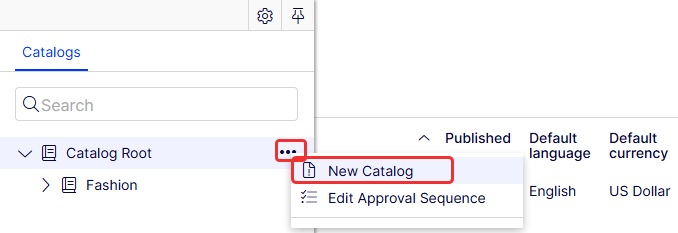
Go to Catalogs, and select More Options (...) > New Catalog.
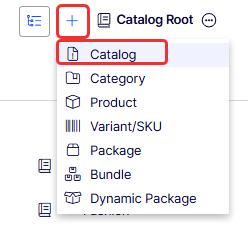
You can also select Create Content (+) > Catalog.
-
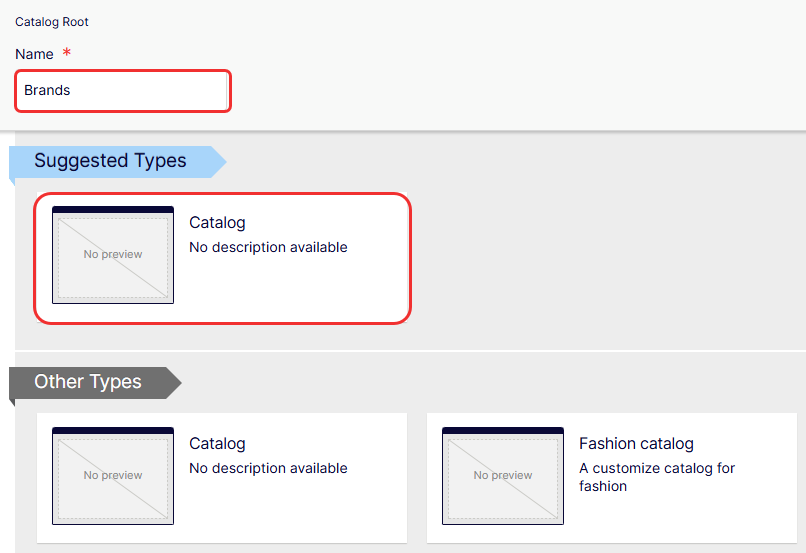
Select a type of catalog.
-
Enter the catalog details. The system automatically saves the catalog, but it is not available on the website until published. See Manage versions of content.
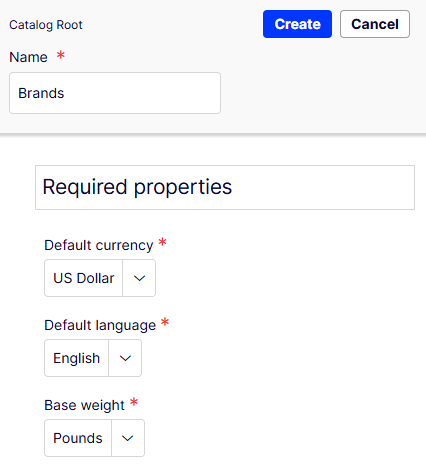
- Name – Enter the name to display in the catalog listing.
- Default currency – Select the default currency for this catalog's entries from the drop-down list.
- Default language – Select the default (master) language for this catalog's entries from the drop-down list.
- Base weight – Select the standard weight unit applied to catalog entries when calculating weight values for shipping totals in the checkout from the drop-down list.
These additional properties are available after you create a catalog:
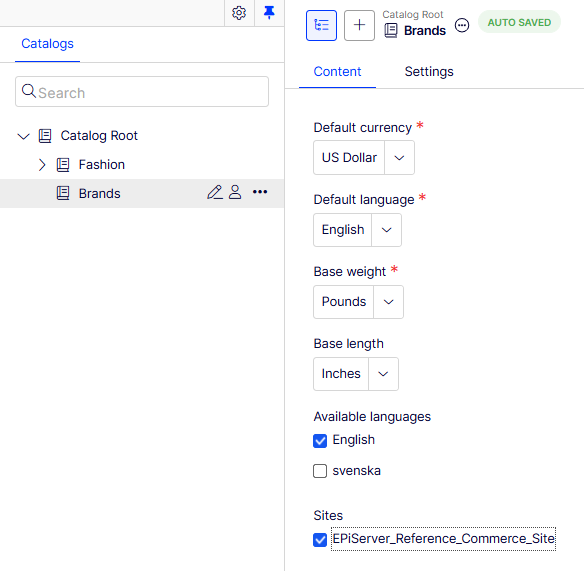
- Base length – Select the standard length unit applied to catalog entries.
- Available languages – Select languages (in addition to the master language) for this catalog's content. See Languages.
- Sites – Select which site should contain the catalog.
Catalog properties are global, meaning catalog entries inherit settings from the default (master) language catalog. You can edit properties only from the default (master) language, so if you need to edit properties, switch to the default language. The default language is usually the first language listed next to Languages in the header.
NoteChanging a catalog's default language is rarely needed. But if you do, some catalog properties might have empty values.
Delete a catalog
WarningIf you delete a catalog, certain features on your site may no longer work. Before deleting a catalog, export it and save it for future reference.
The time required to perform the delete operation may differ depending on the catalog size. It may take a while.
- Select the desired catalog in the catalog tree.
- Click More Options (...) > Delete.
Updated 2 months ago