
Use webhooks to automate the content lifecycle
Create and manage webhooks in Optimizely CMS (SaaS) to send event data to another system when content changes.
A webhook automates your content lifecycle by sending event data from your CMS (SaaS) instance to another system when your content changes. When a content manager publishes a page, CMS (SaaS) can notify Optimizely Opal, a translation service, or an endpoint a developer builds. The receiving system reacts to the event instead of repeatedly asking CMS (SaaS) whether anything changed.
Each webhook has an endpoint URL, one or more event types, and optional filters. When an event occurs, CMS (SaaS) sends an HTTP POST request containing the event data to that endpoint.
Go to Settings > Webhooks to create and manage webhooks.
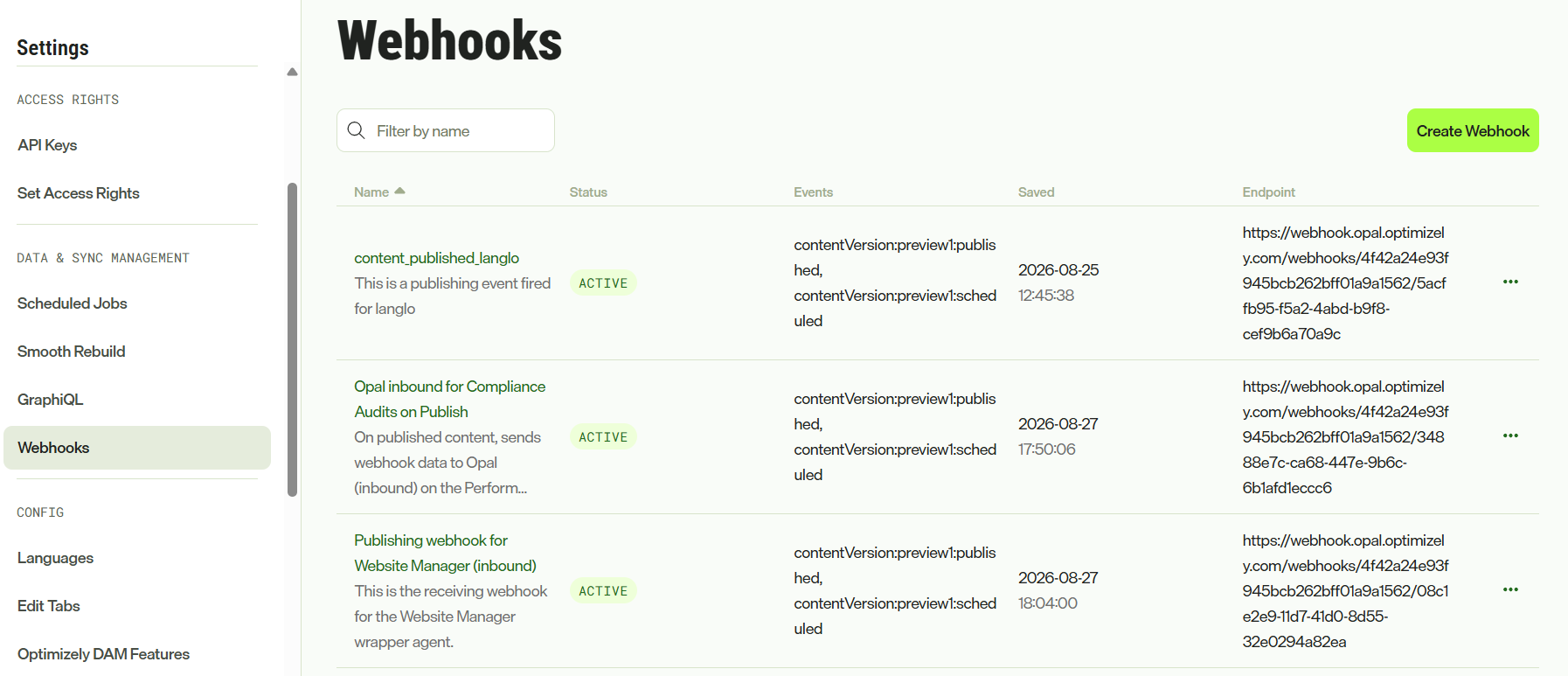
The CMS (SaaS) REST API performs the same operations. See Subscribe to events with webhooks for the endpoints, event type reference, and payload schemas.
Create a webhook
- Go to Settings > Webhooks.
- Click Create Webhook.
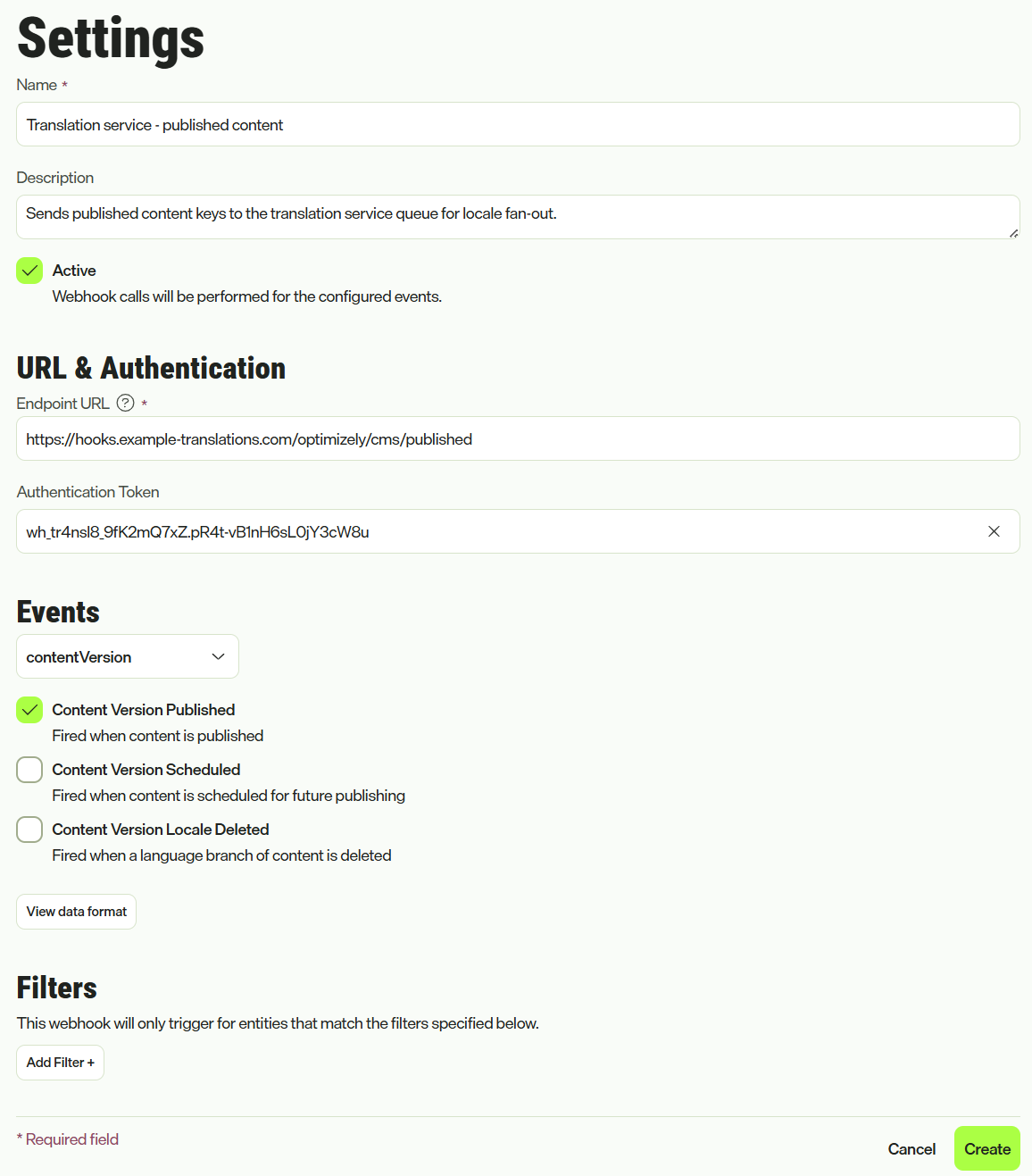
- Complete the following fields:
- Name – Enter a name that identifies the webhook in the list. Required. Up to 255 characters.
- Description – Enter an explanation of what the webhook is for. Up to 512 characters.
- Active – Select to send data to the endpoint URL for the configured events. Clear this checkbox to stop sending data without deleting the webhook.
- Endpoint URL – Enter the address that receives the HTTP
POSTrequests. It must be a valid URL. - Add Authentication Token – Click to authenticate the requests your endpoint receives and enter an Authentication Token. CMS (SaaS) sends the token as a bearer token in the
Authorizationheader of every request. Your endpoint uses it to confirm that the request came from CMS (SaaS). The token must be a valid HTTP bearer token value. - Event types – Select an event category from the drop-down list, and then select the event types the webhook subscribes to. You can only select event types from one category per webhook. See Select event types.
- Filters – (Optional) Add filters so the webhook only triggers for entities that match the values you specify. See Filter events.
- Click Create.
Your endpoint must confirm the verification message that CMS (SaaS) sends and handle the incoming events. The webhook keeps the Pending status until your endpoint confirms the message, and then changes to Active. See Verify the endpoint.
Select event types
Event types are the events in CMS (SaaS) that can send data to a webhook. They are grouped into categories, where each category is the type of entity the event applies to.
A webhook subscribes to events from one category and to one version of that category. If you select events from a second category, CMS (SaaS) displays a warning. It removes the events from the other category when you save.
The following categories and events are available.
Content
Events for a content item.
| Event | Event type | Fires when |
|---|---|---|
| Content Created | content:preview1:created | Content is created. |
| Content Moved | content:preview1:updated | Content moves to a different parent, excluding a move to the wastebasket. |
| Content Deleted | content:preview1:deleted | Content is deleted, either moved to the wastebasket or deleted permanently. |
Content version
Events for a specific version of a content item.
| Event | Event type | Fires when |
|---|---|---|
| Content Version Published | contentVersion:preview1:published | Content is published. |
| Content Version Scheduled | contentVersion:preview1:scheduled | Content is scheduled for publishing at a future date. |
| Content Version Locale Deleted | contentVersion:preview1:localeDeleted | A language branch of content is deleted. |
Display template
Events for a display template.
| Event | Event type | Fires when |
|---|---|---|
| Created | displayTemplate:v1:created | A display template is created. |
| Updated | displayTemplate:v1:updated | An existing display template is updated. |
| Deleted | displayTemplate:v1:deleted | An existing display template is deleted. |
Webhook
Events for the webhooks themselves, so you can track configuration changes.
| Event | Event type | Fires when |
|---|---|---|
| Created | webhookSubscription:v1:created | A webhook is created. |
| Updated | webhookSubscription:v1:updated | An existing webhook is updated. |
| Deleted | webhookSubscription:v1:deleted | An existing webhook is deleted. |
View the event data format
Inspect the data your endpoint receives before you subscribe to a category. The display shows which fields to read, and which fields you can filter on.
-
Select a category from the drop-down list in the Events section when creating a webhook.
-
Select View data format.
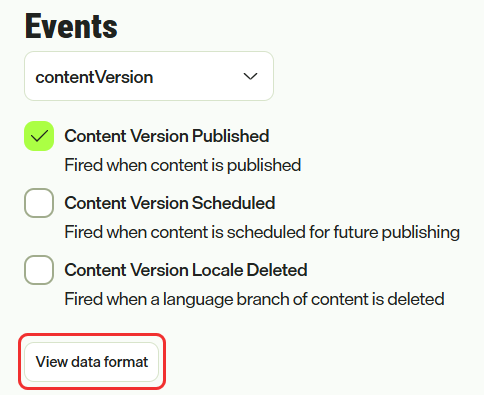
CMS (SaaS) displays the Schema for the category and a Sample when one is available. You can copy either block.
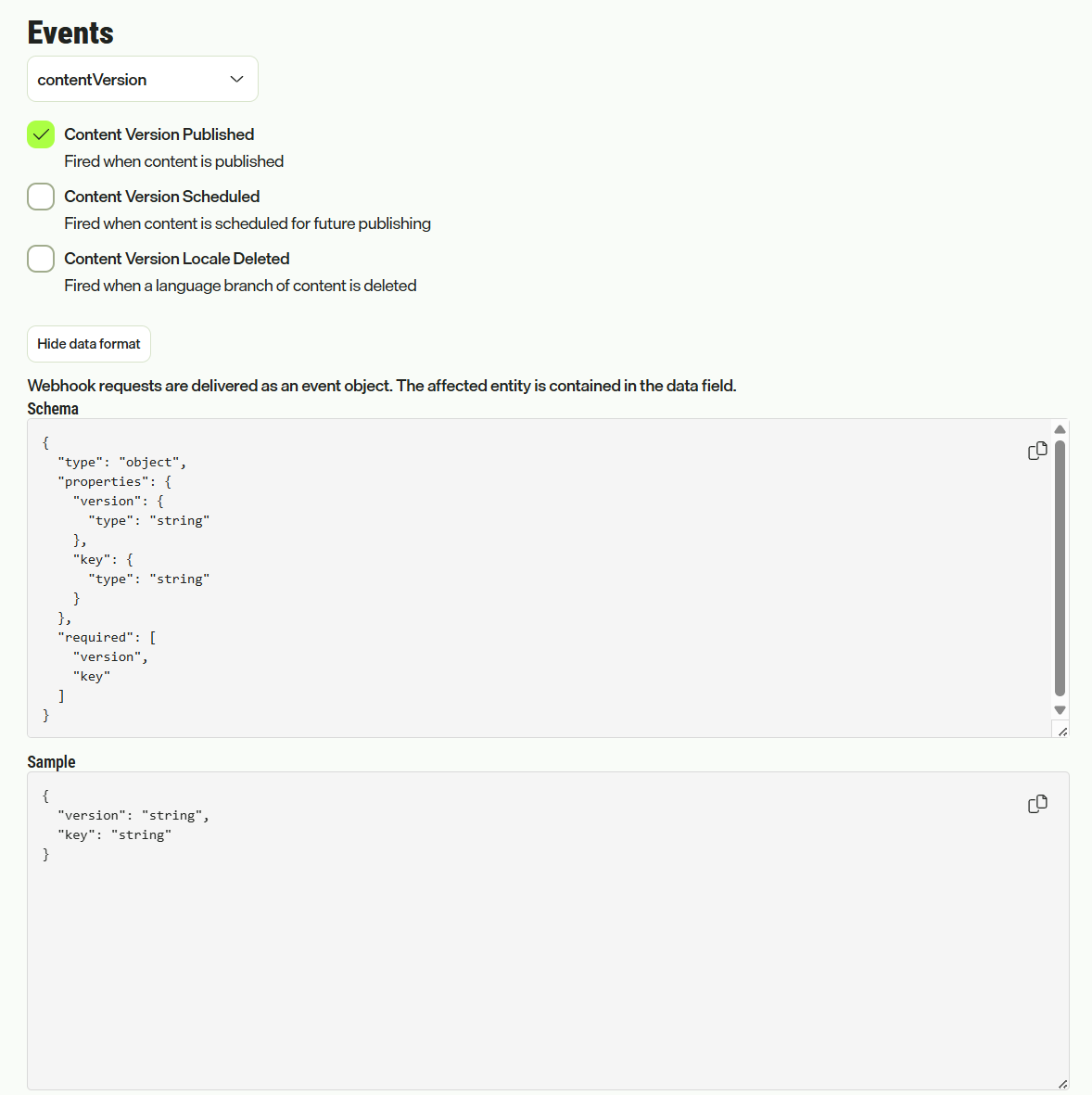
Webhook requests are delivered as an event object. The affected entity is contained in the
datafield. -
Select Hide data format to close the display.
Filter events
Filters reduce the amount of traffic your endpoint handles by sending only the events you care about. A webhook with filters only triggers for entities that match the filters you specify.
Filters apply to the data fields of the selected category. The fields you can filter on therefore depend on which category the webhook subscribes to. Use View the data format to see the fields for a category.
- Click Add Filter in the Filters section when creating a webhook.
- Select a Key. This is the data field to match on.
- Select an Operator. See Filter operators.
- Enter a Value, and then press Enter to add it. Repeat to add more values. Operators that compare a range use separate From and To fields, and you select Add to add the range.
- Repeat to add more filters.
To remove a filter, select its delete icon.
The following limits apply to filters:
- A maximum of 20 values across the filters on a webhook.
- A maximum of 475 characters for each value.
- A key cannot contain spaces, start or end with a period, or contain consecutive periods.
If you change the category the webhook subscribes to, CMS (SaaS) asks you to confirm. The existing filters apply to the fields of the previous category, so CMS (SaaS) replaces them.
Filter operators
| Operator | Matches when the field |
|---|---|
StringIn | Equals one of the values. |
StringNotIn | Equals none of the values. |
StringContains | Contains one of the values. |
StringNotContains | Contains none of the values. |
StringBeginsWith | Begins with one of the values. |
StringNotBeginsWith | Begins with none of the values. |
StringEndsWith | Ends with one of the values. |
StringNotEndsWith | Ends with none of the values. |
NumberIn | Equals one of the numbers. |
NumberNotIn | Equals none of the numbers. |
NumberInRange | Falls within one of the ranges. |
NumberNotInRange | Falls outside every range. |
NumberLessThan | Is less than the number. |
NumberLessThanOrEquals | Is less than or equal to the number. |
NumberGreaterThan | Is greater than the number. |
NumberGreaterThanOrEquals | Is greater than or equal to the number. |
BoolEquals | Equals the selected boolean value. |
IsNullOrUndefined | Has no value. |
IsNotNull | Has a value. |
Verify the endpoint
CMS (SaaS) verifies that you control the endpoint before it starts sending events to it. When you create a webhook, CMS (SaaS) sends a verification message to the endpoint URL. The webhook keeps the Pending status until the endpoint confirms that message. When the endpoint confirms it, the status changes to Active and CMS (SaaS) starts sending events.
A webhook has one of the following statuses:
- Active – The endpoint is verified, and CMS (SaaS) sends events to it.
- Inactive – The Active checkbox is cleared, so CMS (SaaS) does not send events, even though the endpoint is verified.
- Pending – The endpoint has not confirmed the verification message yet.
Verification is tied to the endpoint URL. If you change the URL of an existing webhook, you must add another authentication token, and the endpoint is verified again.
Manage webhooks
The Webhooks page lists your webhooks with their endpoint, the number of events and filters, and their status. Enter a name in Filter by name to narrow the list.
- To edit a webhook, select it in the list. To change the endpoint URL or the authentication token of a webhook that is already verified, select Edit for the field.
- To stop a webhook without deleting it, clear the Active checkbox and select Save. Its status changes to Inactive.
- To delete a webhook, open it, select Remove under Remove Webhook, and confirm. This permanently removes the webhook and cannot be undone.
Delivery and retries
Optimizely provisions and manages the event delivery infrastructure for CMS (SaaS) webhooks. This includes the retries for failed deliveries, and the dead-letter queue for events that cannot be delivered. These settings are not configurable.
Because a failed delivery is retried, your endpoint can receive the same event more than once. Build your endpoint so that handling an event twice has the same result as handling it one time.
Opal integration example
Optimizely Opal is an agent orchestration platform. Connecting a webhook to an Opal workflow agent lets the agent run whenever content changes, rather than waiting for someone to start it. The agent can then act on the content, such as routing it for translation or triggering a downstream service.
The walkthrough covers the Opal side and the CMS (SaaS) side, including the shared secret that both products must set to the same value. See Send content events to Opal with webhooks.
Updated 24 days ago