
GEO Analytics for CMS (SaaS)
The GEO Analytics dashboard in Optimizely Reporting helps you understand and optimize your site's performance for AI platforms by tracking AI traffic trends, identifying frequent AI agents, and discovering popular webpages among AI platforms.
ImportantThe GEO Analytics dashboard is a legacy feature and is available only for customers who received access before May 31, 2026. Switch to the Agent Visibility dashboard in Optimizely Analytics, which provides additional request intent and enriched Optimizely Opal facets data for more robust and action-oriented analysis.
Use the Generative Engine Optimization (GEO) Analytics dashboard in Optimizely Reporting to view AI platform traffic and optimize your site's performance.
Using the data from GEO Analytics, you can track AI traffic trends, identify frequent AI agents, and discover popular webpages among AI platforms. This lets you refine your content for AI optimization and leverage high-performing pages to improve overall engagement.
Prerequisites
To use the GEO Analytics dashboard, you must
- Have an Opti ID account.
- Have access to a CMS (SaaS) instance.
- Host your frontend with Optimizely.
Site navigation
-
Log in to your CMS instance.
-
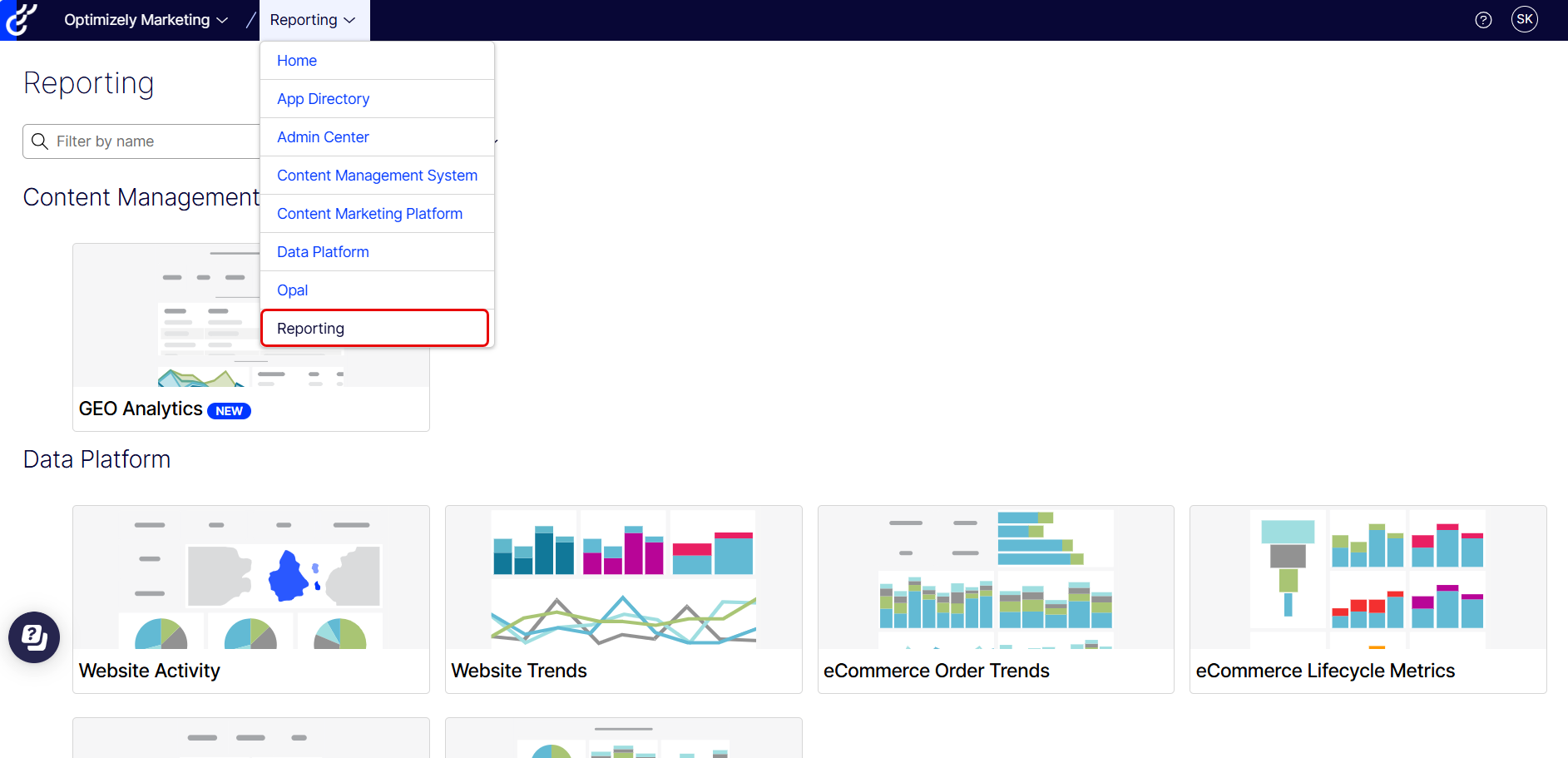
Select Optimizely Reporting or use the product switcher in the global navigation bar.
-
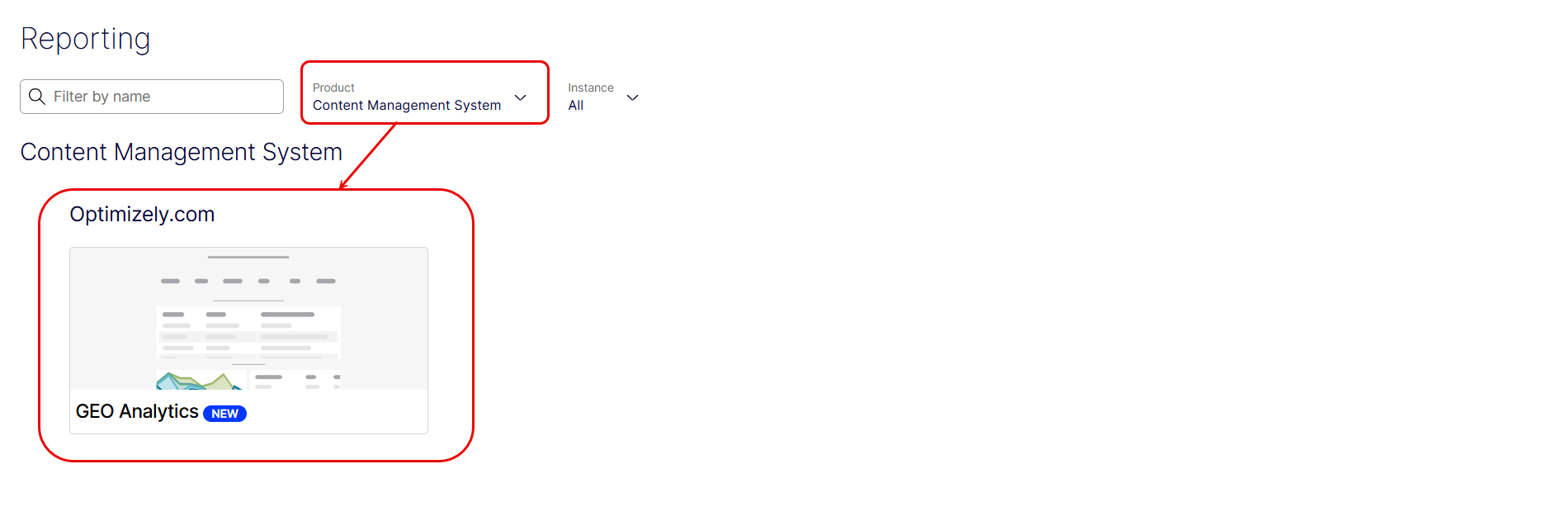
After you log in, scroll down and click the GEO Analytics dashboard, or select Content Management System from the Product drop-down list.
View GEO analytics
View data
The GEO Analytics dashboard displays the following four data tables:
-
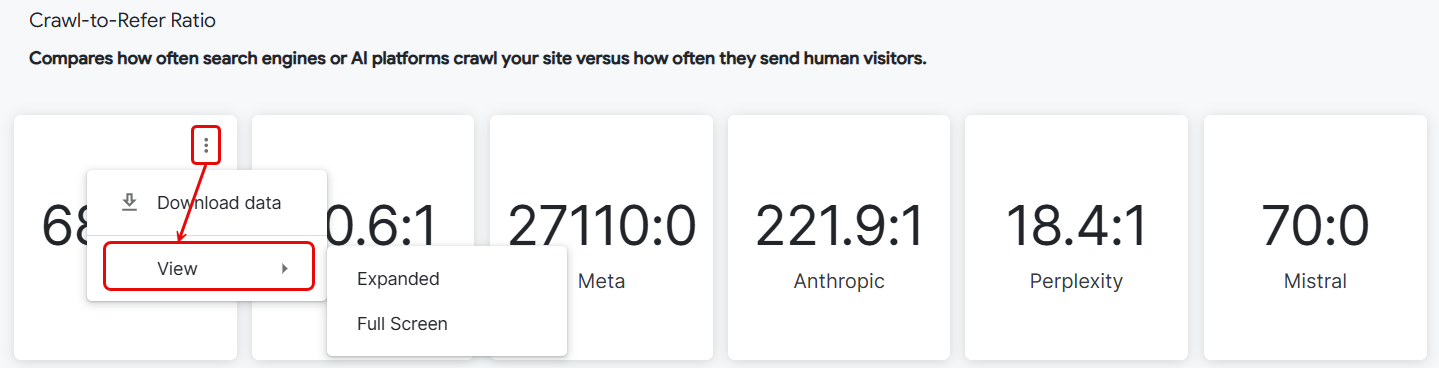
Crawl-to-Refer Ratio – Displays the crawl-to-refer ratio for the top six AI crawlers, ordered by AI platforms with the most AI requests to your site. The ratio compares how often AI crawlers visit your site to how often the crawls lead to referrals. A high ratio means crawlers are visiting your site frequently, but not using your content extensively. A low ratio indicates that your pages are being referenced in proportion to one another. This metric helps you understand whether crawler activity is translating into real visibility within AI platforms. You should keep the ratio as low as possible.
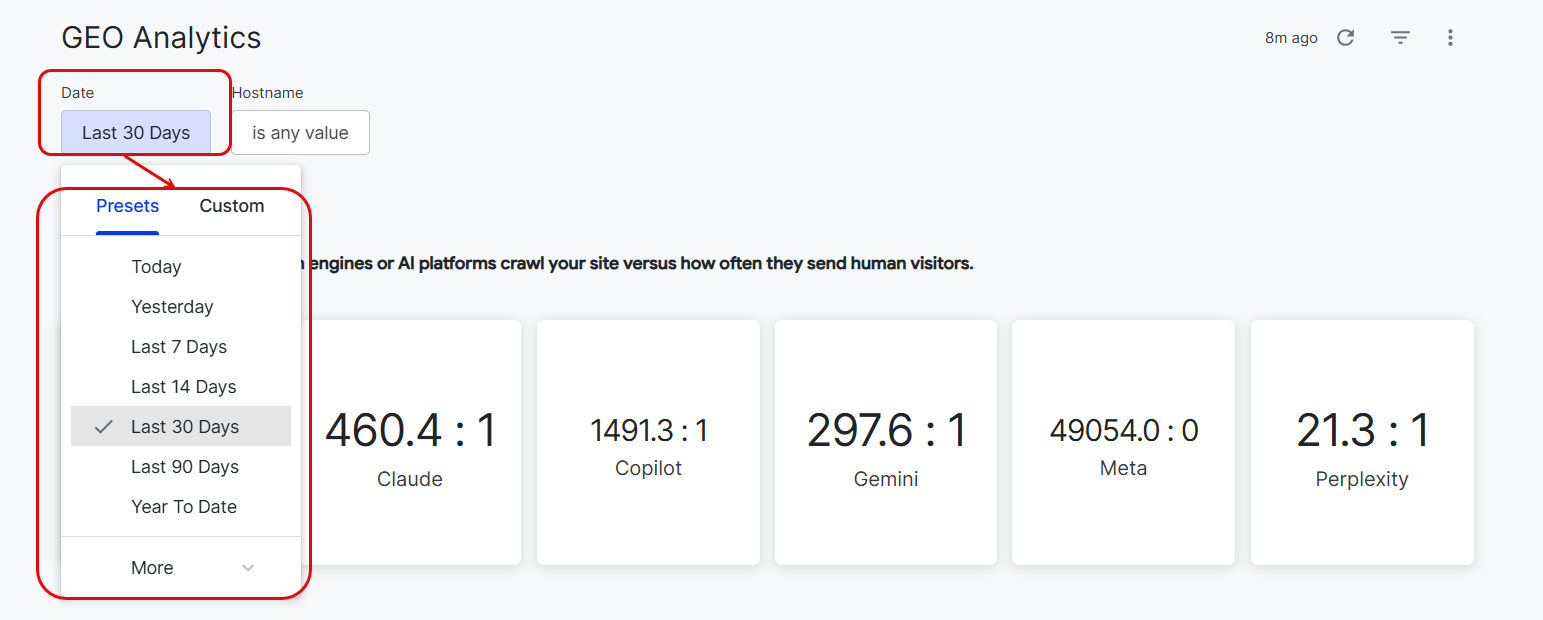
You can also compare the crawl-to-refer ratio with the previous period for the selected timeframe. For example, if you select Date > Last 30 Days to filter the data, you can view the ratio for the preceding 30 days. This comparison helps you understand how the ratio changes over time and how your optimizations or market shifts impact it.

-
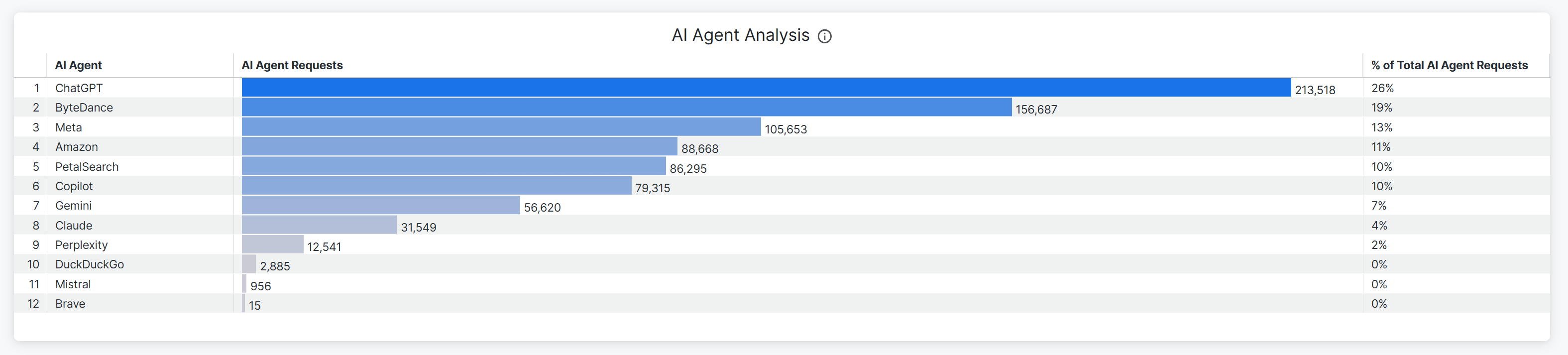
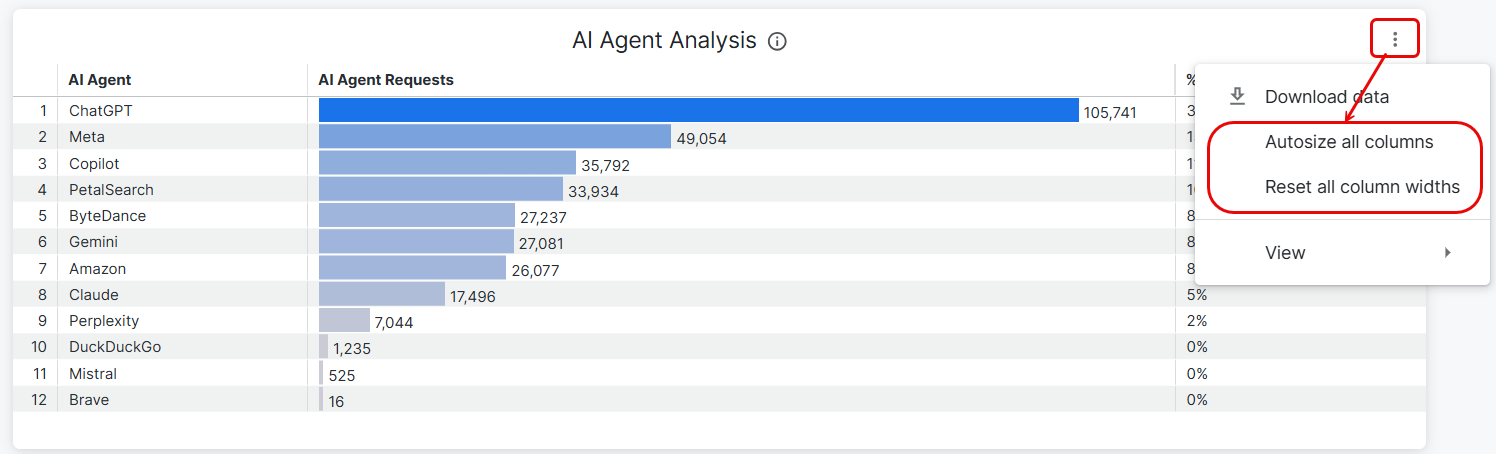
AI-Agent Analysis – Displays the summary of AI agent activity, categorized by request volume. The data table displays the top 12 AI agents that are static (including the top six displayed in the Crawl-to-Refer Ratio section), their corresponding request counts, and their percentage of total AI agent requests.
-
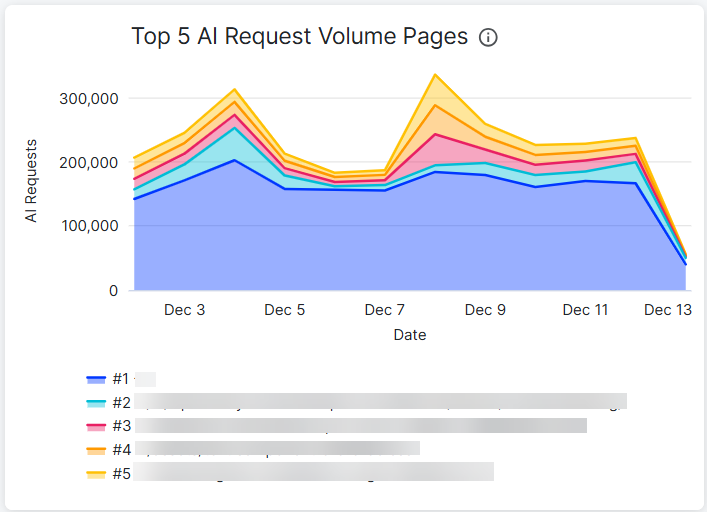
Top 5 AI Request Volume Pages – Displays HTTP request trends for the top five pages, highlighting which pages are most frequently accessed by specific AI bots and crawlers within your selected time period.
-
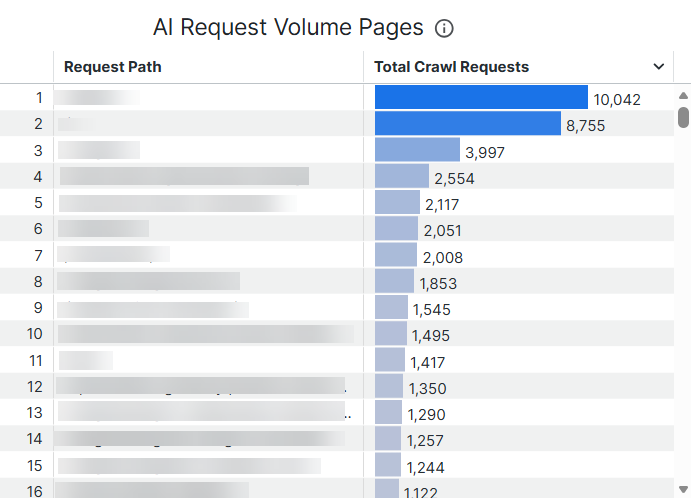
AI Request Volume Pages – Displays the number of total AI crawler requests for each page within your selected time period.
Filter data
-
Click Date > Last 30 Days and choose a time period from the preset time periods or click Custom to set your own custom time period.
NoteData is available from November 28, 2025, onwards.
-
Click Hostname > is any value and an operator from the drop-down list, then select one or more websites from the any value drop-down list. Click Add to add additional hostnames.

-
Click Update. When you adjust the filters, you must click Update again to apply your new settings.

Reset dashboard filters
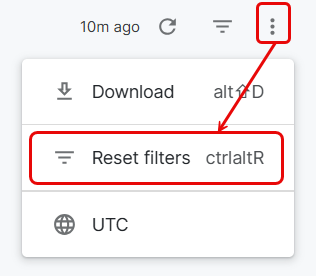
To clear the current filter settings and reset to the default filter, click Dashboard actions > Reset filters. The dashboard automatically reloads to display data for the default filters.
Update the time zone
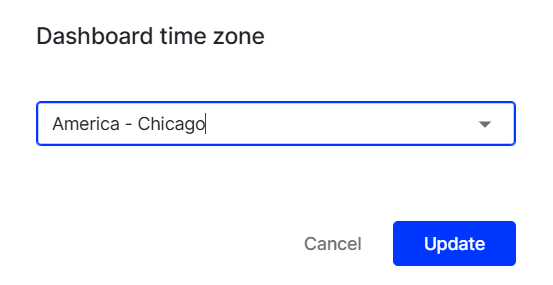
To change the time zone for your dashboard, click Dashboard actions > UTC. Select your desired time zone from the drop-down list, then click Update.
Download the dashboard
To download the dashboard, complete the following:
-
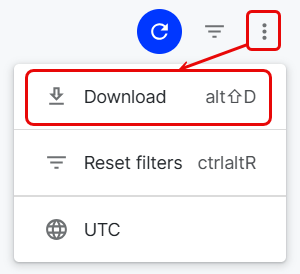
Click Dashboard actions > Download.
-
Complete the following fields:
- Format – Select PDF or CSV.
- PDF – Generates one file for the dashboard.
- CSV – Generates a file for each row in the dashboard.
- Paper Size – Select Fit Page To Dashboard, Letter, Legal, Tabloid, A0, A1, A2, A3, A4, or A5. For information on A paper sizes, see papersizes.org. An additional Orientation option (Portrait or Landscape) displays for Letter, Legal, and Tabloid.
- Expand tables to show all rows – Select this checkbox to display all rows in each table.
- Arrange dashboard tiles in a single column – Select this checkbox to display dashboard tiles in a single column.
- Format – Select PDF or CSV.
-
(Optional) Click Open in Browser to view the results in a browser tab. This is only available for PDF format.
-
Click Download.
Download data, sort, freeze, copy values, and resize columns
Download data
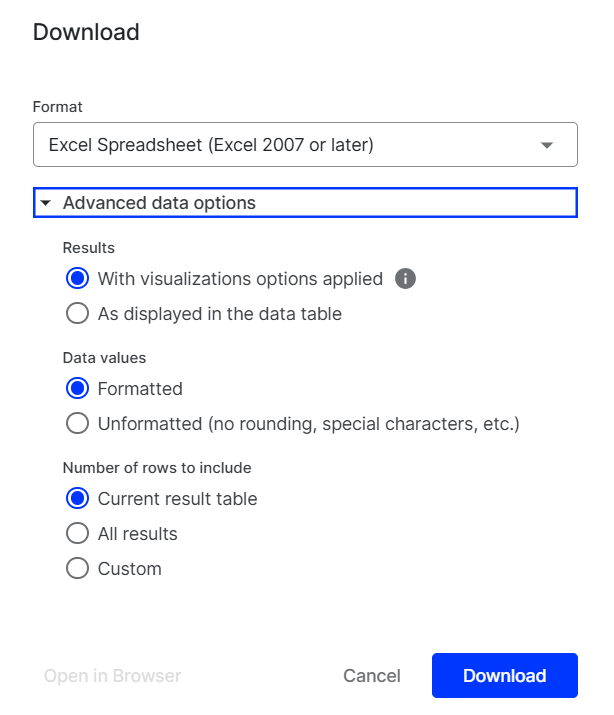
Hover your cursor over the card (for Crawl-to-Refer Ratio) or table title row (for AI Agent Analysis, Top 5 Request Volume Pages, and AI Request Volume Pages) and click Tile actions > Download data to perform the following actions:
- Click Download data.

- Select your desired Format.
- (Optional) Expand the Advanced data options section and adjust how to format for downloading the data.
- (Optional) Click Open in Browser to view the results in a browser tab. This is not available for the Excel spreadsheet format.
- Click Download.
Sort columns
To sort the AI Agent Analysis and AI Request Volume Pages data tables, complete the following:
-
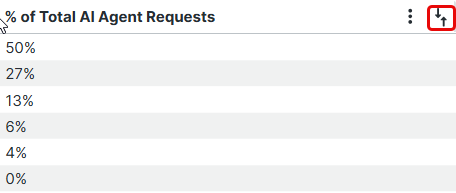
Hover your cursor over the table title row.
-
Click the sort control to sort the tables in ascending or descending order.
Freeze data and copy values
To freeze and copy the data in the AI Agent Analysis and AI Request Volume Pages data tables, complete the following:
-
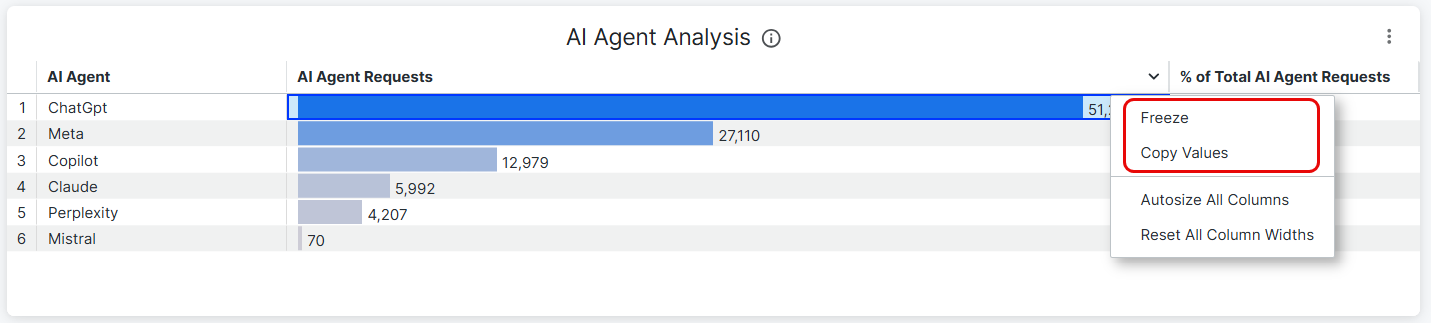
Hover your cursor over the header row for either column.
-
Click Column Options to complete the following actions:
- Freeze – Complete the following:
- Drag your cursor and select your desired rows from the column.
- Click Freeze to keep these rows visible when you scroll through the table.
- Copy values – Click to copy values for the entire table.
- Freeze – Complete the following:
Resize columns
There are two ways you can adjust the column width in AI Agent Analysis and AI Request Volume Pages data tables.
-
Hover your cursor over the table title row and click Tile actions.
-
Alternatively, hover over the header row of any column and select Autosize All Columns.
-
Click Reset All Column Widths to restore columns to their original size.
Change view
To change your data view in all four data tables, complete the following:
-
Hover your cursor over a card or the table title row.
-
Select Expanded to display the data in a floating table, or Full Screen to view them in a full-screen layout.
Updated 2 months ago