
Connect external content sources using GraphQL
Shows how to connect internal and external content sources indexed in Optimizely Graph.
In Optimizely Content Management System (CMS), you can connect external content indexed in Optimizely Graph. This lets you reference and reuse external content in pages, experiences, and blocks without duplicating or synchronizing data manually.
When you connect to an Optimizely Graph schema, CMS creates a connected content type. Connected content types mirror the external schema but are read-only. Only a limited number of settings can be updated in CMS.
Benefits
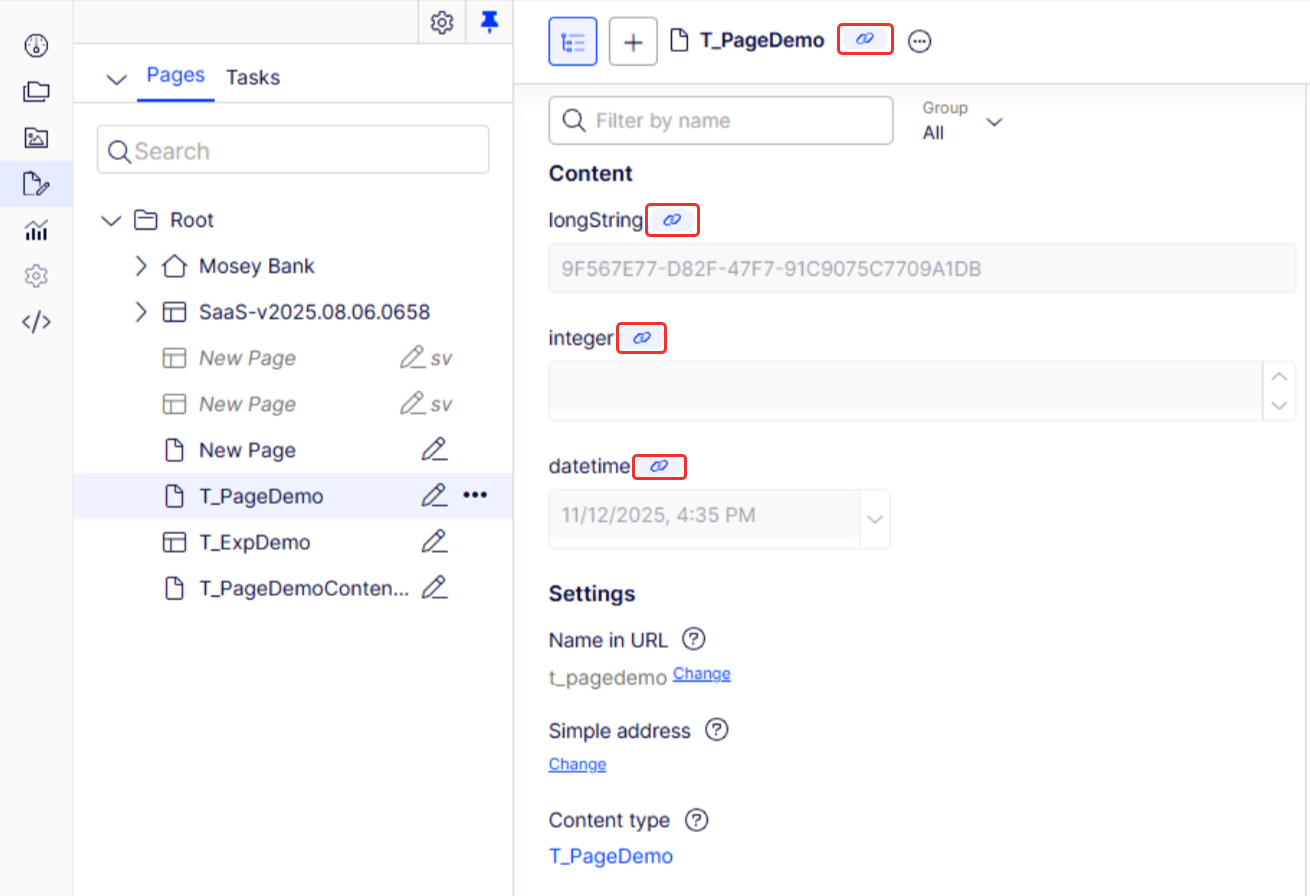
- Editors – Insert external content into CMS pages, experiences, and shared blocks. A link badge indicates when a content item is connected.
- Administrators – Decide which schemas are connected and how they map to CMS content types.
- Developers – Rely on a consistent, supported integration instead of building custom sync logic.
Connect from Optimizely Graph
-
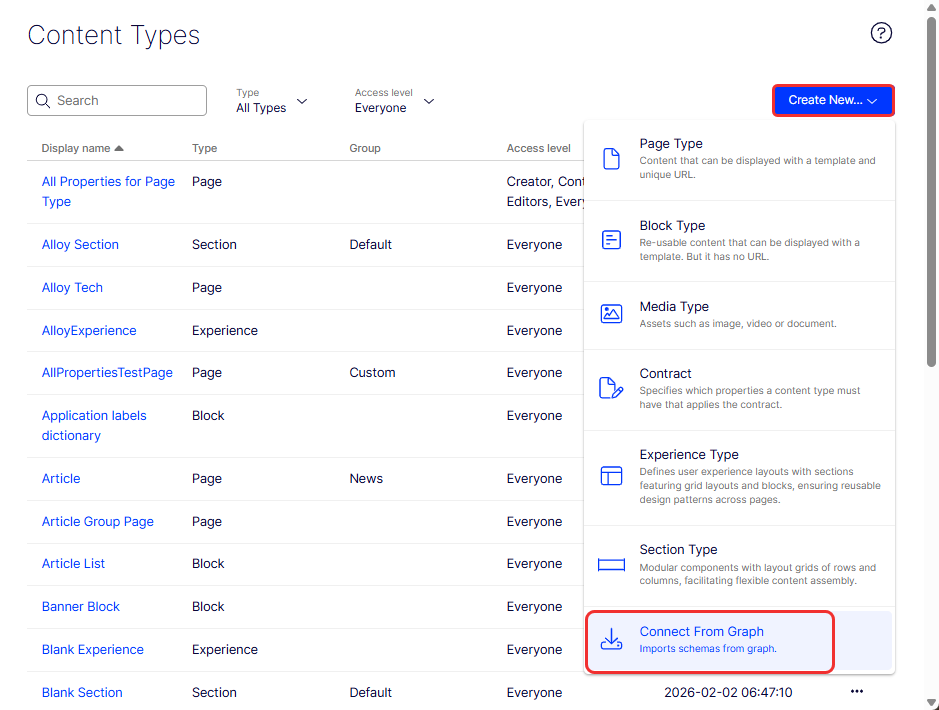
In Admin > Content Types, select Create new... > Connect from Graph.
 Note
NoteIf other external content source providers are available, they also appear in this menu. Learn more about how to Integrate external content sources with CMS (SaaS)
-
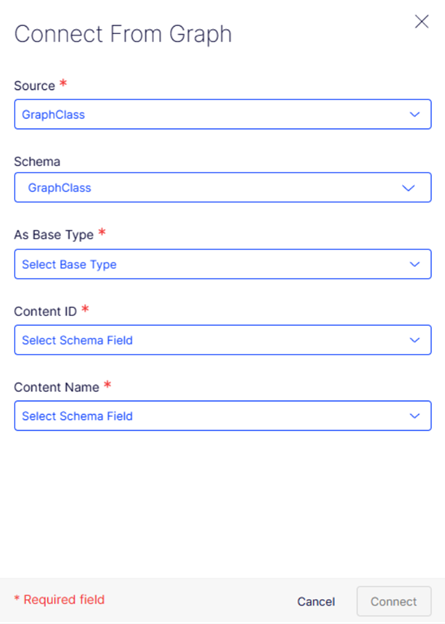
In the Connect from Graph window, update the following:
- Source – Select the external source available in Graph.
- Schema – Choose from the following:
- Available schemas – Schemas that can be connected.
- Connected schemas – Schemas already connected. Selecting one displays a link to the existing CMS content type.
- If no schemas are available, the list is hidden.
- CMS base type – Select from the supported base types: Page, Component, Media, Video, or Image. See Content types for more information.
- Content ID – Select the schema field that uniquely identifies items.
- Content name – Select the schema field used as the display name.
- Click Connect.
Validation and connection behavior
When you connect a schema from Optimizely Graph, CMS validates references and types to ensure they can be used safely.
Reference validation
If a schema includes reference fields, CMS checks whether the referenced types are available and supported.
- If a referenced type is not connected as a content source, CMS shows a validation error and prevents the connection.
- If a referenced type exists but is not available in the same source, CMS cannot verify compatibility and blocks the connection.
Skip validation
You can bypass validation by calling the API with the skipValidation option.
When you skip validation:
- If the referenced type exists but is not connected, CMS creates a generic reference using the closest supported contract.
- If the referenced type cannot be verified, CMS skips the reference field.
- If the referenced type is unsupported, CMS skips the reference field.
NoteSkipping validation may result in incomplete or missing reference fields in CMS.
Map source and target content types
Mappings define how properties from one content type populate properties in another. You can create mappings between the following:
- A connected schema (source) and a CMS content type (target).
- Two CMS content types.
To configure a mapping
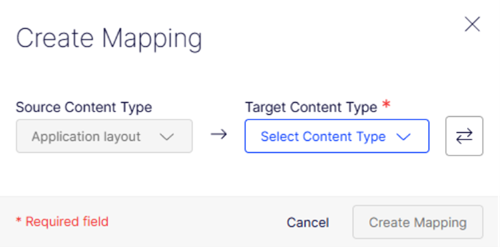
- In the Create Mappings, select the source and target content types.
- For each property on the target, select a matching property from the source.
- A target content type is the content type in CMS to which data is mapped. Target properties are read-only and listed in order.
- A source content type is the content type that provides values.
- To reverse the direction, select Swap Source and Target.
- Click Create Mapping.
NoteMappings can include scalar properties inside a block at one level of depth.
Connected content types
When you connect a schema from Optimizely Graph, CMS creates a connected content type. Connected content types appear in the Content Type list together with regular CMS content types.
Connected content types are read-only in most areas because they mirror the schema from the external source. Administrators can update limited settings such as the following:
-
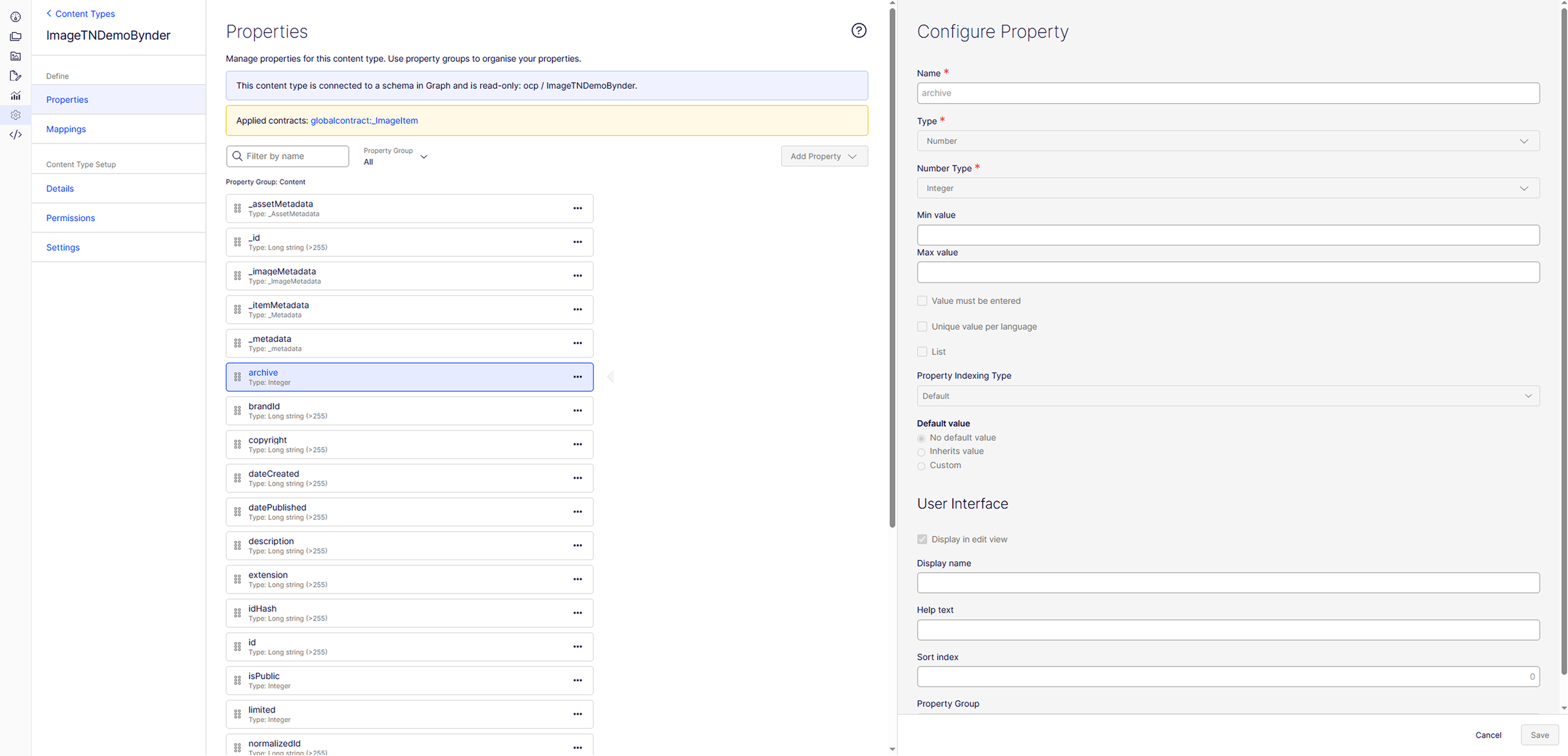
Properties
- Displays all properties defined in the schema.
- All properties are read-only, but you can select a property to view its details.
- A message confirms that the content type is connected to an Optimizely Graph schema.
-
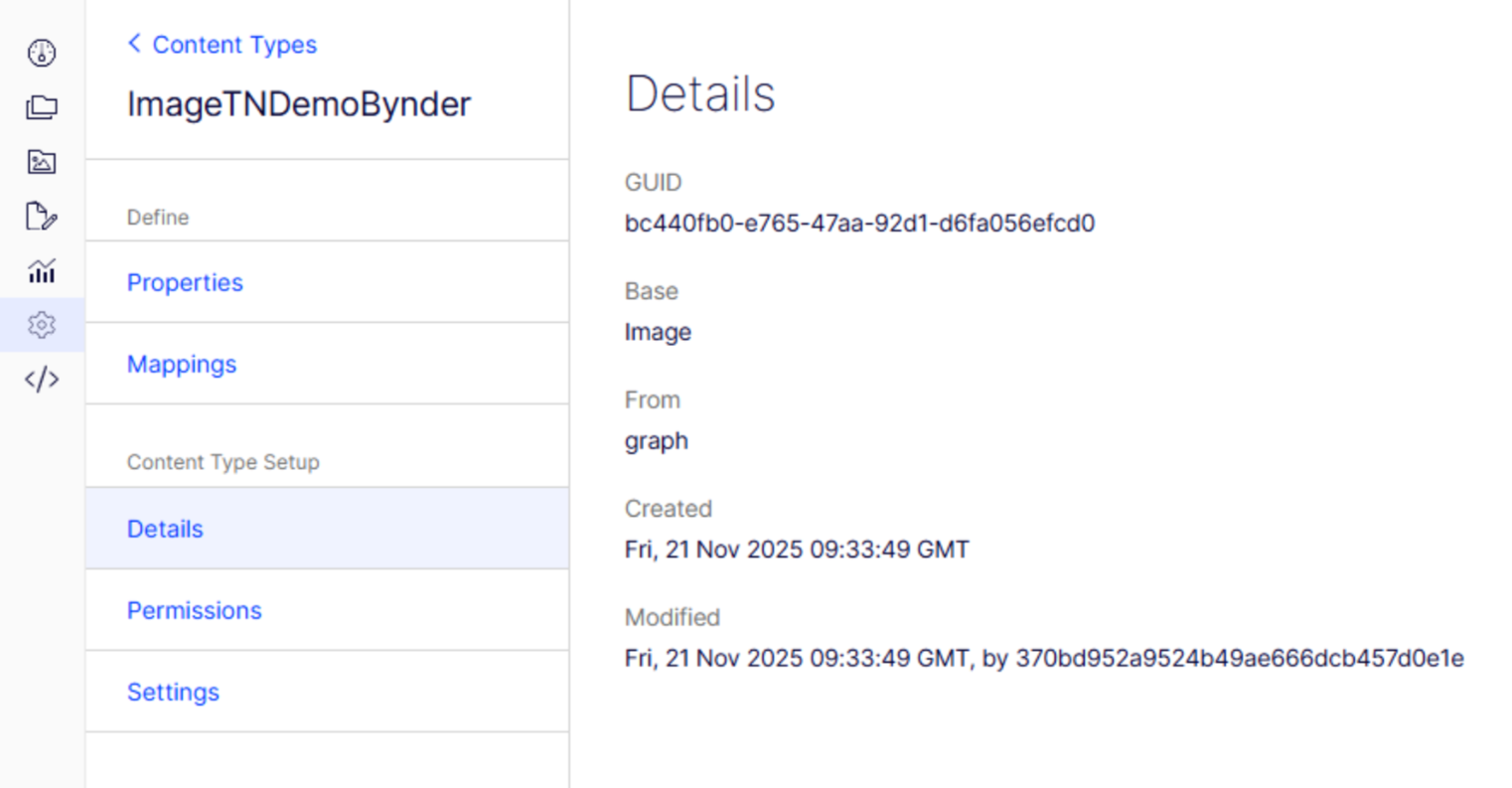
Details
- Shows system identifiers and configuration.
- All values are read-only.
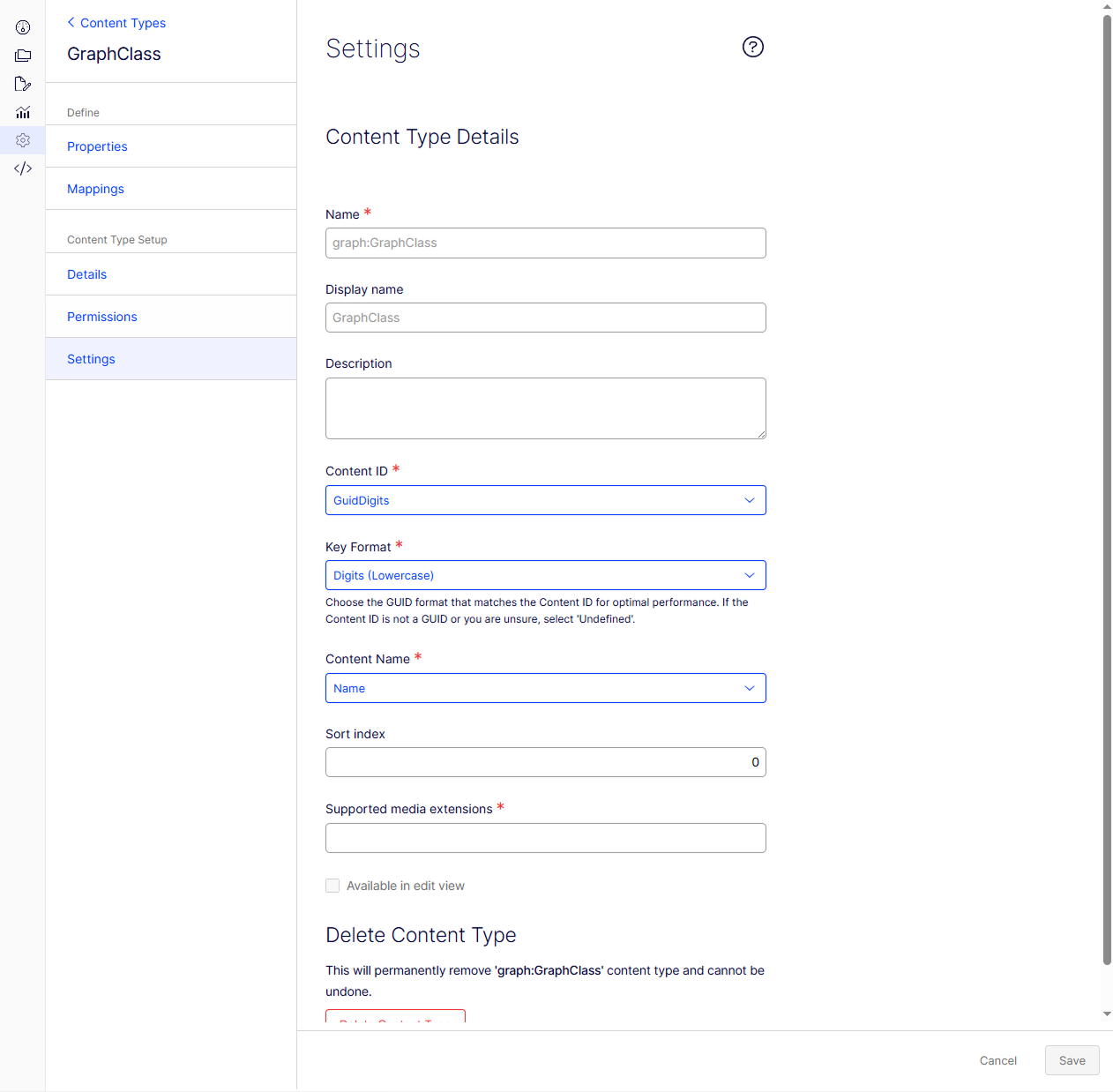
- Settings
- Name and Display name are read-only.
- You can update
- Content ID
- Content Name
- External edit URL
- Sort index
- If the schema follows a global contract, only the External edit URL can be updated.
-
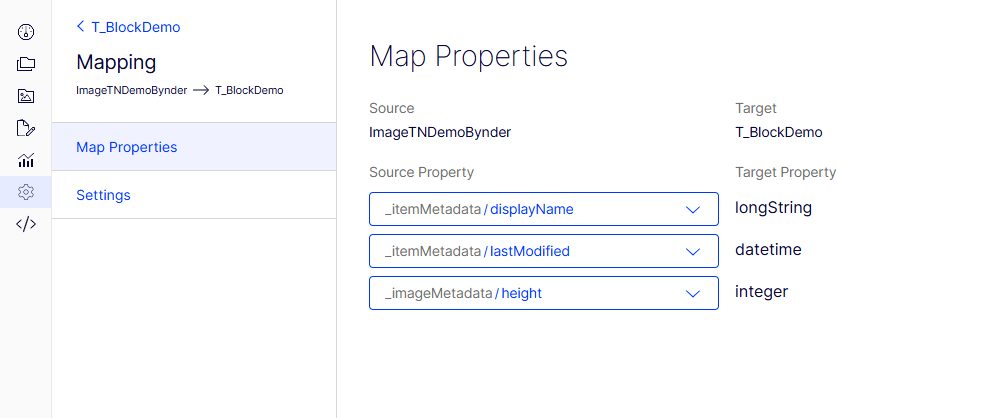
Mappings
-
Create and manage mappings from this schema to CMS content types.
-
Connected types can only act as a source in a mapping.
-
-
Permissions
- Displays current permissions.
- Read-only.
Content references from Graph
Schemas in Optimizely Graph can include references between content items. CMS converts these references into content references that you can use in the same way as standard CMS references.
How references are created
- If a referenced type is available in CMS, the reference is created as a typed content reference.
- If a referenced type is not fully available, CMS creates a generic reference when possible.
Requirements
To be recognized as a content reference in CMS:
- The referenced type must follow a supported global contract.
- If the referenced type does not follow a supported contract, CMS cannot create a reference.
Behavior for unsupported references
- Unsupported references trigger a validation error during connection.
- If you skip validation, unsupported references are ignored and not created in CMS.
Bind content in the Visual Builder
Editors can connect pages, experiences, or shared blocks to external data sources in the Edit UI when a mapping exists.
Indicators
-
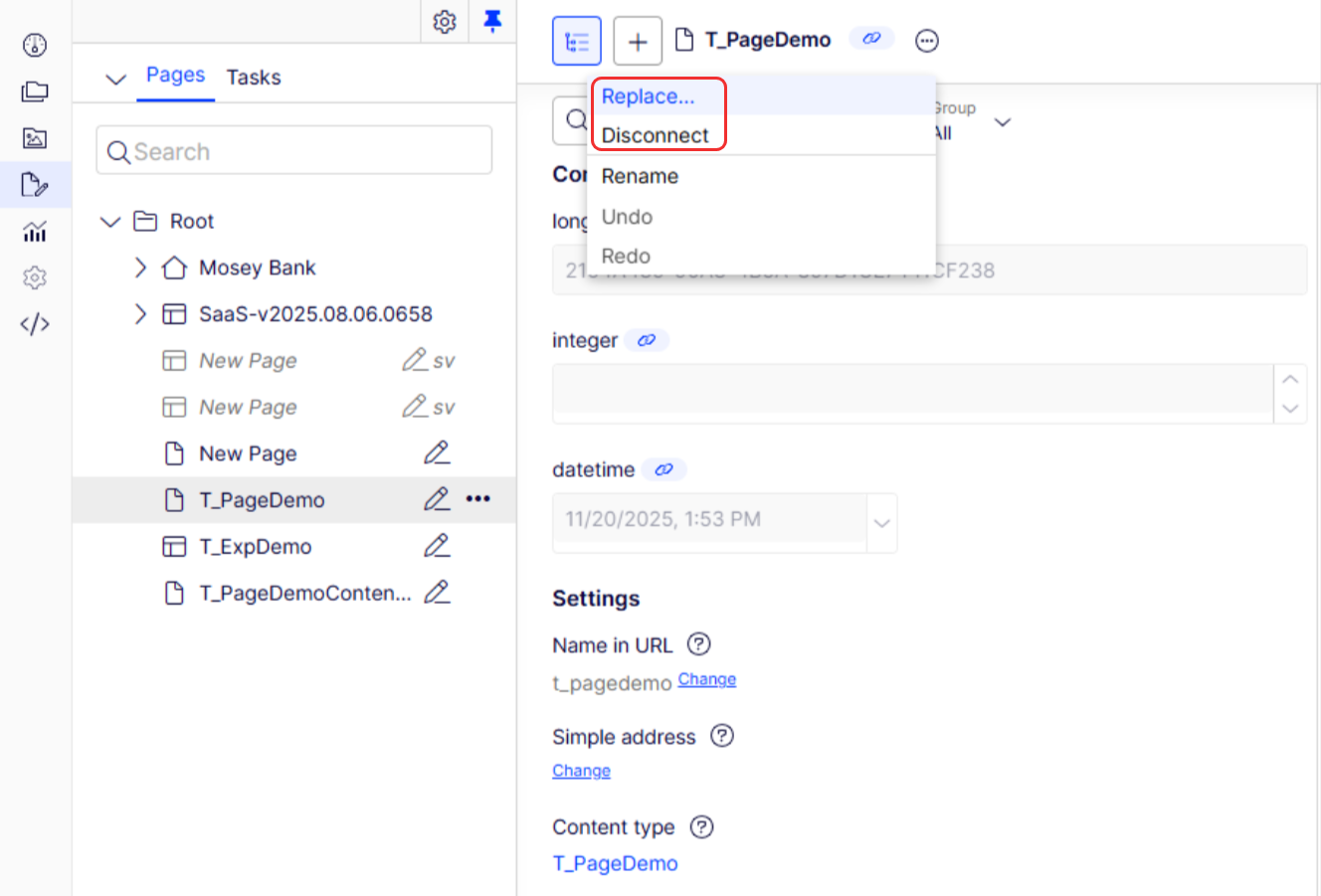
Link badge – Appears next to the content title when the item is bound to a source.
Context menu options
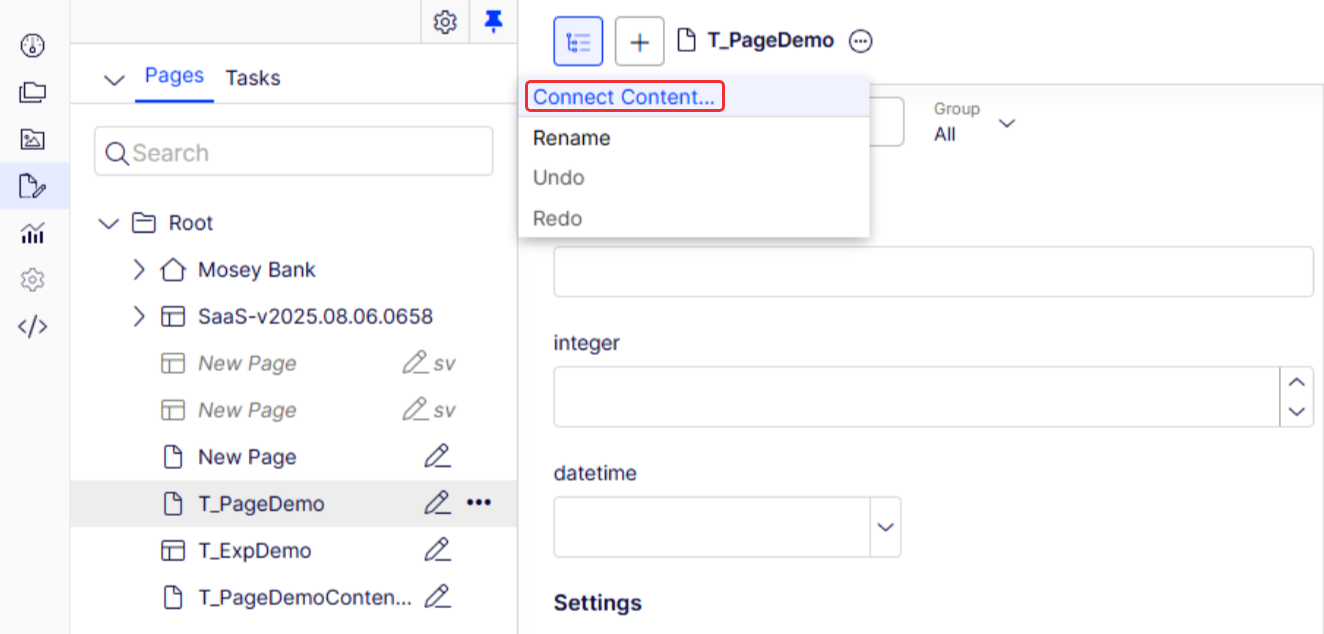
-
Connect content – Available for unbound items when a mapping exists. Opens the Content Manager picker, filtered to show only compatible source types.
-
Replace – Available for bound items. Lets you select a different source from the Content Manager picker.
-
Disconnect – Available for bound items. Removes the connection to the source.
Behavior of bound content
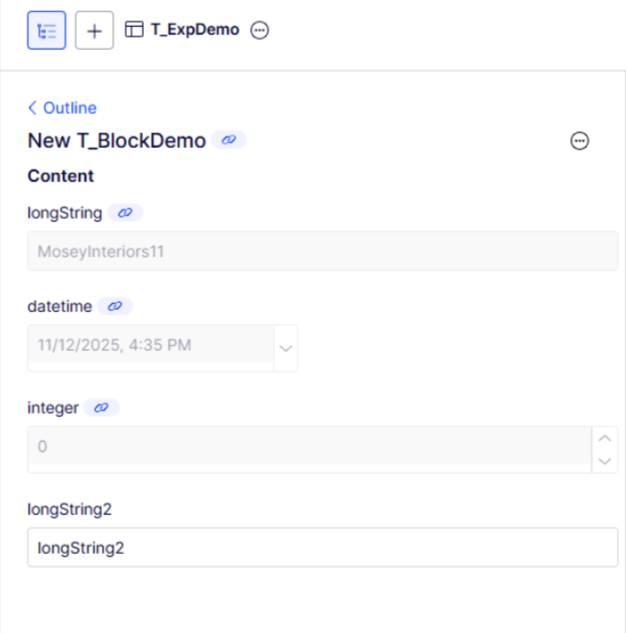
- Properties included in the mapping are read-only and display values from the source.
- Properties not included in the mapping remain editable in the Edit UI.
- If the mapping is updated to include additional properties, those properties automatically become read-only and display values from the source. In the following example, the longString is a connected content type, whereas the longSting2 is a normal connected type.
Delete a connected content type
You can delete manually connected content types in the same way you delete a regular CMS content type. System-managed content sources that are automatically created from contracts cannot be deleted through the UI or API. Deleting removes the connected type from CMS, but it does not affect the original schema in Optimizely Graph.

Use connected content types in selectors
When you configure Allowed content types or Restricted content types for a property, connected content types are available alongside regular CMS content types.
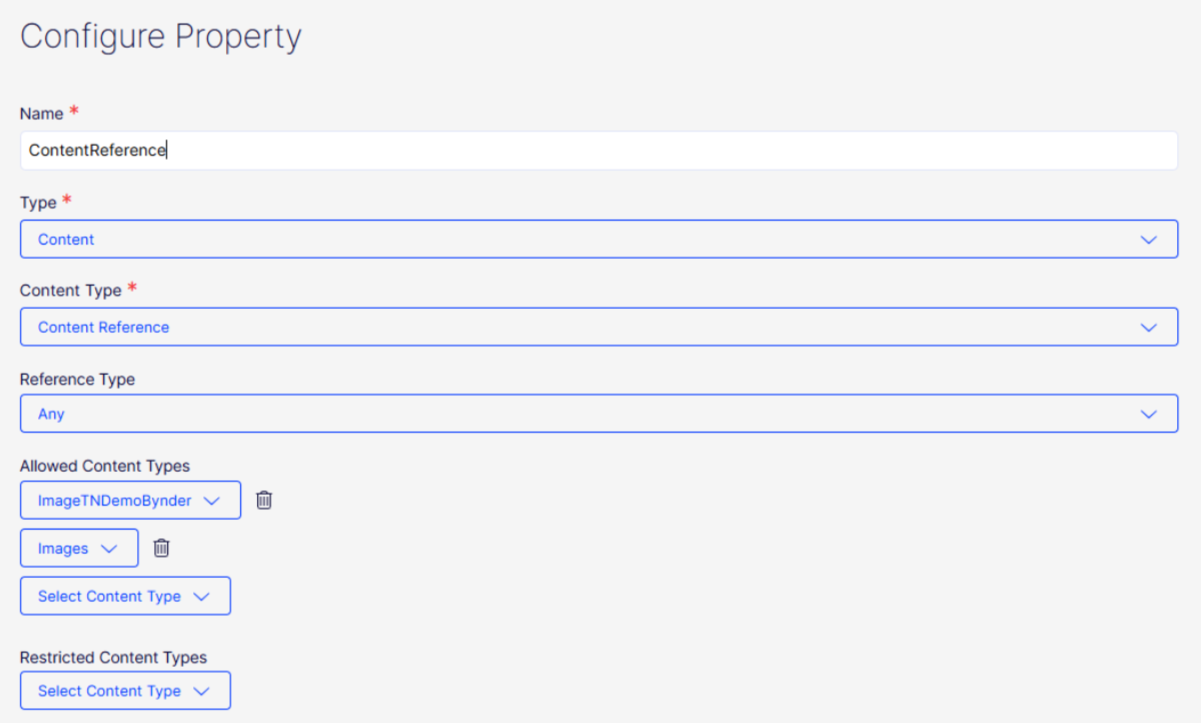
The selectors now behave consistently with the Reference type selector.
- You can pick from regular CMS content types.
- You can also pick from all top-level connected content types (those directly associated with a schema).
This enables you to reference content from external sources in the same way you reference CMS content.
Updated 3 months ago