
Configure form rules
Learn how to configure form rules to dynamically show or hide form fields and steps, or jump to a specific step, based on visitor input, creating more relevant and streamlined forms.
Form rules let you control how a form responds to visitor input. You can show or hide an individual field, and in a multi-step form you can show or hide an entire step, or jump to a specific step, based on the values of other fields. You define conditions, and the form shows or hides the target field or step, or jumps to a specific step, when those conditions are met.
Use form rules to create cleaner and more responsive forms:
- Personalized user experiences – Display only relevant questions to visitors, reduce clutter, and improve completion rates.
- Intuitive configuration – Configure conditions directly in the form builder user interface (UI) with support for multiple conditions (AND/OR logic) and comparison types, such as
Equals,Not equals,Contains, andRegular expression.
How form rules work
A rule controls the visibility of one specific form field (the target element) based on the value of one or more other fields.
For example, you may want to display a State/Province field only when the visitor selects United States or Canada in the Country drop-down list. Configure conditions that evaluate the Country field, and when those conditions are met, the system shows the State/Province field.
In a multi-step form, a rule can instead control the visibility of an entire step. A step rule's conditions can reference fields from any step, so a step can appear or stay hidden based on what the visitor entered earlier in the form.
You can also use a form rule to jump to a specific step and skip an irrelevant section based on an earlier answer. For example, in a multi-step insurance quote form, step 1 asks "Do you already have a policy with us?" If the visitor selects yes, a jump-to-step rule sends them from step 1 straight to step 4 (confirm and submit), skipping step 2 (personal details) and step 3 (coverage options) that are only needed for new customers. The visitor answers only what applies to them, reaching the end faster.
Open the form rules dialog
- Create or open a form in the form builder.
- Add the required form elements.
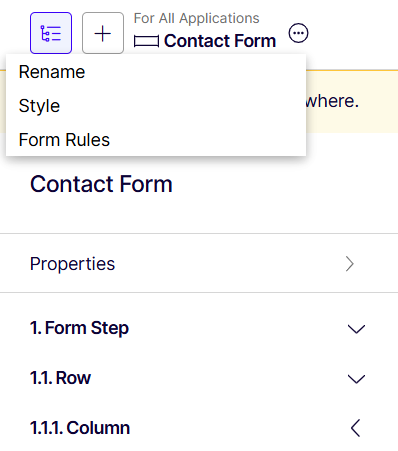
- Open the element's context menu.
- Select Form Rules.
The Form Rules tab opens, where you can create and manage rules.
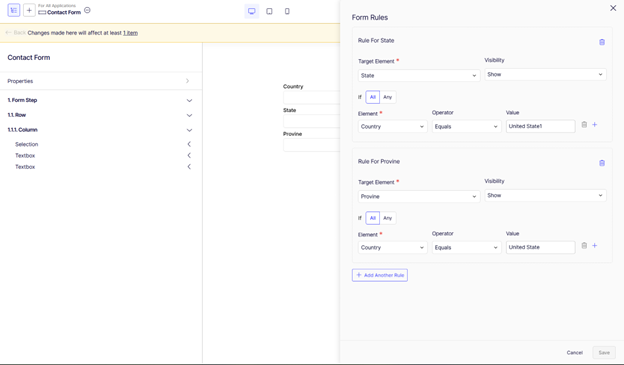
Configure a rule
When you create or edit a rule, configure the following fields.
If (condition combinations)
If you add multiple conditions, choose how the system evaluates them:
- All – Logical
AND. All conditions must be true. - Any – Logical
OR. At least one condition must be true.
Each condition checks the value of another form field.
Target element
The Target Element is the form field whose visibility the rule controls.
- The drop-down lists eligible form fields from the current form.
- The system excludes fields already used as target elements in other rules.
- The system automatically hides fields that would create circular dependencies.
- The drop-down list includes standard form elements that the form builder supports.
Visibility
Visibility determines what happens to the target element (form field or step) when the rule conditions evaluate to true:
- Show – The element (form field or step) is visible to the visitor.
- Hide – The element (form field or step) is hidden from the visitor.
- Jump to step – The user is redirected to the step you specify.
Field
The Field is the form field whose value the rule evaluates. Condition elements support fields that accept input values, such as:
- Text field
- Textarea
- Number
- URL
- Range
- Selection fields
- Choice fields
Operator
The Operator defines how the system evaluates the element’s value. Operators include:
- Not applicable
- Match regular expression
- Equals
- Not equals
- Contains
- Does not contain
- Starts with
- Ends with
Value
Enter the Value to compare against when using comparison Operators.
NoteDo not create rules that form a circular dependency between fields. A circular dependency occurs when fields depend on each other in a loop, preventing the form from resolving which field should be shown.
For example, a longer loop may involve three or more elements:
- Field A depends on B
- Field B depends on C
- Field C depends on A
In this scenario, showing A requires B, showing B requires C, and showing C requires A. Because each field depends (directly or indirectly) on another in the same loop, the form cannot evaluate the rules correctly.
To ensure predictable behavior, configure rules so dependencies always flow in one direction and never form a closed loop.
Key behavior
- Each rule applies to only one target element.
- A form can contain multiple rules, each operating independently.
- The system does not save changes automatically. Click Save to persist rule changes.
Preview form rules
Preview rule behavior directly in Visual Builder edit mode.
- You need a delivery site that supports form rendering to preview rule behavior.
- You can find a reference delivery site implementation in the Visual Builder Forms repository.
- Test different inputs to confirm that fields display or hide as expected.
For example, in the earlier scenario:
- Select United States or Canada in the
Countryfield. - Verify that the
State/Provincefield displays based on the configured rule.
Updated about 2 months ago