
Smooth rebuild
Learn how to do a smooth rebuild in your Optimizely CMS (SaaS) instance for your Optimizely Graph data source. Re-sync content, verify changes, and swap slots seamlessly to ensure continuous service availability.
Use smooth rebuild when you need to refresh your Optimizely Graph deployment without downtime. This option follows a Blue-Green deployment strategy, letting you create a new deployment (green slot) while the current deployment (blue slot) remains active. Optimizely populates the green slot with the latest Content Management System (CMS) (SaaS) content. After testing, you can promote the green slot to live.
Use a smooth rebuild for the following:
- Start from a clean state to remove legacy defects.
- Test new implementations, such as updated data models, without downtime. The versions run in parallel for easy comparison.
- Upgrade to new configurations introducing features, bug fixes, or performance improvements.
Perform a smooth rebuild
To perform a smooth rebuild in Optimizely Graph, complete the following:
-
Go to Settings > Smooth Rebuild.
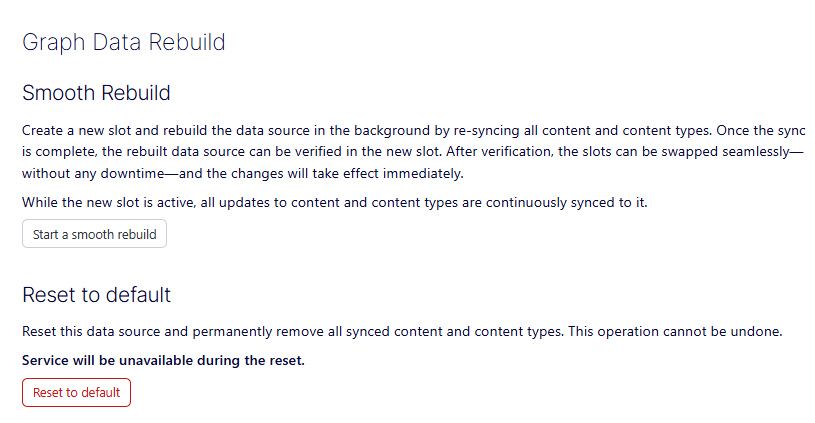
CMS (SaaS) displays the Graph Data Rebuild window with the following options:
- Start a smooth rebuild – Displays the Details window. See step 2.
- Reset to default – Removes all synced content and content types permanently. Use this option only if you need to completely wipe the data source and start entirely from scratch, perhaps due to corruption or a fundamental change in how you want to configure your data. After resetting, the Graph service is disabled until you click Start a smooth rebuild.
-
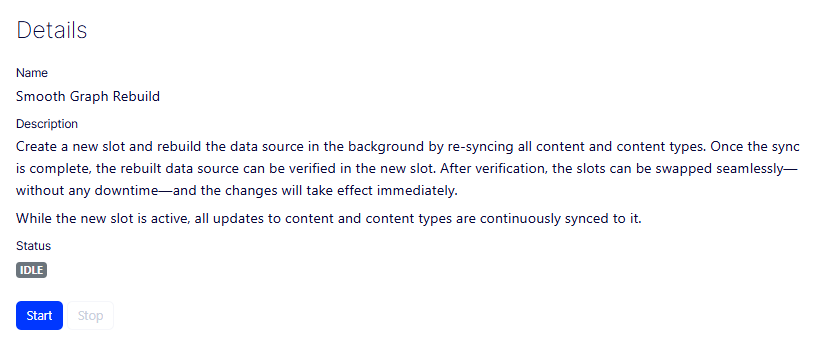
Click Start. CMS (SaaS) displays a Status.
-
Verify the rebuilt data source in the new slot.
-
Click Accept or Abandon.
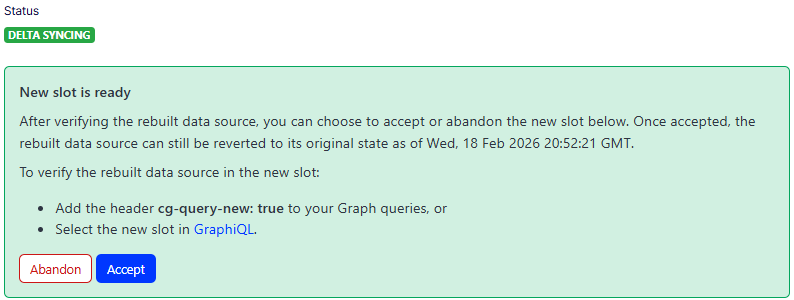
- Click Abandon to discard the new slot and its rebuilt data, leaving your current data source unchanged. Use this option if you decide not to make the new slot live. This could be because
- You found issues or errors during your verification of the new slot.
- The rebuilt data source does not meet your expectations or requirements.
- You have changed your mind and prefer to stick with the original data source.
- Click Abandon to discard the new slot and its rebuilt data, leaving your current data source unchanged. Use this option if you decide not to make the new slot live. This could be because
-
Click Accept.
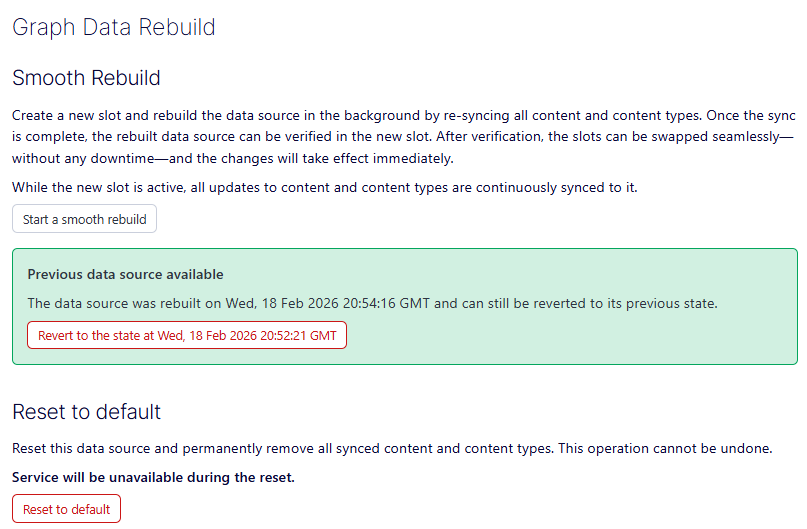
CMS (SaaS) displays the new slot on the Graph Data Rebuild window. You can still change your mind and revert to its previous state by clicking Revert to state at DATE.
Updated 2 months ago