
Import and export data
Import and export content and content definitions in CMS (SaaS).
The following packages have different use cases but also some overlapping functionality. Each moves content and content definitions between environments and can contain content definitions, but Episerver Data can include content and assets.
- Manifest – A JSON format composed of content definition resources into a single file. The Manifest format moves content definitions between environments. It maintains the content definitions alongside the client application's version-controlled source code, ensuring the necessary content definitions are available to run the client application.
- Episerver Data –
application/vnd.optimizely.cms.episerverdata– Optimizely Content Management System (SaaS) uses a traditional export and import format. A compressed Episerver Data file can contain content, definitions, and assets. The Episerver Data package format moves content and content definitions between environments and other versions of Optimizely CMS.
Manifest
Export Manifest package
Export a Manifest package by calling the Export manifest endpoint:
GET https://api.cms.optimizely.com/v1/manifestUse the sections query parameter to filter which sections to include in the export. Valid values are locales, contentTypes, propertyGroups, and displayTemplates. If omitted, all sections are included.
GET https://api.cms.optimizely.com/v1/manifest?sections=contentTypes,propertyGroupsSet the includeReadOnly query parameter to true to include read-only resources in the export. Defaults to false.
GET https://api.cms.optimizely.com/v1/manifest?includeReadOnly=trueExample response:
{
  "locales": [
    {
      "key": "en",
      "displayName": "English"
    }
  ],
  "contentTypes": [
    {
      "key": "news",
      "baseType": "_page",
      "displayName": "News"
    },
    {
      "key": "story",
      "baseType": "_component",
      "displayName": "Story"
    }
  ],
  "propertyGroups": [
    {
      "key": "Content",
      "displayName": "Content",
      "sortOrder": 10,
      "source": "_system"
    },
    {
      "key": "Settings",
      "displayName": "Settings",
      "sortOrder": 30,
      "source": "_system"
    }
  ],
  "displayTemplates": [
    {
      "key": "DefaultStyle",
      "displayName": "Default"
    }
  ],
  "lastModified": "2024-01-15T10:30:00+00:00"
}
Import Manifest package
Import a Manifest package by calling the Import manifest endpoint with the corresponding JSON body.
POST https://api.cms.optimizely.com/v1/manifest{
"locales": [
{
"key": "en",
"displayName": "English"
}
],
"contentTypes": [
{
"key": "news",
"baseType": "_page",
"displayName": "News"
},
{
"key": "story",
"baseType": "_component",
"displayName": "Story"
}
],
"propertyGroups": [
{
"key": "Content",
"displayName": "Content",
"sortOrder": 10,
"source": "_system"
},
{
"key": "Settings",
"displayName": "Settings",
"sortOrder": 30,
"source": "_system"
}
],
"displayTemplates": [
{
"key": "DefaultStyle",
"displayName": "Default"
}
]
}Use the cms-ignore-data-loss-warnings header to allow updates that might result in data loss, such as removing properties from content types that contain data.
POST https://api.cms.optimizely.com/v1/manifest
cms-ignore-data-loss-warnings: true
Packaging
Export an Episerver Data package
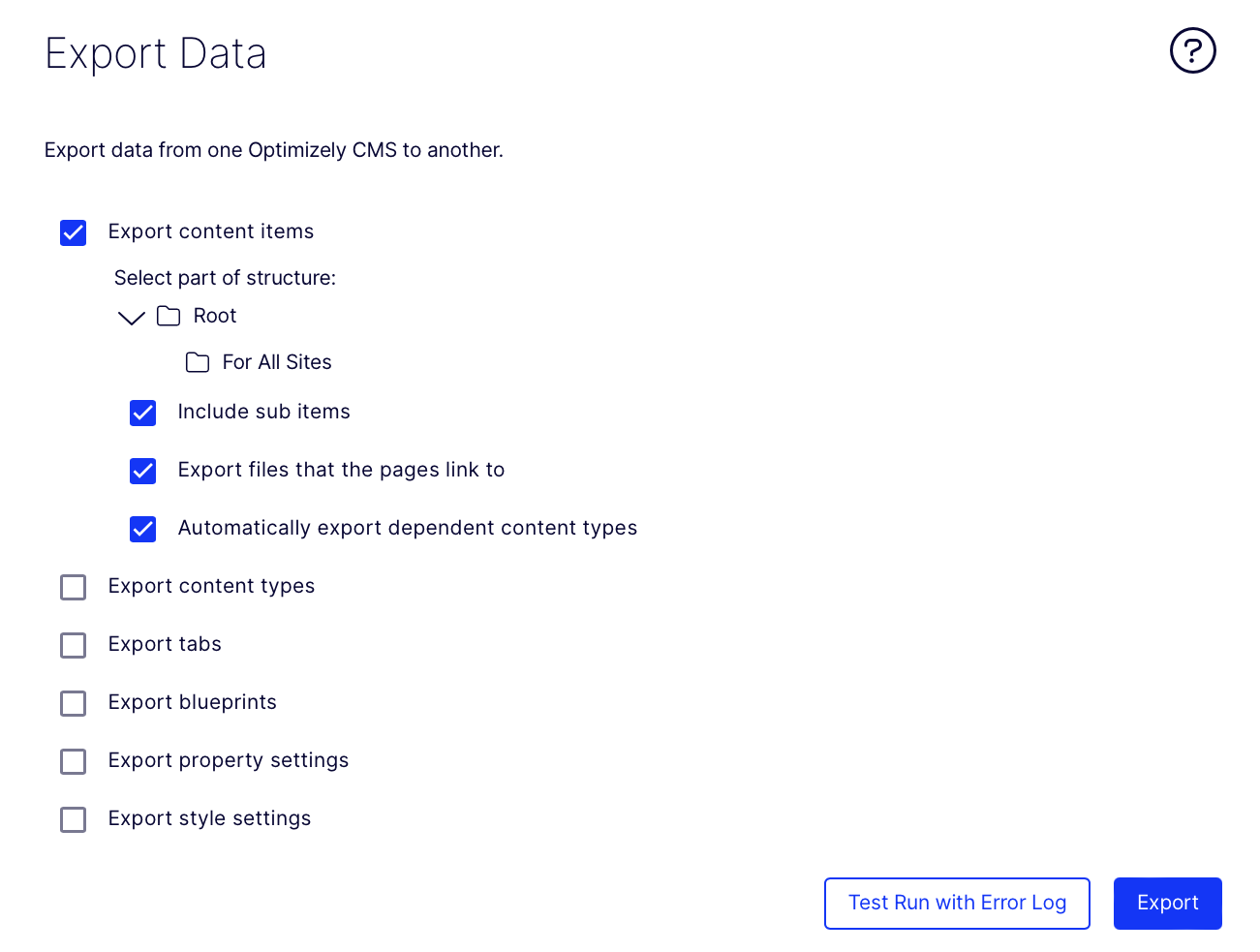
You can export an Episerver Data package only from the UI. Go to Settings > Export Data and select the content and content definitions to export. Click Export.
Import Episerver Data package
You can import an Episerver Data package through the REST API or UI.
REST API
ExperimentalThe Packaging endpoints are experimental features and are subject to change.
You can import an Episerver Data package by calling the packages endpoint with the media type set to Content-Type: application/vnd.optimizely.cms.episerverdata and the .episerverdata file included.
POST https://api.cms.optimizely.com/v1/experimental/packages
Content-Type: application/vnd.optimizely.cms.episerverdata

<!-- .episerverdata file -->
See Import package API reference.
UI
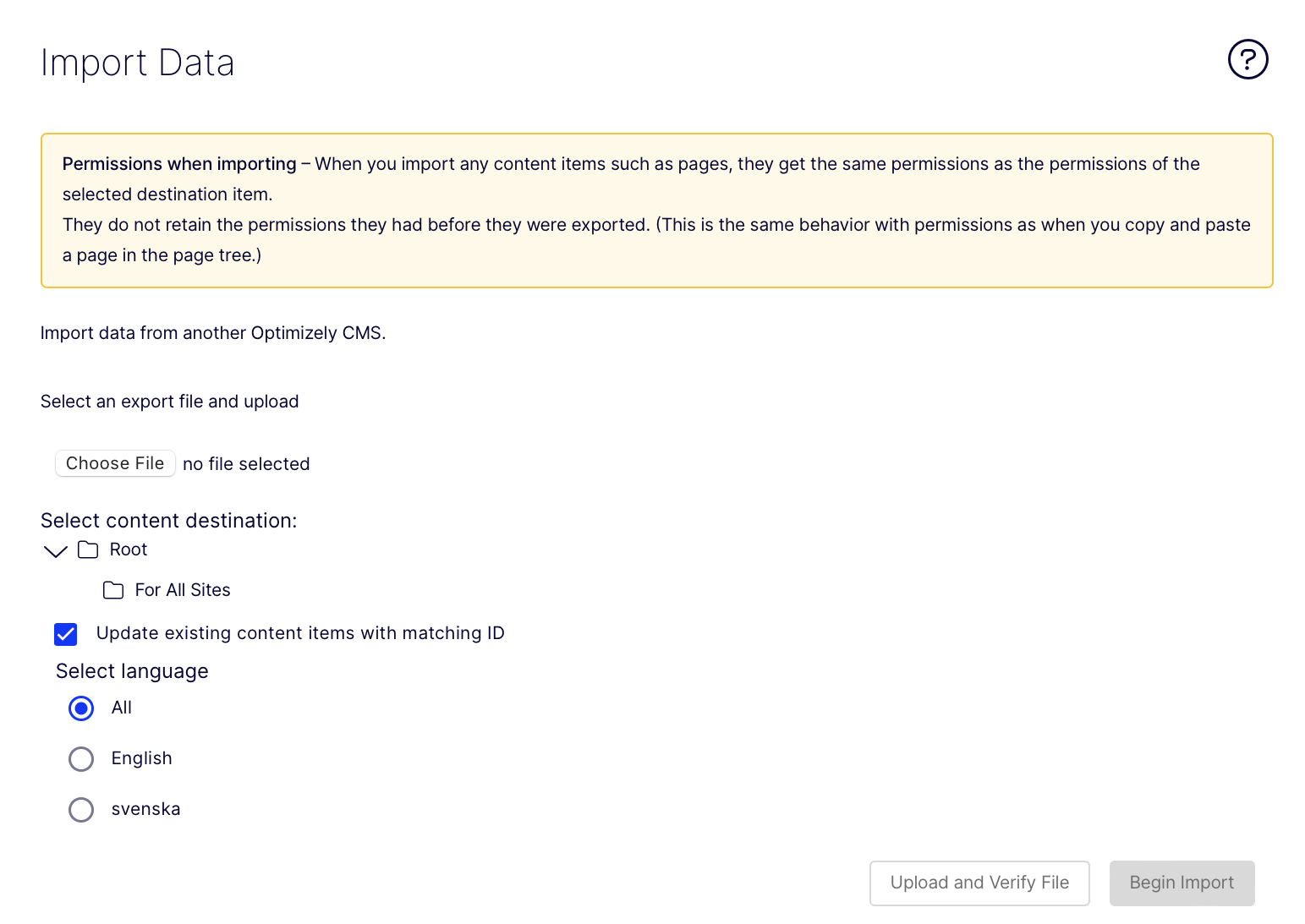
You can import an Episerver Data package from the UI. Go to Settings > Import Data, select the .episerverdata file, choose the content destination, and (optional) select the language. Click Begin Import.
NoteYou can import file sizes up to 500MB.
Lack of support for traditional CMS
Due to architecture changes, import and export may not support all entities from traditional CMS to CMS (SaaS).
- Personalized content – Cannot be imported into CMS (SaaS).
- Visitor group and criteria – Cannot be imported into CMS (SaaS).
- DDS (Dynamic Data Store) – Cannot be imported into CMS (SaaS).
- Categories – Cannot be imported into CMS (SaaS).
- Frames – Cannot be imported into CMS (SaaS).
- Max file size – There is typically a maximum file size, which can be around two GB. You should import the media assets separately or upload them if you have large media files.
- Max run time – Execution time limits: Import and export operations can be time-consuming and are often subject to maximum execution times enforced by the server. It is a known problem, and Optimizely is working on fixing it in a future release.
Updated 2 months ago