
Scheduled jobs
Describes the scheduled jobs related to syncing content from CMS (SaaS) to Optimizely Graph.
Changes to content and content types in Optimizely Content Management System (SaaS) are automatically synced to Optimizely Graph. However, CMS (SaaS) includes two scheduled jobs to handle some special cases.
To access the scheduled jobs, go to Settings > Scheduled Jobs. Click Start for the type of scheduled job you want to run.
Optimizely Graph full sync
This job is not set up to run on a schedule. It can, however, be executed manually if needed. When run, it does a full synchronization and syncs all content types and all content items, so it can take some time to execute, depending on how many content items CMS (SaaS) contains.
To ensure existing indexed items are removed before synchronizing, you can optionally reset the Optimizely Graph account before running the full sync job. Optimizely Graph or Admin in the CMS (SaaS) UI menu.
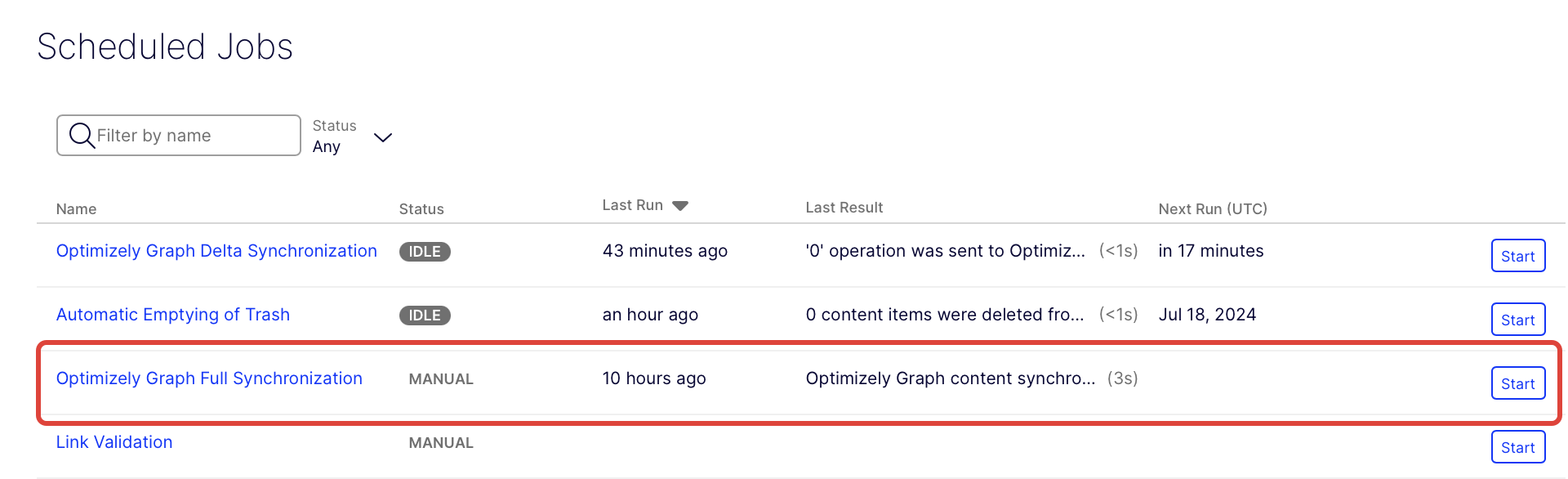
Use cases for full sync
Run this job when configuration changes, such as:
- The site is reconfigured, for example, when hosts are changed.
- You take advantage of a feature that requires additional data to be indexed.
Optimizely Graph delta sync
The Optimizely Graph Delta Synchronization job is configured to run once every hour by default. When it executes, it queries CMS (SaaS) for content and content type changes that have occurred since the last execution and then resyncs those changes. The job runs automatically so that if a temporary outage occurs, the Optimizely Graph index should catch up with changes afterward.
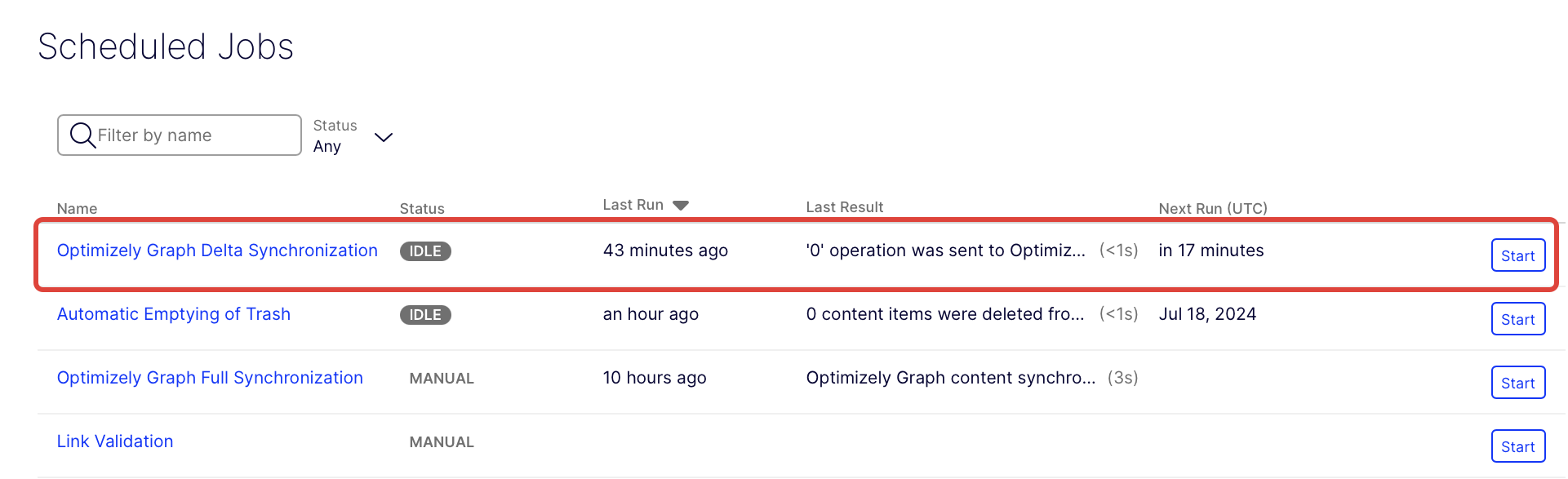
Use cases for delta sync
This job handles temporary outages, such as:
- When the Optimizely Graph service is unavailable.
- When the CMS (SaaS) application is shut down (for example, due to downscaling) during a sync.
Updated 3 months ago