
Create content
Create and publish content in Optimizely CMS (SaaS), then configure it as the starting point for your application so it can be fetched using the JavaScript SDK.
Create content in Optimizely CMS (SaaS) and prepare it for retrieval using the JavaScript SDK. Complete these steps before fetching content in your application.
Prerequisites
- You have access to an Optimizely CMS (SaaS) instance.
- You have already defined and synced the
Articlecontent type. - You have sufficient permissions to create content and applications.
Create a home content item
Create a content item that acts as the entry point for your application.
-
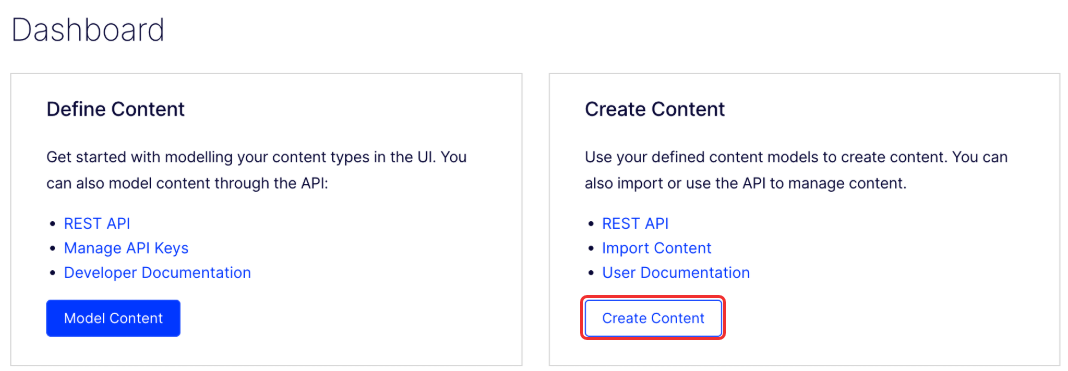
Go to CMS and click Create content.
-
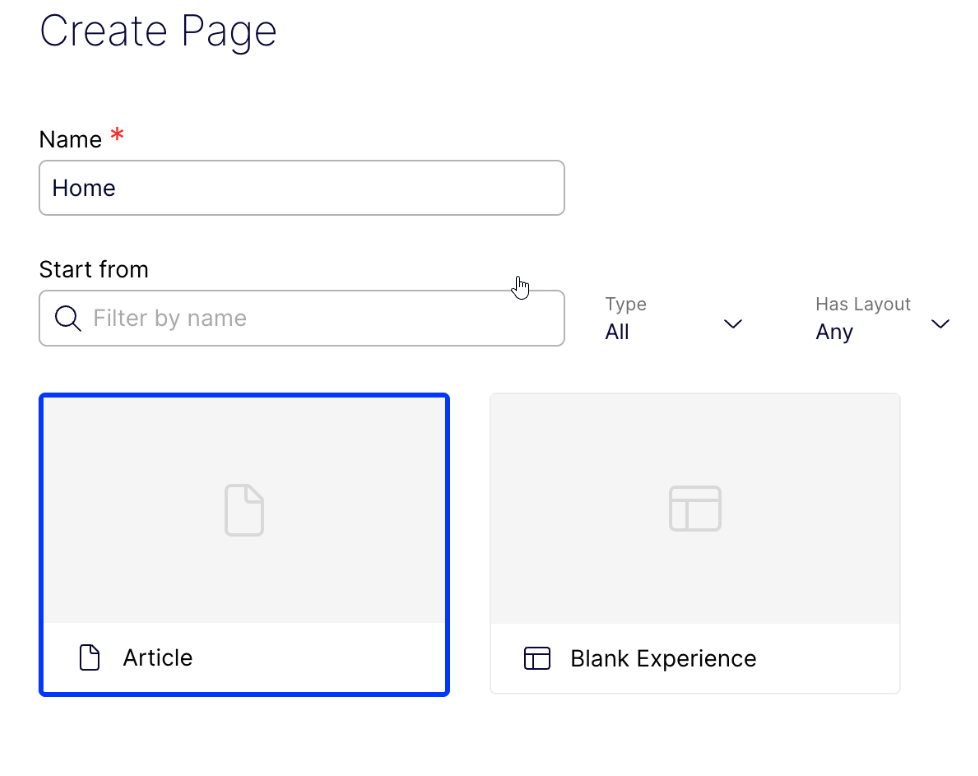
Add the following in the Create content window:
-
Enter Home as the name.
-
Select Article as the content type.
-
-
Add sample content to the fields.
-
Click Publish, then select Publish content.
You can now access the Home content item in CMS (SaaS).
Create an application
Create an application to define the start page for your site or experience.
-
Go to Settings > Applications.
-
Click Create application.

-
Enter an Application name (for example, my-app). The system automatically generates the API ID.
-
Select From existing, then select Home under Choose Start page.
-
Click Create application.
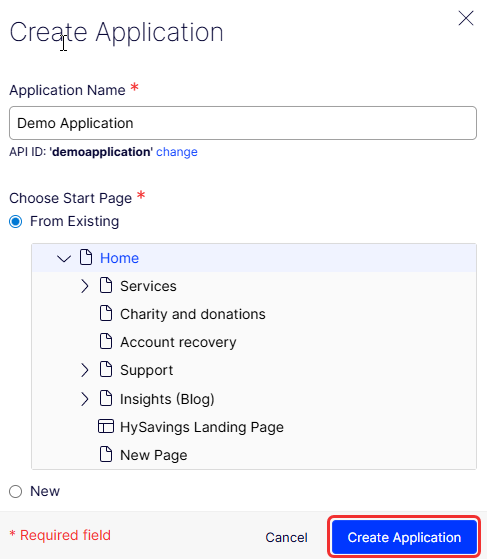
You have now associated the application with the Home content item.
Update the Home URL
Remove the URL segment from the Home content item so it resolves as the root path.
- Go to Content > Home.
- Scroll to Name in URL and select Change.
- Clear the field so it is empty.
- Click Publish, then select Publish content.
The Home content item now resolves to the root URL of the application.
Next steps
You can now Fetch content from the CMS using the JavaScript SDK. Continue to the next guide to retrieve and render content in your application.
Updated about 2 months ago