
forward-google-analytics-4-ga4-events-to-feature-experimentation
How to configure Google Tag Manager (GTM) to forward Google Analytics 4 (GA4) events to Optimizely Feature Experimentation.
Forwarding GA4 events to Feature Experimentation lets you reuse your existing GA4 instrumentation as conversion events in your experiments. Use this integration when your site already tracks user interactions through GA4 and you want those interactions to drive Feature Experimentation results without adding a second tracking layer.
Forward GA4 events to Feature Experimentation using one of the following approaches:
- Forward events using the Optimizely SDK (recommended) – Call a function exposed on the
windowobject from a GTM tag. This function wraps the track method in the SDK. Use this approach when the Optimizely SDK is already loaded on your site. - Forward events using HTTP requests – Send events directly to the Optimizely event endpoint from a GTM tag. Use this approach when you cannot add the Optimizely SDK to your site.
Prerequisites
- You must use Google Tag Manager (GTM) for this integration. See Google's documentation.
- You must configure Google Analytics 4 (GA4) before forwarding GA4 events to Feature Experimentation.
Forward events using a Feature Experimentation SDK
This approach is recommended when an Experimentation SDK is already loaded on your site. In your application code, expose a function on the window object (for example, window.optimizelyTrackEvent) that calls the track method in the SDK. Then, from GTM, fire a Custom HTML tag that invokes that function with the GA4 event data. See Custom tags in the Google documentation.
-
Expose a wrapper function on
windowin your application code that calls thetrackEventmethod in the Feature Experimentation SDK. Initialize the SDK first. For example, see the following code sample:// After initializing the Feature Experimentation JavaScript SDK: window.optimizelyTrackEvent = function ({ eventName, tags, properties }) { if (!window.optimizelyClient) return; // Replace 'YOUR_USER_ID' with the identifier you use in your implementation // (often the value passed to createUserContext, such as a user ID or cookie value). var user = window.optimizelyClient.createUserContext('YOUR_USER_ID'); // Forward event properties to Feature Experimentation under $opt_event_properties. tags = tags || {}; if (properties) { tags['$opt_event_properties'] = properties; } user.trackEvent(eventName, tags); };See the Track event reference in your SDK documentation for the underlying method signature.
- Track event method for the Android SDK
- Track event method for the C# SDK
- Track event method for the Flutter SDK
- Track event method for the Go SDK
- Track event method for the Java SDK
- Track Event for the JavaScript SDK v6+
- Track Event for the PHP SDK
- Track Event for the Python SDK
- Track event for the React SDK
- Track event for the React Native SDK
- Track Event for the Ruby SDK
- Track Event for the Swift SDK
-
Create a Custom HTML tag in your GTM workspace with the following script:
<script> (function() { window.optimizelyTrackEvent({ // Function exposed on the client-side window object. eventName: "{{Event}}", tags: { // OPTIONAL: Add or remove event tags as needed. Only the reserved keywords "revenue" and "value" are supported. }, properties: { // OPTIONAL: Add or remove event properties as needed. Define matching properties in the Feature Experimentation UI. // EXAMPLE: URL: "{{Page URL}}" } }); // GTM injects scripts into the HTML, so remove this script tag from the DOM after firing. var currentScript = document.currentScript || (function() { var scripts = document.getElementsByTagName("script"); return scripts[scripts.length - 1]; })(); if (currentScript && currentScript.parentNode) { currentScript.parentNode.removeChild(currentScript); } })(); </script> -
Customize the event payload for your use case:
{{Event}}– A GTM variable that resolves to the event key you want to forward. The event key must match an event configured in your Feature Experimentation project.- (Optional)
tags– Add reserved tag keys inside the object. Onlyrevenueandvalueare supported. - (Optional)
properties– Add custom event properties asKEY: "{{GTM_VARIABLE}}"pairs. The example,URL: "{{Page URL}}", forwards the page URL with every event. Define matching properties in the Feature Experimentation UI for the values you want to report on.
-
Add a trigger to limit which data layer events fire this tag. In GTM, create a Custom Event trigger and configure it as follows:
-
Trigger Type – Select Custom Event.
-
Event name – Enter a regex pattern that matches the GA4 event names you want to forward. For example, .(cta_click|add_to_cart). matches any data layer event whose name contains
cta_clickoradd_to_cart. -
Use regex matching – Select this checkbox.
-
This trigger fires on – Select All Custom Events.
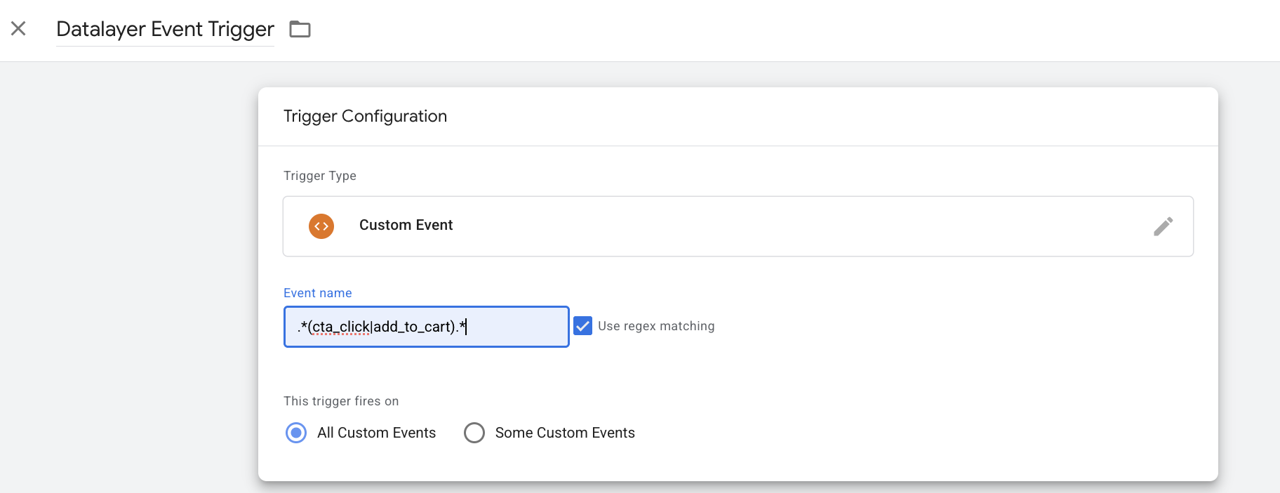
Limiting the trigger prevents the tag from firing on unrelated data layer events and forwarding noise to Feature Experimentation.
-
-
Save and publish your container.
Forward events using HTTP requests
If you cannot add the Optimizely SDK to your site, use this approach. Send events directly to the Optimizely event endpoint from a GTM Custom HTML tag. See Custom tags in the Google documentation.
This approach requires the following:
- Your Optimizely account ID. Find it in Account Settings > Plan in the Feature Experimentation UI.
- The event key and event ID for each event you want to forward. Store these in a GTM lookup table. Find event IDs in your project's datafile.
- The visitor ID cookie name used in your Feature Experimentation implementation. This often corresponds to the identifier passed to the
createUserContextmethod in your SDK.
To forward events using HTTP requests, complete the following:
-
Create a Custom HTML tag in your GTM workspace with the following script:
<script> (function () { var currentScript = document.currentScript; var cleanupScript = false; // Enable this if you want the <script> tag to be removed afterwards. Test extensively. var accountId = 'YOUR_ACCOUNT_ID'; var eventKey = {{GTM_event}}; var eventId = {{GTM_lookup_table}}; var visitorId = getCookie('NAME_OF_VISITOR_ID'); var endpoint = 'https://logx.optimizely.com/v1/events'; if (!eventKey || !eventId || !visitorId) { console.log('Missing eventKey, eventId, or visitorId. Skipping event push.'); return; } pushEventToOptimizely(accountId, eventKey, eventId, visitorId); function pushEventToOptimizely(accountId, eventKey, eventId, visitorId) { var timestamp = Date.now(); var uuid = generateUUID(); var payload = { account_id: accountId, visitors: [{ visitor_id: visitorId, attributes: [], snapshots: [{ decisions: [], events: [{ entity_id: eventId, key: eventKey, timestamp: timestamp, uuid: uuid, properties: { "item_name": {{item_name}}, // OPTIONAL: Replace with actual GTM variable in STRING format "item_id": {{item_id}}, // OPTIONAL: Replace with actual GTM variable in STRING format }, revenue: {{revenue}}, // OPTIONAL: Replace with actual GTM variable in INTEGER format in cents (* 100) }] }] }], anonymize_ip: true, client_name: 'Optimizely/GTM-Event-Forwarding', client_version: '1.0.1', enrich_decisions: true }; var jsonPayload = JSON.stringify(payload); if (navigator.sendBeacon) { var blob = new Blob([jsonPayload], { type: 'application/json' }); var result = navigator.sendBeacon(endpoint, blob); if (result) { console.log('Optimizely event sent using sendBeacon: ' + eventKey); } else { console.error('sendBeacon failed to send event.'); } } else { fetch(endpoint, { method: 'POST', headers: { 'Content-Type': 'application/json' }, body: JSON.stringify(payload) }); } } function getCookie(name) { var match = document.cookie.match(new RegExp('(^| )' + name + '=([^;]+)')); return match ? match[2] : null; } function generateUUID() { return 'xxxxxxxx-xxxx-4xxx-yxxx-xxxxxxxxxxxx'.replace(/[xy]/g, function (c) { var r = Math.random() * 16 | 0, v = c === 'x' ? r : (r & 0x3 | 0x8); return v.toString(16); }); } // Remove the script tag from the DOM after execution. if (cleanupScript && currentScript && currentScript.parentNode) { currentScript.parentNode.removeChild(currentScript); } })(); </script> -
Update the following placeholders in the script:
YOUR_ACCOUNT_ID– Your Optimizely account ID.{{GTM_event}}– A GTM variable that resolves to the event key you want to forward.{{GTM_lookup_table}}– A GTM lookup table variable that maps event keys to Feature Experimentation event IDs.NAME_OF_VISITOR_ID– The name of the cookie that stores the visitor ID used in your Feature Experimentation implementation.{{item_name}},{{item_id}},{{revenue}}– Optional GTM variables for event properties and revenue. Remove or replace these to match the properties you want to send.
-
Configure the tag to fire on the GA4 data layer events you want to forward. For example, create a Custom Event trigger with
_eventmatching^(?!.*gtm\.).*$to fire on all non-GTM-internal data layer events. -
Save and publish your container.
Verify the integration
After publishing your GTM container, test your integration by triggering a GA4 event on your site. Then, verify the event appears in your Feature Experimentation results.
Updated about 2 months ago