
Integrate Jira
This topic describes how to configure your organization's Jira integration, connect your Optimizely Web Experimentation account to your Jira account, link and unlink experiments to Jira tickets, and disconnect your Jira authorization from your Optimizely Web Experimentation account.
NoteThis is a third-party integration and is not an Optimizely subprocessor. See Optimizely's Third-Party Add-Ons & Platform Integration Terms.
Relevant products
- Optimizely Web Experimentation
- Optimizely Performance Edge
Many Web Experimentation customers also manage the development of features and experiments within Jira. This integration lets you connect your Optimizely and Jira workflows without unnecessary duplication of effort by linking Jira issues to Optimizely. Natively link Optimizely experiments to Jira issues. Then track their status directly from the relevant Jira ticket.
NoteOptimizely Performance Edge is a lightweight experimentation product that delivers significantly faster performance than previous versions of Optimizely Web Experimentation. It does this by relying on a streamlined "microsnippet" which limits the range of available features.
Optimizely Performance Edge and Optimizely integrate with Jira the same way, so all information contained in this article applies to experiments created with either version of Optimizely.
This integration is only available on the Jira Cloud platform, and not on Server.
Configure Optimizely for Jira app
Configuring your Jira application (app, sometimes called add-on or integration) is a three-step process.
- Install the Optimizely for Jira integration from the Atlassian marketplace on the Jira instance. You only have to do this once per Jira account.
- Enable the Jira integration on each Optimizely project where you want the integration to be available.
- Connect the Optimizely and Jira accounts of each user who use the integration.
Note
Enable the Jira integration separately for each individual Optimizely project, but you only install the Atlassian marketplace app once for each Jira instance.
Configure the app in Jira
Configure this app before you use it. Your Jira administrator has the appropriate credentials to do this.
- Log in to your Jira instance as an administrator.
- Install the Optimizely for Jira add-on by clicking the admin drop-down list and selecting Add-ons (app).
Enable the app
- Log in to Optimizely as an administrator or project owner in the Web Experimentation project where you want to use the integration.
- Go to Settings > Integrations.
- Click Jira in the list of partners.
- Toggle the switch to On.
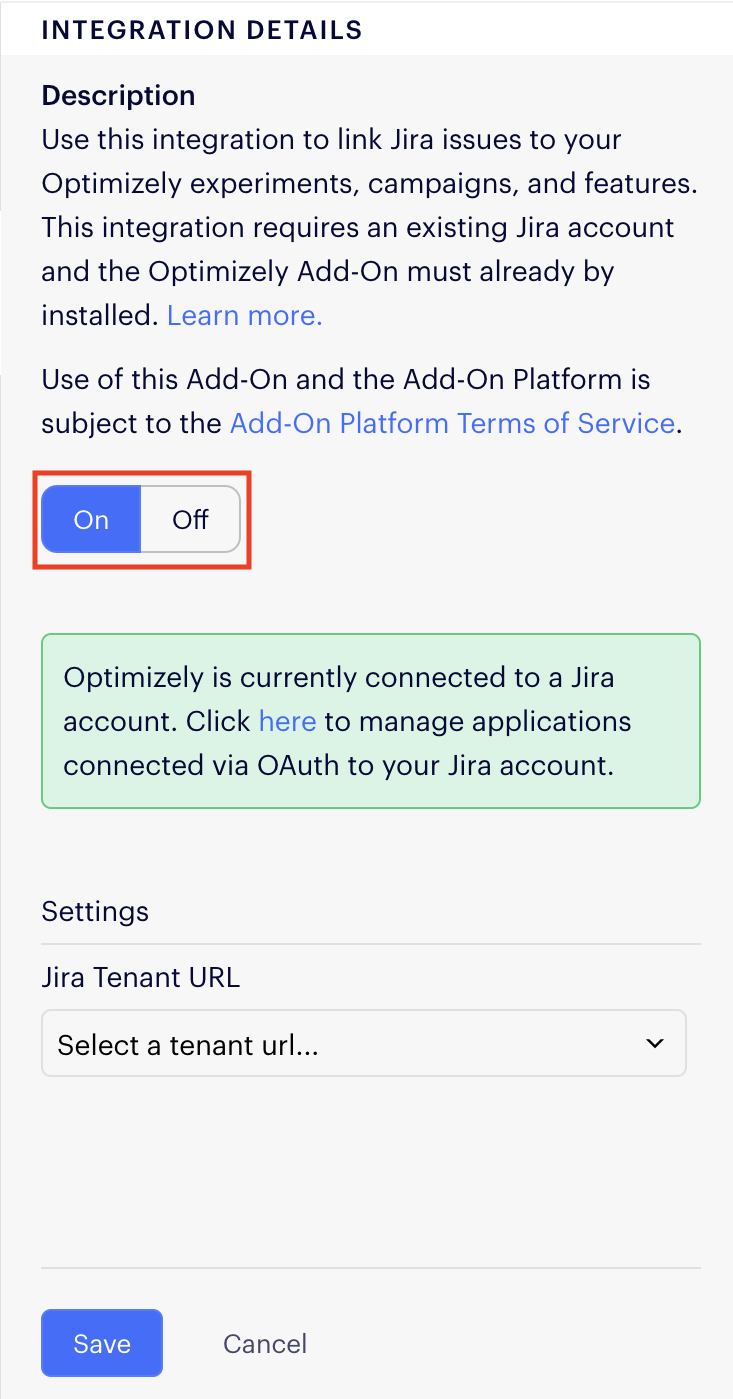
- Click Connect to Jira. This initiates the OAuth process. An Atlassian OAuth page displays.
- Select the Jira tenant URL you want to authenticate (for instance,
company.atlassian.net), and click Approve. - Go to Integration Details > Settings in Web Experimentation and click Edit.
- Select the same Jira tenant URL you just authenticated.
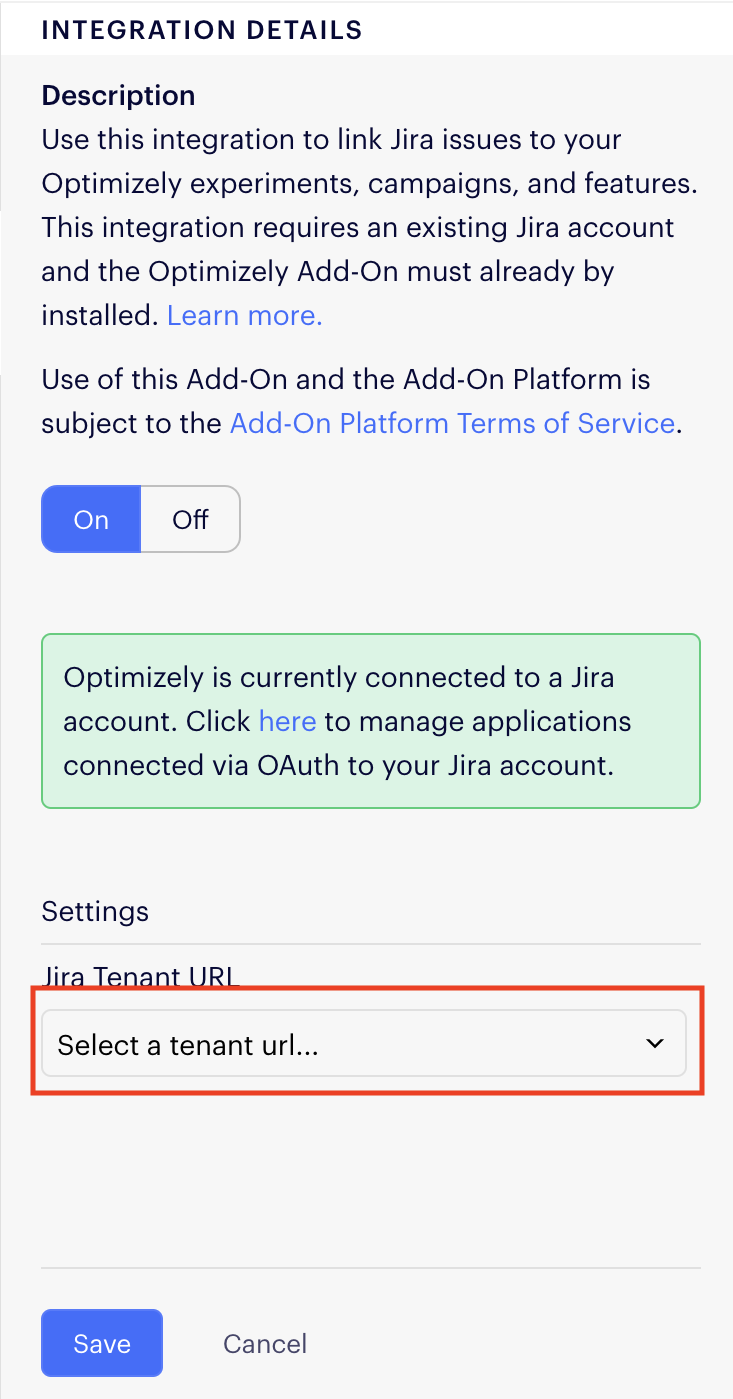
- Click Save. Your Optimizely project and your Jira instance are now connected.
Connect users' Optimizely and Jira accounts
Now that you configured the integration other users are asked to authenticate their accounts with Jira to link actions to the specific user who performed them. Users only need to authenticate once in an account, but the integration must be turned on in each project individually. This ensures the appropriate Jira URL is associated with each Optimizely project.
Link an experiment to a Jira issue
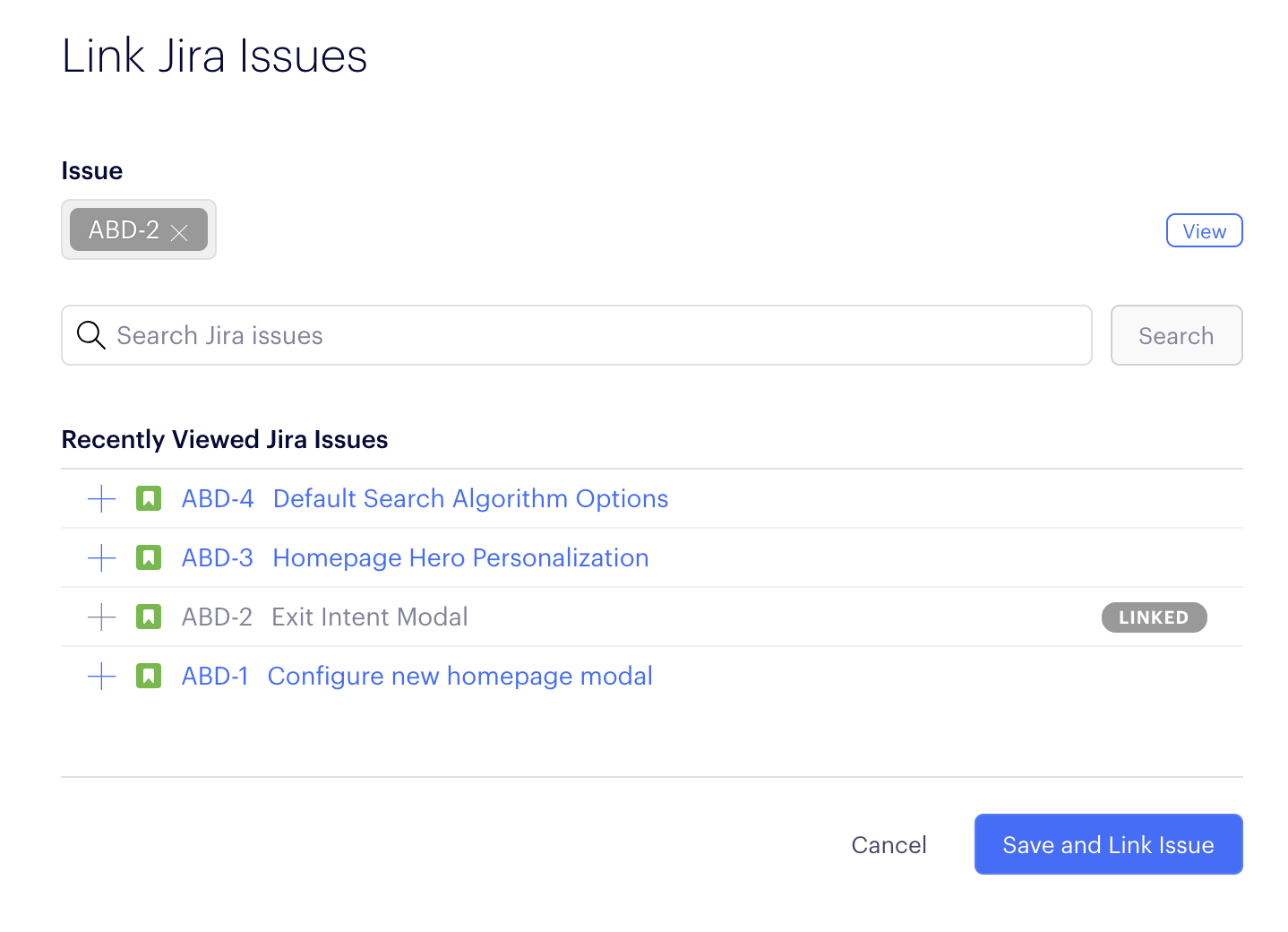
- In Optimizely, find the experiment you want to link to a Jira issue and click More. From the drop-down list, select Link Issue
- A list of recently-viewed Jira issues displays. If the relevant issue is not listed there, enter the Jira issue key in the search field and click Search.
- Click Save and Link Issue.
View Optimizely information in Jira
The Optimizely for Jira integration is visible to Jira users in your organization, whether they have access to Optimizely or not.
To find the Optimizely information within a Jira ticket, open the ticket and scroll down until you see the Optimizely logo for experiments.
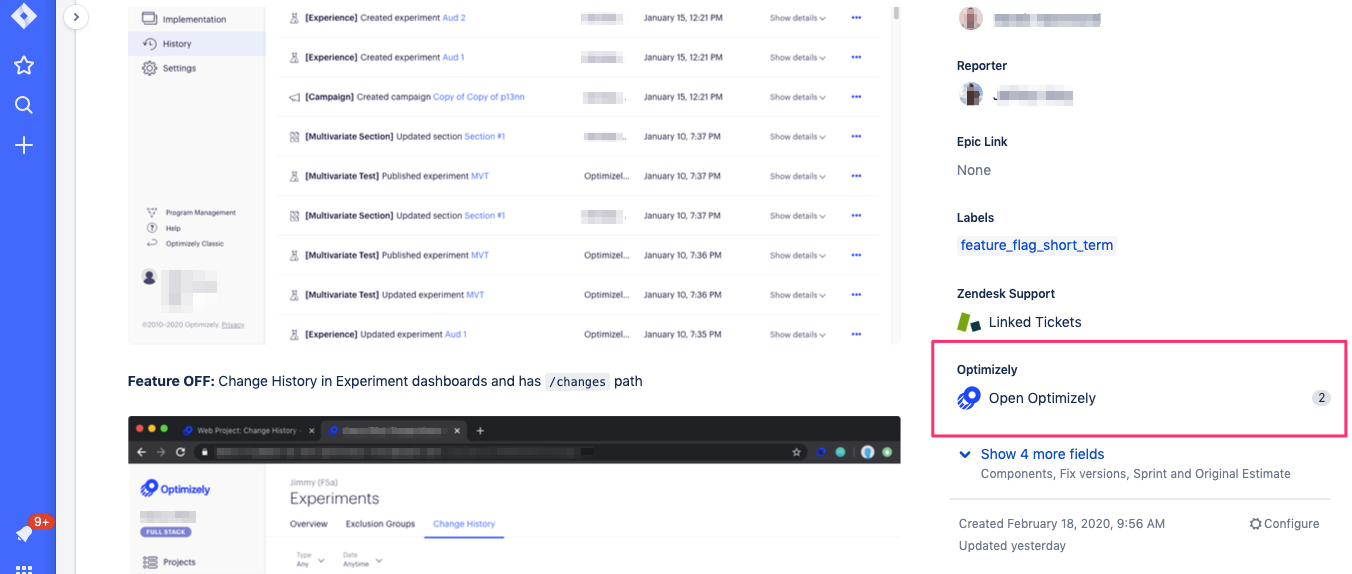
To see information about an experiment
- Click Open Optimizely from within the Jira ticket.
- Click on either the Experiments or Ideas tab to display a list of linked experiments or ideas.
- Click on the experiment or idea you want to view. Jira displays a summary of that experiment or idea.
For experiments, you can see
- Experiment type
- Status
- Date last modified
- Days running
- Experiment visitors
- Audiences
- Metrics
- Variation details
For ideas, you can see
- Score
- Owner
- Stage
- Site and touchpoint
- Hypothesis
- Linked experiment
Unlink an experiment or idea from a Jira issue
- Find the feature you want to unlink and hover over the Jira ticket link.
- Click Unlink.
- Click Unlink Jira Issue, if you are sure you want to unlink the Jira issue from the feature.
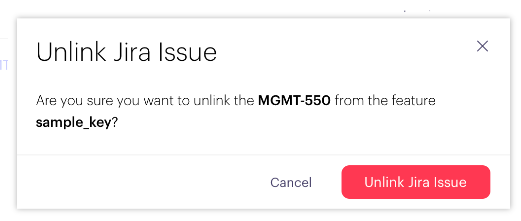
NoteWhen you link or unlink an issue, that should be reflected immediately in both Optimizely and Jira.
Disconnect a user account
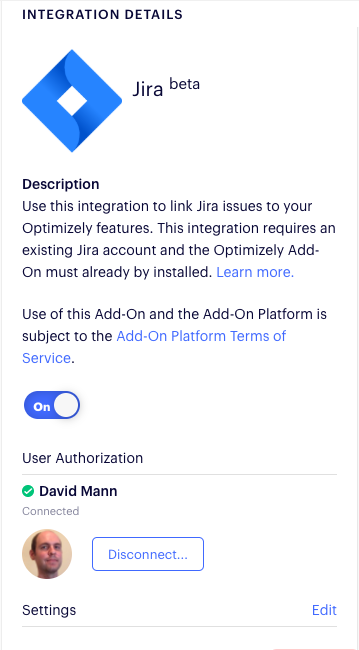
To remove user-level authentication between Optimizely and Jira, complete the following steps:
- Log in to Optimizely as the user whose authentication is to be removed.
- Go to Settings > Integrations.
- Find and click on Jira in the list of integration partners.
- Click Disconnect and follow the instructions.
Troubleshoot issues
The integration is not visible from inside Jira
If you have manually selected to use the old view in Jira, you do not be able to use this integration. You have to enable the new Jira issue view in Jira. This makes the Releases section visible in each of your Jira issues.
- Within Jira, click your profile avatar and select Personal settings.
- Toggle the switch for the new Jira issue view.
NoteIf Personal settings is not listed as an option when you click your avatar, you can find the toggle switch under Profile instead.
To learn more about the new Jira issue view, see what is the issue view?
Verify your integration is functioning properly
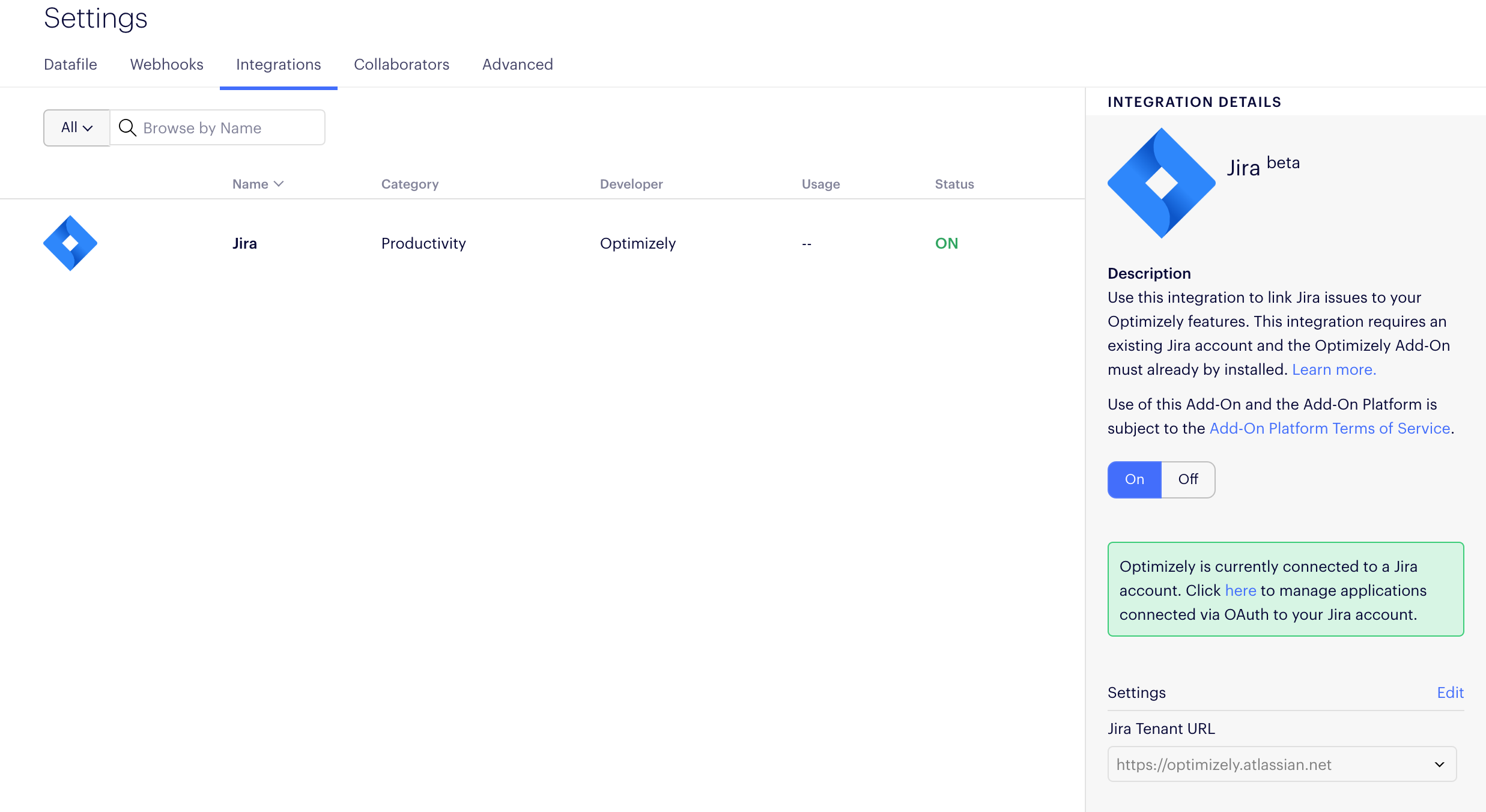
There are two ways to verify your integration is working as expected. Go to Setting > Integrations and find the project integration settings for Jira. These should indicate that integration is switched on and connected with a Jira tenant URL.
Alternately, if you see the option to link or unlink Jira issues to feature flags in the Experiments, Ideas or Features dashboards, your integration is working correctly.
Ensure your Jira administrator has installed the Optimizely for Jira add-on before trying to authenticate from Optimizely. Add this on the Jira side before making any authentication attempts.
Sometimes, the project settings display that Jira integration is enabled, but the option to link issues from the Experiments dashboards is not available. This means the user has not been properly authenticated. On the Atlassian oAuth page, select the same Jira tenant URL that is listed in the Optimizely project settings.
If you cannot see the Releases section, first ensure that New Jira Issue View is switched on in your Jira profile settings. If that does not work, check with your Jira administrator that the Optimizely for Jira app is installed in your Jira instance.
A Jira issue does not show up in Search
Possible reasons for this include the following:
- The issue does not exist or was moved to a different project and has a new key.
- Project integration settings do not have the Jira tenant URL that contains the issue.
- The user OAuth failed.
Updated about 2 months ago