
Use case: Gatsby deployment
Example use case of automating Gatsby builds based on content changes, providing a streamlined development workflow.
A Gatsby build webhook lets you programmatically trigger builds of your Gatsby projects. Register the webhook with the Optimizely Graph endpoint to rebuild your Gatsby site automatically when content updates or data source changes occur in Optimizely Content Management System (CMS), so editors see their changes in production without manual deploys.
Prerequisites
Before you start, confirm the following:
- A Gatsby Cloud project with permission to view and copy the Builds Webhook URL.
- An active Optimizely Graph instance with a configured CMS source.
- Basic or HMAC credentials for the Optimizely Graph webhook API.
- Access to the Optimizely CMS Dashboard for the same project so you can publish a test change.
Create a Gatsby build webhook
Create a Gatsby build webhook in Gatsby Cloud first, because the URL it returns is the destination you register with Optimizely Graph in the next section.
-
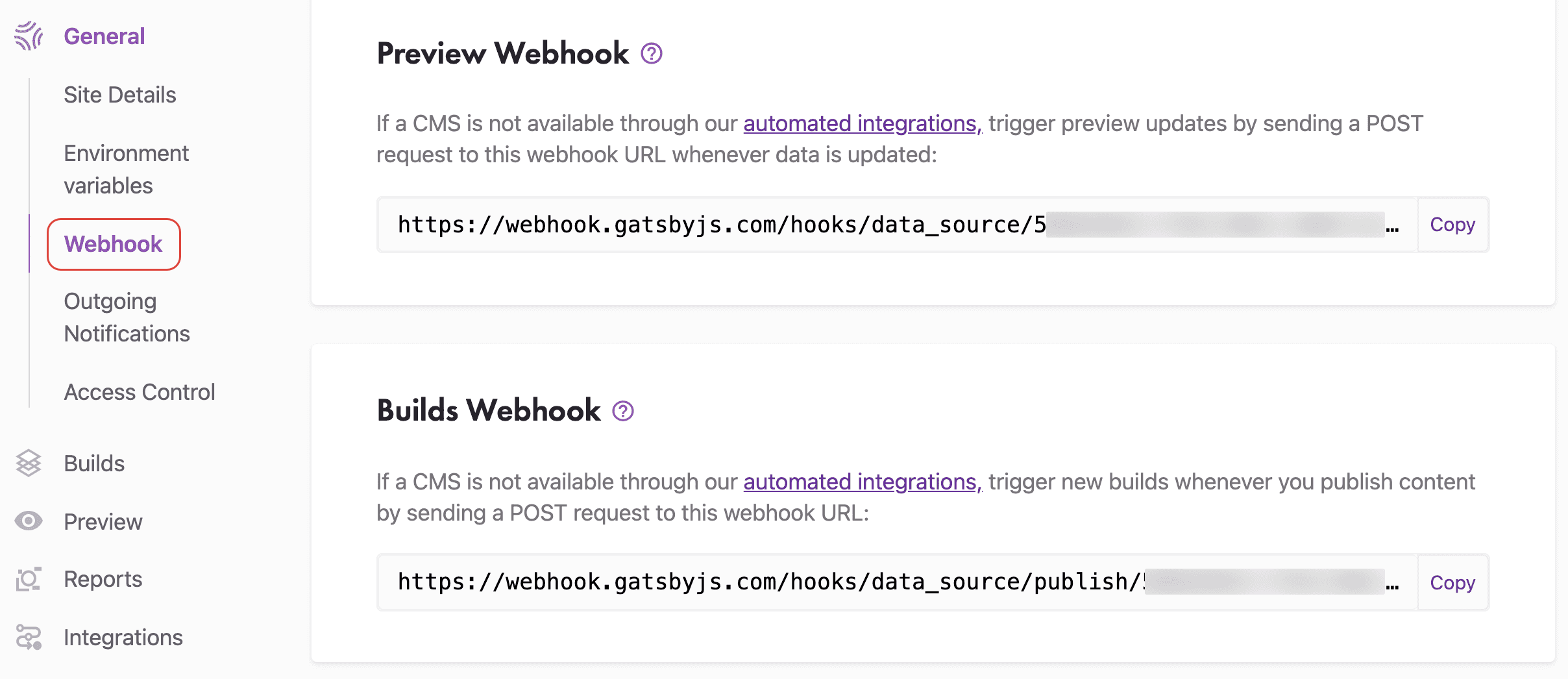
Go to Site Settings > General > Webhook in the Gatsby Cloud dashboard.
-
Copy the Builds Webhook URL. You need it in the webhook registration section.
Register the webhook with Optimizely Graph
Register the Gatsby build webhook with Optimizely Graph so that content events in CMS forward to Gatsby Cloud and trigger an automated build.
- Make a POST request to
https://cg.optimizely.com/api/webhooksfrom a tool or library of your choice, such as cURL, Postman, or an HTTP client library. - Use either Basic or HMAC authentication in the request.
- Include the required parameters in the request payload, including the Gatsby Builds Webhook URL from the previous section and any additional configuration the Optimizely Graph webhook API requires.
- Send the request and wait for the response from the Optimizely Graph webhook API.
- Record the unique identifier the API returns in the registration response. You need it to manage or delete the webhook later.
Test content modification with CMS
Test the integration end-to-end so you can confirm that a CMS content change triggers a Gatsby build before you rely on the workflow in production.
-
Open the CMS Dashboard for your project.
-
Modify a content item that should trigger the Gatsby build process, such as updating content or changing metadata.
-
Save the changes in the CMS Dashboard. This triggers a webhook event and notifies the Optimizely Graph webhook endpoint.
-
Monitor the logs or other relevant output to verify the system receives and processes the webhook event.
-
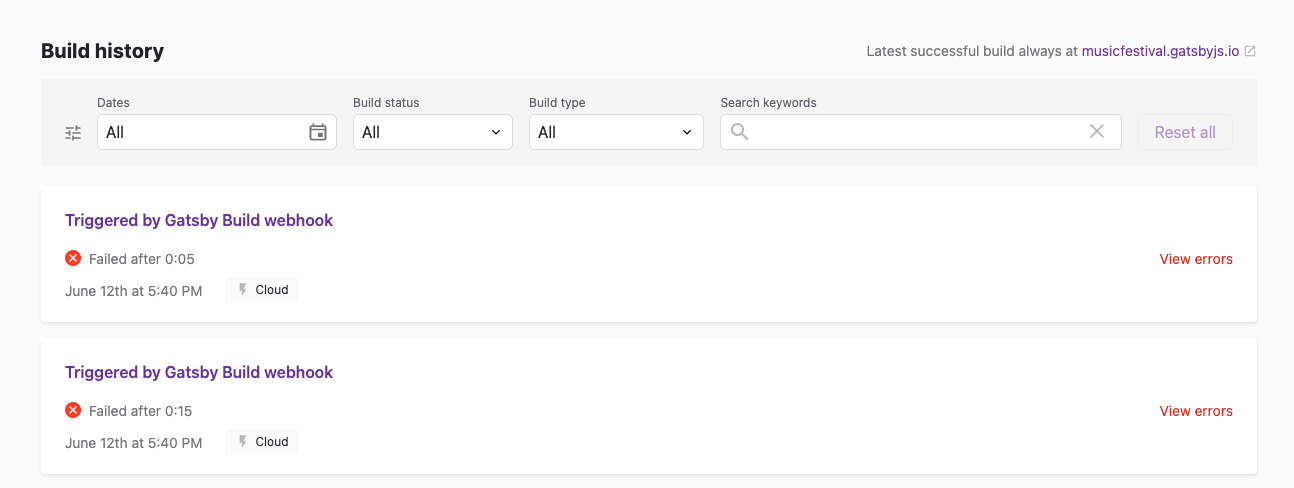
Confirm that the Gatsby build process starts and completes in the Gatsby Cloud dashboard.
For information on monitoring and troubleshooting, see the documentation for Gatsby build webhooks, the Optimizely Graph webhook API, and Optimizely CMS.