
Basic authentication from back end
How to use basic authentication of Optimizely Content Management System (CMS).
Configure Optimizely Graph to retrieve content from your CMS (PaaS) solution, including restricted content that requires authenticated access. Learn how to install the ContentGraph addon, configure access rights, and query content using Postman or HTTP clients.
Prerequisites
- Optimizely Content Management System (CMS)
- Optimizely Graph addon (PaaS only)
- Postman or cURL
CMS configuration
Configure CMS (PaaS) to expose restricted content to Optimizely Graph. The steps that follow install the addon, set the Graph credentials in your application settings, and run the synchronization job that makes content available to authenticated queries.
Install the ContentGraph addon (PaaS only)
- Open your Optimizely CMS solution and install the
Optimizely ContentGraphaddon.
dotnet add Optimizely.ContentGraph.Cms- Update the
appsettings.jsonfile with the values provided by the Optimizely Support team.
"Optimizely": {
    "ContentGraph": {
      "GatewayAddress": "",
      "AppKey": "",
      "Secret": "",
      "SingleKey": "",
      "AllowSendingLog": "true",
      "ContentVersionSyncMode": "All",
      "SyncReferencingContents": "true",
      "EnablePreviewTokens": "true"
    }
  },
Configure access rights and run the synchronization job
- Set access rights for content.
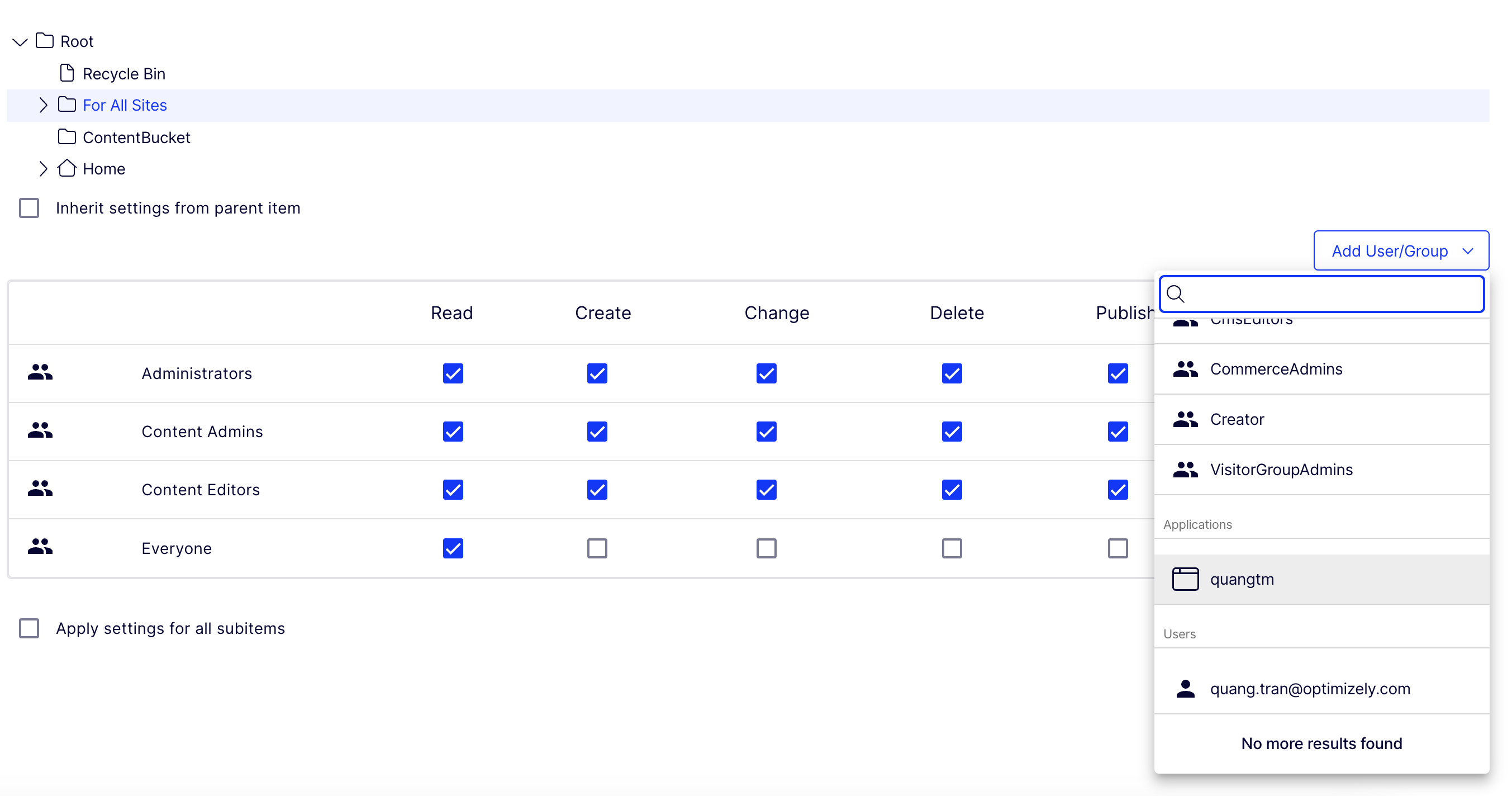
- Run the website.
- Run the
Optimizely Graph content synchronization job. - Wait for the job to finish. Restricted content is accessible only after the job finishes.
Retrieve restricted content
Choose the client that matches your workflow to query restricted content. Postman gives you a UI for exploring the collection, while raw HTTP suits scripted or server-to-server requests.
Query restricted content with Postman
- Import https://cg.optimizely.com/app/swagger/swagger.json to a Postman collection.
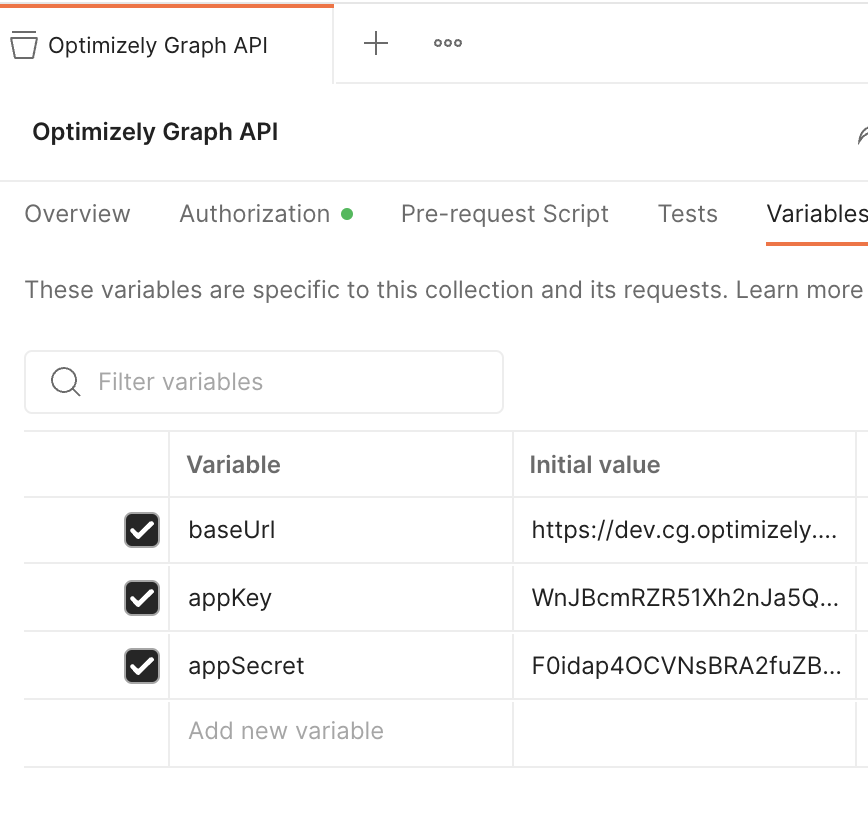
- Configure the following variables for the collection:
- baseUrl –
https://cg.optimizely.com. - appKey –
AppKeyvalue (same as the previous step). - appSecret –
Secretvalue (same as the previous step).
- baseUrl –
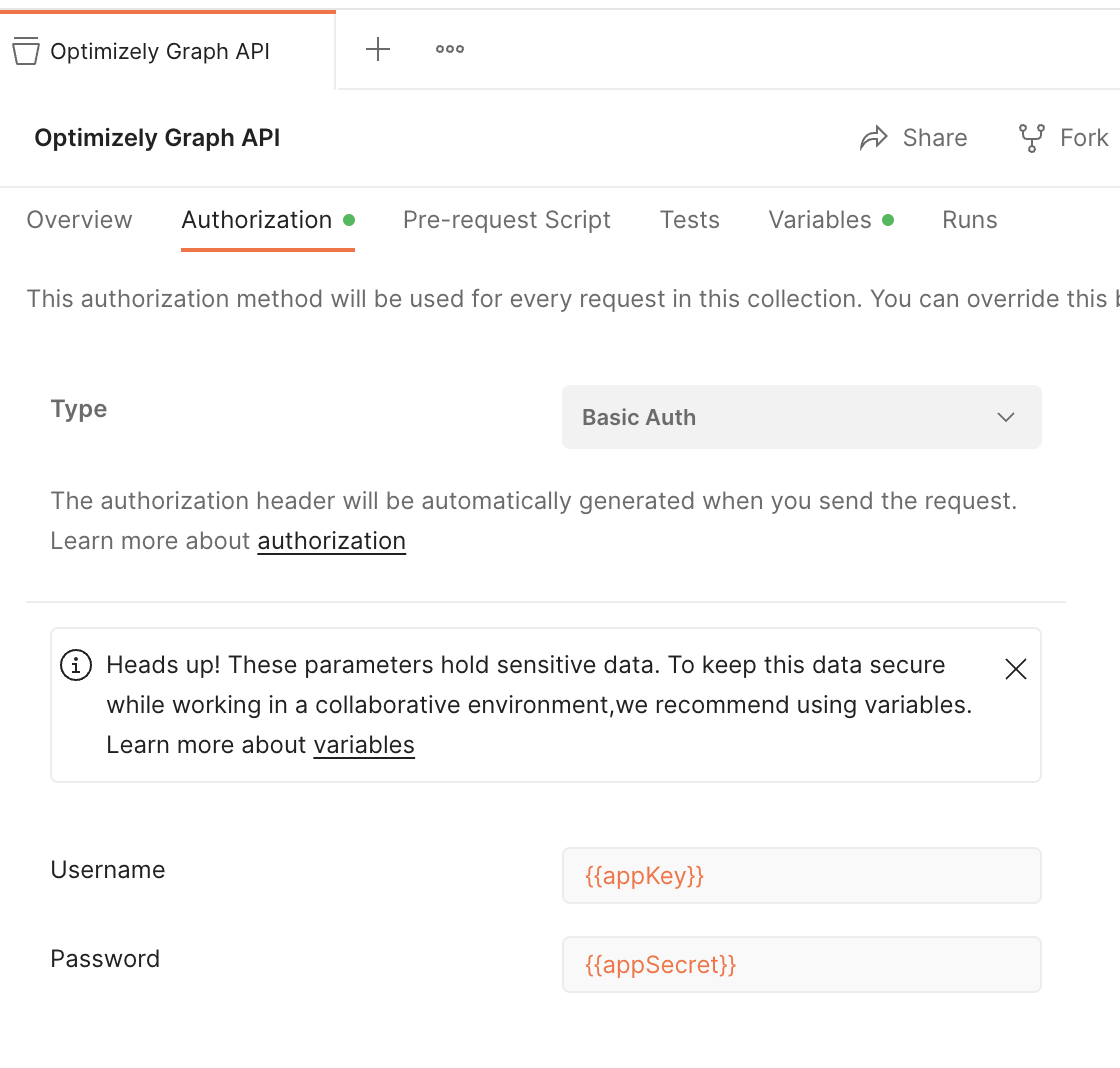
- Configure the Authentication method to
Basic. Enter yourappKeyasUsernameandappSecretasPassword.
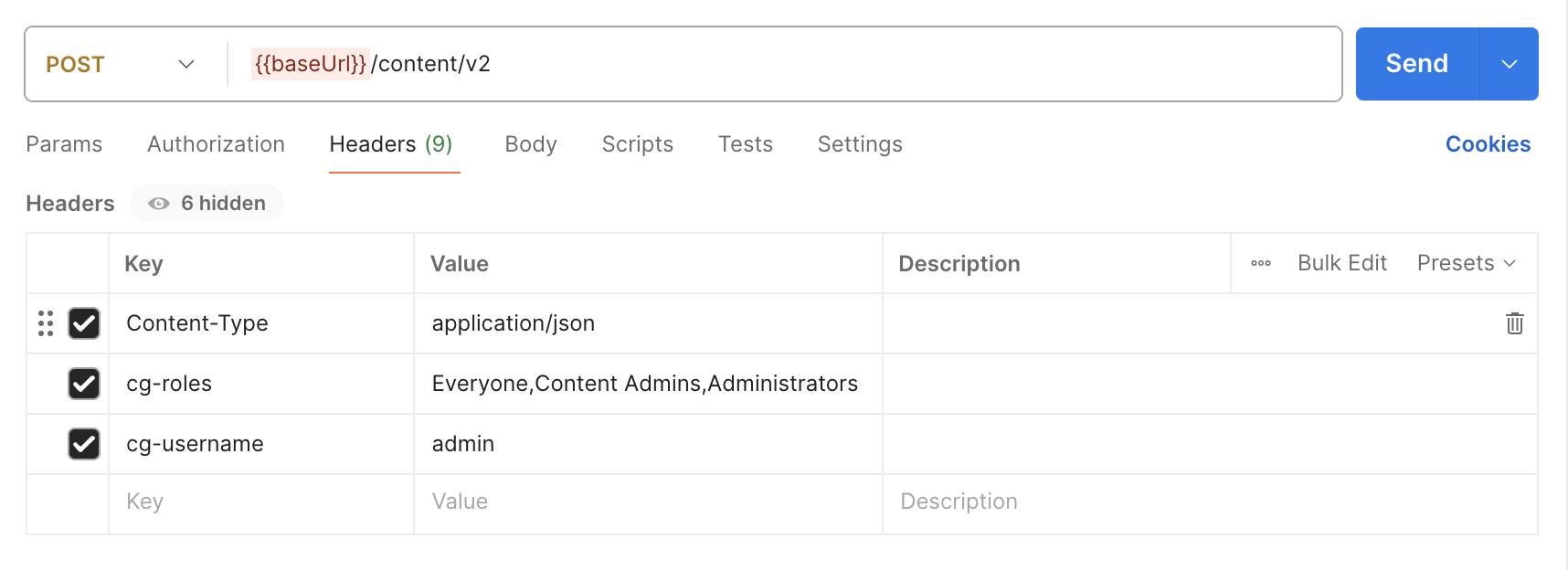
- Query restricted content items with the following headers:
cg-usernameandcg-roles.
Note
- cg-username – Optimizely CMS user.
- cg-roles – Optimizely CMS roles to access specific content items.
Query restricted content over HTTP
Use raw HTTP when you call the Graph endpoint from server code or a scripted client. Send a POST to the Graph content endpoint with a basic-auth header and the cg-roles header that names the CMS roles allowed to read the content.
POST {{graphDomain}}/content/v2
Content-Type: application/json
Authorization: Basic {{graphBase64EncodedToken}}
cg-roles: Administrators
{ "query" :"query { ProductPage { total } }" }
Updated 2 months ago