
Filter content
How to build efficient, filter-driven Optimizely Graph queries using best practices for structure, performance, and content targeting.
Optimizely Graph provides filtering options based on the properties that exist in each content type.
Query structure
Optimizely Graph creates one type in the GraphQL API for each content type in CMS. Configure fields in CMS as filterable, searchable, or output only. Fields that you do not need for filtering or searching should be set to output only for better performance.
Field configuration types
- Filterable – Use in
whereclauses for filtering. - Searchable – Use with text search operators like
matchandcontains. - Output only – Use as read-only fields that you cannot filter or search (improves performance).
The following is a query example that filters articles by name and publish date:
query {
  ArticlePage(
    where: {
      # You must configure these fields as "filterable"
      Name: { eq: "Alloy Saves Bears" }
      StartPublish: { gte: "2024-01-01T00:00:00Z" }
    }
  ) {
    items {
      # These can be "output only" if you do not filter on them
      Name
      TeaserText
      MainBody
      StartPublish
    }
  }
}
Supported filter types and operators
Learn about the available Filter types and operators in Optimizely Graph.
Filter types
Equality filter – Filter based on exact matches. The following example filters articles by exact name:
query {
  ArticlePage(
    where: {
      Name: { eq: "Alloy Saves Bears" }
      # or: neq: "Excluded Article"
    }
  ) {
    items {
      Name
      TeaserText
    }
  }
}
Comparison filter – Filter based on comparisons like greater than or less than. The following example filters articles by a publish date range:
query {
  ArticlePage(
    where: {
      StartPublish: {
        gte: "2024-01-01T00:00:00Z",  # Greater than or equal
        lte: "2024-12-31T23:59:59Z"   # Less than or equal
      }
    }
  ) {
    items {
      Name
      StartPublish
    }
  }
}
String filter – Filter based on string operations. Use the following query to find articles containing a specific word:
query {
  ArticlePage(
    where: {
      Name: { contains: "Alloy" }        # Contains substring
      # or: startsWith: "How to"         # Starts with
      # or: endsWith: "Guide"            # Ends with
      # or: match: "technology"          # Full-text match
    }
  ) {
    items {
      Name
      TeaserText
    }
  }
}
Array filter – Filter based on array values. The following query filters articles by categories:
query {
  ArticlePage(
    where: {
      Categories: {
        in: ["Technology", "Innovation"]  # Match any value in array
      }
    }
  ) {
    items {
      Name
      Categories
    }
  }
}
Complex filter with AND or OR – Combine multiple conditions. The following example queries articles that you published on or after January 1, 2024, and whose name contains "Alloy" or whose teaser text contains "Technology":
query {
  ArticlePage(
    where: {
      _and: [
        { StartPublish: { gte: "2024-01-01T00:00:00Z" } },
        {
          _or: [
            { Name: { contains: "Alloy" } },
            { TeaserText: { contains: "Technology" } }
          ]
        }
      ]
    }
  ) {
    items {
      Name
      TeaserText
      StartPublish
    }
  }
}
Reference type (CMS (SaaS) and CMS13)
Use the Reference type in CMS to reference content in other content types. The following query shows how to reference related content and categories:
query {
  ArticlePage {
    items {
      Name
      TeaserText
      # Reference to related content
      RelatedArticles {
        Name
        RelativePath
        TeaserText
      }
      # Reference to category
      Category {
        Name
        Description
      }
    }
  }
}
Query optimization best practices
Query for specific types
Queries should be small and contain as few types as possible. You should query for a concrete type, an abstract type, or an interface that contains the needed fields. The following example shows a specific query for articles:
# Good - Query specific content type
query GetArticles {
  ArticlePage(limit: 20) {
    items {
      Name
      TeaserText
      StartPublish
    }
  }
}

# Avoid - Generic query with many types
query GetAllContent {
  _Content {  # Too generic, poor performance
    items {
      ... on ArticlePage { Name TeaserText }
      ... on StandardPage { Name MainBody }
      ... on ProductPage { Name TeaserText }
      # ... many more fragments
    }
  }
}
Enable cached templates
Enable cached templates in your queries to get improved results. From the CMS dashboard, do the following:
-
Click GraphiQL.
-
Click Stored Query to enable stored queries.
-
Click Show Flags and enable stored templates.
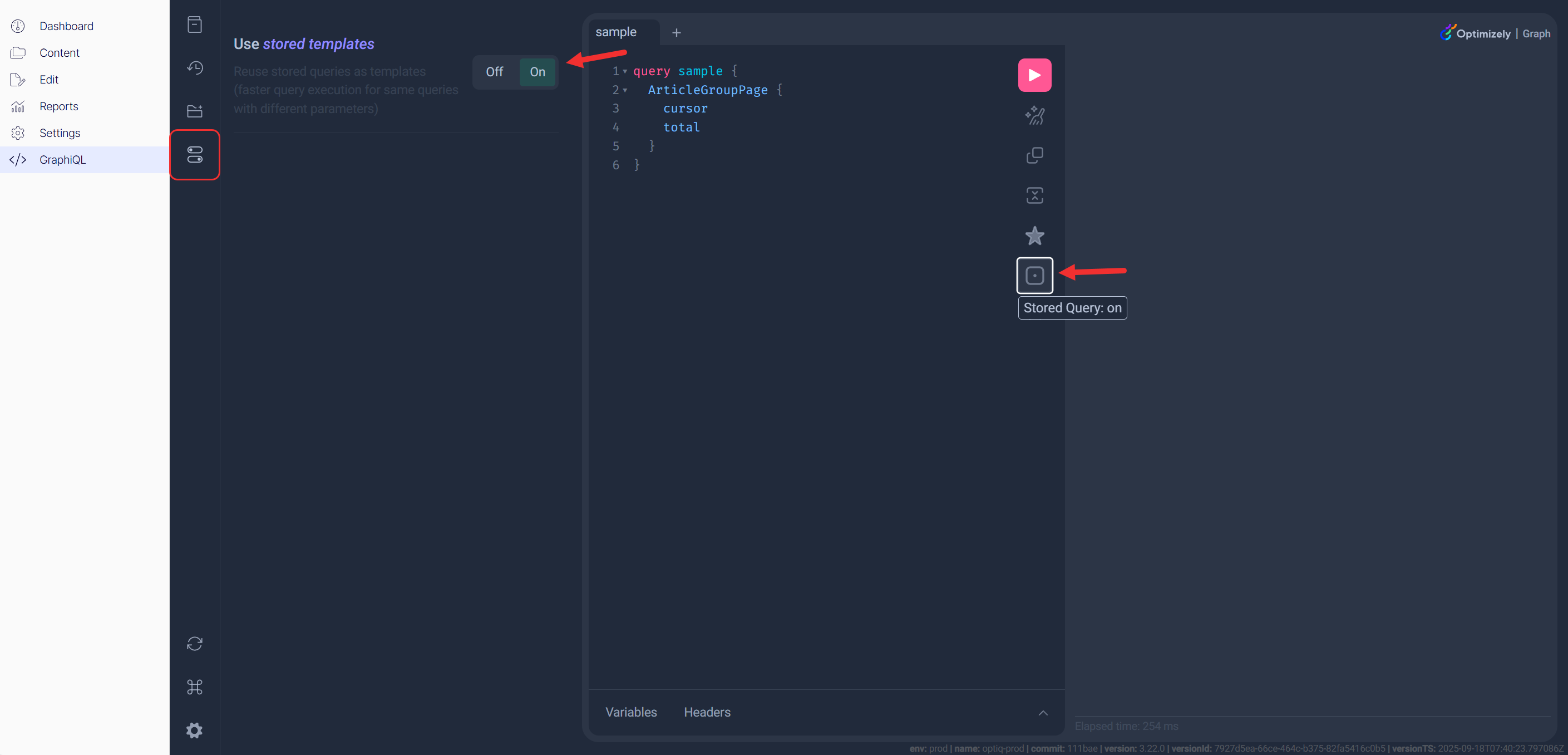
In GraphQL requests, do the following:
- Add the query-string parameter
stored=true. - Set the request header
cg-stored-querytotemplate(for example,cg-stored-query: template).
The following code shows how you can configure an HTTP client to use cached templates:
// HTTP client configuration for cached templates
const client = new ApolloClient({
  uri: 'https://cg.optimizely.com/content/v2?auth=YOUR_KEY&stored=true',
  headers: {
    'cg-stored-query': 'template'  // Enable cached templates
  }
});
Cached templates parameter support
Cached templates only work for the following parameter types:
- Boolean
- [Boolean]
- Date
- [Date]
- DateTime
- [DateTime]
- String
- [String]
- Int
- [Int]
- Float
- [Float]
- Locales (variable name must be locale)
- [Locales] (variable name must be locale)
The following is an example of using cached templates with supported parameter types:
# These parameter types work with cached templates
query CachedQuery(
  $searchTerm: String,          # String
  $tags: [String],              # [String]
  $isPublished: Boolean,        # Boolean
  $publishDate: DateTime,       # DateTime
  $limit: Int,                  # Int
  $locale: [Locales]            # [Locales] (must be named 'locale')
) {
  ArticlePage(
    where: {
      Name: { match: $searchTerm }
      Tags: { in: $tags }
      StartPublish: { gte: $publishDate }
    }
    limit: $limit
    locale: $locale
  ) {
    items {
      Name
      TeaserText
    }
  }
}
Avoid one query for all content types
You should not use one query for all content types. The following is an example of a better approach by using specific queries for each content type:
# Anti-pattern - One massive query for everything
query GetEverything($path: String!) {
  _Content(where: { RelativePath: { eq: $path } }) {
    items {
      ... on ArticlePage {
        Name TeaserText MainBody
      }
      ... on StandardPage {
        Name MainBody MetaTitle MetaDescription
      }
      ... on ProductPage {
        Name TeaserText MainBody
      }
      ... on LandingPage {
        Name HeroTitle HeroImage { Url }
      }
      # ... 20+ more content type fragments
    }
  }
}

# Better - Specific queries for each content type
query GetArticle($path: String!) {
  ArticlePage(where: { RelativePath: { eq: $path } }) {
    item {
      Name
      TeaserText
      MainBody
    }
  }
}

query GetStandardPage($path: String!) {
  StandardPage(where: { RelativePath: { eq: $path } }) {
    item {
      Name
      MainBody
      MetaTitle
    }
  }
}
Content type filter
The following query filters specific content types:
query GetSpecificContentTypes {
  Content(
    where: {
      _typeName: { in: ["ArticlePage", "LandingPage"] }
    }
  ) {
    items {
      Name
      RelativePath
      _typeName
    }
  }
}
Null or empty filters
Use the following query to filter articles with non-null teaser texts:
query GetArticlesWithTeasers {
  ArticlePage(
    where: {
      TeaserText: { neq: null }
    }
  ) {
    items {
      Name
      TeaserText
      RelativePath
    }
  }
}
Range filters
The following query retrieves recent articles based on the start publish date:
query GetRecentArticles {
  ArticlePage(
    where: {
      StartPublish: {
        gte: "2024-01-01T00:00:00Z"
      }
    }
    orderBy: { StartPublish: DESC }
  ) {
    items {
      Name
      TeaserText
      StartPublish
      RelativePath
    }
  }
}
Practical filter examples
Filter by date range with variables
The following example shows how to filter articles by a date range using variables:
query GetArticlesByDateRange($startDate: DateTime!, $endDate: DateTime!) {
  ArticlePage(
    where: {
      StartPublish: {
        gte: $startDate,
        lte: $endDate
      }
    }
    orderBy: { StartPublish: DESC }
  ) {
    items {
      Name
      TeaserText
      StartPublish
      RelativePath
    }
  }
}
Variables:
{
  "startDate": "2024-01-01T00:00:00Z",
  "endDate": "2024-12-31T23:59:59Z"
}
Search and filter combined
The following example combines search and filtering by content type:
query SearchAndFilter($searchTerm: String!, $contentType: String!) {
  Content(
    where: {
      _and: [
        { _fulltext: { match: $searchTerm } },
        { _typeName: { eq: $contentType } }
      ]
    }
    orderBy: { _ranking: RELEVANCE }
  ) {
    items {
      Name
      RelativePath
      _typeName
      _score
    }
  }
}
Filter best practices
- Use specific content types (
ArticlePage) instead of genericContentwhen possible. - Combine filters with
_andand_orfor complex logic. - Use variables for dynamic filtering.
- Index commonly filtered fields for better performance.
- Handle null values explicitly when needed.
Next steps
You now have the skills to filter content effectively. Enhance these abilities with related querying techniques. Begin with Sort results to master ordering your filtered content, or explore Search functionality for text-based content discovery.