
Pinned results in Search Management portal
Manage pinned results in Search Management portal to promote featured content and lock high-priority pages to the top of Optimizely Graph search results for targeted queries.
BetaSearch Management portal is in beta. Access this feature when you have the following:
- Opti ID
- Optimizely Graph instance access
Pinned results (formerly best bets) lock specific content to the top of search results for targeted queries. Use pinned results to promote featured content, surface seasonal products, or display high-priority pages for important queries.
How pinned results work
When a query matches a pinned result, the pinned content displays at the top of search results in the priority order you defined. Users see a consistent, curated experience for the queries you have configured. Learn more about pinned results.
Set up pinned results
The Search Management portal lets content marketers curate pinned results from the portal. Before they can do so, a developer must create a pinned results collection in Optimizely Graph. The search query must then reference that collection ID.
Complete the following setup steps in order.
- Confirm that an administrator has granted Graph access in Admin Center.
- Enable search hit tracking so that performance data displays on the Overview dashboard. Learn more about search and hit tracking
- Create a pinned results collection. For implementation details, see pinned results.
- Query the collection
ID. If your Graph instance contains multiple pinned results collections, the portal uses the first collection the query returns. - Update your search query to include the collection
ID.
After these steps are complete, content marketers can create, update, and delete pinned results from the portal as described in the following sections.
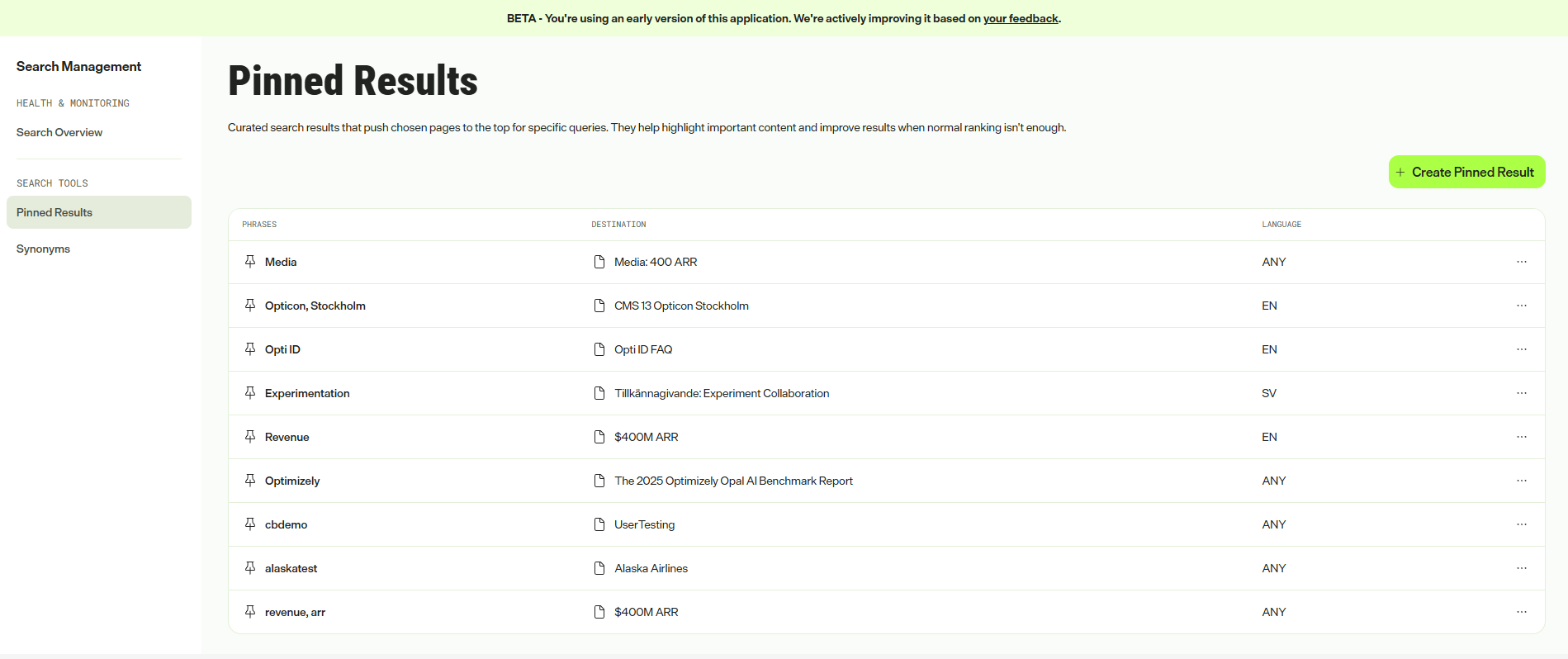
Create a pinned result
- Under Search Tools, click Pinned Results.
- Click + Create Pinned Results.
- Complete the following fields:
- Search Phrases – Enter the queries that trigger this pin, separated by commas.
- Destination – Select the content you want to pin.
- Language – Enter the target language code (for example,
en-US).
- Click Create.
The pinned result takes effect immediately.
Update a pinned result
- Click More options for the pinned result you want to change.
- Click Edit.
- Modify the fields as needed.
- Click Save Changes.
Changes take effect immediately.
Delete a pinned result
WarningDeleting a pinned result cannot be undone.
- Click More options of your desired pinned result.
- Click Remove.
- Confirm the deletion.
Updated 2 months ago