
Development accounts in Search Management portal
Create a development instance in Optimizely Graph to evaluate and test search in an isolated, non-production environment with administrator access.
BetaSearch Management portal is in beta. Access this feature when you have the following:
- Opti ID
- Optimizely Graph instance access
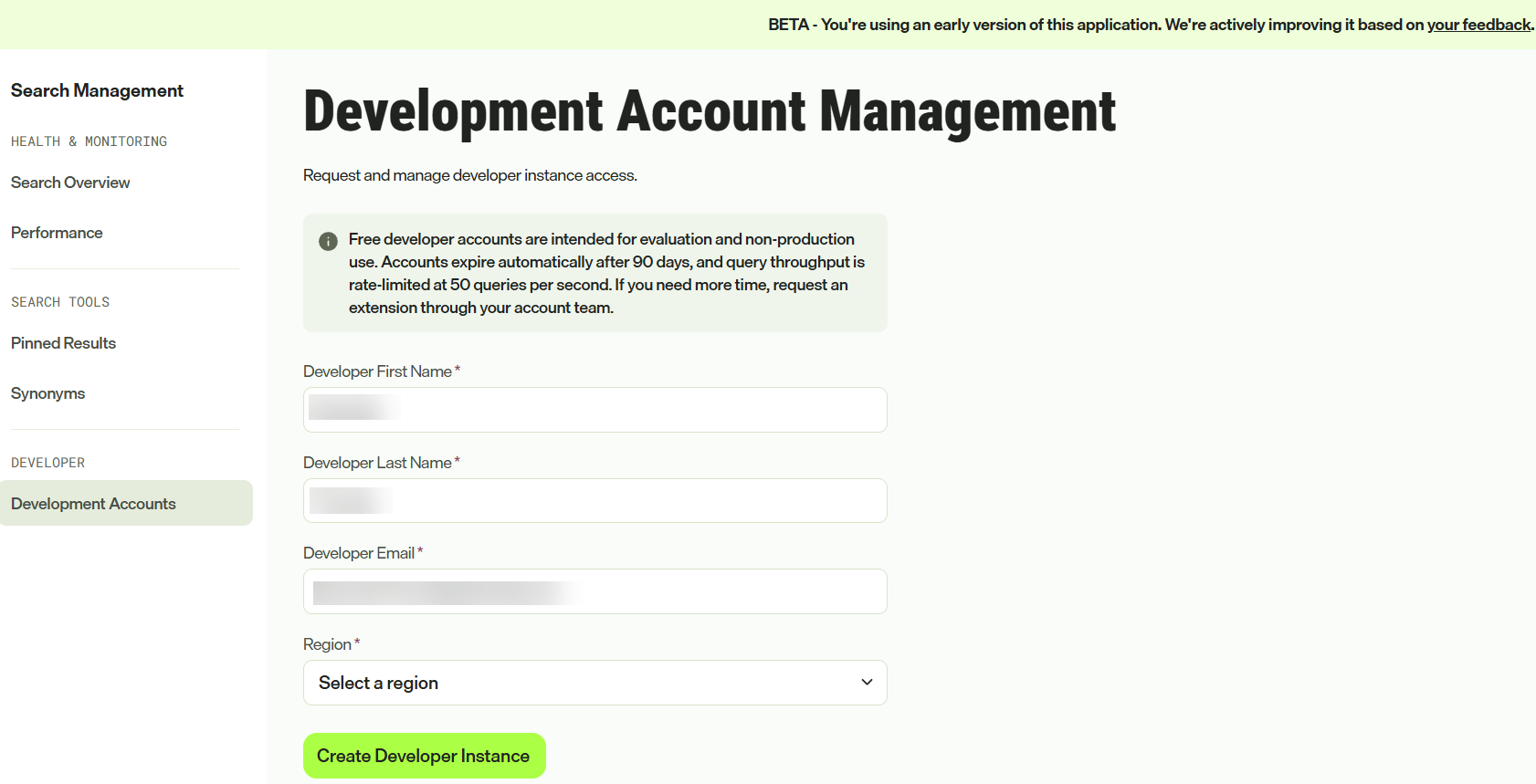
Development accounts give developers an isolated environment to test Optimizely Graph without affecting production systems. This feature is available to existing Optimizely Graph customers who need an additional development instance. To create a development instance, validate queries, prototype an integration, or explore features before you deploy to production, use the Search Management portal. If you are new to Optimizely Graph and want to evaluate it, see Request an Optimizely Graph developer instance for CMS 13.
Development account limits
Development accounts support evaluation and non-production use only. They have the following limits:
- Expiration – Each account expires 90 days after creation.
- Query throughput – Each account supports up to 50 queries per second.
Create a development instance
Complete the following steps to provision a development instance.
-
Under Developer, click Development Accounts.
-
Complete the following required fields:
- Developer First Name – Enter the first name of the developer who uses the instance.
- Developer Last Name – Enter the last name of the developer who uses the instance.
- Developer Email – Enter the email address that receives administrator access to the instance.
- Region – Select the region that hosts the instance.
-
Click Create Developer Instance. The Provisioning Instance window opens.
-
Stay on the page while Optimizely provisions the instance, which takes a few minutes.
-
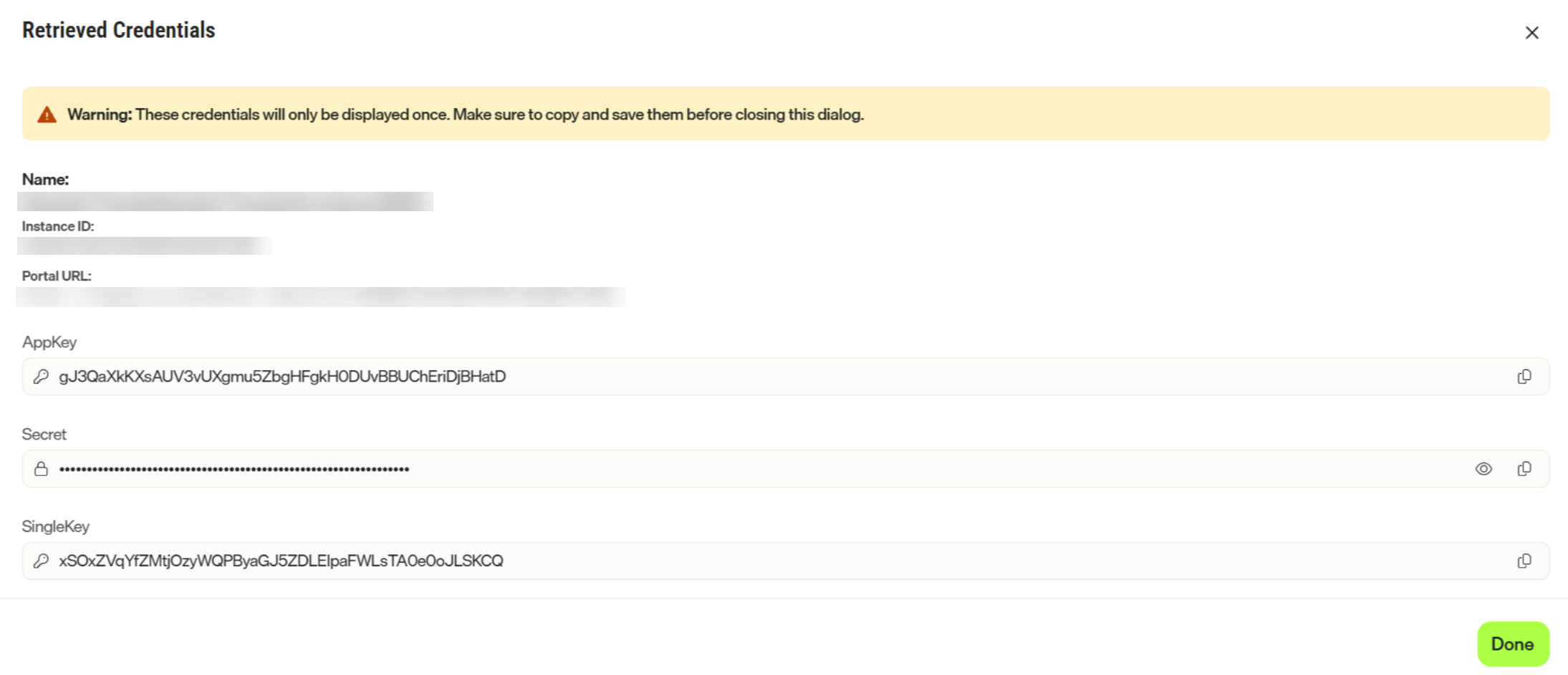
When provisioning finishes, the page displays the following credentials:
-
Instance Name – The display name of the development instance.
-
Instance ID – The unique identifier of the instance.
-
Portal URL – The endpoint URL for the instance.
-
AppKey – The application key that identifies the instance in API requests.
-
Secret – The secret key paired with the AppKey to authorize requests.
-
Single key – The read-only key for client-side query requests.
-
Optimizely provisions the instance and grants administrator access to the developer email you entered.
WarningThe page displays these credentials only once. After you close the page, you cannot retrieve them. Copy and store them in a secure location before you leave the page.
Best practices for development accounts
Follow these practices to get the most from a development account:
- Enter an accurate email – Confirm the developer email is correct so administrator access reaches the right person.
- Match the region to your team – Select the region closest to your team to reduce latency.
- Use non-production data only – Never load production data into a development instance.
Updated 2 months ago