
Build your app
Configure the app manifest, define the settings form, add dependencies, and implement your OCP app logic.
After you register and scaffold your app, you can start building. This section covers the key aspects of app development:
- Settings form – Your app's settings tab lets users configure authentication and preferences. Define the form in
src/forms/settings.yml. See Define the app settings form . - Lifecycle hooks – Respond to install, upgrade, and uninstall events with lifecycle hooks in
Lifecycle.ts. See Lifecycle hooks. - Functions and jobs – Functions handle incoming requests and events. Jobs run background tasks on a schedule or on demand. See Implement app logic.
- Environment variables – Store secrets and configuration in an
.envfile. All variables must use theAPP_ENV_prefix. See Environment variables. - Storage – Persist data between executions using the settings store, key-value store, shared key-value store, or secrets store. See Storage.
Configure the app manifest
The app.yml file defines your app's metadata, jobs, functions, and schema. See App manifest (app.yml) for a full reference of available configuration options.
Understand the app structure
The scaffold generates a standard project layout with source code, schema definitions, and form definitions. See App structure for details on the directory layout and file purposes.
Define the app settings form
OCP apps include a Settings tab that users access after installing the app. Use the Settings tab to define how users connect to and use your app.
OCP apps support several types of authentication, including OAuth, tokens, username and password, and API keys.
The following image shows an example Settings tab for an OCP app:
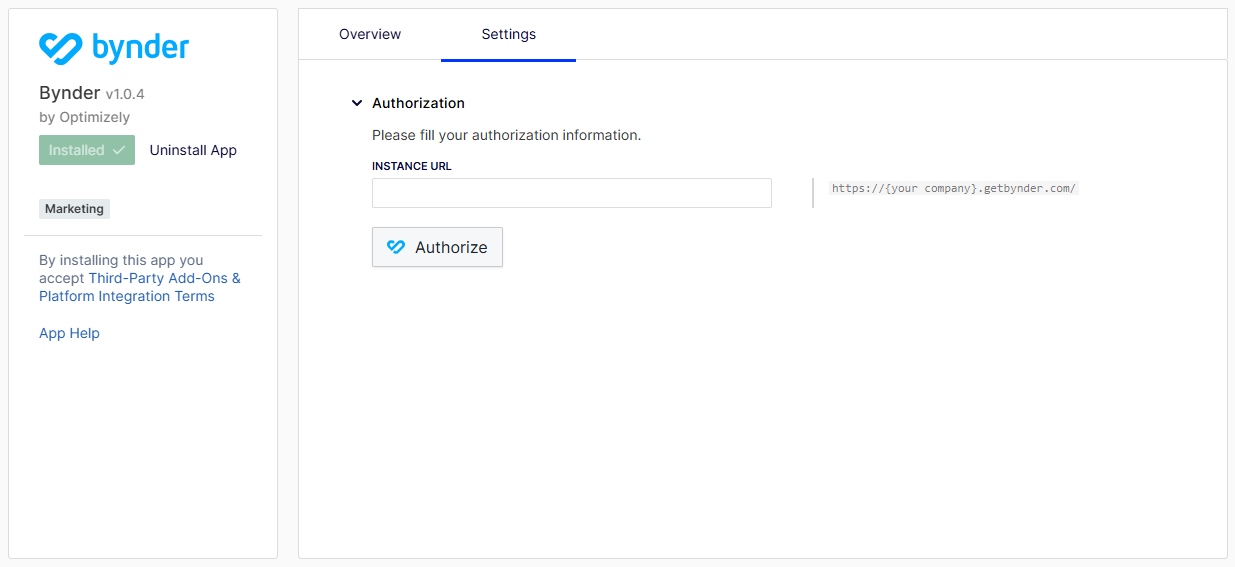
Manage your app settings in the src/forms/settings.yml file, which the scaffolding creates as a placeholder form. Your settings form consists of the following:
-
Sections – Your form supports multiple sections. OCP expands the first section by default, and users can expand subsequent sections. Define all sections in the
src/forms/settings.ymlfile. TheonSettingsFormlifecycle hook processes and validates each section separately. The following example shows a settings form with two sections. The second section displays only after a successful login in the first section.sections: - key: login label: Login properties: - successful elements: - ... - key: lists label: Import Lists visible: key: login.successful equals: true elements: - ... -
Form elements – The different UI elements users interact with in your settings form. See Form elements for available form elements.
Validate your app
Validate your app configuration at any time by running the following command in the OCP CLI:
ocp app validateThis checks your app.yml, schema definitions, and form definitions for errors before you publish.
Run and test locally
Run and test your app locally using the OCP local testing tool:
ocp devThis opens a web interface where you can preview your settings form, test functions, run jobs, and debug issues. See Test your app for details.
Add dependencies
OCP apps have pre-defined dependencies in the package.json file. Add your own dependencies using npm install or yarn add, or by manually editing the package.json file.
For example, to add the axios library for HTTP calls:
npm install axiosIf a dependency is only required at build and test time, add it as a dev dependency:
npm install --save-dev mocha
NoteOCP app templates include Vitest by default for testing.
For dependencies without types, add TypeScript type definitions to your dev dependencies.
NoteAdd any dependency available in the public NPM repository. OCP does not support dependencies in private repositories. They can work locally, but the build fails when you push your app to OCP.
Implement app logic
Use the OCP App SDK to implement your app's core functionality:
- Functions – Handle incoming requests and events.
- Jobs – Run background tasks on a schedule or on demand.
- Lifecycle hooks – Respond to install, upgrade, and uninstall events.
- Storage – Persist data between function and job executions.
- OAuth – Authenticate with external services.
- Data sync sources – Provide data to the Sync Manager from an external system.
- Data sync destinations – Receive data from the Sync Manager and send it to an external system.
- Opal tools – Extend the Opal AI assistant with custom tool capabilities.
- (Beta) CMS UI extensions – Contribute your UI into the Optimizely Content Management System (CMS), backed by an OCP function. Supported surfaces are the content editor side panel,
sidebarand a full page,view. More panel types and custom field editors are planned for the future.
Use your preferred IDE or code editor to write your app's source code. OCP apps are TypeScript projects, so any editor with TypeScript support works.
Updated 12 days ago